

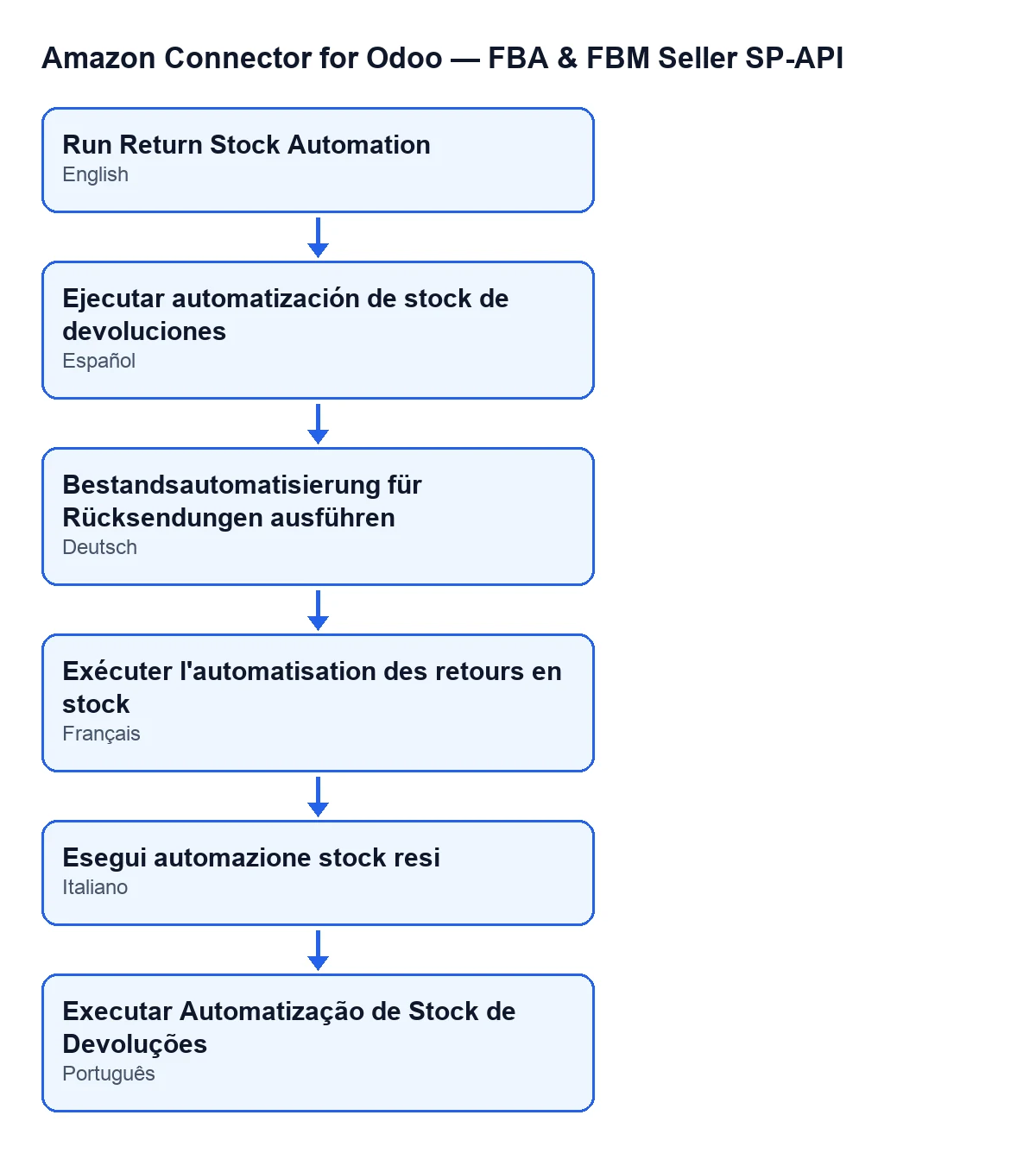
 Español
 Català
 Deutsch
 Français
 Português
 Italiano
 Nederlands
 Polski
Where the button is and who can press it
Account records open from the menu Amazon › Configuration › Accounts. Each step asks for a permission: Amazon asks for Viewer, and Configuration and Accounts ask for Manager. If you lack the permission for a step, you do not see that step.
The Run Return Stock Automation button is on the Accounts screen, and its view puts no condition on it: it always shows, in Odoo 17, 18, 19 and 20.
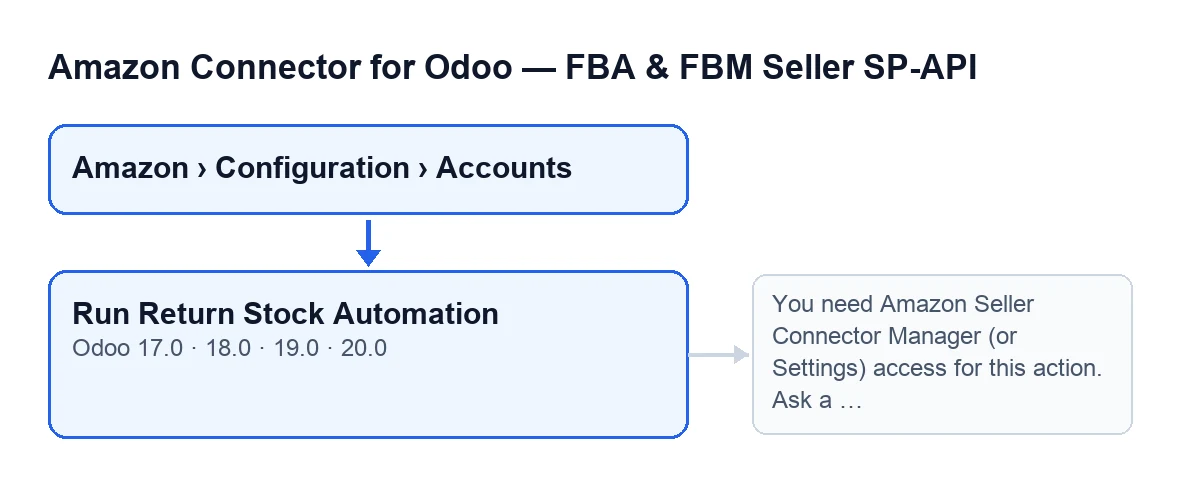
Seeing the button is not enough to run it. When you press it, the first thing the module does is check your access. If you belong neither to the Amazon connector Manager group nor to the Settings group, the action stops with this message: You need Amazon Seller Connector Manager (or Settings) access for this action. Ask a manager to grant Manager access. If you do have one of those groups, the module also checks that you can write to that account; if you cannot, the action stops as well. Either way it happens before anything starts, so no return is evaluated.

What Odoo does on its own before you press anything
The button is not the usual route: the same stock automation runs without anyone launching it. A few checkboxes on the Accounts record, Returns & Reviews tab, decide this:
Returns: auto-receive to stock, in the groupReturn Stock Automation (ON by default). It is ticked by default. Its help text reads: «Automatically creates and validates return pickings in Odoo for finalized Amazon returns.»Enable returns sync, in the groupReturns Import. It is also ticked by default.Auto-create credit notes (opt-in). It is unticked by default. It is a separate automation: the button only goes through the stock part.
With those values, two scheduled tasks work, both active on installation:
Amazon SP-API - Sync returns, every 3 hours. After importing the returns report, if the receive-to-stock checkbox is ticked, it launches the stock automation on the lines it has just imported (if the import returns none, on the account's pending lines).Amazon SP-API - Auto receive returns to stock, every 15 minutes. This task reaches the automation by both routes: it also goes through the returns sync and, in addition, for accounts with returns sync switched off and receiving to stock switched on, it runs the automation on the account without posting the summary on its record.
The button differs in three ways: you launch it, now; it passes no list of lines (it looks at the account's pending lines, up to the per-run maximum); and if the run is interrupted by an error, you see it on screen. Lines whose attempt ends neither as done nor as skipped are counted under With error.
A case: seeing the result without waiting for the task
Example Illustrative case: the company and its figures are made up to explain the flow.
Menaje Ribera is an invented shop that sells on Amazon and runs its back office in Odoo. Marta, who has Manager permission, wants to check that Amazon returns are already reaching stock, without waiting for the next pass of the scheduled tasks.
She goes to Amazon › Configuration › Accounts, opens the account record and checks on the Returns & Reviews tab that Returns: auto-receive to stock is ticked. She presses Run Return Stock Automation. When it finishes, a summary appears in the account's message history (chatter) with the account, the origin of the run and the counters Lines evaluated: …, Receipts done: …, Skipped: … and With error: ….
Marta reads that summary as a balance of the pass: how many lines were looked at, how many were received and how many were skipped or ended with an error.
What it checks and what it changes, in code order
- Access. It checks that you belong to the Amazon connector Manager group or the Settings group and, after that, that you can write to the account. If either fails, it stops without touching anything.
- Summary header. For each account it prepares a text that starts with
Auto stock returns execution finished., followed byAccount: …andSource: …, which here shows that the run is manual and not from the scheduled task. - The checkbox. If
Returns: auto-receive to stockis unticked, it addsAuto stock returns is disabled in account settings., records the result, posts it on the account and ends without touching any line. - Which lines it looks at. If it is ticked, it searches for the account's return lines whose stock sync is not shown as finished. When the run comes from an import that returns lines, it is limited to them; the button passes no list. It orders them from the most recent return request date to the oldest and keeps a maximum per run: 300 if no limit is defined.
- Line by line. For each one it tries to receive it into stock, without forcing anything. If the outcome is that it was done, it adds to
Receipts done; if it was skipped, toSkipped; any other outcome counts asWith error. - Closing. It adds the four counters to the summary, saves the text as the run's status and posts it in the account's history.
Which errors you may see and what to do
- The access message (
You need Amazon Seller Connector Manager (or Settings) access for this action. Ask a manager to grant Manager access.): it appears when you press the button without being in the Manager group or the Settings group. Ask a manager to give you that access, as the message itself says. - No write permission on the account: even with one of those groups, the module then checks that you can write to that account and, if you cannot, the action stops as well. Review your permissions on the account with whoever administers Odoo.
- A run interrupted by an error: the module adds an
Error: …line to the summary, records it and posts it on the account. Because you launched the action by hand, the error is also raised again and you see it on screen. In automatic runs it is not raised again: the summary is recorded. - Lines with another outcome: when a line's attempt returns neither «done» nor «skipped», it is added to the
With errorcounter in the summary. - Unticked checkbox: this is not a failure, but the button then does nothing beyond leaving the note that the automation is disabled.
What to take from the case
- The button is a manual launcher for something Odoo already runs on its own with the default checkboxes.
- Before pressing it, look at the checkbox on the
Returns & Reviewstab. - The summary in the account's history is your result: lines evaluated, receipts done, skipped and with error.
- With insufficient permissions nothing is evaluated.
What you need and how FlexigoTech can help
The module needs the FlexigoTech Cloud subscription, Connector plan: €49 a month or €490 a year, excluding VAT. It is published on Odoo Apps for Odoo 17, 18, 19 and 20; see the Odoo Apps listing or the module page to buy it.
FlexigoTech implements Odoo 17, 18, 19 and 20 and builds connectors and custom integrations. If you want to review how Amazon returns reach your warehouse in Odoo, get in touch.
Keep reading
Checked in the connector's source code (version 20.0) and the linked sources
Sources
- Module source code: flexigobe_amazon_seller_connector 20.0 (8576afa5): views/amazon_spapi_account_views.xml
- Module source code: flexigobe_amazon_seller_connector 20.0 (8576afa5): models/amazon_spapi_account.py
- apps.odoo.com/apps/modules/20.0/flexigobe_amazon_seller_connector
- flexigotech.com/en/services.html
- flexigotech.com/precios.html