

 Español
 Català
 Deutsch
 Français
 Português
 Italiano
 Nederlands
 Polski
When the code raises this message
In the Odoo 20 code, the method that prepares the schema of a product type starts by reading the Amazon Product Type field of the listing and stripping its spaces. If what is left is empty, it raises Choose the Amazon product type first (button "Suggest type").
It is the first thing that method does: the check happens before the saved schema is looked up and before Amazon is asked anything. When the message is raised, the action that called the method stops. The message is in the published code for Odoo 17, 18, 19 and 20.
The key is the detail about spaces: the code does not simply check whether the field is blank, but whether any value remains once the spaces are removed. That is why the case that leads to the message is a field that contains only spaces.

Which buttons can trigger it
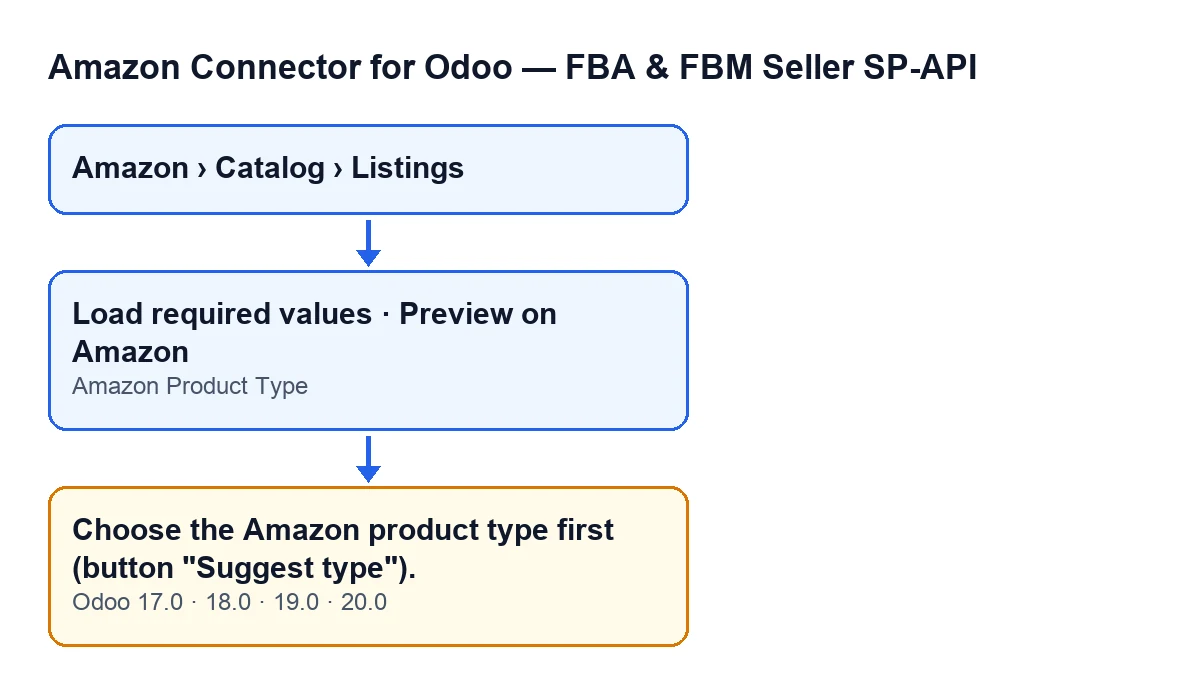
It can appear when you press Load required values or Preview on Amazon on the listing form. Both buttons reach the same method, which raises the message if the field, once its spaces are removed, has no value.
In Odoo 17, 18, 19 and 20, the view hides those two buttons when the Asin field has a value or when the Amazon Product Type field is empty. With the default values the field is empty, so the buttons are not shown until the field has something typed in it and Asin has no value.
That explains why the message does not appear with a blank field: with an empty field the buttons are not shown, so there is nothing to press. To reach the message, the buttons must be visible and the value of the field, without spaces, must be empty.
Checklist
Before pressing the button
- Open the form from the menu
Amazon › Catalog › Listings. Each part of the menu (Amazon,CatalogandListings) requires theViewerpermission: if you lack one, you do not see that part. - Find the
Amazon Product Typefield: it is on the form, in theOverviewgroup, and also in theCatalogtab,Catalog Statusgroup. Its help text reads:Required by Listings Items PATCH/PUT. - Check that the field contains an Amazon product type typed in, not just spaces.
- If you cannot see
Load required valuesorPreview on Amazon, check two things: thatAmazon Product Typeis not empty and thatAsinhas no value. Either condition makes the view hide the buttons.
When the message appears
- Note which button you pressed:
Load required valuesorPreview on Amazon. Both lead to the same place, so the fix is the same. - Go back to the
Amazon Product Typefield on the form and see whether it contains only spaces instead of a product type. That is the condition the code looks at to raise this message. - Delete the spaces and type the Amazon product type that applies into the field.
- Press the button you were using again.
After fixing it
- Check that the message no longer appears when you repeat the action.
- Keep in mind what the code does next: with the product type filled in, it looks for the schema saved for that account, that marketplace, that type, the requirements mode, the language and the parentage level.
- If it has a saved schema fetched within the allowed period, it uses it. If not, it asks Amazon. According to the code, that happens at most once every seven days for each combination of those values, for as long as the link Amazon gives lasts.
- If you are going to use the preview, read the article linked above to see what the button does once this check is passed.
What happens when the field does have a value
Once the check is passed, the method carries on with the schema of the product type. To request it, it uses the listing's account, its marketplace, the product type and the requirements mode. If the listing has no requirements mode, the code uses the LISTING mode.
It also picks a language: the user's own, if it is one the module supports, and otherwise a default one. That is why the schema is saved separately for each language.
In addition, if the listing has a variation theme filled in, the code asks for the schema with parentage level CHILD; if not, it uses the level given by the module's base model.
Quick questions
Does it appear the same way in every version?
The message is in the published code for Odoo 17, 18, 19 and 20, and in all of them the view hides the buttons under the same conditions (Asin with a value or Amazon Product Type empty).
The message text at a glance
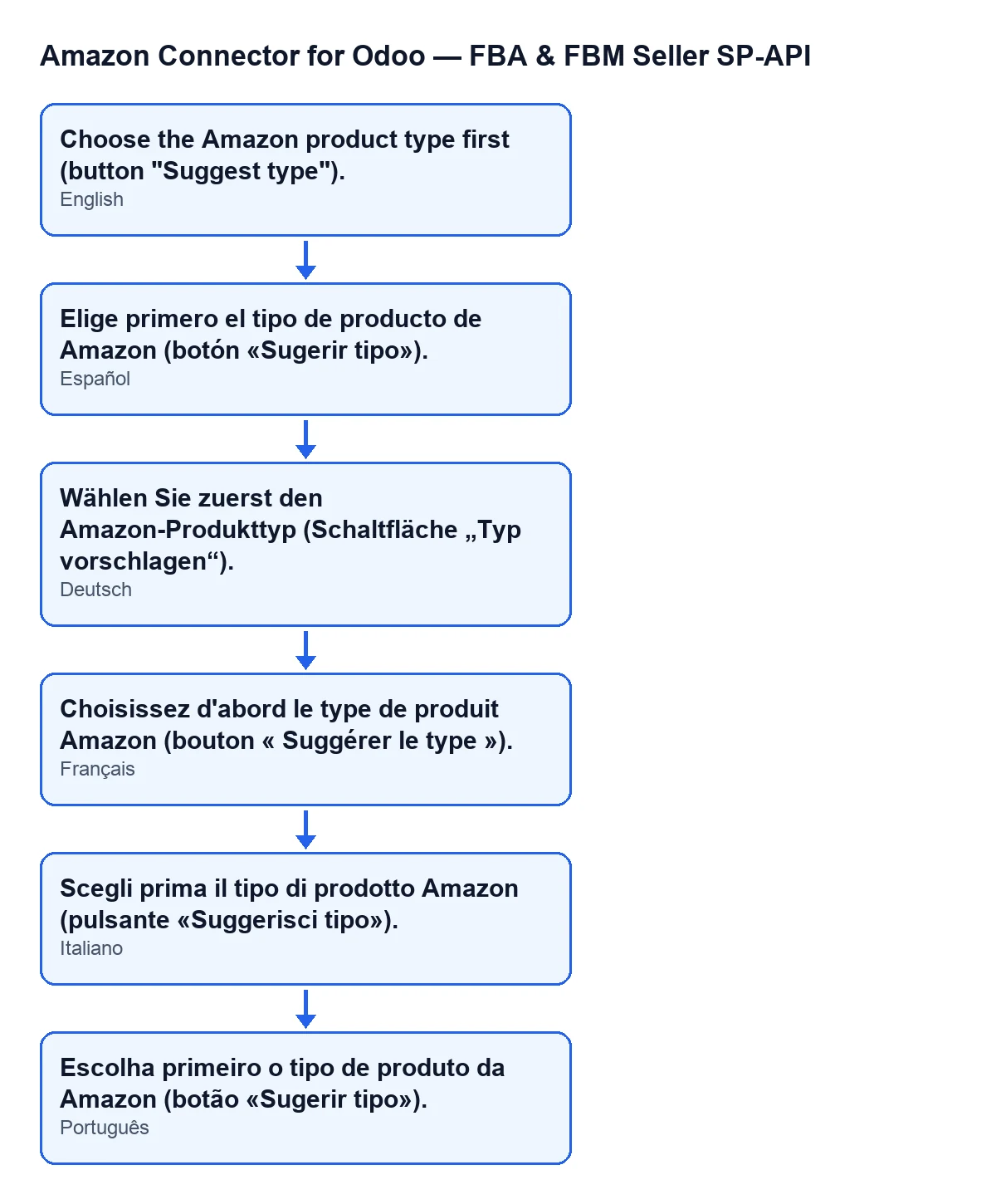
With Odoo in English, the message you will see is Choose the Amazon product type first (button "Suggest type"). The diagram below gathers that text together with the ones the module publishes in other languages.
How FlexigoTech can help
If you are implementing Odoo and want your Amazon catalogue properly prepared before publishing, FlexigoTech implements Odoo 17, 18, 19 and 20 and builds custom connectors and integrations. The module is published on Odoo Apps for those versions: you can find the Odoo Apps listing and the module page on flexigotech.com.
Keep reading
Checked in the connector's source code (version 20.0) and the linked sources
Sources
- Module source code: flexigobe_amazon_seller_connector 20.0 (8576afa5): models/amazon_spapi_new_product.py
- Module source code: flexigobe_amazon_seller_connector 20.0 (8576afa5): views/amazon_spapi_new_product_views.xml
- Module source code: flexigobe_amazon_seller_connector 20.0 (8576afa5): models/amazon_spapi_product_binding.py
- apps.odoo.com/apps/modules/20.0/flexigobe_amazon_seller_connector
- flexigotech.com/en/services.html