

 Español
 Català
 Deutsch
 Français
 Português
 Italiano
 Nederlands
 Polski
What Odoo already does without you pressing anything
The scheduled task Amazon SP-API - Messaging context refresh runs every 30 minutes and is active as soon as the module is installed. On each pass it takes active messaging threads that are open or notified and unresolved, and refreshes the order context of each one. It only refreshes the available actions if the thread's account has the Auto-refresh SP-API actions box ticked, which is unticked by default.
Among the differences from the button are these:
- The task does not check whether the account has messaging switched on.
- It does not use the account's refresh limit: the task's code carries its own default limit of 200 threads per pass.
- It always refreshes the order context: it does not look at the
Auto-refresh order contextbox. - It works thread by thread: it commits the changes after each thread and, if one fails, rolls back only that one and carries on with the next.
- It leaves out paused accounts, meaning hub-connected accounts routed through FlexigoTech Cloud while the connector has no service in your database. Without a subscription, or with the service suspended, whatever the subscription provides stops; your data stays in your Odoo. The button's code does not apply that filter.

Step by step: when and how to press the button
- Decide whether you need it. The normal route is the scheduled task above; the button is for launching the update right now.
- Go to
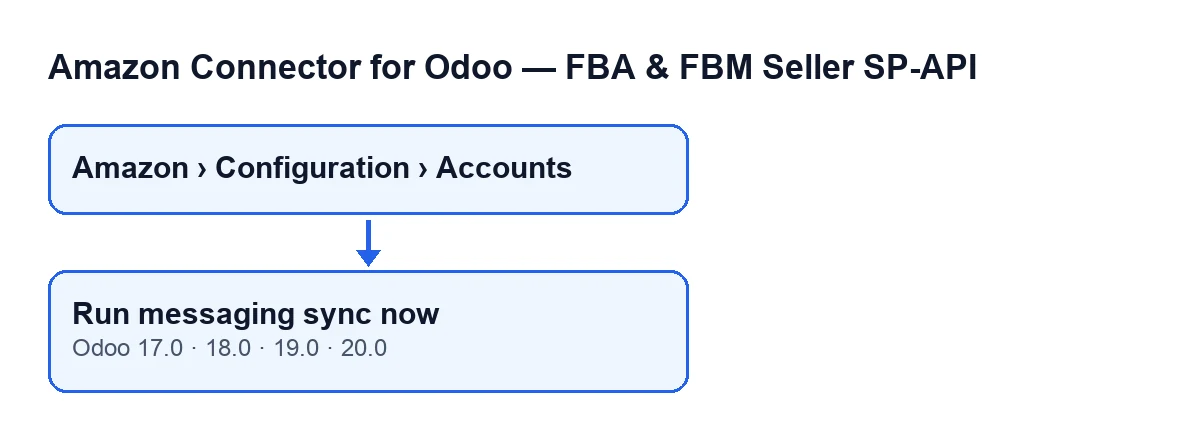
Amazon › Configuration › Accounts. Each stage of the menu asks for a permission and, if you lack it, you do not see that stage:Amazonasks forViewer,Configurationasks forManager, andAccountsalso asks forManager. - Open the
Messagingtab. In theAmazon messaging channel settingsgroup are the two boxes that decide what the button refreshes:Auto-refresh order context, ticked by default, andAuto-refresh SP-API actions, unticked by default. The account's threads are in theRecent threadsgroup. - Press
Run messaging sync now. On theAccountsscreen it is always visible, in Odoo 17, 18, 19 and 20: no view condition hides it. - Check the affected threads and confirm that what the section ‘What changes on each thread’ describes has been updated.
With Odoo in English the button reads Run messaging sync now; in Spanish, Run messaging sync now; in German, Nachrichtensynchronisierung jetzt ausführen; in French, Exécuter la synchronisation des messages maintenant; in Italian, Esegui ora la sincronizzazione messaggi; and in Portuguese, Executar sincronização de mensagens agora.
What the button checks, and in what order
The button goes through each account it is run on and does the following:
- If the account does not have messaging switched on, it skips it: nothing is refreshed and its last-run date is left alone.
- It picks the account's threads that are active and open or notified and unresolved, up to the account's refresh limit (and at least one thread).
- For each chosen thread, if
Auto-refresh order contextis ticked it refreshes the order context; then, ifAuto-refresh SP-API actionsis ticked, it refreshes the available actions. - It counts one processed thread for every thread chosen, whether or not any box is ticked. With both boxes unticked the button refreshes no thread data and only notes the run.
- When it finishes, it stores on the account the date and time of the run and a result with the number of threads processed.
What changes on each thread
Both refreshes skip the thread if it has no account or no Amazon order identifier (it still counts as processed in the button's result).
Order context
It looks up the order using the thread's Amazon order identifier and stores on the thread what comes back. It uses the sales order the thread already had or, if it has none, another one that the module looks for; if it finds no delivery, it keeps the thread's delivery that is not cancelled. Then it writes on the thread:
- the order status from Amazon's response and the purchase, latest ship and latest delivery dates;
- the carrier and tracking number of the chosen delivery (empty if there is no delivery);
- the product, its title, the quantity and the image from the first sales order line that has a product (with no sales order, it keeps the values it already had);
- the thread's product ASIN, which is left empty.
Available actions
It queries the actions available for that order using the thread's marketplace or, if it has none, the account's, and stores the result and the date and time of that sync.
If something fails
Unlike the scheduled task, which isolates each thread with its own error handling, the button does not handle errors thread by thread.
If you see no changes after pressing the button, check in order: that the account has messaging switched on, that there are active threads that are open or notified and unresolved, that at least one of the two boxes is ticked, and that the threads have an Amazon order identifier.
How FlexigoTech can help
If you are implementing Odoo and want to review how Amazon messaging sits with your orders and deliveries, FlexigoTech implements Odoo 17, 18, 19 and 20 and builds connectors and custom integrations. The module is published for Odoo 17, 18, 19 and 20; it is a one-off payment per version and needs the FlexigoTech Cloud subscription, Connector plan: €49/month or €490/year excluding VAT, up to 3 platform accounts. With the subscription, the module for newer Odoo versions is included if you bought it on flexigotech.com; on the Odoo App Store, each version is bought there. Details are on the module page and its Odoo Apps listing.
Keep reading
Checked in the connector's source code (version 20.0) and the linked sources
Sources
- Module source code: flexigobe_amazon_seller_connector 20.0 (8576afa5): views/amazon_spapi_account_messaging_views.xml
- Module source code: flexigobe_amazon_seller_connector 20.0 (8576afa5): models/amazon_spapi_account_messaging.py
- Module source code: flexigobe_amazon_seller_connector 20.0 (8576afa5): models/amazon_spapi_message_thread.py
- Module source code: flexigobe_amazon_seller_connector 20.0 (8576afa5): models/amazon_spapi_account.py
- apps.odoo.com/apps/modules/20.0/flexigobe_amazon_seller_connector
- flexigotech.com/en/services.html
- flexigotech.com/precios.html