

 Español
 Català
 Deutsch
 Français
 Português
 Italiano
 Nederlands
 Polski
This button lives on the Send to Amazon plan form and does one thing: it writes the source contact and address details into the plan.
Before you press: where it is and who sees it
- Open the menu
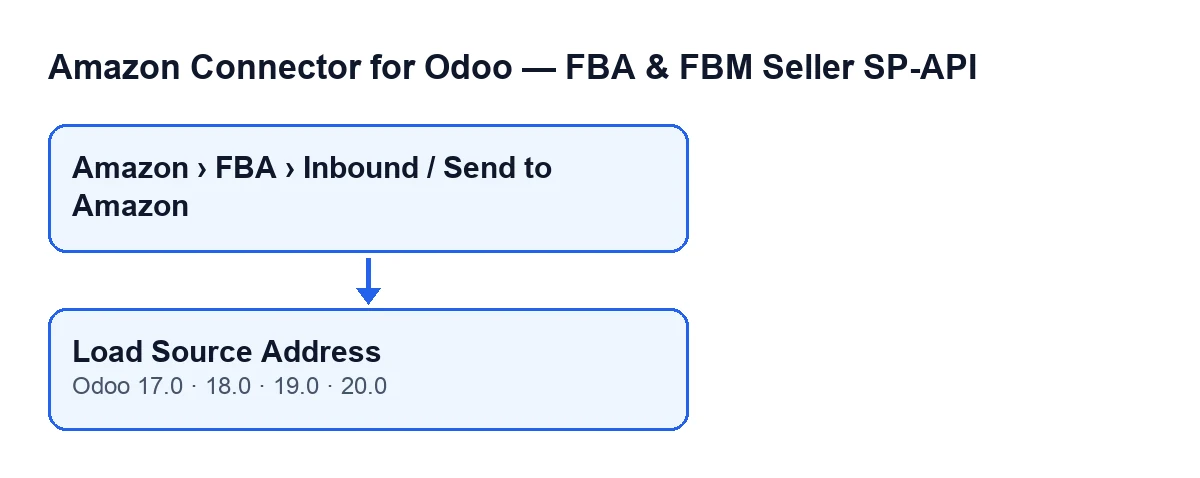
Amazon › FBA › Inbound / Send to Amazonand go into the form of a plan. Each part of the menu needs theViewerpermission: if you lack one of them, you do not see that part.
- Identify the plan by its
Name. It shows on the form and also in theSend to Amazonlist.
- Look at the plan's
Company. It shows on the form, read-only. The button falls back on it when the source warehouse has no contact and to replace some empty names.
- Check the version. The module is published on Odoo Apps for Odoo 17, 18, 19 and 20, and the button exists in all of those branches.

When the button appears
- Look for
Load Source Addresson the plan form. With default values it is visible.
- If you cannot find it, check the plan's
State. The button hides whenStateno longer has its default value. The condition is the same in Odoo 17, 18, 19 and 20.
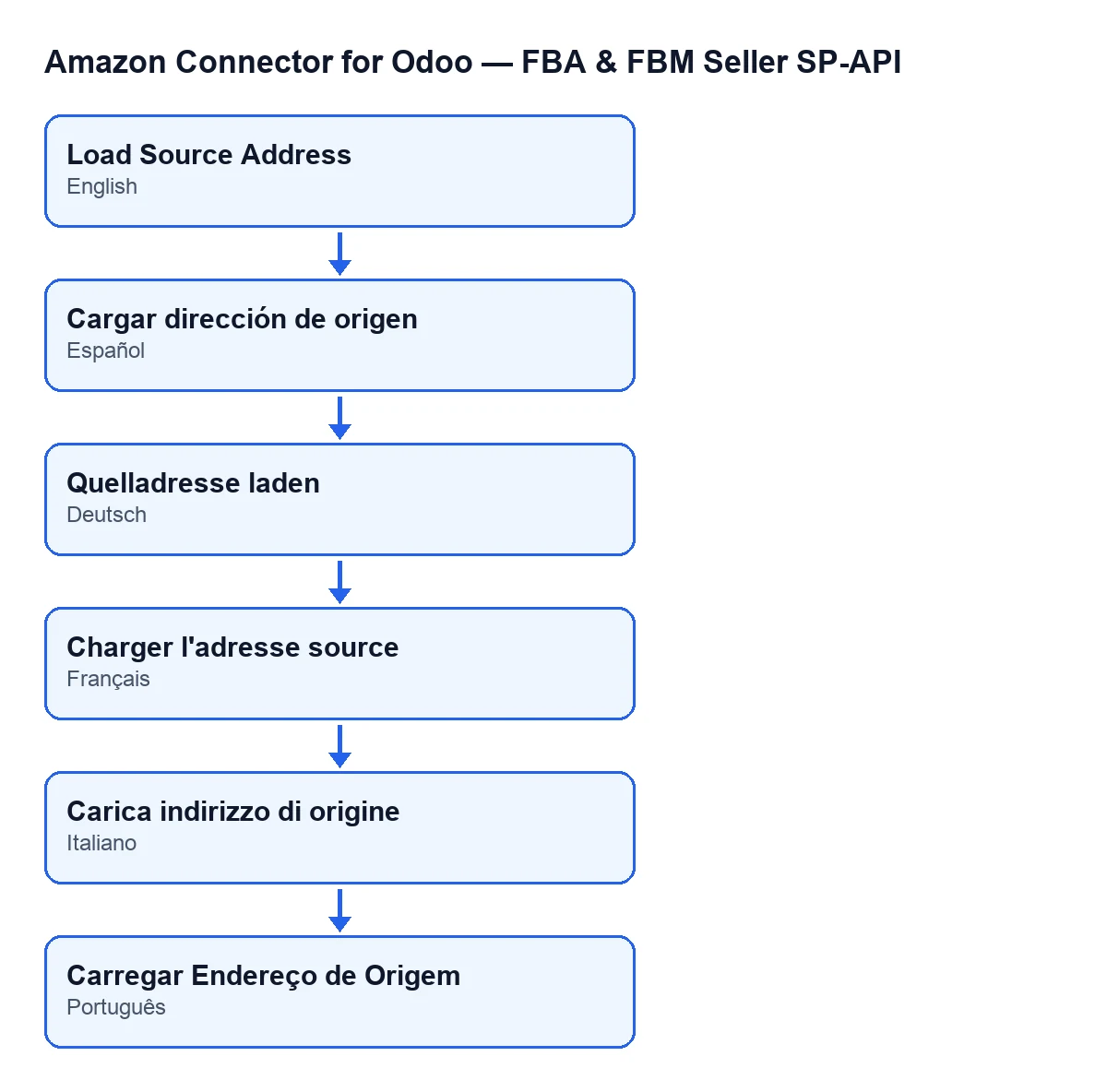
- If you work with Odoo in another language, the button label changes with it. The diagram below shows the text in Spanish, German, French, Italian and Portuguese.
Where the button gets its data
Before writing anything, the button decides which contact to use. This is what the code does, in this order:
- It starts from the plan's source location and looks for a warehouse linked to it. If there is one and that warehouse has a contact, it uses that contact.
- If there is no warehouse, or the warehouse has no contact, it uses the contact of the plan's
Company.
- Bear in mind that the data comes from the chosen contact, not from the button: if something is not what you expected, look at that contact's form.
What to review on the contact before pressing
The button reads these details from the chosen contact, so it helps to have them complete before loading them:
- The contact's name and, if it has one, the commercial name of its company.
- Street and the second street line.
- City, postal code and country.
- State or province, with its code if it has one.
- Phone or mobile, and email.
What it writes into the plan
The button fills in the source details on the plan. Each detail has its own fallback rule:
- Contact name: the contact's name. If that is empty, the name of the plan's
Company.
- Source company name: the commercial company name of the contact; if there is none, the contact's name; and if that is empty too, the name of the plan's
Company.
- Address: the street goes in the first line and the second street line in the second.
- City, postal code and country code, copied as they are from the contact (the country code is that of the contact's country).
- District or county: the name of the contact's state or province. For the state or province code it uses that state's code and, if it has none, its name.
- Phone: the contact's phone or, if that is empty, their mobile.
- Email: the contact's email.
After pressing: what to check
- Review the data now on the plan. Anything the contact lacks (street, city, email and so on) is written as empty; what was there before is not kept.
- Remember that the button overwrites. If you had typed any source detail by hand on the plan, the load replaces it with the contact's.
- If something is missing, complete the contact's form (warehouse or company, as above) and press the button again while it is still visible.
- If the plan's
Statechanges, the button disappears from the form and you can no longer run the load from there.
What you need to use it, and how we help
The module is a one-off payment per version and needs the FlexigoTech Cloud subscription on the Connector plan: €49 per month or €490 per year, excluding VAT (the Pro plan is €98 per month or €980 per year, excluding VAT). The connection goes through FlexigoTech Cloud, which stores the credentials encrypted and emails you if synchronisation fails. Without a subscription, or with the service suspended, whatever the subscription provides stops; your data stays in your Odoo. You have the Odoo Apps page and the module page on flexigotech.com.
If you are implementing Odoo and want contacts and warehouses properly prepared before sending stock to Amazon, FlexigoTech implements Odoo 17, 18, 19 and 20 and builds custom connectors and integrations.
Keep reading
Checked in the connector's source code (version 20.0) and the linked sources
Sources
- Module source code: flexigobe_amazon_seller_connector 20.0 (8576afa5): views/amazon_spapi_inbound_plan_views.xml
- Module source code: flexigobe_amazon_seller_connector 20.0 (8576afa5): models/amazon_spapi_inbound_plan.py
- apps.odoo.com/apps/modules/20.0/flexigobe_amazon_seller_connector
- flexigotech.com/precios.html
- flexigotech.com/en/services.html