

 Español
 Català
 Deutsch
 Français
 Português
 Italiano
 Nederlands
 Polski
Where the button is and when you see it
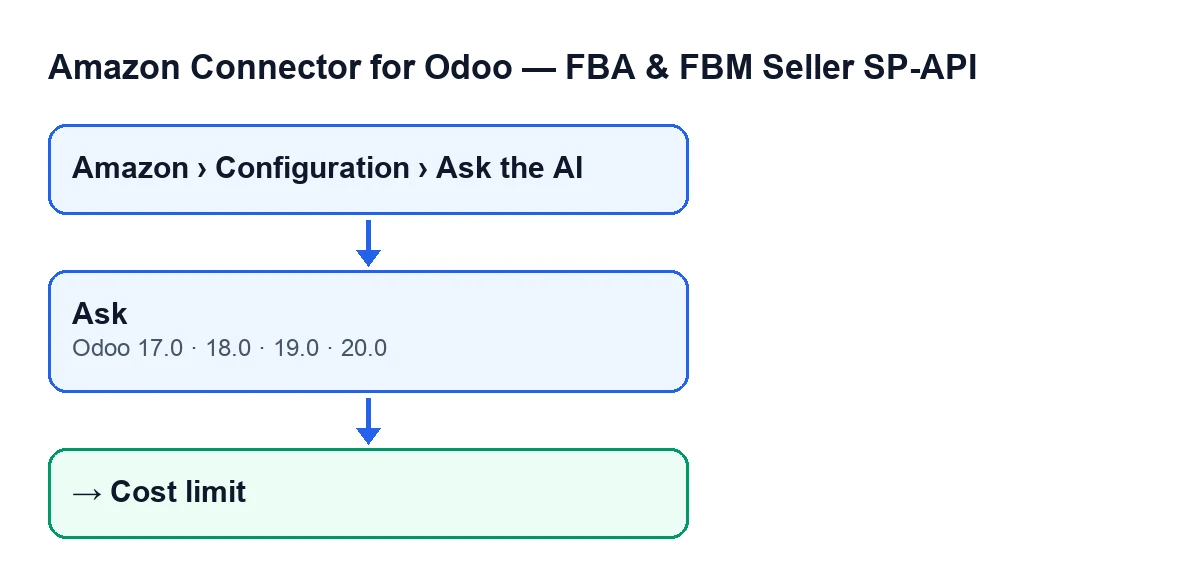
The Ask button is in the Ask the AI window, which opens from Amazon › Configuration › Ask the AI. Each part of the menu asks for a permission: Amazon asks for Viewer, while Configuration and Ask the AI ask for Manager. If you lack the permission for a part, you do not see it.
The button is always visible in that window, in Odoo 17, 18, 19 and 20. The window has the Account field and the Question field.
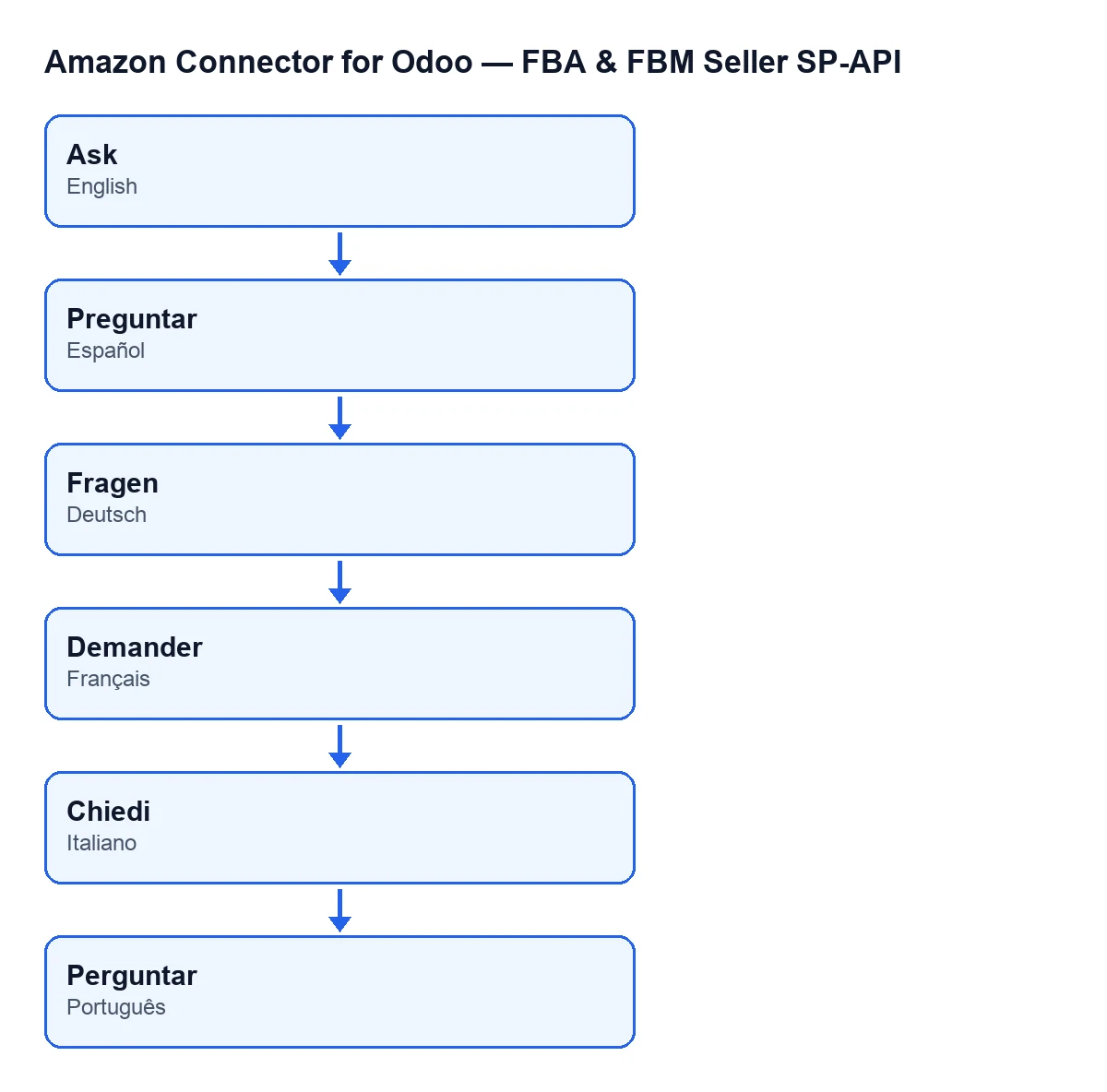
The button label depends on the language of your Odoo: in English it is Ask; in Spanish, Preguntar; in German, Fragen; in French, Demander; in Italian, Chiedi; in Portuguese, Perguntar.

Before you press it
- You have the
Managerpermission: without it you do not see theConfigurationorAsk the AIparts of the menu.
- AI is enabled in Settings. It is the first thing the button looks at; if it is not enabled, no model is called.
- There is an AI key. When the model is called, the module looks for it in Settings first and, if there is none there, on the account.
- The
Accountfield shows the Amazon account you want to ask about: the data sheet is built from that account.
- You have typed a question, not an order, in
Question. The module sends it between tags and tells the model to treat it as a question and not as instructions, so it cannot be used to change the model's rules.
When you press it: what it checks and in which order
In Odoo 20.0, the button does the following, in order:
- First it looks at whether AI is disabled in Settings. If it is, the form is left in the
AI disabledstate, with the answerAI is disabled in Settings.and zero cost. No model is called.
- Then it builds a compact data sheet of the account: the SKUs that bring in the most revenue, those flagged for restocking and those with stranded units, with a cap on rows so the request stays small.
- With the sheet built, it checks the monthly cost limit. If this month's spend has reached the limit, the form is left in
Cost limit, with the answerThe monthly AI cost limit has been reached.and zero cost, again without a call. A limit of zero or below switches this check off.
- It prepares the model's instructions. They ask it to answer only from the data in the sheet, to say it does not have that data if the answer is not there, and not to invent figures or SKUs. If you ask about stock, replenishment or sales, they ask it to quote the real figures of each SKU it mentions (sales rate, trend, days of cover, FBA stock available and inbound, reorder point, suggested quantity and reorder-by date), to warn when confidence is low or medium and to detail the components if the SKU is a kit.
- They also ask it to reply in the Odoo language of the person who pressed the button.
- It calls the model with the provider and model set in Settings or, if none, the module's defaults.
After you press it: what has changed
- The window reloads with the same form. If all went well, the answer appears as paragraphs (each line of the model's text becomes one paragraph) and the cost of the call is recorded.
- If something fails while preparing the data sheet, checking the limit or calling the model, the form is left in the
Errorstate with the noticeThe answer could not be generated right now. Please try again.and zero cost.
- If the call to the model comes back reporting a failure, the form takes the state the call returns and the answer is the matching notice (table below).
- The module also keeps a record of the query, named
AI question: …followed by the start of your question, with the answer, the state, the provider, the model, the tokens, the cost and the data sheet that was sent. If that saving fails, the answer is already on screen.
Notices it can give and what to do
| Notice | When it appears | What to do |
|---|---|---|
AI is disabled in Settings. | When you press the button and AI is not enabled in Settings. State AI disabled. | Enable AI in Settings and press again. |
The monthly AI cost limit has been reached. | After the data sheet is built, if this month's spend has reached the limit. State Cost limit. | Review the monthly limit, or try again when this month's spend no longer reaches it. |
The answer could not be generated right now. Please try again. | If something fails while preparing the sheet, checking the limit or calling the model. State Error. | Try again. |
No AI key configured. Add it on the account or in Settings. | When the call to the model comes back reporting that no AI key is configured. | Add the key in Settings or on the account. |
The model refused the request. | When the call to the model comes back reporting that the model refused the request. | Review the text in Question and try again. |
Error calling the AI: … | When the call comes back with an error; after the colon comes the detail the call gives. | Read the detail and retry. |
The button compared with the weekly digest
The scheduled task Amazon AI - Weekly digest runs every week and is active on install. It makes the same checks as the button: whether AI is enabled, the data sheet, the cost limit and the call to the model. The difference is in the failure: when the model is unavailable or the limit is reached, the weekly report is filled with the Statistical restock plan (computed without the AI model)., whereas the button shows only the notice. The data sheet is also rebuilt, when needed, by the daily task Amazon SP-API - Refresh KPIs.
Cost and help
The module is a one-off purchase per Odoo version (price on the Odoo Apps listing) and needs the FlexigoTech Cloud subscription, Connector plan: €49 a month or €490 a year, excluding VAT. It is published for Odoo 17, 18, 19 and 20; there is more detail on the module page.
If you are implementing Odoo and want the Amazon connection set up, or you need a custom integration, FlexigoTech implements Odoo 17, 18, 19 and 20 and builds connectors and custom integrations.
Keep reading
Checked in the connector's source code (version 20.0) and the linked sources
Sources
- Module source code: flexigobe_amazon_seller_connector 20.0 (88c7e241): views/amazon_ai_ask_views.xml
- Module source code: flexigobe_amazon_seller_connector 20.0 (88c7e241): models/amazon_ai_ask.py
- Module source code: flexigobe_amazon_seller_connector 20.0 (88c7e241): models/amazon_ai_insight.py
- apps.odoo.com/apps/modules/20.0/flexigobe_amazon_seller_connector
- flexigotech.com/en/services.html
- flexigotech.com/precios.html