

 Español
 Català
 Deutsch
 Français
 Português
 Italiano
 Nederlands
 Polski
What the button does as soon as you press it
The button is called View Returns and sits on the Dashboard screen, which you reach from the Amazon menu. That menu section requires the Viewer permission: without it, you do not see the section. The button exists in the 17, 18, 19 and 20 branches of the module, and the code described here is the Odoo 20 code.
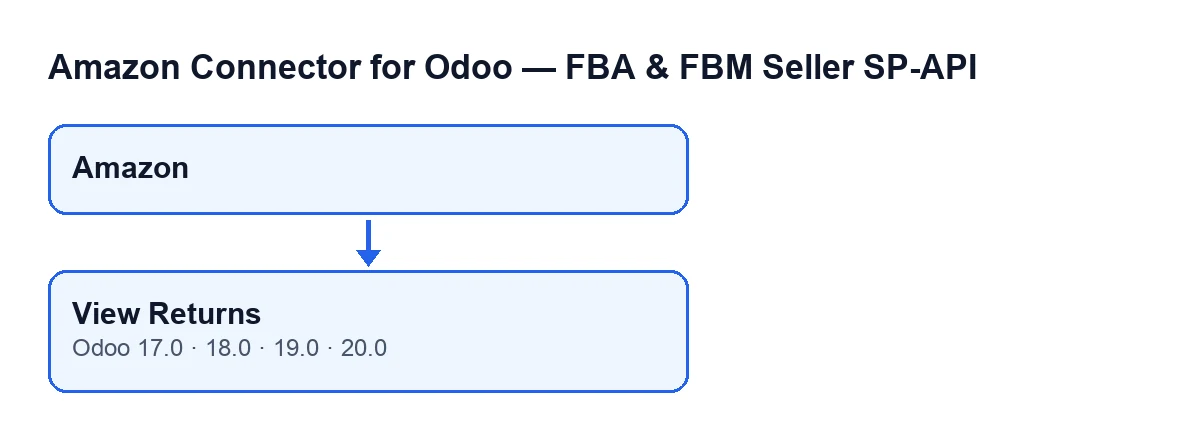
When you press it, this is what happens, in order:
- The button works on the dashboard where you pressed it, one dashboard only.
- It asks for the list window of the return lines.
- It puts a filter on that list: the Amazon account the dashboard belongs to, and the date the return was requested falling within the dashboard's date range.
- It hands you the list, already filtered.
That is all. Whatever else you might expect from a button like this is what the ideas below take apart.

Wrong assumptions about the button
«It only shows up when there are returns»
The view condition says the button is always visible, in Odoo 17, 18, 19 and 20. It does not depend on returns existing or on any state of the dashboard. If the list comes up empty after you press it, it simply means no return line meets the account and date filter.
«Pressing it updates the dashboard's return figures»
The button's code only opens the list. It does not count anything or save anything on the dashboard. The figures are recalculated by a different route that runs without you pressing anything: the scheduled task Amazon SP-API - Refresh KPIs, which runs every day and is active when the module is installed. That task uses exactly the same returns filter as the button: it counts the lines that meet it, adds up their refunded amount and stores both figures on the dashboard.
In practice this means the list the button opens and the dashboard figure come from the same criterion. The list is built at the moment you press; the dashboard figure is whatever the last run of the task left there.
«It shows every Amazon return»
The filter includes the dashboard's Amazon account. Each dashboard belongs to one account, and the button shows only that account's returns, not those of other accounts you may have connected.
«The period is measured by the date the return was imported»
The date filter uses the date the return was requested, not the import date. The comment in the code gives the reason: a history backfill stamps everything it brings in with the date of the moment, which would squeeze all the old returns into the recent period and leave the dashboard out of line with the analysis view. With the request date, each return falls in the period when it was asked for.
«The button modifies returns»
The button's method only returns the action that opens the list, with its filter. It writes to no return and to no other record. It is a read-only shortcut: press it as often as you like without changing any data.
Step by step
- Go to the
Amazonmenu. You need theViewerpermission to see that section. - Open the
Dashboardscreen of the account you are interested in. - Press
View Returns. - Review the list of return lines that opens: it already comes filtered by the dashboard's account and by the request date.
There is no setup step that the button depends on: it is always visible.
What it is called in each language
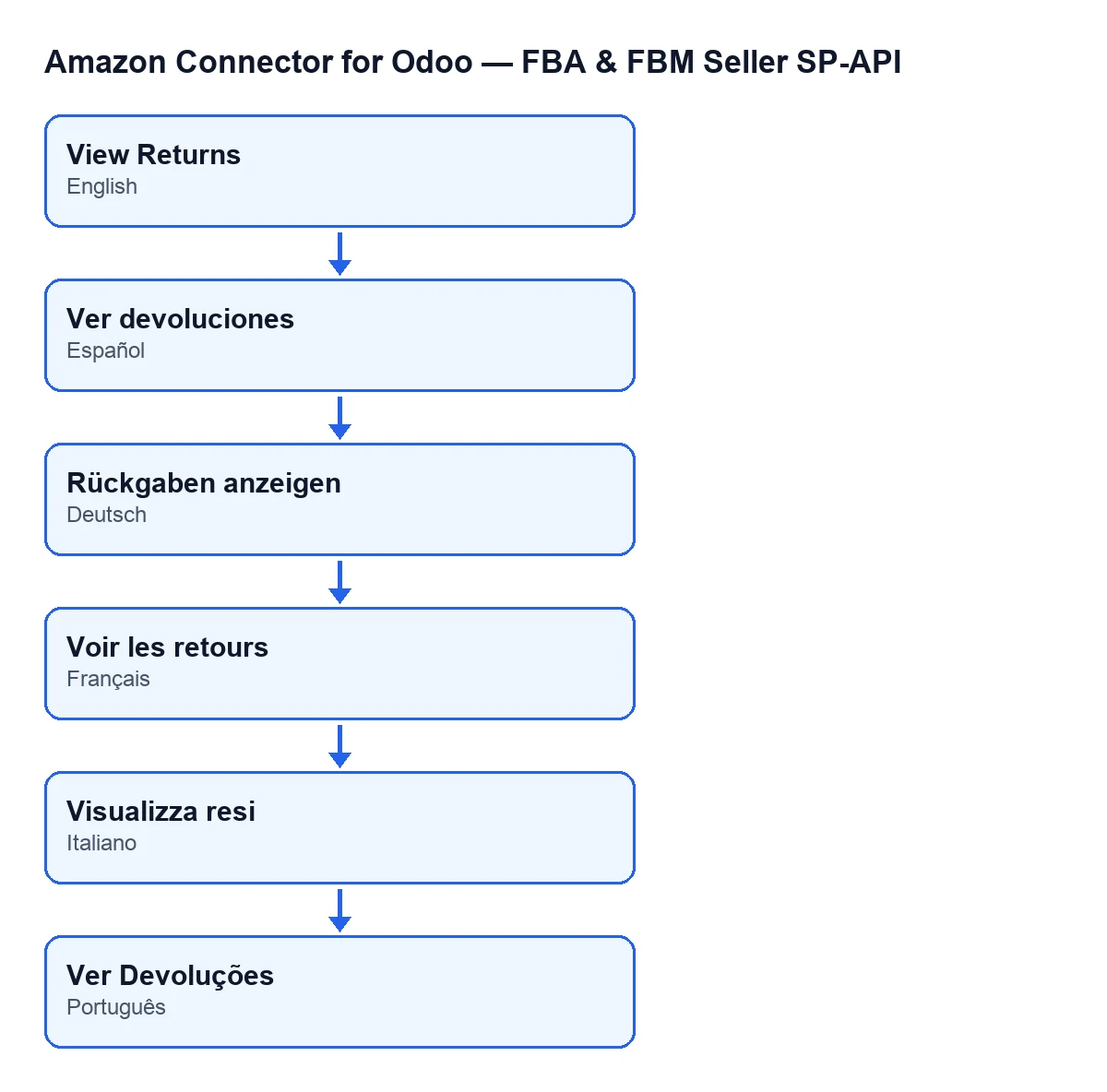
The label changes with your Odoo's language. In English it is View Returns; the module also ships translations into other languages.
What you need to have it
The module is a one-off payment per version and needs the FlexigoTech Cloud subscription, Connector plan: €49 a month or €490 a year, excluding VAT, with up to three Amazon accounts. The connection goes through FlexigoTech Cloud, which stores the credentials encrypted, watches the synchronisation and emails you if it fails. It is published on Odoo Apps for 17, 18, 19 and 20. You can see the Odoo Apps listing or the module page on flexigotech.com.
If you want help with your Odoo
FlexigoTech implements Odoo 17, 18, 19 and 20 and builds custom connectors and integrations. If you are setting up Odoo to sell on Amazon and want to review how the dashboard and the returns fit with the rest of your operations, get in touch through the module page.
Keep reading
Checked in the connector's source code (version 20.0) and the linked sources
Sources
- Module source code: flexigobe_amazon_seller_connector 20.0 (8576afa5): views/amazon_spapi_kpi_dashboard_views.xml
- Module source code: flexigobe_amazon_seller_connector 20.0 (8576afa5): models/amazon_spapi_kpi_dashboard.py
- apps.odoo.com/apps/modules/20.0/flexigobe_amazon_seller_connector
- flexigotech.com/en/services.html
- flexigotech.com/precios.html