

 Español
 Català
 Deutsch
 Français
 Português
 Italiano
 Nederlands
 Polski
What the task does on each run
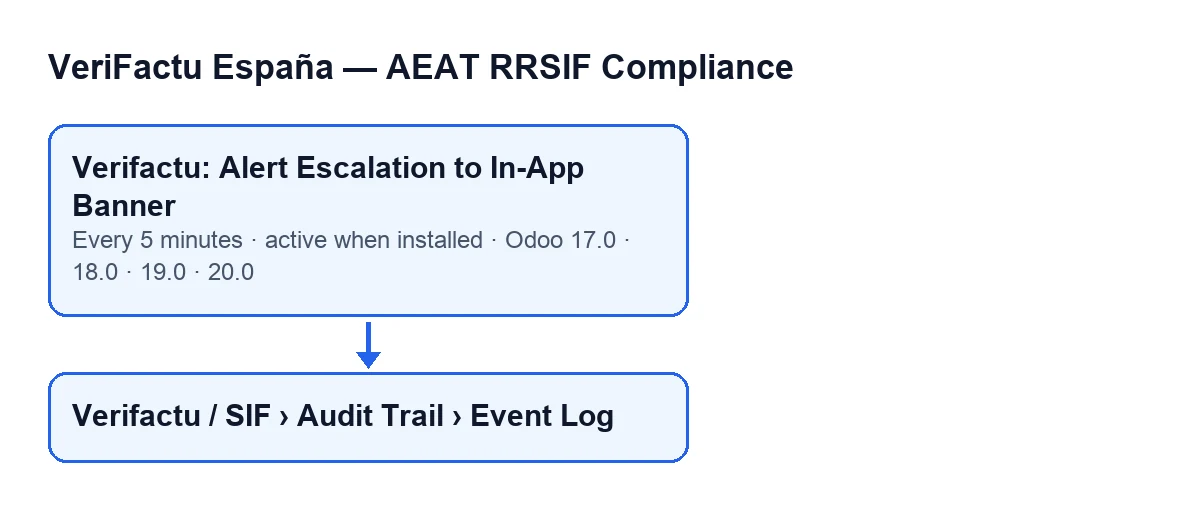
The task is called Verifactu: Alert Escalation to In-App Banner. It runs every five minutes and is active on install. It exists in every published branch of the module: Odoo 17, 18, 19 and 20. The order of a run, according to the published Odoo 20 code, is this:
- It works out a cut-off: the current time in UTC minus five minutes.
- It searches for events of the alert-sent type whose timestamp is equal to or earlier than that cut-off. The search uses those two conditions, the event type and its age.
- It goes through those events one by one and, for each, sends a notification to the channel of the user the method runs as. The notification is persistent, of warning type, and has the title
Verifactu Compliance Alert (Escalated). - For the notification text it uses the event description. If the event has no description, it uses a generic text that asks you to check your email and activities.
- If sending one notification fails, it writes a warning to the Odoo technical log with the event identifier and the reason, and carries on with the next event. One failed notification does not cut the run short.
Where the events it goes through are
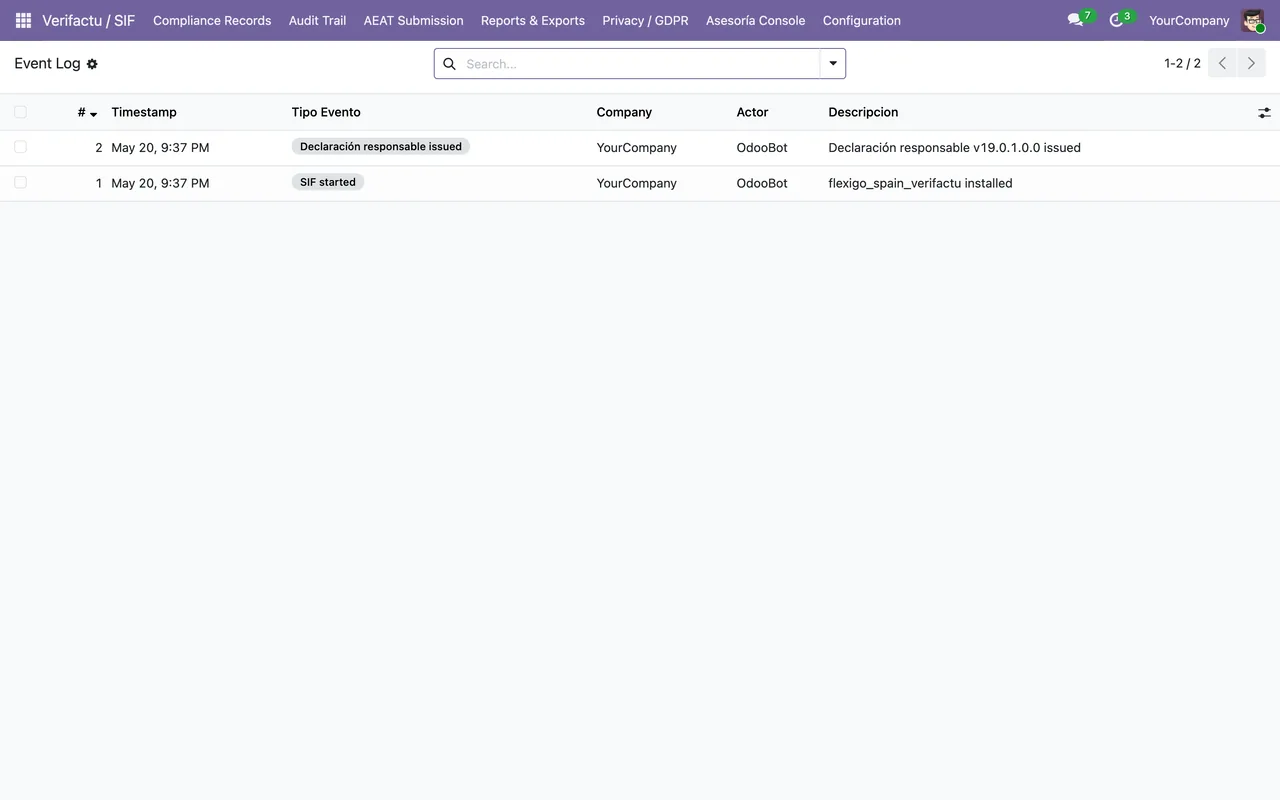
The events the task looks at are those opened from the menu Verifactu / SIF › Audit Trail › Event Log. Each part of the menu asks for permissions, and if you hold none of them you do not see that part:
- The
Audit Trailpart asks forAccountant,Auditor (read-only),Privacy OfficerorSIF Manager. - The
Verifactu / SIFpart asks forAccountant,Asesoría Operator,Auditor (read-only),Privacy OfficerorSIF Manager.
The notification text comes from the event's Descripcion field. You see it in the All Events (Asesoría) form, inside the Description group. On screen it has no label: only its content shows. It also appears in the All Events (Asesoría) list.
An illustrative case: the notification nobody saw
Example Illustrative case: the company and its figures are made up to explain the flow.
Picture an invented company, Distribuciones Mirlo. Marta holds the SIF Manager role and a colleague mentions that a Verifactu notification popped up on their screen. Marta saw none and wants to know why.
First she opens the Event Log and looks for an alert-sent event. In its form she reads the content of the Description group: that is exactly the text the notification carries. If the field were empty, the notification would show the generic text pointing to email and activities, so a notification with that text would not be a fault.
Then she thinks about timing. The event must be five minutes past its timestamp, and the task runs every five minutes, so the notification arrives on the first run after that cut-off, not at the instant the alert is recorded.
Finally she notes down a question for whoever administers the server: the code sends the notification to the channel of the user the method runs as, and she wants to know who that is. She also asks them to check the Odoo technical log for warnings about a notification not sent, carrying that event's identifier.
What the case teaches: the task comes down to three questions. Is there an alert event old enough? What text does it carry? Which user is the notification sent to?
What to check if the task seems to do nothing
- That the event exists. If there are no alert-sent events at least five minutes old, the search finds nothing and no notification is sent.
- That the task is still active. It is active on install. Ask whoever administers Odoo to confirm that the task with this name is still active.
- The notification text. A notification with the generic text means the event had no description. Read the event description in the
All Events (Asesoría)form, inside theDescriptiongroup. - The technical log. When a notification fails to send, a warning with the event identifier and the reason is left, and the task carries on with the rest.
- The recipient user. The notification goes to the channel of the user the method runs as. Keep that in mind before concluding that the notification was not sent.
By version
The task is in every published branch of the module (17.0, 18.0, 19.0 and 20.0), and the module is published on Odoo Apps for those four. In Odoo 17.0 the task is set up to repeat without end. The detail of the run you have just read is that of the Odoo 20 code.
How FlexigoTech can help
FlexigoTech implements Odoo 17, 18, 19 and 20 and builds custom connectors and integrations. If you are rolling the module out and want to go through who receives the notifications and how to read the events, get in touch. The module is on its Odoo Apps page.
Keep reading
Checked in the module's source code (version 17.0 and 20.0) and the linked sources
Sources
- Module source code: flexigo_spain_verifactu 20.0 (1fdc980f): data/verifactu_crons.xml
- Module source code: flexigo_spain_verifactu 17.0 (8d43d727): data/verifactu_crons.xml
- Module source code: flexigo_spain_verifactu 20.0 (1fdc980f): models/verifactu_evento.py
- apps.odoo.com/apps/modules/20.0/flexigo_spain_verifactu
- flexigotech.com/en/services.html