

 Español
 Català
 Deutsch
 Français
 Português
 Italiano
 Nederlands
 Polski
Where the button is and what it does
Where is the button and when does it appear?
It is on the Prepare Product Publish form, the wizard you use to prepare a product for Temu. The view puts no condition on it: it is always visible, whichever step you are on, and that is the case in the 17, 18 and 19 branches of Odoo. The read-only Step field on the form tells you where you are: Basic, Media, Attributes, Compliance or Preview. The module ships translations, so the button label follows the language of your Odoo; in English it reads Validate Product for Temu.
What does it do, in order, when you click it?
In Odoo 19 the button works in this order. First it checks that the form has a product and a Temu instance, and that the properties JSON and the compliance JSON can be read. Then it looks for the link between that product and Temu for that instance and product template: if one exists it updates it, otherwise it creates it. Next it goes through the variant lines: it reads each one's spec-details JSON and saves its data, and then it saves the template's defaults (details below). With the link saved, it obtains the payload and its warnings, and runs the payload through the instance's compliance validation and through a content check on the product name and description. If everything passes, it records the payload on the link, clears the last error, saves the warnings and marks the link as validated. Finally it fills in Preview Payload and Validation Result, sets Step to Preview and reopens the same form, titled Temu Product Publish.

What changes in Odoo
What data does it write before validating the content, and what happens if I click it again?
The button writes this data before moving on to the content checks. On the Temu link it saves, among other things, the language, category, brand, representatives, regions of origin, product type, second-hand data, media URLs, the properties and compliance JSON and the compliance attachments. On each variant in the lines it saves the external SKU identifier (if the line has none, it uses the product's internal reference), the spec details, the media URLs, and the weight and dimensions with their units. On the product template it switches on publishing to Temu and saves defaults such as the cost template, brand, representatives, regions of origin and product type. Because the link is looked up by instance and template, clicking the button again updates that same link rather than creating another.
What will I see when it finishes successfully?
The form opens on the Preview step. The read-only fields Preview Payload and Validation Result appear there, filled by the code rather than by you: the first holds the payload as indented JSON, the second the warnings (one per line) or, if there are none, a text confirming the validation went through. Both are hidden when Step is not Preview, so with the initial value (Basic) you do not see them. Back and Next also move Step, and Refresh Temu Lists also writes Validation Result. What this button does is save, validate and show the preview.
Errors and requirements
What do I do if Product template is required. or Temu instance is required. appears?
These are the first checks and they appear when you click the button: the first if the form has no product template, the second if it has no Temu instance. The action stops there and the form does not move to Preview. To fix it, the form must have a product and an instance chosen before you click again.
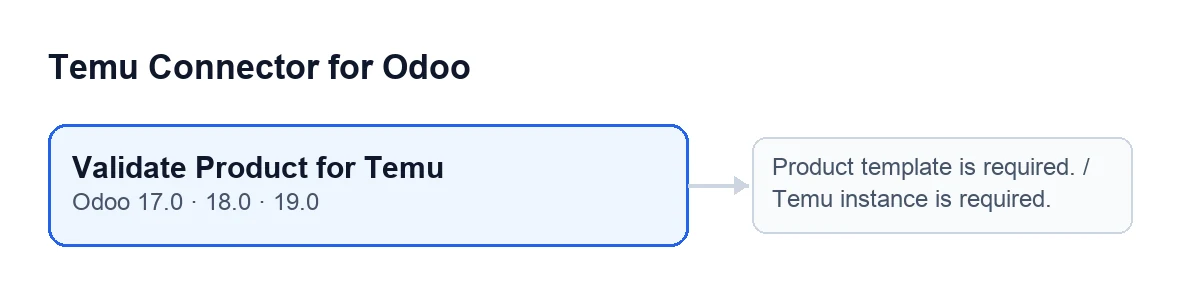
Validate Product for Temu button in Odoo 17.0, 18.0 and 19.0, with those messages beside it.And if it says a JSON is not valid?
There are messages for this case, and each points to a JSON text the code could not read. Goods Property JSON is invalid: … appears with the product properties JSON, and Compliance JSON is invalid: … with the compliance one; in both, the dots stand for the detail of the reading failure. Spec Details JSON is invalid for variant …: … appears with a variant's spec details: the variant name comes first, telling you which line has the problem, then the detail. If those texts are empty there is no error: the code takes an empty list for the properties and the spec details, and an empty object for compliance. Fix the JSON in the text the message points to (braces, brackets, commas and quotes properly closed) and click again. The properties and compliance ones appear before the link is looked up or created; the variant one appears afterwards, once the code has moved on to going through the variant lines. With any of them the action stops and never reaches Preview.
What if the JSON is fine but validation fails?
After saving, the payload goes through the instance's compliance validation and through the content check on the name and description. If either returns errors, the action stops with the error message and you do not move to Preview. Correct what the error says and click again: if everything passes this time, the link is validated with no last error.
Which versions is it in, and what does it need to work?
The button is in the 17, 18 and 19 branches of Odoo, and the module is published on Odoo Apps for 17, 18, 19 and 20. The module is a one-off payment per version (each version's price is on the listing) and needs a FlexigoTech Cloud subscription, Connector plan: €49 a month or €490 a year, excluding VAT. You can see the module on its page at flexigotech.com. If you are implementing Odoo and want help with Odoo 17, 18, 19 or 20, or with a bespoke integration, FlexigoTech implements Odoo and develops connectors.
Keep reading
Checked in the connector's source code (version 19.0) and the linked sources
Sources
- Module source code: flexigobe_temu_connector 19.0 (455b3f0f): wizard/temu_product_publish_wizard_views.xml
- Module source code: flexigobe_temu_connector 19.0 (455b3f0f): wizard/temu_product_publish_wizard.py
- apps.odoo.com/apps/modules/19.0/flexigobe_temu_connector
- flexigotech.com/precios.html
- flexigotech.com/en/services.html