

 Español
 Català
 Deutsch
 Français
 Português
 Italiano
 Nederlands
 Polski
Before you press it
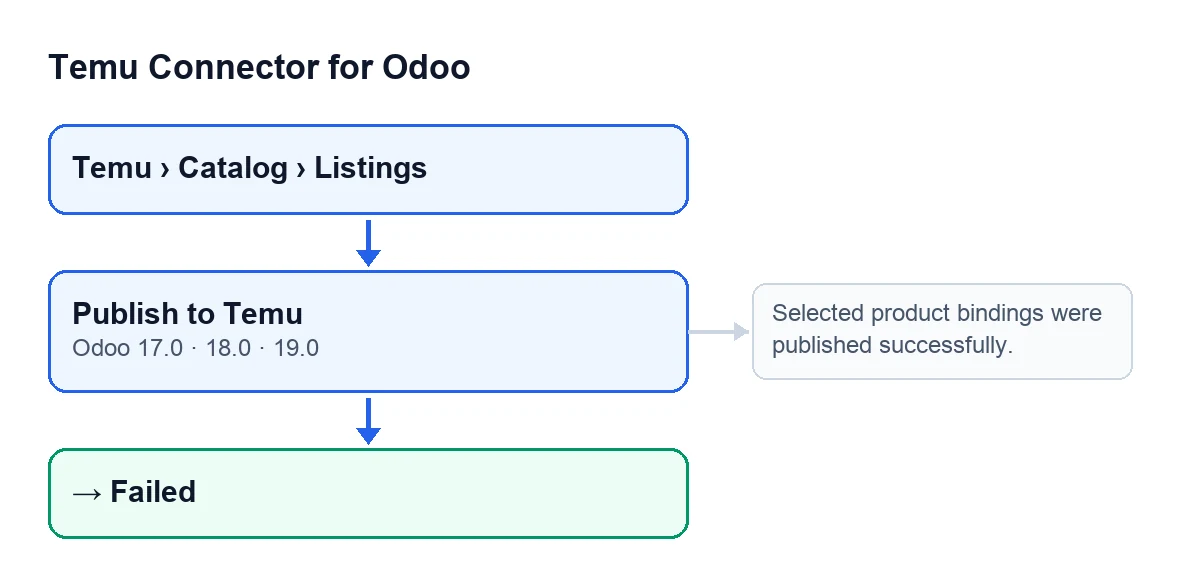
The Publish to Temu button sits on the Product Publishing record, which opens from the menu Temu › Catalog › Listings. It is always shown, with no state condition, and it is on the Odoo 17, 18 and 19 branches. In Odoo 19, the button does the following.
- Open the record from
Temu › Catalog › Listingsand find thePublish to Temubutton. - Check that
Instance(also in the list) andTemplateare the ones you mean to publish. - Keep your FlexigoTech Cloud subscription current: the connection goes through that service, which stores the credentials encrypted and emails you if synchronisation fails. Without a subscription, or with the service suspended, whatever the subscription provides stops; your data stays in your Odoo.
- Remember that one button both creates and updates: it decides according to whether the record already has a Temu identifier.
The module is a one-off payment per Odoo version (each version's price is on the Odoo Apps page) and needs the FlexigoTech Cloud subscription, Connector plan: €49/month or €490/year excluding VAT, up to 3 accounts on the platform.
Publish to Temu.
When you press it: what the button does, record by record
The code goes through the selected records one at a time and, for each, follows this order.
- New product through the simplified V3 API. If the record has no Temu identifier and the instance is set to use the V3 add API, the module builds the product data, saves it in
Last Payload(on theProduct Publishingrecord,Payloadtab, read-only) and sends it in a single call. According to the code itself, on this path Temu assigns the category, enriches the attributes and downloads the images from the URLs sent, with no separate calls for category, cost template or image upload. - New product with prior validation. If the record has no identifier and V3 is not used, the button first runs the same validation as
Validate Product for Temu. If it finds compliance errors or content errors in the name or description, it stops; otherwise it saves the data inLast Payloadand marks the record as validated. - Retries when creating. With the validated data, it tries one Temu add method. If that fails with certain errors (among them those that mention
schemaorinvalid param), it moves on to the next; with other errors it stops. - Record that already has an identifier. It validates in the same way and sends an update of the already published product. If one sending attempt fails, it tries another sending variant.
- Reading the response. It looks for the product identifier in Temu's response. If none comes back, the action stops and the code leaves the record in
Failed. - What it saves. It writes the Temu identifier, moves the record to
Published, clears the previous error and stores the response, the method used, the publication date and the last synchronisation date. - SKU linking. It reads the SKU list from the response (or, if there is none, from the data sent) and matches it to the template's variants by internal reference or external SKU. It creates or updates one row per variant in the
SKU Bindingstab. It also stores, per instance, the prices the response gives with a value above zero and the remote stock when the response includes it. - Refresh if links are missing. If there are fewer SKU rows than active variants, or any row without a Temu SKU, it tries to refresh the data of the template's variants from Temu. If that refresh fails, it is only logged: it does not interrupt the action.
- Status on Temu. It asks Temu for the publish status. If that fails, it is only logged as well. If Temu's status code corresponds to a state of the record, the record moves to that state, so
Publishedis not necessarily the final state. If Temu sends a status message, it is kept as error text. - Final notice. When it ends without error, a success notification appears with the text
Selected product bindings were published successfully., without staying fixed on screen.
If something fails
- Remember that
Selected product bindings were published successfully.is not an error: it is the success notification at the end. - On any error, the code writes the state
Failedtogether with the error text and re-raises it, so you see the warning on screen. Read the whole text before changing anything. - If the error comes from the prior validation (compliance, or content of the name and description), fix what the text points to in the product and press again: the button is always visible.
- If the error comes back from Temu while trying add methods, bear in mind that the module only moves to the next method with certain errors, among them those that mention
schemaorinvalid param. - If you work with several records at once, remember that one record's error is re-raised and stops the action.
After publishing
- Open the
Payloadtab and reviewLast Payload: it is the data the module saved to send. - Open the
SKU Bindingstab and check there is one row for each active variant of the template.
The product data refresh is not exclusive to the button: the scheduled task Temu Backfill Missing Amounts (every 10 minutes, active on install) can reach that same refresh when a product in an order lacks its sale price or its base and supplier prices.
The module is on Odoo Apps for Odoo 17, 18, 19 and 20.
If you need help
FlexigoTech implements Odoo 17, 18, 19 and 20 and builds custom connectors and integrations. You can find the module on its page.
Keep reading
Checked in the connector's source code (version 19.0) and the linked sources
Sources
- Module source code: flexigobe_temu_connector 19.0 (455b3f0f): views/temu_product_binding_views.xml
- Module source code: flexigobe_temu_connector 19.0 (455b3f0f): models/temu_product_binding.py
- Module source code: flexigobe_temu_connector 19.0 (455b3f0f): models/temu_order.py
- apps.odoo.com/apps/modules/19.0/flexigobe_temu_connector
- flexigotech.com/en/services.html
- flexigotech.com/precios.html