

 Español
 Català
 Deutsch
 Français
 Português
 Italiano
 Nederlands
 Polski
Where the button is and when it shows
The Refresh Reports button is on the form of the Temu ads campaigns. You reach it from the menu Temu › Marketing › Ad Campaigns, which opens the Ads Campaigns screen. On that screen, both the form and the list show the fields Instance, Goods, Last Report Sync and Last Error.
The button has no visibility condition: it always shows. It is in Odoo branches 17.0, 18.0 and 19.0; in Odoo 19.0, pressing it does the following.
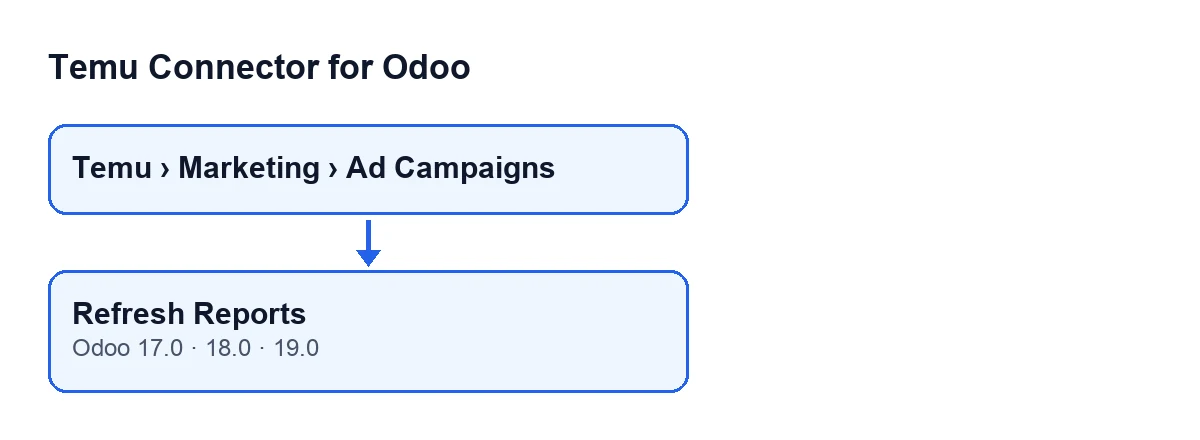
Refresh Reports, and the diagram also shows how it reads with Odoo in Spanish.
Step by step: what happens when you press it
- Open
Temu › Marketing › Ad Campaignsand go into the form of the campaign whose report you want to refresh. - Look at the
InstanceandGoodsfields on the form: the query is sent with that instance and that product. Also noteLast Report SyncandLast Errorso you can compare before and after. - Press
Refresh Reports. The button goes through the campaigns it was launched on and repeats what follows for each one. - It works out the date window: it ends at the current moment and starts seven days earlier. The button does not ask for dates, it uses that window.
- It asks Temu, through the instance, for the ads report of that product between those two dates, converted to millisecond timestamps. If an attempt fails, depending on the error the instance tries the next alternative or stops; if the alternatives run out, the last error is raised. When Temu answers, the instance stores the method that worked if it differs from the one it had.
- It looks in the response for the list of report rows: first in the place where it expects it; if there is nothing, in other anticipated positions of the response and, as a last resort, it takes the first list that appears in it.
- It hands each row, one by one, to the Temu reports record as a goods-type report, tied to this campaign and this product.
- If everything went well, it writes the current date and time to
Last Report Syncand emptiesLast Error. - Check on the form, or in the
Ads Campaignslist, thatLast Report Synchas changed and thatLast Erroris empty.
What changes and what stays as it was
On the campaign, the button writes two fields when it finishes successfully: Last Report Sync, which gets the date and time of that moment, and Last Error, which is emptied. On the instance, it only touches the method that answered, and only if it differs from the stored one.
The report rows are handed to the Temu reports record with the goods type and the reference to the campaign and the product.
Which errors it can give and what to check
The query to Temu and the hand-over of the rows run inside a block that catches any error. If something fails there, the code assigns the error text to Last Error and raises the error again: the action stops and Odoo shows the message on screen. The following campaigns are not processed.
The button adds no text of its own to the error: what you see is the error from the step that failed, either the query to Temu or the hand-over of the rows.
A response with no rows is not an error
If Temu answers but the response contains no list of rows, the hand-over loop has nothing to process and the button still finishes successfully: it updates Last Report Sync and empties Last Error. A recent date in Last Report Sync tells you the query finished without error, not that rows were received.
A routine shared with other parts of the module
The search for the list of rows in the response (step six) is an instance routine that the reading of Temu categories also uses. That reading is reached, without pressing any button, from the scheduled task Temu Sync Reference Cache, which runs every five minutes and is active on installation. Do not mix the two up: the Refresh Reports button is pressed on a specific campaign and works with that campaign's product.
How FlexigoTech can help
Temu Connector for Odoo is a one-off payment module per version and needs the FlexigoTech Cloud subscription, Connector plan: €49 a month or €490 a year, excluding VAT. The connection goes through FlexigoTech Cloud, which stores the credentials encrypted, monitors synchronisation and sends an email if it fails. You can see the module on its Odoo Apps page or on its page at flexigotech.com.
If you are implementing Odoo and need to connect Temu, or want a bespoke integration, FlexigoTech implements Odoo 17, 18, 19 and 20 and builds connectors and bespoke integrations.
Keep reading
Checked in the connector's source code (version 19.0) and the linked sources
Sources
- Module source code: flexigobe_temu_connector 19.0 (455b3f0f): views/temu_ads_views.xml
- Module source code: flexigobe_temu_connector 19.0 (455b3f0f): models/temu_ads.py
- Module source code: flexigobe_temu_connector 19.0 (455b3f0f): models/temu_instance.py
- flexigotech.com/en/services.html
- flexigotech.com/precios.html