

 Español
 Català
 Deutsch
 Français
 Português
 Italiano
 Nederlands
 Polski
Where you are when it appears
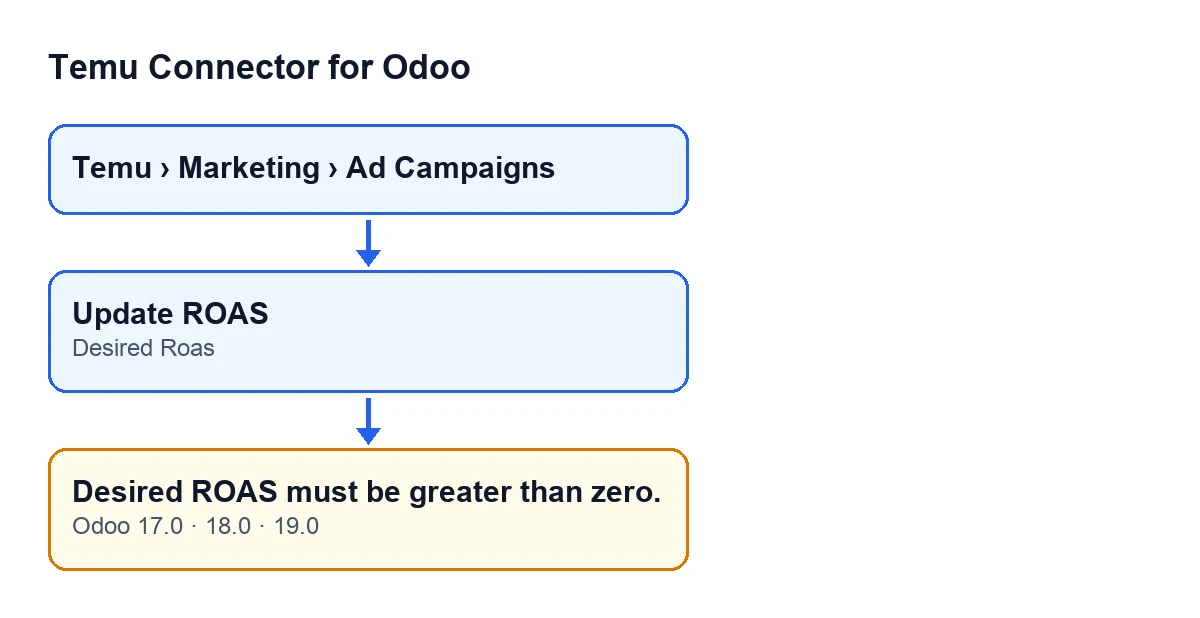
You are in Odoo, under Temu › Marketing › Ad Campaigns, with an ad campaign open. You press Update ROAS and Odoo shows Desired ROAS must be greater than zero. The action stops there and goes no further.

What nobody tells you about this message
It appears when you press Update ROAS
The Update ROAS button sits in the campaign view and does not depend on any view condition: it is always visible, in Odoo 17.0, 18.0 and 19.0. Campaigns open from the Temu › Marketing › Ad Campaigns menu. The value being checked lives in the Desired Roas field, which you see on the Ads Campaigns form. The message can appear when you press that button.
Update ROAS (in Spanish it reads Actualizar ROAS).The condition is ‘zero or less’, not just ‘zero’
The code checks whether the value of Desired Roas is less than or equal to zero (if rec.desired_roas <= 0). That covers zero, but also any negative number. If the field shows zero or a minus sign, the button will end in this message. With any value above zero, the check passes and the action carries on.
The check comes before anything is passed to the instance
The order in the code is this: it first looks at the Desired Roas value; if it is not above zero, it raises the message and stops; if it is, it moves on to preparing the modification request. Because the action stops, nothing that the action was going to change on that campaign is saved. So the message fires before the module passes any request to the campaign's instance.
If the check passes, this is what happens
With a value above zero, the module does the following, in this order:
- It builds a modification request with the campaign's details and the ROAS you entered, and hands it to the campaign's instance together with an operation status.
- It stores on the campaign the request of the last operation, the response obtained and the date of the operation.
- It clears the campaign's last error.
- It finishes by calling another action of the campaign.
In other words, while the value is zero or less the code raises the message; as soon as you correct it, the button follows this path.
The code goes through the campaigns one by one
The action works in a loop: for each campaign it checks the value and, if it is above zero, passes the modification request to the campaign's instance before moving on to the next one. If one of them has Desired Roas at zero or less, the message stops the action at that campaign.
The message is in the published branches
The code of the Update ROAS method reviewed here is that of Odoo 19.0. The same message is in the published code for 17.0 and 18.0. The module is published on Odoo Apps for 17.0, 18.0, 19.0 and 20.0.
How to fix it
The fix is to correct the field and repeat the action:
- Open
Temu › Marketing › Ad Campaignsand go into the campaign you were working on. - Look at the value of the
Desired Roasfield on the form. - Change it to a number above zero.
- Press
Update ROASagain.
In this method, the check looks at the value of Desired Roas and nothing else: that it is above zero. Which figure suits your campaign is your decision. If the operation completes, the module stores the request, the response and the date on the campaign, and leaves its last error empty.
And if you want another button of the connector explained step by step, there is the article on the execute button.
How FlexigoTech can help
Temu Connector for Odoo is a one-off purchase per version and needs a FlexigoTech Cloud subscription (Connector plan: €49/month or €490/year excluding VAT, up to 3 platform accounts). You can see the module page on flexigotech.com and its Odoo Apps listing. If you are implementing Odoo and want to review how Temu fits into your operations, FlexigoTech implements Odoo 17, 18, 19 and 20 and builds connectors and custom integrations.
Keep reading
Checked in the connector's source code (version 19.0) and the linked sources
Sources
- Module source code: flexigobe_temu_connector 19.0 (455b3f0f): models/temu_ads.py
- Module source code: flexigobe_temu_connector 19.0 (455b3f0f): views/temu_ads_views.xml
- apps.odoo.com/apps/modules/19.0/flexigobe_temu_connector
- flexigotech.com/precios.html
- flexigotech.com/en/services.html