

 Español
 Català
 Deutsch
 Français
 Português
 Italiano
 Nederlands
 Polski
When the message appears and what it means
The message appears when you click the Update Shopify Tracking button on a transfer. That button calls Shopify to update the tracking of the fulfilment whose ID is stored on the transfer. If the call to Shopify returns an error, the module reads its text. When that text contains ACCESS_DENIED (exactly as written, in capitals) and also the word "fulfillment" (in capitals or lower case), the module replaces the error with this message and the action stops:
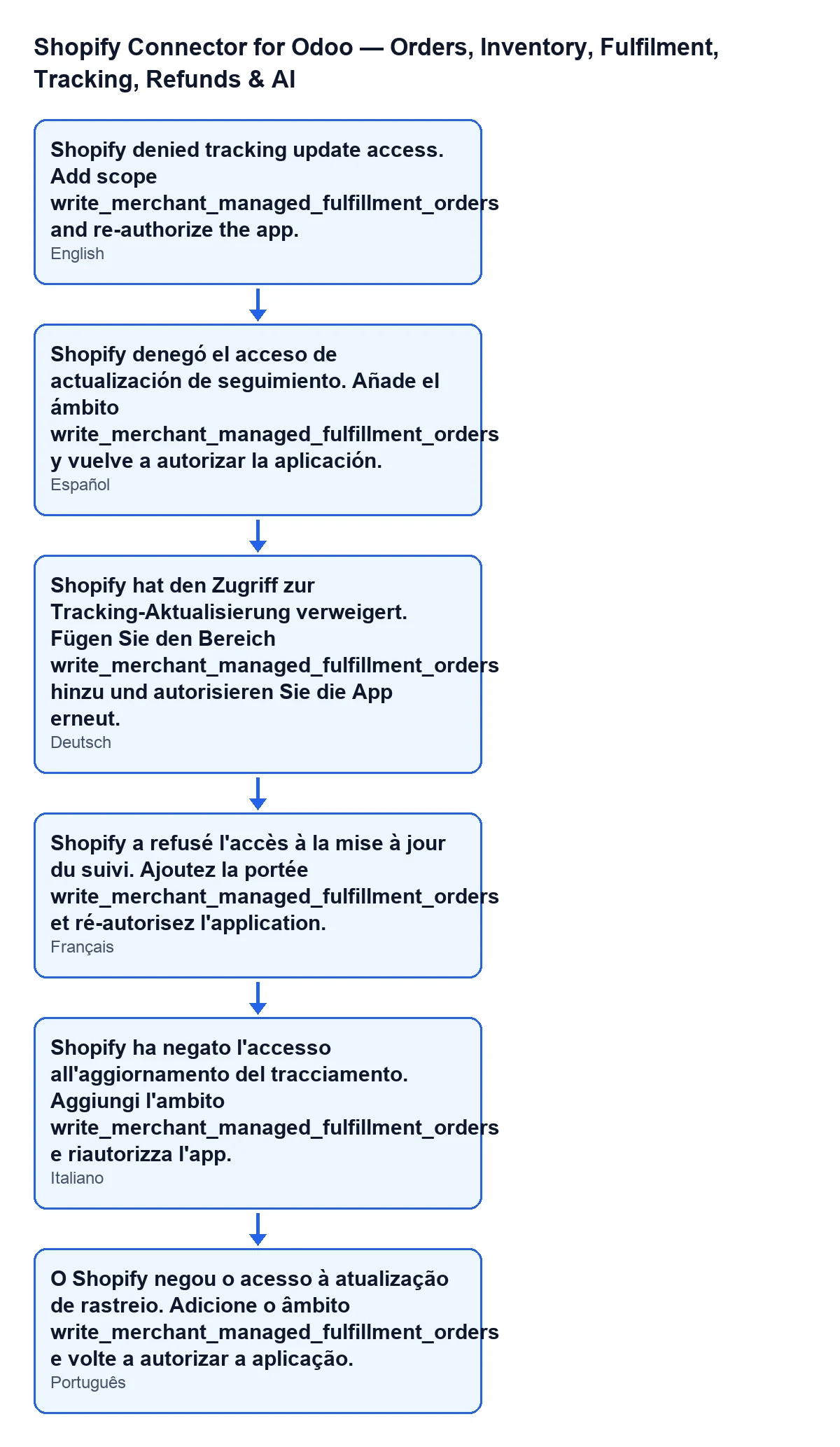
Shopify denied tracking update access. Add scope write_merchant_managed_fulfillment_orders and re-authorize the app.
It means Shopify denied access to update the tracking. The message asks for two things: add the write_merchant_managed_fulfillment_orders scope and re-authorize the app. The text is in the published code of every version (17.0, 18.0, 19.0 and 20.0). The detail of the method described below is from the Odoo 20.0 code.
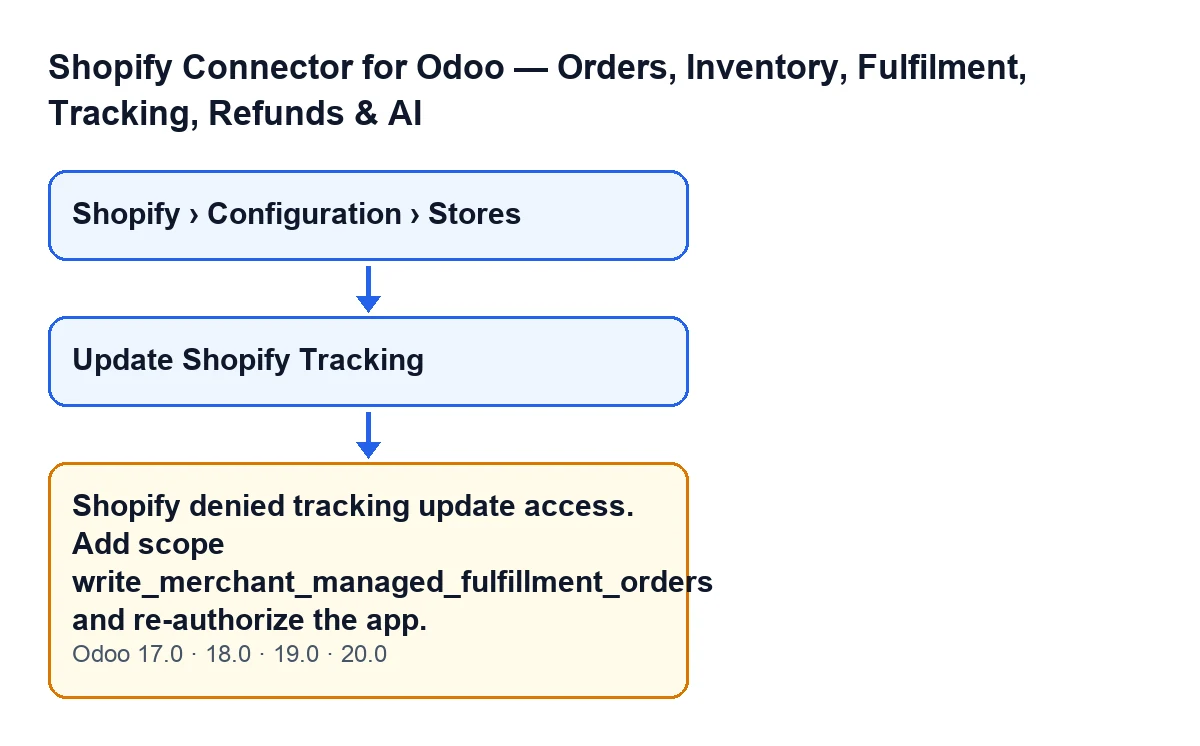

Step by step to fix it
- Open the transfer for the Shopify order. The
Update Shopify Trackingbutton is hidden if the transfer is not for a Shopify order (theIs Shopify Orderfield does not appear in any view), if its status is notDone, or if theShopify Fulfillmentfield is empty. That condition is the same in Odoo 17.0, 18.0, 19.0 and 20.0. If you cannot see the button, one of those three applies. - Click
Update Shopify Tracking. If the error Shopify returns meets the condition above, you will see the message and the action stops. - Add the
write_merchant_managed_fulfillment_ordersscope to the Shopify app, as the first half of the message asks. - Re-authorize the app, as the second half of the message asks.
- Go back to the same transfer and click the button again. Check whether the message comes back.
- If a different message appears now, it is not this one: read it in full and deal with it separately (the reason is explained below).
What the button does before the message can appear
It helps to know the route, so you can see at which point the message is produced. According to the code, the module takes the fulfilment ID stored on the transfer. If the transfer has no such ID, the action stops without calling Shopify. It then builds the tracking details from what the transfer holds, and if there is no tracking number, the action again stops before calling Shopify. Those details are put together like this:
- If there is a single tracking number, it sends that number. If there are several, it sends all of them.
- If there is a carrier, it sends the carrier's name. The module takes the carrier from the sales order or, failing that, from the transfer itself.
- It sends the tracking URL only when there is a single number.
The request also says whether Shopify should notify the customer, according to a setting on the Shopify instance. The call to Shopify is made with all of that.
The message does not depend on what the transfer contains: the code condition only looks at the text of the error Shopify returns in that call. A transfer with a correct tracking number and a carrier properly set can still give this message if Shopify's error meets both conditions.
Where the stores live in Odoo
The store records open from the Shopify › Configuration › Stores menu. Permissions matter: the Configuration section requires the Operator permission and the Shopify section requires Viewer. If you lack one of them, you will not see that part of the menu.
If the message keeps appearing or another one shows up
The message is only produced when Shopify's error meets both conditions at once: ACCESS_DENIED and "fulfillment". If the error returned by the call does not meet them, the module does not change it and you see it as it is, with its own text. So if, after adding the scope and re-authorizing, you still see an error worded differently, it is no longer this message.
If you still see exactly this message, go back over steps three and four: the message asks for the scope and the new authorization of the app together.
With Odoo in English, the message reads as quoted above; the diagram also shows how it reads in Spanish, German, French, Italian and Portuguese:
If you are going through other messages from the module, there is also the write-up on «No hay datos de Shopify disponibles para crear el pedido de venta», with its condition in the code and what to do.
How FlexigoTech can help
FlexigoTech implements Odoo 17, 18, 19 and 20 and builds connectors and custom integrations. If you work with the connector and want someone to review the connection to your Shopify store with you, get in touch from the module page.
Keep reading
Checked in the connector's source code (version 20.0) and the linked sources
Sources
- Module source code: flexigobe_shopify_seller_connector 20.0 (d7e627b4): models/shopify_instance.py
- Module source code: flexigobe_shopify_seller_connector 20.0 (d7e627b4): views/stock_picking_views.xml
- Module source code: flexigobe_shopify_seller_connector 20.0 (d7e627b4): models/fgt_cloud.py
- apps.odoo.com/apps/modules/20.0/flexigobe_shopify_seller_connector
- flexigotech.com/en/services.html