

 Español
 Català
 Deutsch
 Français
 Português
 Italiano
 Nederlands
 Polski
Before the first run
It comes switched off on install
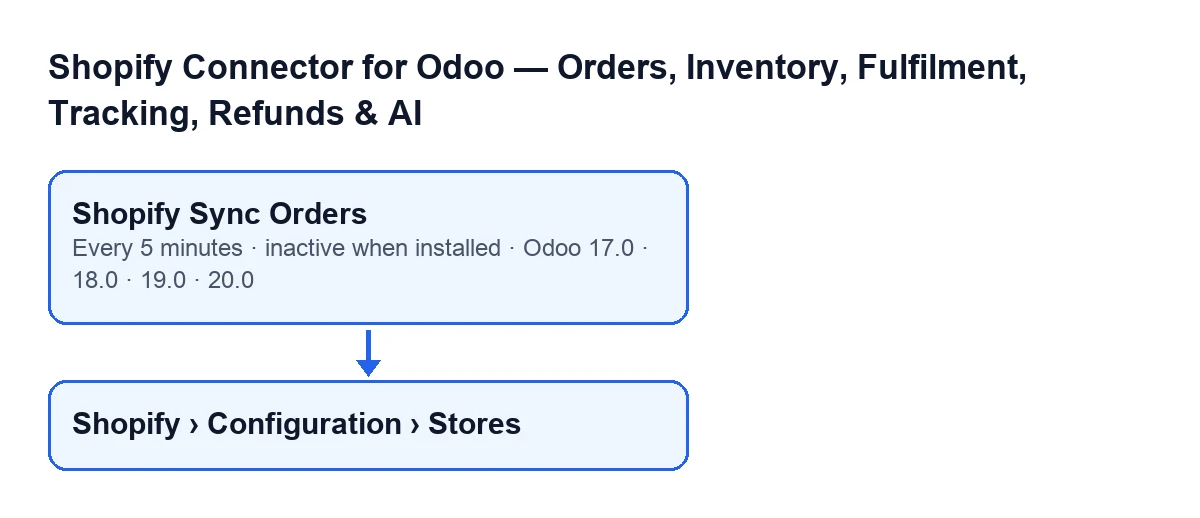
The Shopify Sync Orders task runs every 5 minutes, but it is installed inactive: until someone activates it, no runs happen. It exists on the 17, 18, 19 and 20 branches. In Odoo 17.0 it is set up to repeat without end.
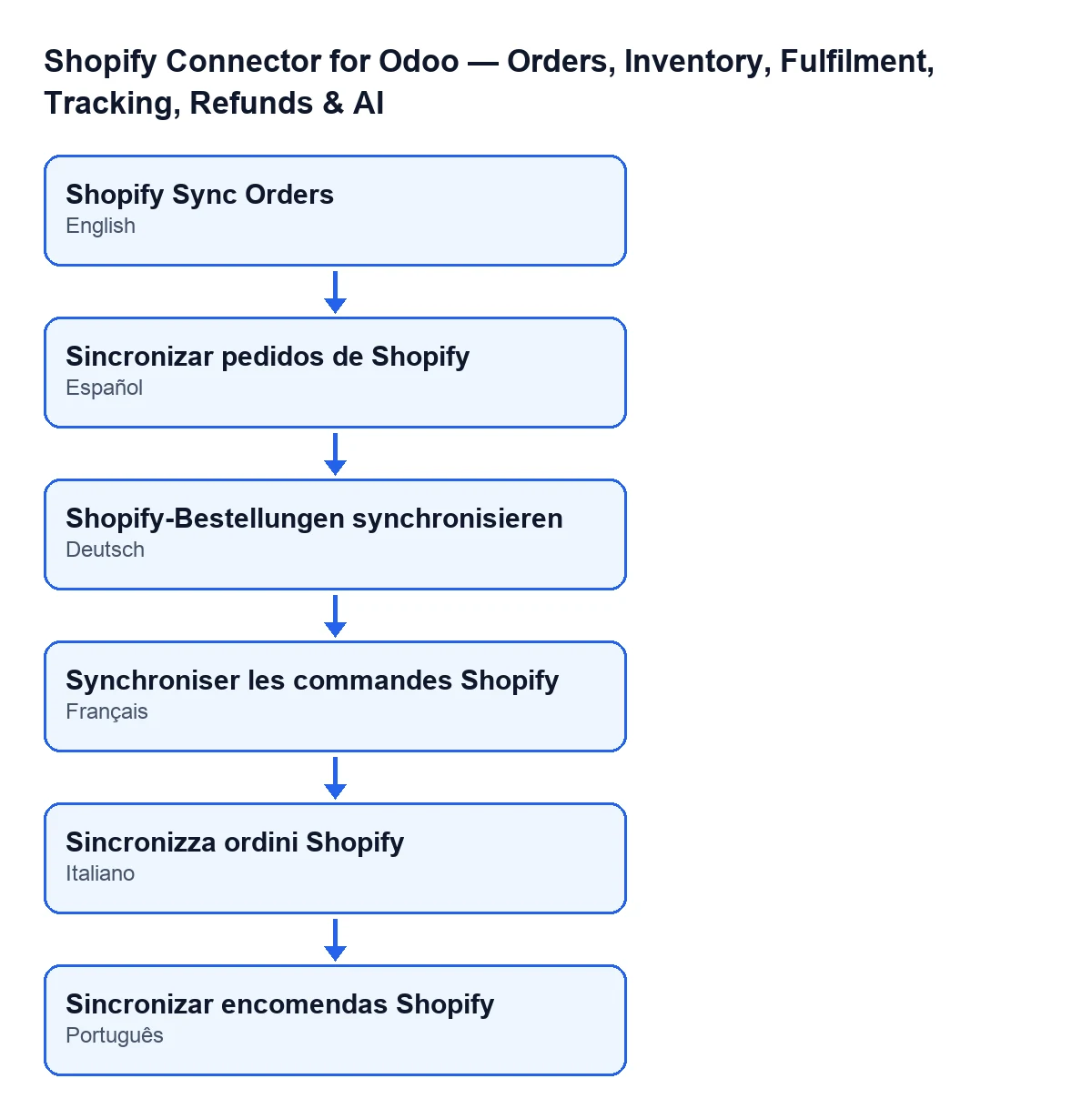
The task's name depends on the language of your Odoo: Shopify Sync Orders in English, Sincronizar pedidos de Shopify in Spanish, Shopify-Bestellungen synchronisieren in German, Synchroniser les commandes Shopify in French, Sincronizza ordini Shopify in Italian and Sincronizar encomendas Shopify in Portuguese.
Only an administrator can run it
The first thing the method checks is that whoever runs it is a system administrator. If not, it stops with Only an administrator can run this scheduled action. and never looks at a store.
Not every store is in the loop
The task only serves stores that are active, have order sync enabled and hold either an access token or the app's API secret. The code explains the last requirement: a store with client credentials may have no stored token until its first call mints one, so having credentials is enough. That filter is what decides which stores are included.
Store records open from Shopify › Configuration › Stores. Each part of the menu asks for a permission: Configuration asks for Operator and Shopify asks for Viewer. If you lack one of them, you do not see that part.

What happens on each run
A quiet store does not walk its whole history
The first search joins the store's import terms with a date filter. If it finds nothing, the code only repeats the search without the date filter when the store has never imported any orders. If it has imported some before, the run ends there: the code treats that as the normal state of a quiet shop, and repeating the search without the filter would walk the history from the oldest order on every run.
Zero orders is not an error, but it leaves a message
If the run brings no orders (even after the search without the filter, when the store had never imported anything), the code does not treat it as a failure and posts a message on the store record: Shopify order sync returned 0 orders for …. Check that this app is connected to the expected shop and add scope read_all_orders if you need orders older than 60 days. The dots stand for the shop's domain. In that case the last sync date does not change.
If you have gone days without seeing orders, read that message: it asks you to check that the app is connected to the right shop and, if you need orders older than 60 days, to add the read_all_orders scope.
If it stops at the page limit, the date does not go backwards
When a run imports orders, it saves the last order sync date, resets the count of consecutive errors and clears the last error. If it stopped at the page limit, it saves the date of the last order imported instead of the current time, as long as that date is later than the last saved sync (or there was none); if it is not, it saves the current time. That way the date does not move backwards: the code prevents it so that a truncated run that started from the beginning of history does not force a crawl forward again while today's orders wait.
In that case the task also posts a message on the store record saying that more orders are waiting and from which date the next run will resume.
One store after another, and a real failure leaves a trace
The task goes through the stores one by one and calls each store's sync inside a block that catches errors. On an unexpected error, the store adds one to its count of consecutive errors and keeps the last error. The error travels up to the task, which writes it to the server log with the store's name and carries on with the next store: one store failing does not stop the others.
There are two exceptions. If FlexigoTech Cloud has paused the sync, the code discards that run's record so it is not left as failed. And a module notice of the kind Odoo shows in an error dialog does not add to the count of consecutive errors.
If it seems to do nothing
- Check that the task is active: it is installed inactive.
- Check that whoever runs it is a system administrator.
- Remember what the task asks of each store: be active, have order sync enabled and hold an access token or the app's API secret. Store records open from
Shopify › Configuration › Stores. - Read the messages on the store record: the zero-orders one tells you what to verify.
- Remember that without a subscription, or with the service suspended, what the subscription provides stops; your data stays in your Odoo.
Subscription and help
The module is a one-off purchase per version and needs a FlexigoTech Cloud subscription: Connector plan, €49 a month or €490 a year excluding VAT, up to 3 accounts on the platform. The connection goes through FlexigoTech Cloud, which stores the credentials encrypted, watches the sync and emails you if it fails. The module is published for Odoo 17, 18, 19 and 20; check the price for each version on the Odoo Apps listing or on the module page.
For stock there is another article: what the module's stock button does. If you want to implement Odoo with Shopify or need a bespoke connector, FlexigoTech implements Odoo 17, 18, 19 and 20 and builds custom connectors and integrations.
Keep reading
Checked in the connector's source code (version 17.0 and 20.0) and the linked sources
Sources
- Module source code: flexigobe_shopify_seller_connector 20.0 (d7e627b4): data/ir_cron_data.xml
- Module source code: flexigobe_shopify_seller_connector 17.0 (437257e3): data/ir_cron_data.xml
- Module source code: flexigobe_shopify_seller_connector 20.0 (d7e627b4): models/shopify_instance.py
- Module source code: flexigobe_shopify_seller_connector 20.0 (d7e627b4): models/fgt_cloud.py
- apps.odoo.com/apps/modules/20.0/flexigobe_shopify_seller_connector
- flexigotech.com/precios.html
- flexigotech.com/en/services.html