

 Español
 Català
 Deutsch
 Français
 Português
 Italiano
 Nederlands
 Polski
First, the route that does not use the button
For orders and products, Odoo does not need you to press anything: scheduled actions call the same actions as Run. What follows describes the Odoo 20.0 code; the button exists in versions 17, 18, 19 and 20.
- Review the scheduled action
Shopify Sync Orders: it is installed deactivated and, once active, runs every five minutes. - Review
Shopify Sync Products: it is also installed deactivated and runs every hour. - Keep in mind how the orders one works: only an administrator can run it, and it goes through the active instances that have order sync enabled and an access token. If one instance fails, it leaves the error in the server log and carries on with the rest.
- Use
Runwhen you want to launch things by hand: it works on the instance you choose, without those selection conditions, it can also launch stock and webhooks, and if something fails the error is shown to you.

Before pressing: the screen and its tick boxes
The Run button is on the Shopify Manual Sync screen and is always visible, with no condition. What decides what it does are the fields on that form.
- Choose the store's instance in the
Instancefield. - Leave
Sync Ordersticked if you want to bring in orders: it is ticked by default. - Tick
Push Stockonly if you also want to launch that action: it is unticked by default. - Tick
Register Webhooksonly when needed: it is unticked by default and only users with the Sales Administrator or Settings administrator permission can see it. - Make sure at least one action stays ticked, or the button stops straight away.
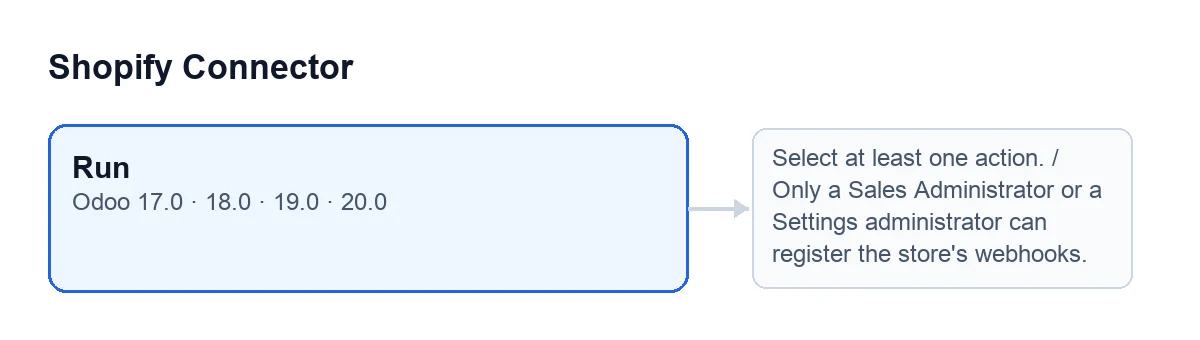
Run button and, beside it, messages that can stop it.On pressing: what it does, in order
The button goes through its actions one after another. If one stops with an error, the following ones do not run, and if all goes well the window closes.
- Selection. It first checks that some action is ticked. If not, it stops with the message shown further down.
- Orders (if
Sync Ordersis ticked). It searches Shopify for orders in any status, with the instance's date filter when there is one. - First import. If that search finds nothing and the instance has no imported Shopify order yet, it reads the whole history again without the date filter. A store that already has orders does not repeat that read.
- What changes on the instance. If it brought in orders, it saves the date and time of the last order sync, resets the consecutive-errors counter and clears the last sync error.
- Products (when that action is selected). It reads Shopify products page by page, using the instance's page size, and processes each product received. It ends when there are no more pages or the instance's maximum number of pages is reached, and then saves the date of the last product sync.
- Stock (if
Push Stockis ticked). It launches the instance's stock action. - Webhooks (if
Register Webhooksis ticked). It checks the permission, the URL and the topics, and then adjusts the store's subscriptions (details in the next section).
What the webhooks step does
- The module checks that whoever presses is a Sales Administrator or a Settings administrator. The views only hide the tick box: the check also runs on execution.
- It always drops the updated-orders topic and removes the order or product topics that are not enabled on the instance.
- It reads the subscriptions that already exist in Shopify and deletes those pointing to another URL, those for a topic that no longer applies and duplicates. If a deletion fails, it logs it on the server and carries on.
- It creates in Shopify the missing subscriptions, one per topic, and skips those that already exist with that URL.
If something fails: which message, why and what to do
Select at least one action.: no action was ticked. Tick one and press again.
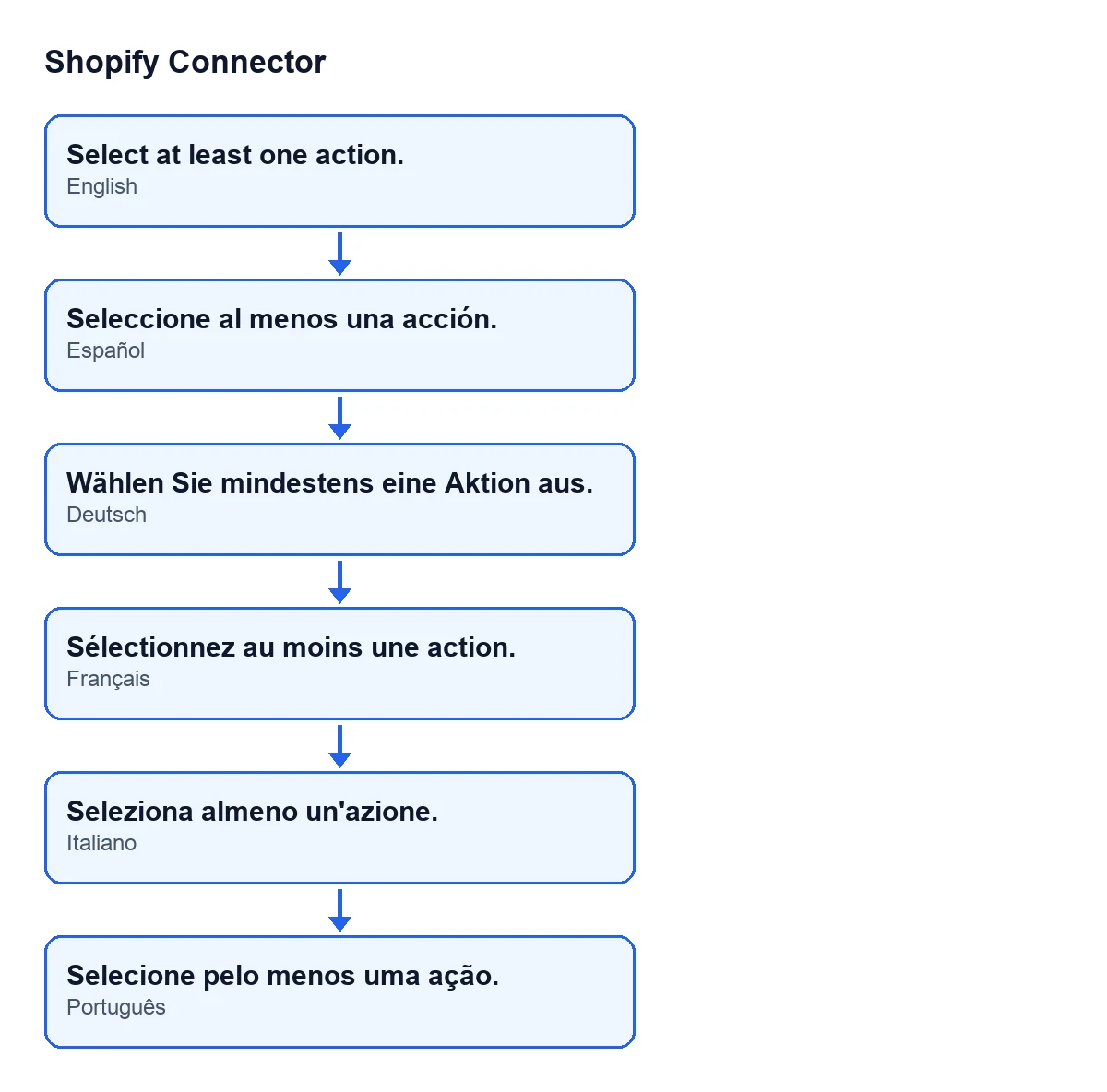
Wählen Sie mindestens eine Aktion aus. in German.Only a Sales Administrator or a Settings administrator can register the store's webhooks.: whoever pressed has neither permission. Have a user who does hold one do it.Webhook URL is not available. Check Odoo base URL and webhook token.: review those items, as the message itself asks.Please configure at least one webhook topic.: configure a webhook topic on the instance. It can also appear if, after removing the order or product topics that are not enabled, none is left.Shopify order sync failed for …: …: after «for» comes the store's domain and after the colon the error received. Read the error that appears after the colon and fix the cause before trying again.
Cost and help
The module costs €9 per Odoo version, for 17, 18, 19 and 20, excluding VAT, and it needs a FlexigoTech Cloud subscription: the Connector plan is €49/month or €490/year, excluding VAT.
If you are implementing Odoo and want the Shopify sync tuned properly, FlexigoTech implements Odoo and develops custom connectors and integrations.
Keep reading
Checked in the connector's source code (version 20.0) and the linked sources
Sources
- Module source code: flexigobe_shopify_connector 20.0 (c7078cd8): wizard/shopify_sync_wizard_views.xml
- Module source code: flexigobe_shopify_connector 20.0 (c7078cd8): wizard/shopify_sync_wizard.py
- Module source code: flexigobe_shopify_connector 20.0 (c7078cd8): models/shopify_instance.py
- apps.odoo.com/apps/modules/20.0/flexigobe_shopify_connector
- apps.odoo.com/apps/modules/17.0/flexigobe_shopify_connector
- apps.odoo.com/apps/modules/18.0/flexigobe_shopify_connector
- apps.odoo.com/apps/modules/19.0/flexigobe_shopify_connector
- flexigotech.com/precios.html
- flexigotech.com/en/services.html