

 Español
 Català
 Deutsch
 Français
 Português
 Italiano
 Nederlands
 Polski
Before you look for it: where it is and when it shows
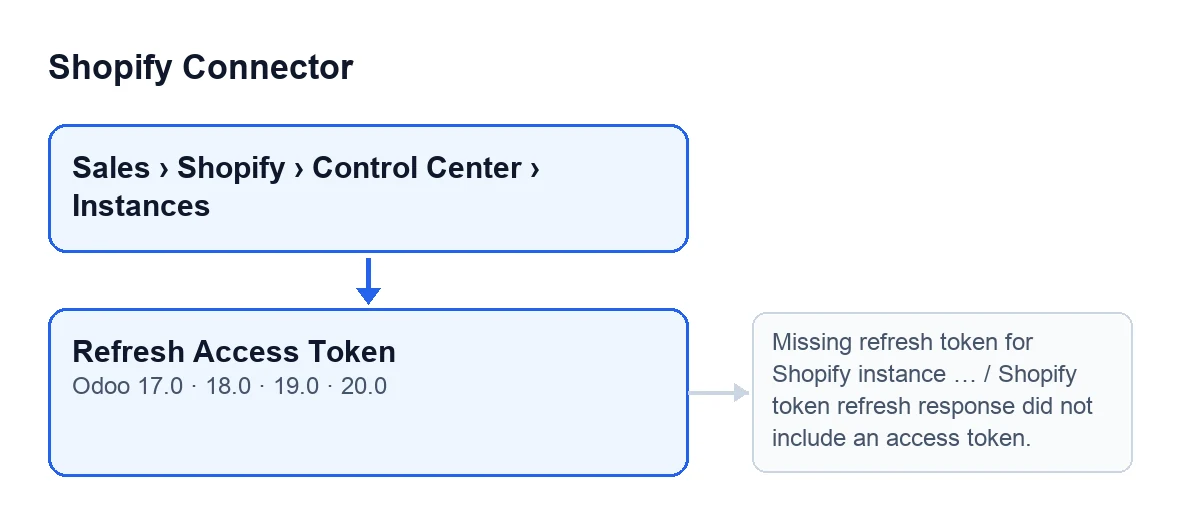
The Refresh Access Token button is on the Shopify Instances screen, in the 17, 18, 19 and 20 branches of the module. What follows describes the published code for Odoo 20.0.
- Open
Sales › Shopify › Control Center › Instancesand go into the instance form.
- If you cannot see the button, that is expected with the default values: it is hidden when the
Shopify connectionfield has the valuecloud, which is its default. That field is not shown in any view.
- Keep in mind that the button is the exception rather than the normal step: the next section covers what happens without pressing it.

What happens without pressing anything
Renewing the token does not depend on the button alone. The module has a check on the instance's access token that can also trigger it, and that check is reached without touching the button.
- It renews when a renewal is explicitly forced and the instance has a refresh token.
- It renews when the instance has an expiry date stored, the time five minutes before that date has been reached (or passed) and there is a refresh token.
- With no expiry date stored and no forcing, that check finishes without doing anything.
- With no refresh token, that path never asks Shopify for anything.
- Know where that check is reached from:
- when a delivery order form is saved;
- when a delivery order is validated with Odoo's standard button, which the module extends;
- the scheduled task
Shopify Process Webhooks, every minute, active on installation; - the scheduled task
Shopify Pull Stock (Shopify → Odoo), every six hours, inactive on installation; - the scheduled task
Shopify Sync Orders, every five minutes, inactive on installation; - the scheduled task
Shopify Sync Products, every hour, inactive on installation.
If you are interested in the stock task and its button, they have their own article: what the Pull Stock button does.
When you press it by hand: what it checks and what changes
Pressing the button is the way to renew the token by hand. The button goes through the records it acts on and starts the renewal for each one.
- First check: that the instance has a refresh token. If it is empty, the action stops with
Missing refresh token for Shopify instance …, where the code puts the name the instance displays.
- With a refresh token, it sends Shopify the instance's app key and secret together with that token, and waits for the reply for the timeout set on the instance, with a minimum of five seconds.
- It reads the reply. If there is no access token in it, the action stops with
Shopify token refresh response did not include an access token.
- If the reply includes an access token, it saves the new one and the date and time of this renewal.
- If the reply includes a new refresh token, it replaces the old one; if not, the existing one stays.
- If the reply says how many seconds the token lasts, it works out the new expiry date by adding those seconds to the current moment; if not, the expiry date is left alone.
- Remember the difference from the automatic path: the button does not look at the expiry date. Each time it is pressed, and as long as there is a refresh token, it asks for a new token.
If a message appears
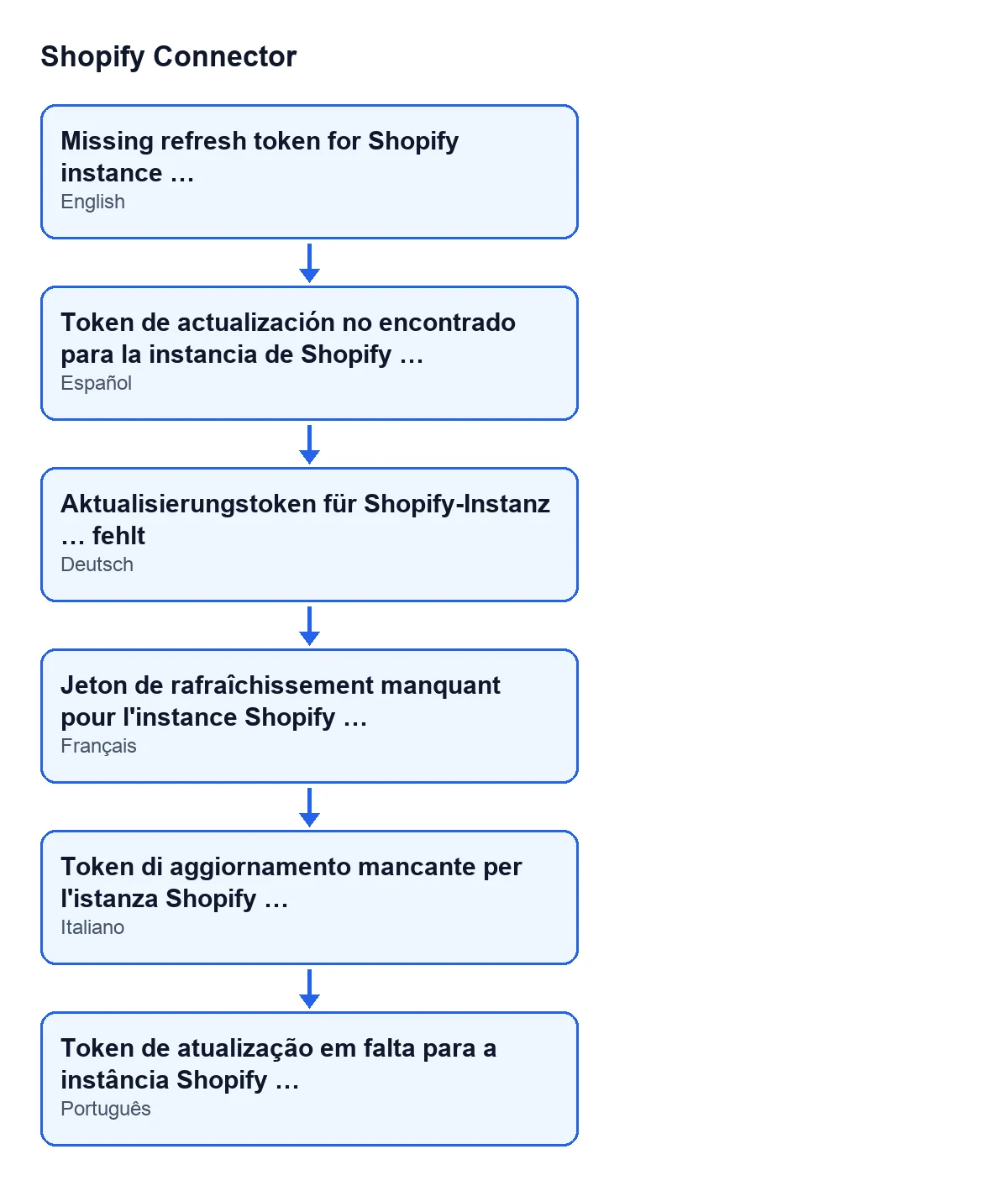
These messages appear when you press Refresh Access Token, and they stop the action before anything is saved for that instance.
| Odoo language | Message text |
|---|---|
| English | Missing refresh token for Shopify instance … |
| Spanish | Missing refresh token for Shopify instance … |
| German | Aktualisierungstoken für Shopify-Instanz … fehlt |
| French | Jeton de rafraîchissement manquant pour l'instance Shopify … |
| Italian | Token di aggiornamento mancante per l'istanza Shopify … |
| Portuguese | Token de atualização em falta para a instância Shopify … |
- With the refresh token message: the instance has no such value stored and the button never asks Shopify for anything. Nothing has been changed.
- With the message about the reply without an access token: Shopify answered, but the reply did not include an access token. The token the instance already had has not been touched.
- After pressing, check that the action finishes without any of these messages.
What the module needs
The module costs €9 per Odoo version, for 17, 18, 19 and 20, excluding VAT, as a one-off payment. It also needs a FlexigoTech Cloud subscription: the Connector plan costs €49/month or €490/year excluding VAT. You can see each version on the Odoo Apps page.
If you want help
FlexigoTech implements Odoo 17, 18, 19 and 20 and builds connectors and custom integrations. If your Shopify instance does not fit what this checklist describes, we can look at it with you.
Keep reading
Checked in the connector's source code (version 20.0) and the linked sources
Sources
- Module source code: flexigobe_shopify_connector 20.0 (c7078cd8): views/shopify_instance_views.xml
- Module source code: flexigobe_shopify_connector 20.0 (c7078cd8): models/shopify_instance.py
- Module source code: flexigobe_shopify_connector 20.0 (c7078cd8): models/fgt_cloud.py
- apps.odoo.com/apps/modules/20.0/flexigobe_shopify_connector
- apps.odoo.com/apps/modules/17.0/flexigobe_shopify_connector
- apps.odoo.com/apps/modules/18.0/flexigobe_shopify_connector
- apps.odoo.com/apps/modules/19.0/flexigobe_shopify_connector
- flexigotech.com/precios.html
- flexigotech.com/en/services.html