

 Español
 Català
 Deutsch
 Français
 Português
 Italiano
 Nederlands
 Polski
Where it is and what the code does
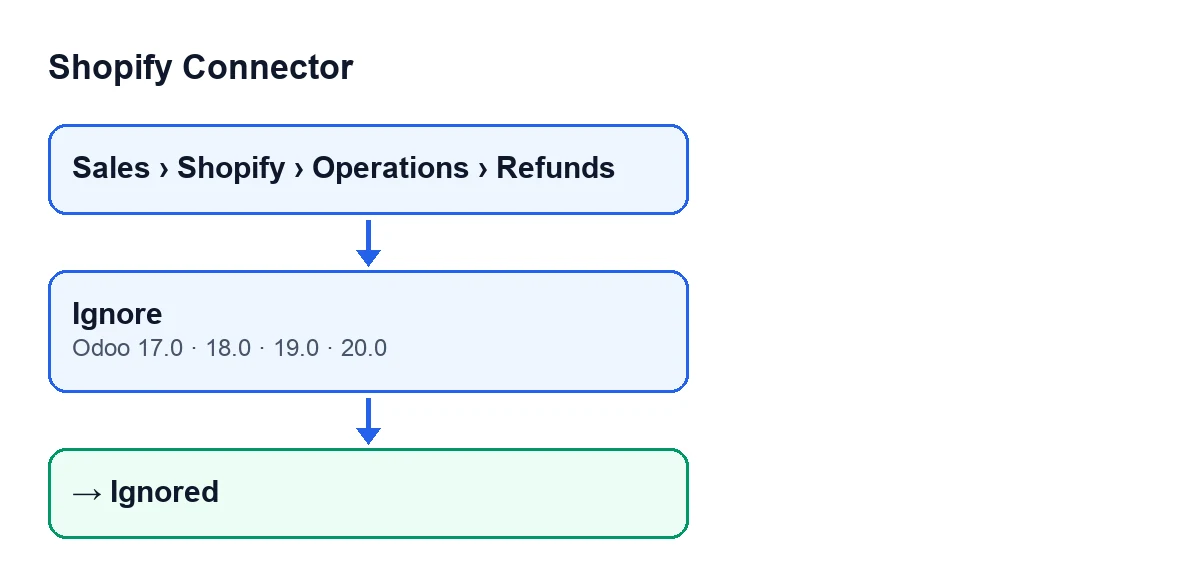
Shopify refunds open from the menu Sales › Shopify › Operations › Refunds. On the form and in the list of Shopify Refunds you can see the State field, which can be Draft, Credit Note Created, Ignored or Failed. A new refund defaults to Draft.
The Ignore button is hidden when the state is neither Draft nor Failed. With the default values it is visible. The method behind it, according to the Odoo 20 code, keeps only the refunds that are in Draft or Failed, writes the Ignored state on them, empties whatever error message they had stored, and finishes.
With that in mind, here are the wrong assumptions worth dropping before you press it.

Wrong assumptions about Ignore
"Ignore deletes the refund"
It doesn't. The method only writes the Ignored state and empties the error message. No instruction in the code removes the record. The refund stays under Sales › Shopify › Operations › Refunds, and the State field remains visible on its form and in the list, now showing Ignored.
"The button shows on every refund"
It doesn't. The view hides it when the state is neither Draft nor Failed. So you won't see it on a refund in Credit Note Created, nor on one that is already Ignored. And if the method were ever run on a refund outside those two states, the code filters it out and leaves it as it is.
"Ignore creates the credit note"
The method does two things: it sets the state to Ignored and empties the error message. It does not create any credit note: Credit Note Created is another value of the State field, and this button does not write it. Nor does it call other methods of the module, so its effect stays on the refund itself inside your Odoo.
"If I get it wrong, I can undo it with the same button"
The Ignore button only appears in Draft and Failed. Once the refund is Ignored, the view hides the button. Check the State field before you press it, and bear in mind that if the refund was Failed, ignoring it empties the stored error message.
"Ignore runs many checks before changing anything"
The method's only check is on the state: it keeps the refunds in Draft or Failed, writes Ignored on them, empties the error message and hands control back. If you can't see the button, the thing to review is the State field on the form. The code described is that of Odoo 20; the button's visibility condition is the same in 17, 18, 19 and 20.
"It's a button from the latest versions, and it will be named differently in my language"
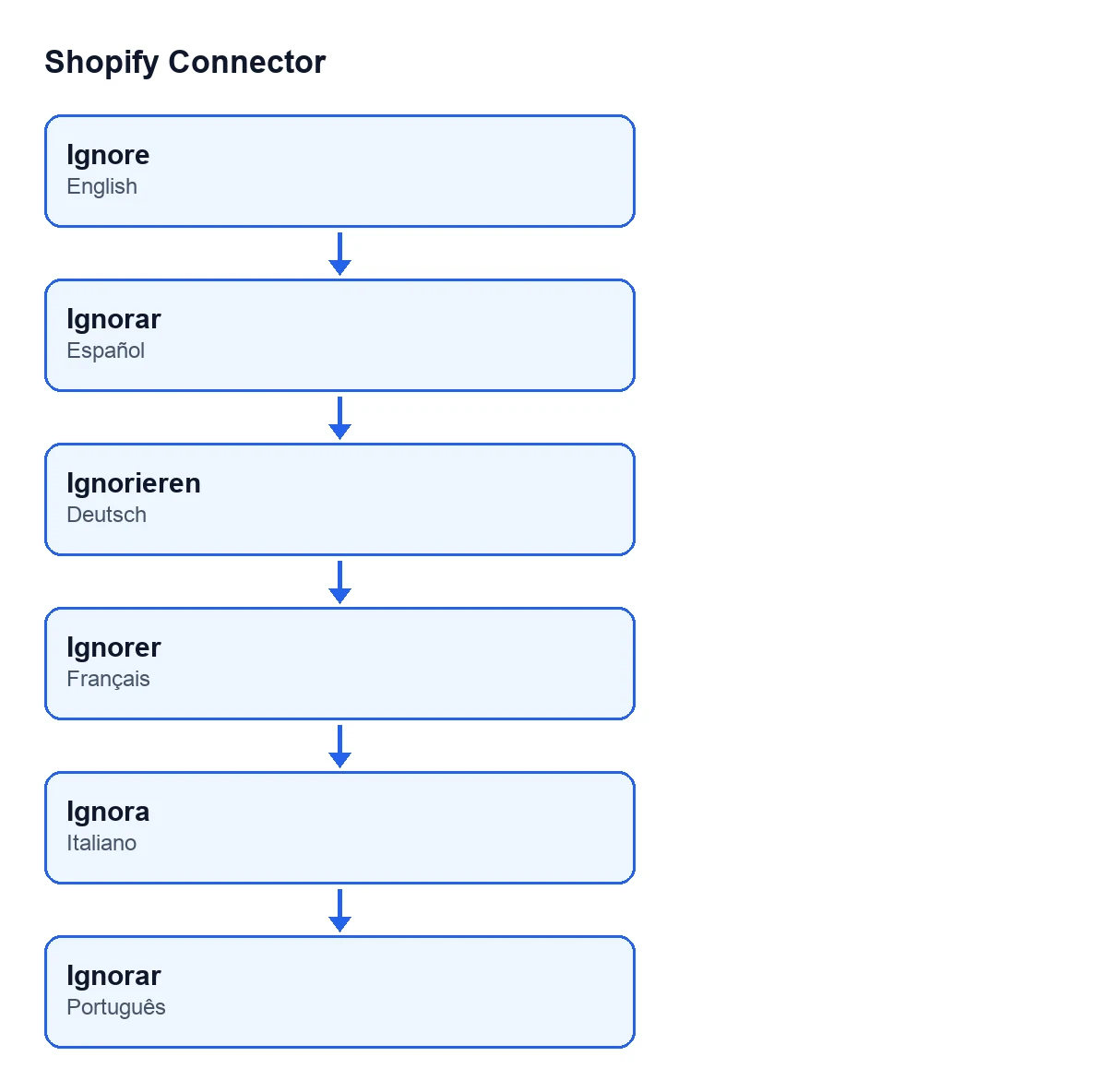
The Ignore button on the Shopify Refunds screen is in every published branch: 17, 18, 19 and 20. The label depends on the language of your Odoo, as this table shows:
| Odoo language | Button label |
|---|---|
| English | Ignore |
| Spanish | Ignorar |
| German | Ignorieren |
| French | Ignorer |
| Italian | Ignora |
| Portuguese | Ignorar |
What to check before and after pressing it
Before: open Sales › Shopify › Operations › Refunds and check on the form, or in the list, that the State field is Draft or Failed. If it has any other value, the button isn't shown.
After: the State field should show Ignored. If the refund came from Failed, whatever error message it had stored will be gone. And because the view hides the button in Ignored, it will no longer appear on that form.
What it costs to have the button
The module is published on Odoo Apps for 17, 18, 19 and 20, at €9 per Odoo version, one-off payment, excluding VAT. The manifest of each version also says it needs the FlexigoTech Cloud subscription. The Connector plan costs €49/month or €490/year, excluding VAT, and covers up to 3 accounts of the platform.
If you want to review your refund flow
Ignoring refunds is one small piece of the connector. FlexigoTech implements Odoo 17, 18, 19 and 20 and builds custom connectors and integrations. If you want to review how the Shopify refund flow fits into your Odoo, tell us about your case.
Keep reading
Checked in the connector's source code (version 20.0) and the linked sources
Sources
- Module source code: flexigobe_shopify_connector 20.0 (c7078cd8): views/shopify_refund_views.xml
- Module source code: flexigobe_shopify_connector 20.0 (c7078cd8): models/shopify_refund.py
- apps.odoo.com/apps/modules/20.0/flexigobe_shopify_connector
- apps.odoo.com/apps/modules/17.0/flexigobe_shopify_connector
- apps.odoo.com/apps/modules/18.0/flexigobe_shopify_connector
- apps.odoo.com/apps/modules/19.0/flexigobe_shopify_connector
- flexigotech.com/precios.html
- flexigotech.com/en/services.html