

 Español
 Català
 Deutsch
 Français
 Português
 Italiano
 Nederlands
 Polski
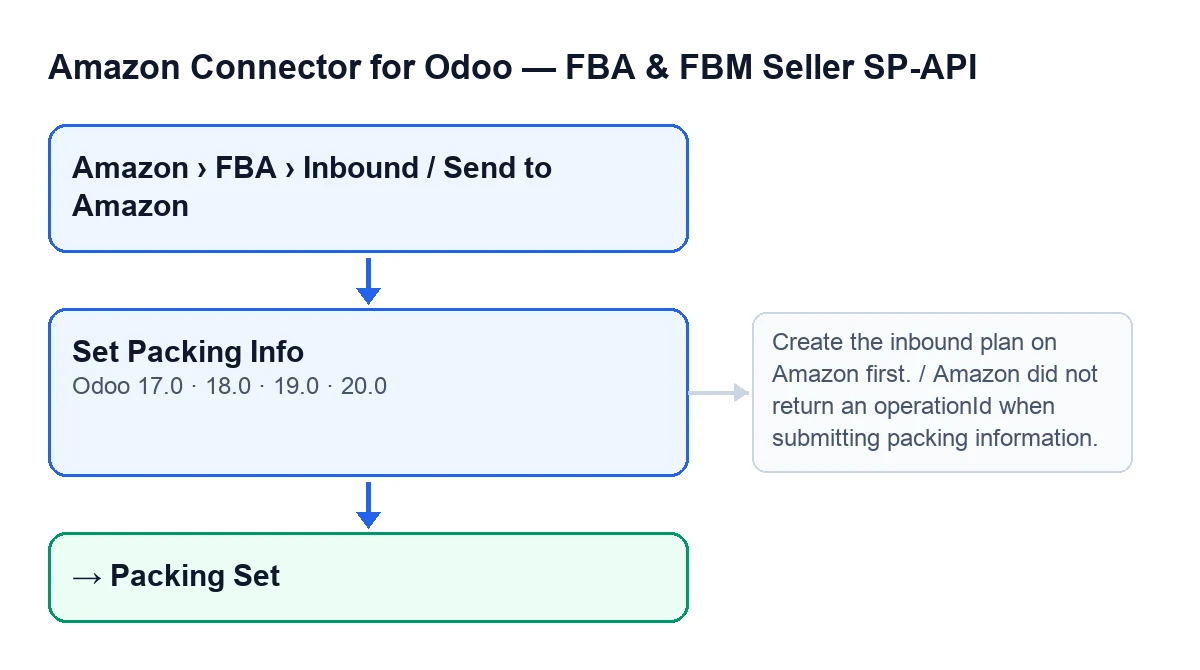
The button is on the Send to Amazon form, which you open from the menu Amazon › FBA › Inbound / Send to Amazon. Every level of that menu requires the Viewer permission. The button exists in Odoo 17, 18, 19 and 20; the messages and the order of checks described here are those of the code published for Odoo 20. These are the ideas worth correcting before you press it, along with what the module's code really does.
Misconceptions about the packing button
«The button is on every shipment record»
In reality the button is hidden when the record has no Packing Groups. With the default values it is not visible. The condition is the same in Odoo 17, 18, 19 and 20: until the plan has packing groups, the button does not appear.
The button does not carry the same label in every language either. In English it reads Set Packing Info; in other languages, according to the module's published translations:
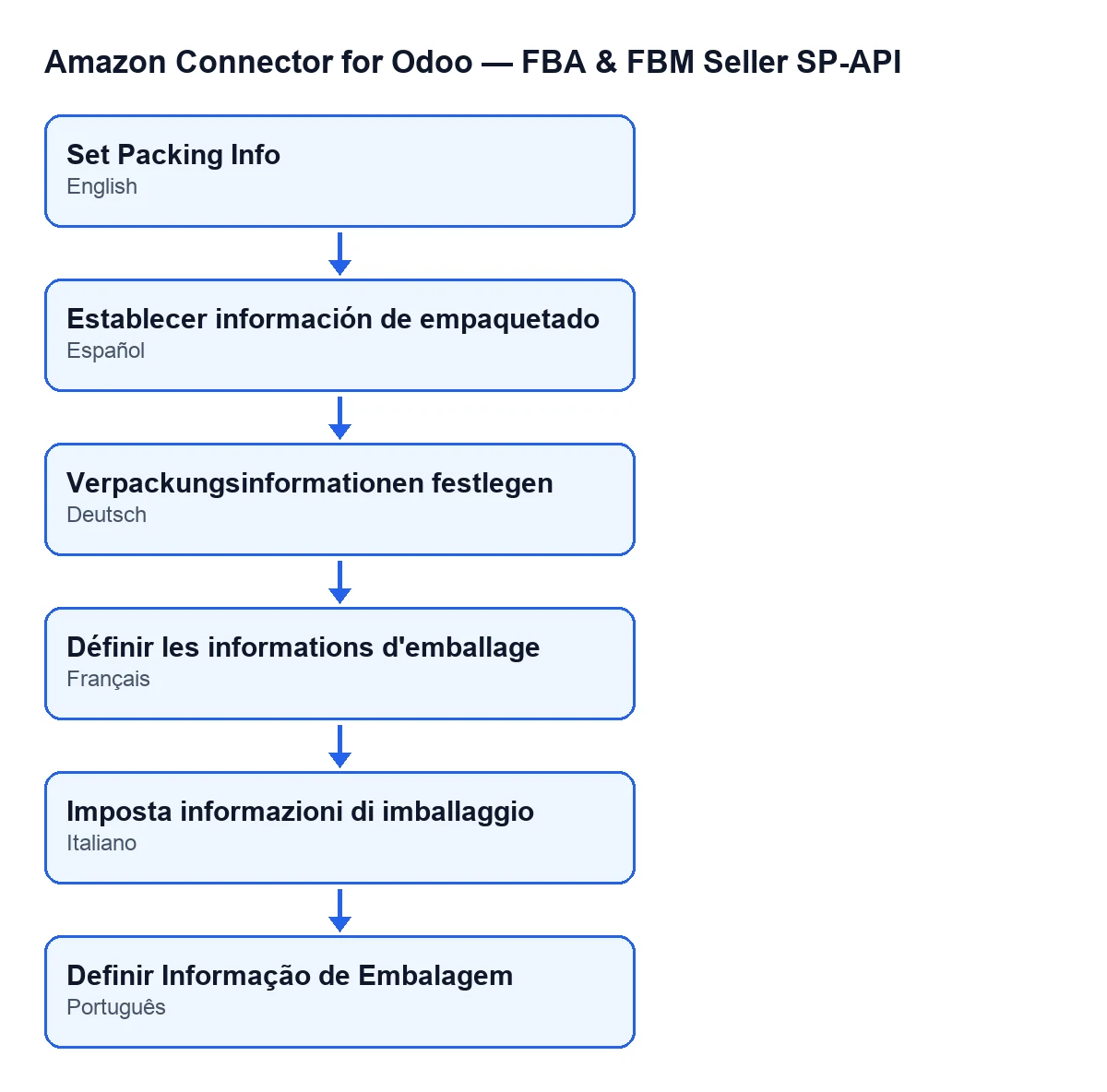
Set Packing Info; in German, Verpackungsinformationen festlegen; in French, Définir les informations d'emballage; in Italian, Imposta informazioni di imballaggio; in Portuguese, Definir Informação de Embalagem.«Pressing it sends whatever is there, complete or not»
Before talking to Amazon, the code runs checks and stops at the first one that fails, in this order:
- Permissions. Covered in the next point.
- Inbound plan. If the
Inbound Planfield on the record is empty, you getCreate the inbound plan on Amazon first.That field is read-only: you do not type it, theCreate Inbound Planbutton fills it in. - Active groups. Only active packing groups count; inactive ones are not sent. If none is left, you get
There are no active packing groups. - Boxes. Every active group needs boxes. If one has none, you get
Packing group … has no boxes configured., with the group in place of the ellipsis.
Once the checks pass, the module sends Amazon, through the plan's Account, one block per active group with its boxes.
«Seeing the menu is enough to press it»
Seeing the menu requires Viewer, but pressing the button requires more. The module checks on the server that you have at least Amazon Seller Connector Operator access (Manager also works) and, on top of that, write permission on the plan. Otherwise the action stops with You need at least Amazon Seller Connector Operator access for this action. Ask a manager to grant Operator or Manager access.
If the action runs as the superuser, it passes that group check without further ado.
«If Amazon replies, the packing is done»
The code expects Amazon to return an operation identifier. If it does not, the action stops with Amazon did not return an operationId when submitting packing information.
If it does, the code writes on the plan the operation identifier, the request sent and Amazon's reply, sets the state to Packing Set and notes the synchronisation date. Before that wait, the code has already written this data to the plan.
Then it asks Amazon for the operation's status and repeats the query until the attempts run out. On every query it notes on the plan the operation's status and any problems Amazon returns. The wait can end in three ways:
- If Amazon reports the operation as successful, the wait ends without an error.
- If Amazon reports it as failed, in error or cancelled, the action stops with
Set packing information failed on Amazon (…): …. The brackets hold the status and what follows are the problems Amazon returned. - If the attempts run out without a final answer, you get
Set packing information is still pending after … attempts. Last status: …. If Amazon gave no status at all, you will seeno statusinstead.
So do not rely on the record's state alone: on a retry it may already be in Packing Set from the earlier submission even though the new one failed. Read the whole message to see how the operation ended.
«If an error appears, Amazon has received nothing»
You cannot assume that. The operation errors (the Amazon did not return an operationId when submitting packing information. one, the failure one and the pending one) appear after the request has already gone to Amazon. Read the message before trying again.
In failures, what follows the colon are the problems Amazon returned. In pending cases, the last status is the one Amazon returned on the final query. The button stays visible while the record has Packing Groups, so you can press it again after fixing whatever the message points to.

How FlexigoTech can help
If you are implementing Odoo and want the Amazon inbound flow clear before giving your team Operator access, FlexigoTech implements Odoo 17, 18, 19 and 20 and builds connectors and custom integrations. You can see the listing on Odoo Apps or the module page.
The module is a one-off payment per version and needs a FlexigoTech Cloud subscription, Connector plan: €49 a month or €490 a year, excluding VAT. The connection goes through FlexigoTech Cloud, which stores the credentials encrypted and emails you if synchronisation fails.
Keep reading
Checked in the connector's source code (version 20.0) and the linked sources
Sources
- Module source code: flexigobe_amazon_seller_connector 20.0 (8576afa5): views/amazon_spapi_inbound_plan_views.xml
- Module source code: flexigobe_amazon_seller_connector 20.0 (8576afa5): models/amazon_spapi_inbound_plan.py
- apps.odoo.com/apps/modules/20.0/flexigobe_amazon_seller_connector
- flexigotech.com/en/services.html
- flexigotech.com/precios.html