

 Español
 Català
 Deutsch
 Français
 Português
 Italiano
 Nederlands
 Polski
Where the form is and which fields you see
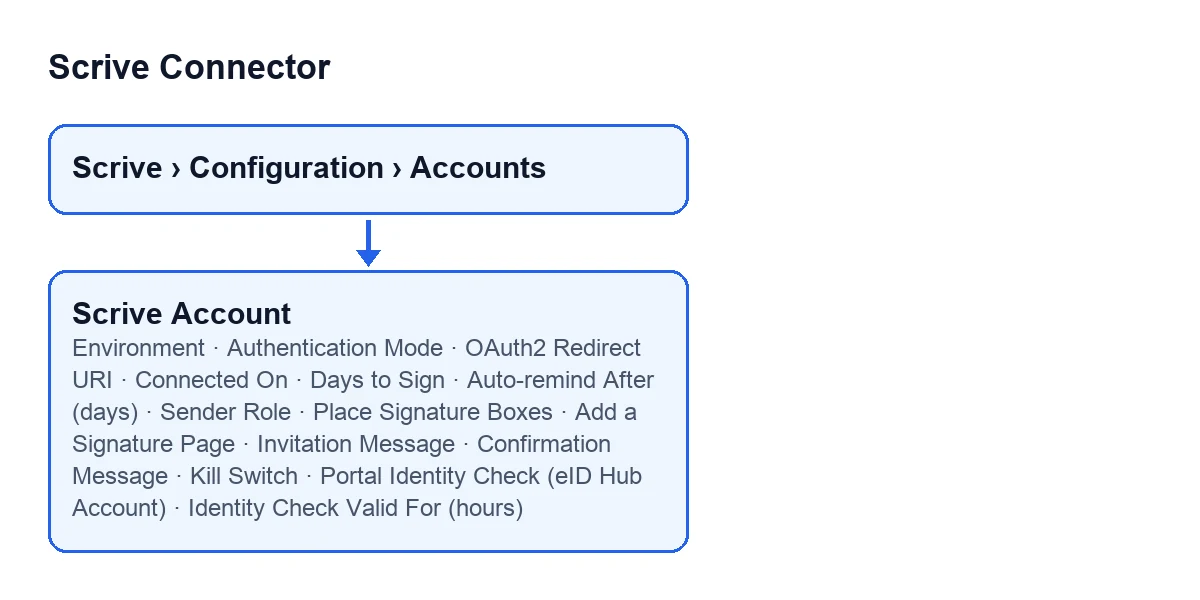
Where do I open the account form, and why can't I see every field?
It opens from Scrive › Configuration › Accounts. The Configuration step of the menu needs the Manager permission and the Scrive step needs User; without one of them you do not see that step. Inside the form, some fields are shown only to users with the Scrive Manager permission: Authentication Mode, OAuth2 Redirect URI, Connected On and the two fields of the portal identity check. Others are hidden depending on the value of another field; each answer says when.

Connection: environment and authentication
What do I put in Environment?
The field sits in the Connection group of the form and also in the Scrive Accounts list. It has two options: Production (scrive.com) and API Testbed (api-testbed.scrive.com). It starts as Production (scrive.com). According to its help text, the API Testbed is used while developing or certifying the integration, and no production data or availability guarantees apply there.
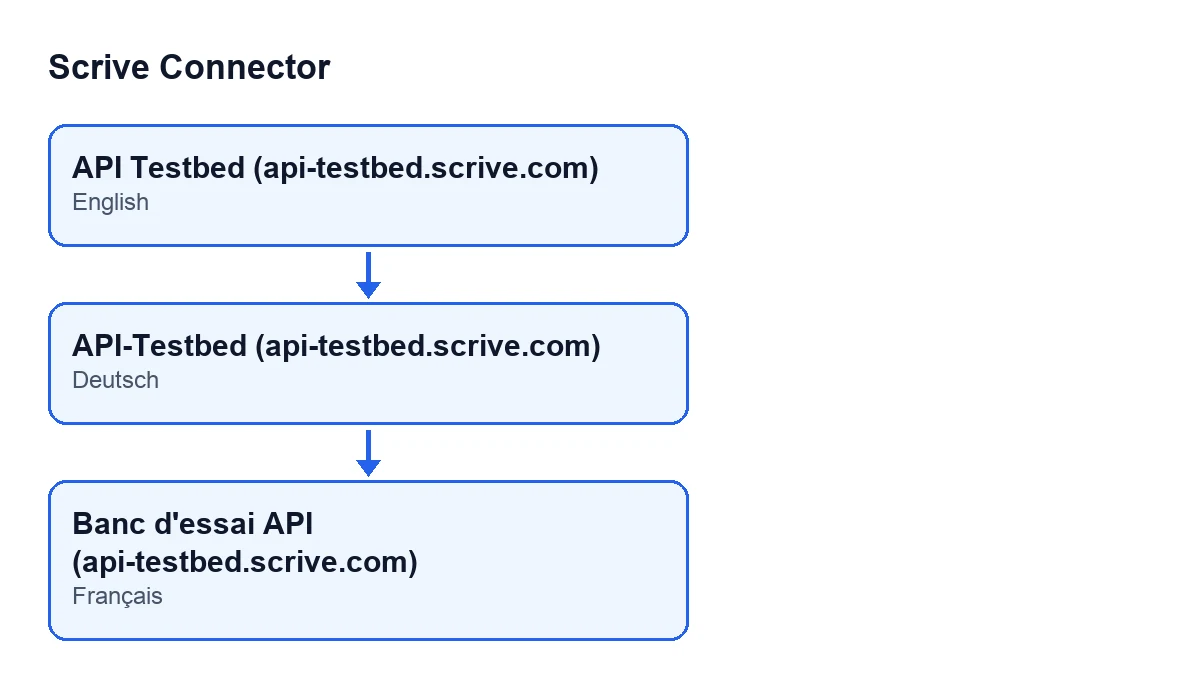
API-Testbed (api-testbed.scrive.com) and in French Banc d'essai API (api-testbed.scrive.com).Which Authentication Mode should I choose?
The field is in the Authentication group. Its help text describes two modes. Personal access credentials are the option it recommends: four static tokens you fetch once with your Scrive login, with nothing to register with Scrive. That is the default. OAuth2 it presents as advanced: the account holder authorizes this Odoo instance through Scrive's login page using your own Scrive-registered OAuth2 client, which means registering this exact database's redirect URI with Scrive first. If you are not starting from an OAuth2 client of your own already registered with Scrive, the help text recommends personal access credentials.
What are OAuth2 Redirect URI and Connected On?
They appear only when the authentication mode is OAuth2, inside the OAuth2 (your own Scrive OAuth2 client) group. With the default values you do not see them. The OAuth2 Redirect URI must be registered with Scrive for that OAuth2 client. It comes pre-filled from the database's own address, and the help text says to override it with a fixed relay URL if Scrive requires a single pre-registered redirect URI rather than a per-database one. Connected On is read-only: it shows when this database last completed the Scrive OAuth2 authorization. The module writes it, not you, and it stays hidden while there is no connection.
Defaults for new documents
How do I set the deadline, the reminder and the sender role?
These fields are in the Defaults for new documents group. Days to Sign is the number of days before an unsigned document expires, between 1 and 365; it starts at 90. Auto-remind After (days) reminds unsigned parties after that many days; 0 disables it, and 0 is the default. Sender Role is the role of the Scrive integration user, the sender, on each document: Viewer (does not sign), Signing party or Approver. It starts as Viewer (does not sign).
What do Place Signature Boxes and Add a Signature Page do?
Place Signature Boxes places a signature box for each signing party on the document; it starts switched on. Add a Signature Page also starts switched on. According to its help text, signature boxes and signer fields that have no page of their own (Page 0) and no anchor text go on a page added at the end of the PDF sent to Scrive, with your company's header and footer, so nothing is drawn over the document. Switched off, they go at the bottom of the document's last page instead. The document as Odoo prints it is never changed.
Do I have to fill in the invitation and confirmation messages?
No, they are optional. Invitation Message is the custom text for the signing invitation and Confirmation Message the one for the signing confirmation. They sit in the Messages group and on screen they have no label: you only see their content. If you leave them empty, the Scrive default is used.
Safety and identity check
What does the Kill Switch block?
It is in the Automation & Safety group and also in the Scrive Accounts list. Its help text says it blocks every outbound Scrive API call from that account.
What is the portal identity check for?
The Portal Identity Check (optional eID Hub add-on) group is shown only to users with the Scrive Manager permission. In Portal Identity Check (eID Hub Account) you choose a Scrive eID Hub account. If you set it, portal users must verify their identity through it (Swedish BankID, MitID...) before they can view or open documents pending their signature from that Scrive account; it is an extra assurance layer on top of any authentication to view or to sign already configured per party. Once you choose the account, Identity Check Valid For (hours) appears: how long a completed identity check keeps those documents open for that contact on the portal, between 1 and 87600 hours (3650 days). It starts at 24.
What you need to use it
The module is published on Odoo Apps for 17.0, 18.0, 19.0 and 20.0 (listing, module page). It is a one-off payment per version and needs the FlexigoTech Cloud subscription, Connector plan: €49 per month or €490 per year excluding VAT, up to three platform accounts. The connection goes through FlexigoTech Cloud, which stores the credentials encrypted. FlexigoTech implements Odoo 17, 18, 19 and 20 and builds custom connectors and integrations, in case you want help with the set-up.
Keep reading
Checked in the connector's source code (version 20.0) and the linked sources
Sources
- Module source code: flexigobe_scrive_connector 20.0 (21b3b940): models/scrive_account.py
- apps.odoo.com/apps/modules/20.0/flexigobe_scrive_connector
- flexigotech.com/en/services.html
- flexigotech.com/precios.html