

 Español
 Català
 Deutsch
 Français
 Português
 Italiano
 Nederlands
 Polski
First: Odoo already does it on its own
Before you press anything, two scheduled tasks move returns into stock: Amazon SP-API - Auto receive returns to stock, every 15 minutes, and Amazon SP-API - Sync returns, every 3 hours. Both are active on install and both end in the same receive-to-stock routine, which goes through the account's returns that are not yet done, newest first, up to a limit of lines per run. That routine only works if the account's checkbox is ticked, and it is ticked by default.
The button is the exception: it processes one specific return without the preliminary check that the task makes, which according to the help text of its checkbox only handles finalised Amazon returns. Use it only when you know that return should go into stock now, even if the task has left it skipped.

Step by step
- Leave the account's automation switched on. It is on the
Accountsform,Returns & Reviewstab,Return Stock Automation (ON by default)group: the checkboxReturns: auto-receive to stock, ticked by default. Its help text reads:Automatically creates and validates return pickings in Odoo for finalized Amazon returns.
- Open the return from
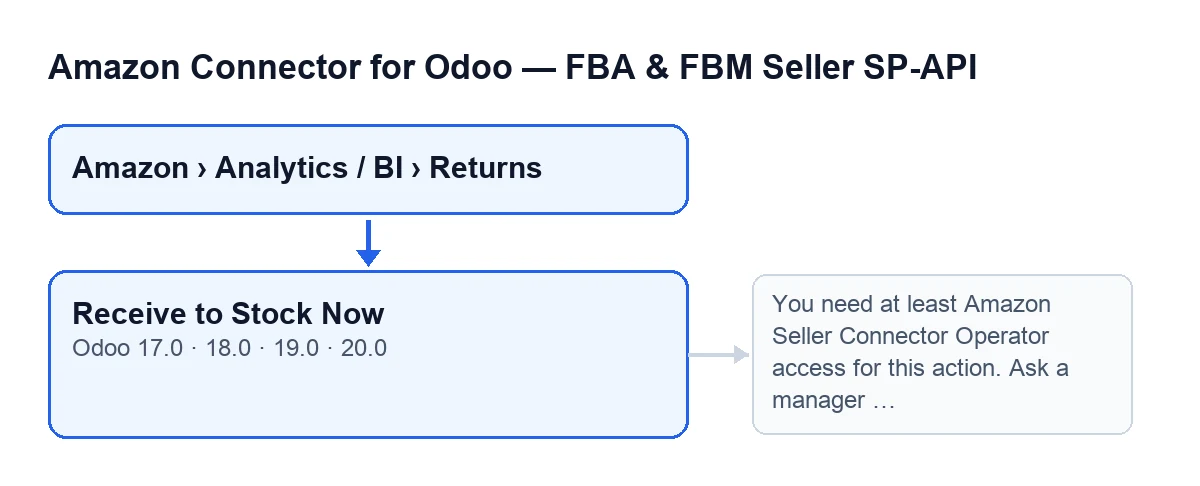
Amazon › Analytics / BI › Returns. Every level of that menu asks for theViewerpermission. The button lives on theReturns (BI)screen, where the return'sAccountfield shows on the form and in the list.
- Check whether you can see the button. With the default values it is visible; the three conditions that hide it are listed below.
- Check your access. The menu asks for Viewer, but when you press the button the module asks for at least Operator access. If you do not have it, it stops with this message:
You need at least Amazon Seller Connector Operator access for this action. Ask a manager to grant Operator or Manager access.Ask a manager to give you Operator or Manager access. The module also checks that you can write to that record.
- Before pressing, be sure that return should go into stock now: the button does not make the automatic routine's preliminary check. Press
Receive to Stock Nowand read the result (below).
When you will not see the button
The button is hidden on a return when any of these conditions is met:
- The return's
Fulfillment Scopeis FBA. - Its
Stock Link Modeis set to the value the module treats as do not restock. - Its
Stock Return Stateis already the done one.
That condition is the same in all four published branches of the module, 17, 18, 19 and 20.
What the button does behind the scenes
In Odoo 20, the button works on a single record, the one you have open, and on that return's Amazon account. It calls the same routine as the scheduled tasks, with one difference: the automatic routine first makes a preliminary check and, if the return does not pass it, leaves the return skipped and saves the reason. The button does not make that check, so it can take into stock a return that the task would still leave skipped. Then, in this order:
- It looks for the Odoo sales order that matches the Amazon order. If the return was not linked to it, it saves the link on the return.
- It looks for the sales lines that match the return. If the return has no SKU and those lines point to a single SKU, it fills it in.
- It looks for the delivered outgoing pickings of that order.
These changes (the link to the order and the SKU) are only kept if the click does not end in an error: when it does, Odoo does not save what that click had written.
If the sales order, the sales lines or the delivered outgoing picking is missing, pressing the button gives an error on screen with the reason, and nothing from that click is saved on the return, not even the reason. The automatic task, by contrast, leaves the return skipped and saves the reason on it.
What you see at the end
If the routine gives an error, the button stops and shows the error message.
If there is no error, a notification titled Amazon Returns appears that does not stay fixed on screen: a success type if the return was processed, and a warning type in any other case.
To check afterwards, remember the conditions above: once the Stock Return State reaches the done one, the button is no longer shown on that return.
Receive to Stock Now.Automatic task versus button
| Aspect | Automatic task | Receive to Stock Now button |
|---|---|---|
| Who runs it | The two scheduled tasks | You, on one return |
| Scope | The account's returns not yet done, with a limit per run | Only the return you have open |
| Preliminary check | Yes; if the return does not pass it, it is left skipped and the reason is saved | No: the button does not make it and can take into stock a return that the task would still leave skipped |
| Sales order, sales lines or delivered picking missing | The return is left skipped and the reason is saved on it | It is an error: the button stops, shows the reason on screen and nothing from that click is saved |
In practice: if a return still has not reached stock, the task leaves it skipped and records the reason on it, so that is where you can look it up. The button tells you through an error whether the sales order, the sales lines or the delivered picking is missing, but it does not leave the reason on the return, and since it does not make the preliminary check, pressing it on a return the task has skipped is a decision that is yours.
What it needs and what it costs
The module is a one-off payment per Odoo version and is published for 17, 18, 19 and 20. It also needs a FlexigoTech Cloud subscription: the Connector plan costs €49/month or €490/year excluding VAT, for up to 3 accounts of the platform.
How FlexigoTech can help
FlexigoTech implements Odoo 17, 18, 19 and 20 and builds connectors and custom integrations. If you want to review how your Amazon returns end up in stock, see the module page or its Odoo Apps listing.
Keep reading
Checked in the connector's source code (version 20.0) and the linked sources
Sources
- Module source code: flexigobe_amazon_seller_connector 20.0 (8576afa5): views/amazon_spapi_return_line_views.xml
- Module source code: flexigobe_amazon_seller_connector 20.0 (8576afa5): models/amazon_spapi_return_line.py
- Module source code: flexigobe_amazon_seller_connector 20.0 (8576afa5): models/amazon_spapi_account.py
- apps.odoo.com/apps/modules/20.0/flexigobe_amazon_seller_connector
- flexigotech.com/precios.html
- flexigotech.com/en/services.html