

 Español
 Català
 Deutsch
 Français
 Português
 Italiano
 Nederlands
 Polski
The configuration record comes first
Configuration is tied to a company and its RUC
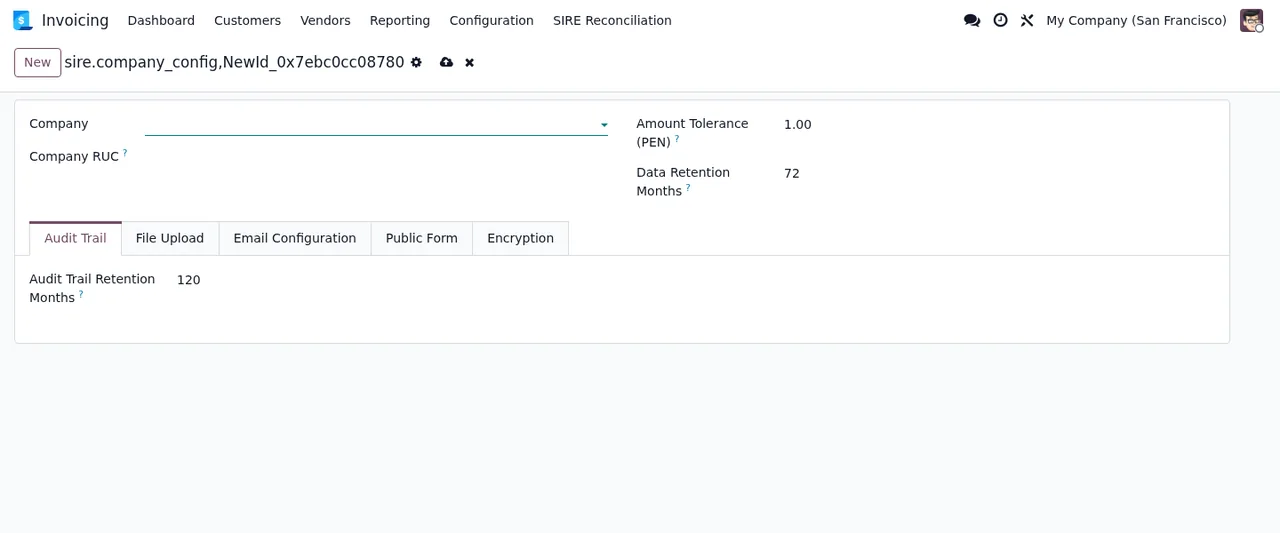
The SIRE configuration form opens with two fields: Company, the Odoo company, and Company RUC, which its help text describes as the Peru SUNAT RUC of 11 digits. On a new form Company is empty, so that is the first thing to fill in. If you run several companies in the same database, check which company is selected before you save.
Tolerance is an amount in soles
The Amount Tolerance (PEN) field is, according to its help text, the tolerance for amount differences in reconciliation. It is an amount in PEN, and the new form already has a value in it. Do not just accept it: agree with whoever runs the accounts what difference you are willing to accept and enter that.
There are two retention periods and they are not the same
The record separates Data Retention Months, the number of months reconciliation data is kept, from Audit Trail Retention Months, the number of months the audit trail is kept. The second sits on its own tab, Audit Trail, so do not stop at the first one. Both are counted in months. Set them according to your adviser's guidance.
Who uploads what, and from where
Upload limits are per file and per user
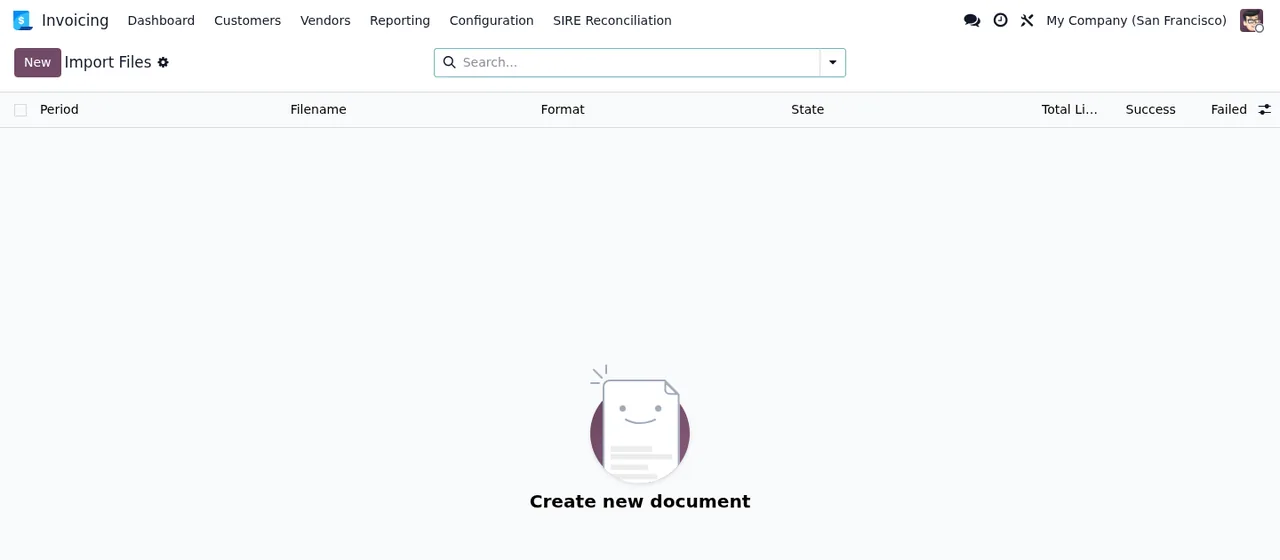
Two fields set the limits: Max Upload Size (MB), the maximum file size in MB, and Max Concurrent Uploads, the maximum concurrent uploads per user. Imported files are shown in the Import Files list, with columns for period, file name, format, state and the count of total, successful and failed lines.
Submission and Tor settings sit in the same record
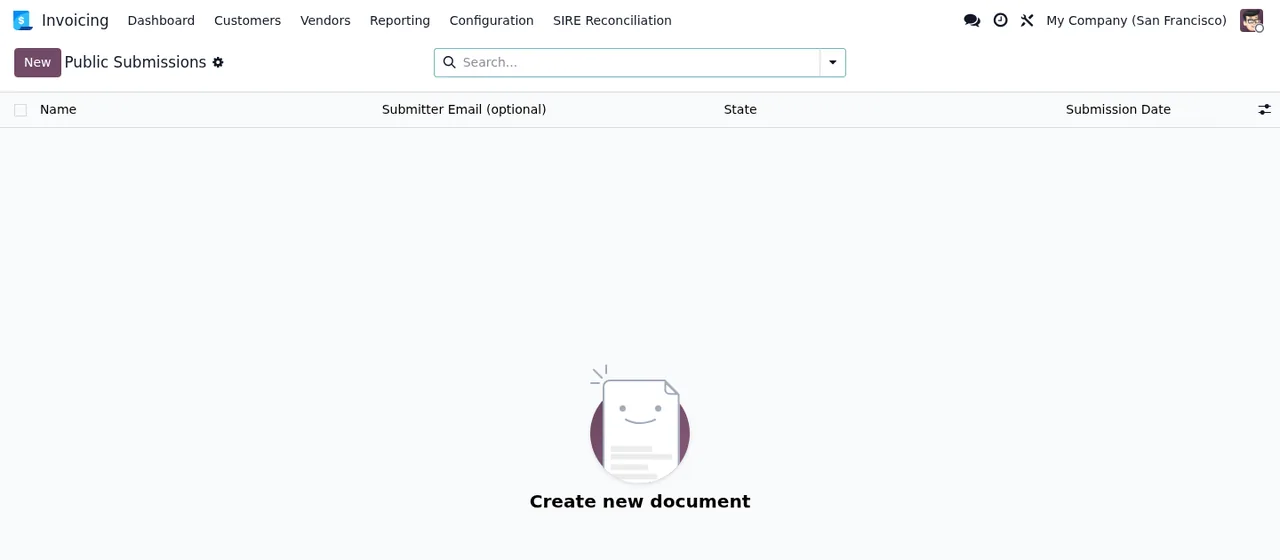
The configuration includes a block of settings about submissions: Allow Tor Exit Nodes (allow submissions from Tor exit nodes), Tor Rate Limit (per hour) (maximum submissions per hour from Tor exit nodes), Regular Rate Limit (per minute) (maximum submissions per minute from regular IPs), Enable Honeypot and Enable Math CAPTCHA. Invoicing also shows a Public Submissions list. Go through these boxes during setup rather than leaving them as they come.
Email: a setting worth a look
The record has the Disable Email Notifications checkbox. Make a deliberate choice about whether to tick it.
The states you will see
There is not one state field but several
The module defines several separate state fields, each with its own values. These are the ones in the code:
Draft,Generated,Submitted,Confirmed.Draft,Processing,Completed,Failed.Draft,In Progress,Completed,Archived.In Progress,Assembled,Failed.Draft,Submitted,Legal Review,Completed,Denied.Submitted,Reviewed,Responded,Closed.- A separate field,
followup_status, withReceived,Under ReviewandCompleted.
As several fields share similar values, always read the state column of the list you are in.
On top of that there is a status field with the comparison results: Matched, Missing in SUNAT, Missing in Odoo, Amount Mismatch, Tax Rate Mismatch, Partner Name Mismatch, Currency Mismatch, Unmapped Document Type and Cancelled/Voided. Review the lines with any value other than Matched. If you want to see how the pieces fit together, we cover it in how the module works under the bonnet.
What to check in the first week
Completed with zero totals (demo data), and the annual reports list, with no records yet.- The configuration record has
CompanyandCompany RUCfilled in, and the RUC has its 11 digits. Amount Tolerance (PEN)holds the value you agreed, not the one it came with.Data Retention MonthsandAudit Trail Retention Monthshold the months you decided on.- In
Import Files, each file shows the state and theTotal Lines,SuccessandFailedcounts you expected. - In the document type and tax mapping lists, the rows you need have
Activeswitched on. - Lines with a
statusother thanMatchedhave someone assigned to review them. - The Tor, honeypot and CAPTCHA settings are the way you want them.
If a warning or error appears while you run through this, the literal texts and what to do about each one are in the module's error messages.
How FlexigoTech can help
The module is listed on Odoo Apps for Odoo 17 and 19, at €9 excluding VAT, a one-off payment per version for both. Details and purchase are on the module page. If you also need an Odoo implementation or a bespoke integration around SUNAT reconciliation, FlexigoTech implements Odoo and builds connectors and custom integrations.
Keep reading
Checked in the module's source code (version 19.0) and the linked sources
Sources
- Module source code: flexigo_peru_sunat_sire_rvie_rce_reconciliation_module 19.0 (878c1c66): models/sire_company_config.py
- Module source code: flexigo_peru_sunat_sire_rvie_rce_reconciliation_module 19.0 (878c1c66): models/sire_annual_report.py
- Module source code: flexigo_peru_sunat_sire_rvie_rce_reconciliation_module 19.0 (878c1c66): models/sire_dsar_request.py
- Module source code: flexigo_peru_sunat_sire_rvie_rce_reconciliation_module 19.0 (878c1c66): models/sire_import.py
- Module source code: flexigo_peru_sunat_sire_rvie_rce_reconciliation_module 19.0 (878c1c66): models/sire_public_submission.py
- Module source code: flexigo_peru_sunat_sire_rvie_rce_reconciliation_module 19.0 (878c1c66): models/sire_reconciliation.py
- Module source code: flexigo_peru_sunat_sire_rvie_rce_reconciliation_module 19.0 (878c1c66): models/sire_reconciliation_line.py
- Module source code: flexigo_peru_sunat_sire_rvie_rce_reconciliation_module 19.0 (878c1c66): models/sire_upload_chunk.py
- apps.odoo.com/apps/modules/19.0/flexigo_peru_sunat_sire_rvie_rce_reconciliation_module
- apps.odoo.com/apps/modules/17.0/flexigo_peru_sunat_sire_rvie_rce_reconciliation_module
- flexigotech.com/en/services.html