

 Español
 Català
 Deutsch
 Français
 Português
 Italiano
 Nederlands
 Polski
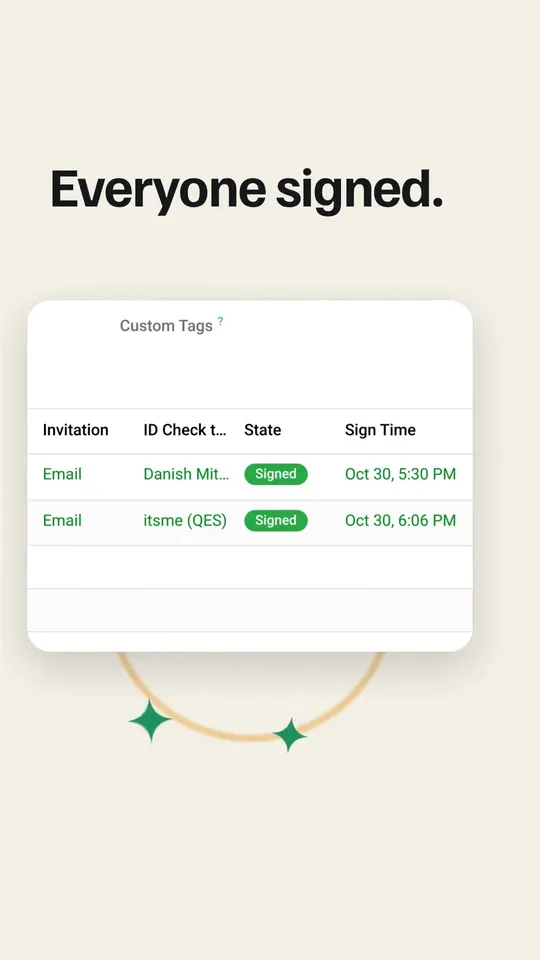
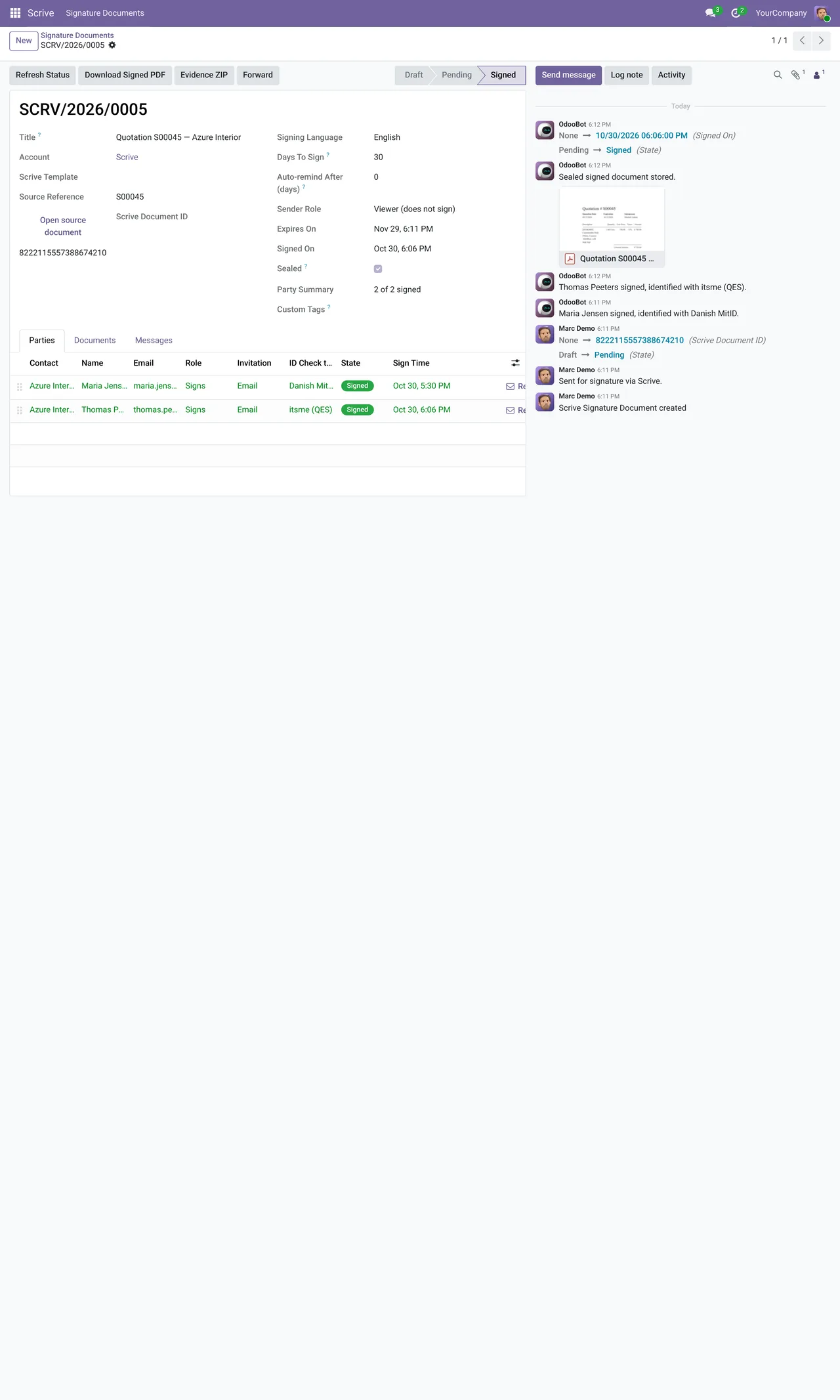
Every module stores the result the same way: the sealed PDF and the complete evidence ZIP stay on the source record. What changes is the document and who signs it.
The comparison
| Document | Module | Who signs | Where you send it from |
|---|---|---|---|
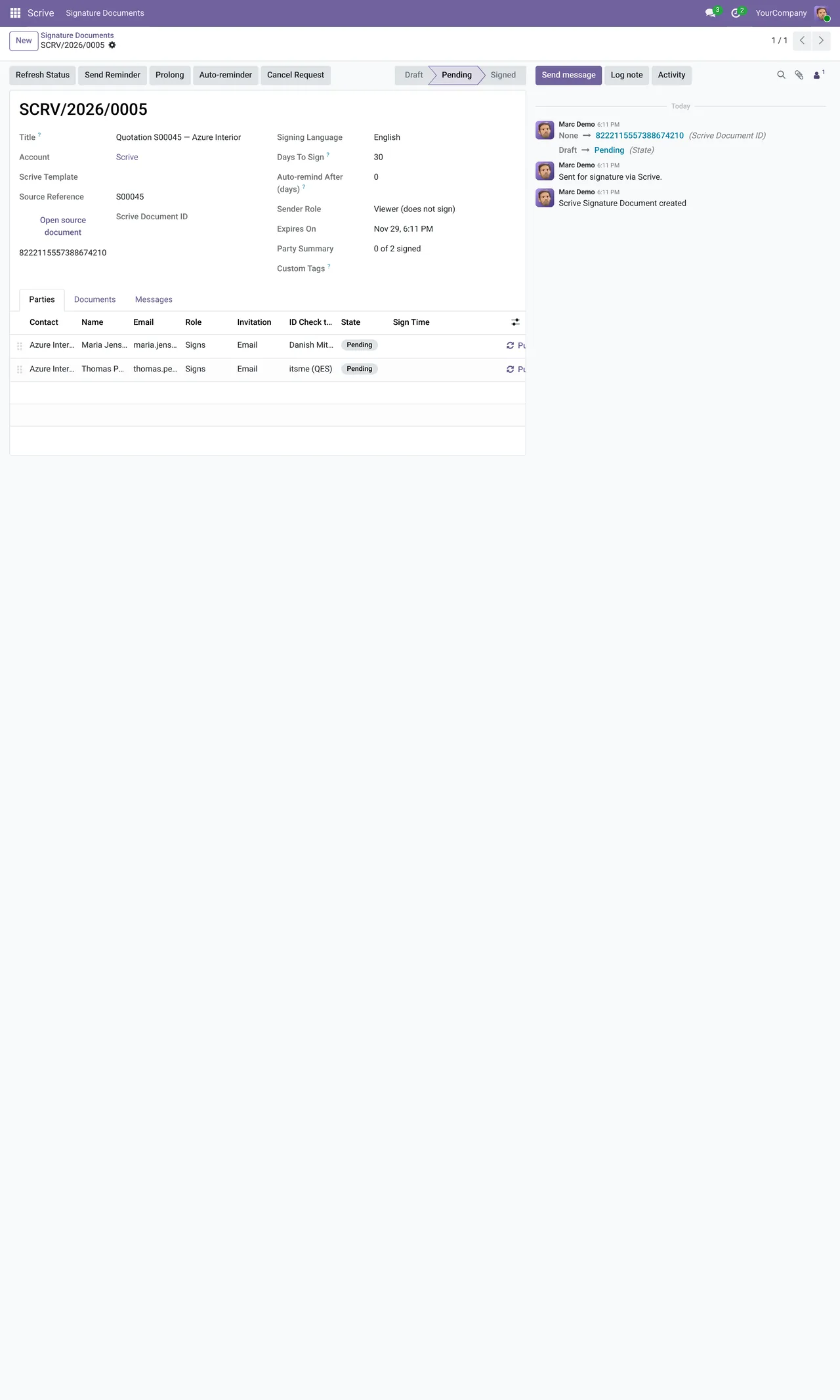
| Quotation or sales order | Scrive Connector | Your customer | Sales, from the quotation, in bulk or on confirmation |
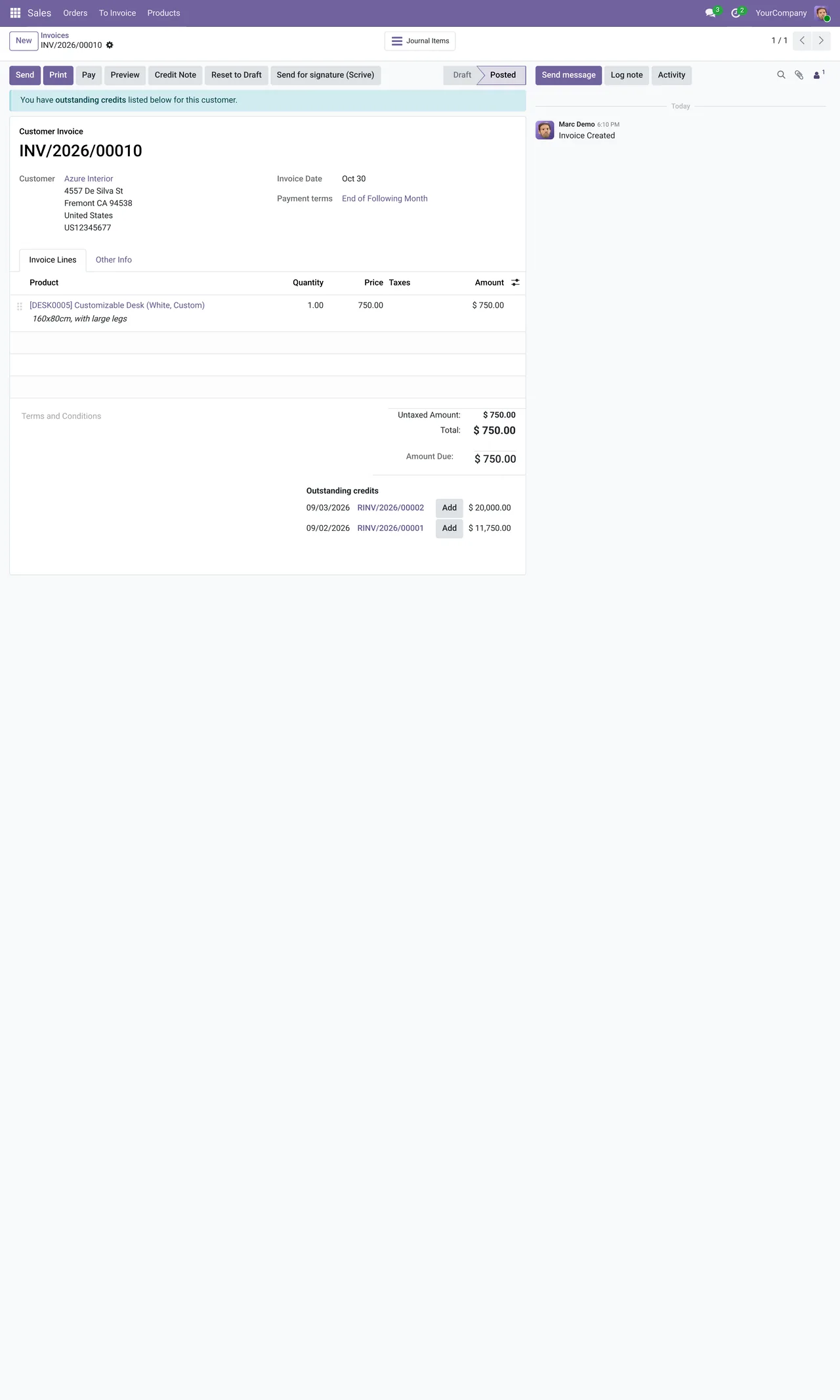
| Invoice | Scrive Connector | Your customer | Accounting, from the invoice |
| Any PDF attachment | Scrive Connector | Whoever you choose | From the record's attachment |
| Employee contract | Scrive HR Contracts | The employee | Employees, with the state on the employee form |
| Request for quotation or purchase order | Scrive Purchase Orders | Your vendor | Purchase |
| Delivery slip | Scrive Delivery Sign-off | Whoever receives it | Inventory, by email, SMS or link |
| Acceptance of a finished task | Scrive Project Task Sign-off | Your customer | Project, from the task |
Which one you need
If you sell with quotations, the base connector is enough. It is the most common case and the one where signing pays back soonest: the quotation is signed and confirmed without printing anything.
If you hire staff, the HR add-on sends the employee's contract and leaves the state on their form. Whoever handles staff does not have to ask whether it is signed yet.
If you buy on fixed terms, the Purchase add-on has the vendor sign the request or the order. There is a record of what they accepted.
If you deliver valuable goods, the delivery slip add-on collects the signature of whoever receives them, by email, SMS or link.
If you work in projects, the task add-on sends the customer an acceptance document for the finished work.
How the document reaches the signer
Whatever the document, the signer receives it by email, by SMS, in person on a tablet or through a shareable link. They can identify with the method the document requires, from Swedish or Norwegian BankID to MitID, FTN, itsme, Smart-ID or an SMS PIN. Scrive has to enable those methods on your account; they depend on your plan and Scrive may charge for them separately.
Customers also get a page on the Odoo portal where they see the documents waiting for their signature. Those sent by link are signed right there. The others are told where their invitation was sent, in case they are looking in the wrong inbox.
And if you only want to verify identities
The connector includes Scrive eID Hub, identity verification without signing any document. It has its own accounts and its list of verifications under Configuration, and Odoo checks the ones in progress every 10 minutes. Each verification goes through new, started, failed or complete.
Identity data left by signers and old verifications are not kept forever: two daily tasks clean up what is no longer needed.
If you are unsure where to start, start with the base connector and quotations: that is where signing saves the most back-and-forth from day one.
All the add-ons need the base Scrive connector and are published for the same versions: Odoo 17, 18, 19 and 20.
Keep reading
Checked in the connector's source code (version 20.0) and the linked sources
Sources
- Module source code: flexigobe_scrive_connector 20.0 (21b3b940): __manifest__.py
- Module source code: flexigobe_scrive_connector_hr 20.0 (21b3b940): __manifest__.py
- Module source code: flexigobe_scrive_connector_project 20.0 (21b3b940): __manifest__.py
- Module source code: flexigobe_scrive_connector_purchase 20.0 (21b3b940): __manifest__.py
- Module source code: flexigobe_scrive_connector_stock 20.0 (21b3b940): __manifest__.py
- Module source code: flexigobe_scrive_connector 20.0 (21b3b940): static/description/index.html
- Module source code: flexigobe_scrive_connector 20.0 (21b3b940): data/ir_cron.xml
- Module source code: flexigobe_scrive_connector 20.0 (21b3b940): views/menus.xml
- Module source code: flexigobe_scrive_connector 20.0 (21b3b940): models/scrive_eid_transaction.py
- apps.odoo.com/apps/modules/20.0/flexigobe_scrive_connector