

 Español
 Català
 Deutsch
 Français
 Português
 Italiano
 Nederlands
 Polski
What you repeat by hand while MRW runs on its own
If today the order sits in one place (the shop, a spreadsheet or the invoicing program) and you create the shipment in MRW's own tool, every parcel asks for the same routine: copy the address and reference, generate the label, download it, print it and note the shipment number wherever customer service can see it.
Each of those steps is a copy between two places. If an address is mistyped or a number is not noted down, you find out when the customer asks. To answer 'where is my parcel?' you have to find the order, look up the number and check it separately. And cancelling a shipment or preparing an international one sends you back to the other screen.

What Odoo brings together when you connect MRW
With Odoo, the order, the delivery and the shipment live in the same system. MRW Shipping Connector adds to Odoo what you currently do elsewhere. According to its documentation, the module:
- Creates the shipment in one click through the MRW Sagec SOAP API.
- Generates the PDF label with a GS1-128 barcode and attaches it automatically to the picking.
- Saves the tracking number on the delivery order.
- Processes several orders at once with a bulk shipment wizard.
- Prepares cross-border deliveries with the
GetEtiquetaEnvioInternacionalcall. - Cancels shipments from Odoo with the
CancelarEnvioSOAP call. - If MRW does not return a binary PDF, saves the label URL instead.
- Logs every request and response in an XML audit log, with configurable retention.
- Updates tracking statuses in the background with a scheduled task.
Shipments and label and cancellation requests go out to MRW from FlexigoTech Cloud. That cloud stores the credentials encrypted, monitors the sync and emails you if it fails; if the platform changes its API, the module and the service are adapted.
Criteria to decide: if this happens to you, this is what suits you
Go through the table with the way you work today. The more rows you recognise as your own, the more sense it makes to bring your MRW shipping into Odoo.
| If this happens to you today | What the module does in Odoo |
|---|---|
| You copy order details into another screen to create each shipment | Creates the shipment in one click via the Sagec SOAP API and saves the tracking number on the delivery order |
| You prepare lots of shipments in one go | The bulk shipment wizard processes several orders at once |
| You hunt for the label PDF every time it needs printing | The label with its GS1-128 barcode is attached to the picking, or its URL if MRW does not return the PDF |
| You are often asked where a parcel is | A scheduled task updates tracking statuses in the background |
| You send international parcels | The GetEtiquetaEnvioInternacional call for cross-border deliveries |
| You cancel shipments regularly | Cancelling with CancelarEnvio without leaving Odoo |
| When something fails you do not know what was sent to MRW | The XML audit log with every request and response |
| You work with more than one MRW account | The Connector plan allows up to 3 platform accounts (Pro: 10) |
When this is not the first piece
The label and the tracking number end up on the Odoo picking and delivery order. If you do not plan to run deliveries in Odoo, the connector is not where to start: first decide which part of your business moves to Odoo.
If you ship little with MRW and nobody asks about parcels, you can leave the connector for a second phase and focus first on sales, inventory or invoicing.
Bear two things about the service in mind too: you contract and pay for your MRW account, Odoo and hosting yourself, and FlexigoTech does not take care of migrating your database to a new Odoo version.
Where to start: implementation and connector
This is the order of work:
- Implement Odoo in the version you will use (17, 18, 19 or 20).
- Copy the
flexigobe_mrwfolder into your Odoo addons path. - Restart the Odoo server.
- Go to
Apps, search forflexigobe_mrwand install it. - Open
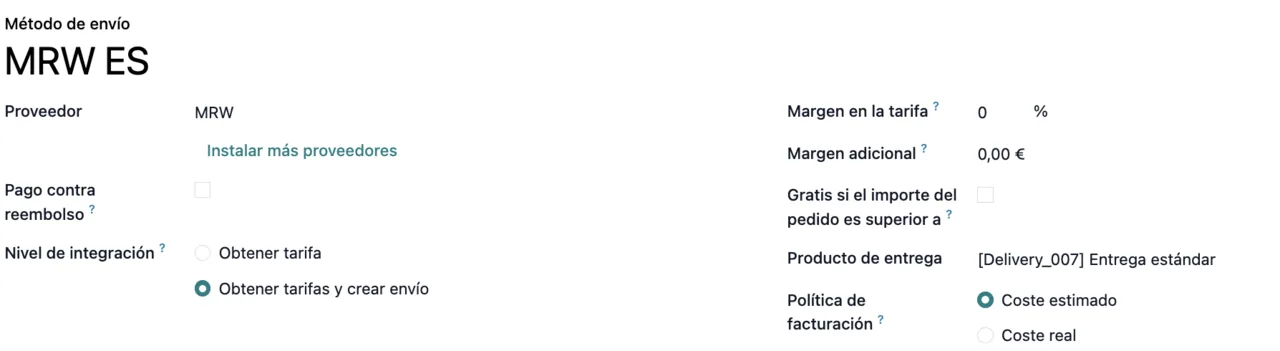
Inventory → Configuration → Delivery Methods. - Create a new delivery method and select
MRWas the provider.
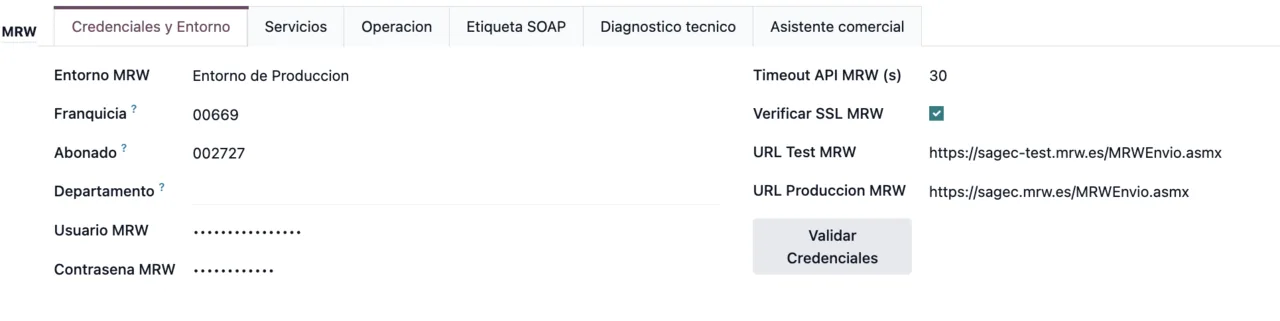
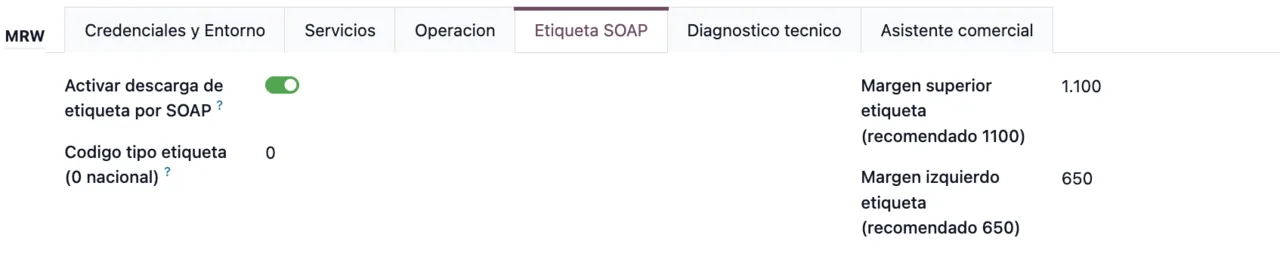
The connector settings also include a credentials and environment tab. The screenshot below shows that screen with the environment, franchise, subscriber, hidden user and password, and the button to validate the credentials.
If you want to see what each screen does under the bonnet, we explain it in how MRW Shipping Connector works. And if a warning appears during your first tests, check the module's error messages.
What you pay and what stays in your Odoo
On the Odoo Apps listing the module costs €9 per Odoo version, for 17, 18, 19 and 20, a one-off payment excluding VAT, and its manifest states 'Needs FlexigoTech Cloud subscription (from 49 EUR/month, VAT excl.)': the Connector plan costs €49/month or €490/year excluding VAT (Pro: €98/month or €980/year).
With the subscription, the module for new Odoo versions is included if you bought it on flexigotech.com; on the Odoo App Store, each Odoo version is bought there. Without a subscription, or with the service suspended, whatever the subscription provides stops, but your data stays in your Odoo.
How FlexigoTech helps
FlexigoTech implements Odoo 17, 18, 19 and 20 and builds bespoke connectors and integrations. If you are starting from scratch, we can handle the Odoo implementation and the MRW connection in the same project. With the subscription you get support with a first response within one working day, and if your case needs something the connector does not do, we look at it as custom development.
Keep reading
Checked in the connector's source code (version 20.0) and the linked sources
Sources
- Module source code: flexigobe_mrw 20.0 (a4cc198a): README.md
- Module source code: flexigobe_mrw 20.0 (a4cc198a): static/description/index.html
- apps.odoo.com/apps/modules/20.0/flexigobe_mrw
- apps.odoo.com/apps/modules/17.0/flexigobe_mrw
- apps.odoo.com/apps/modules/18.0/flexigobe_mrw
- apps.odoo.com/apps/modules/19.0/flexigobe_mrw
- flexigotech.com/en/services.html
- flexigotech.com/precios.html