

 Español
 Català
 Deutsch
 Français
 Português
 Italiano
 Nederlands
 Polski
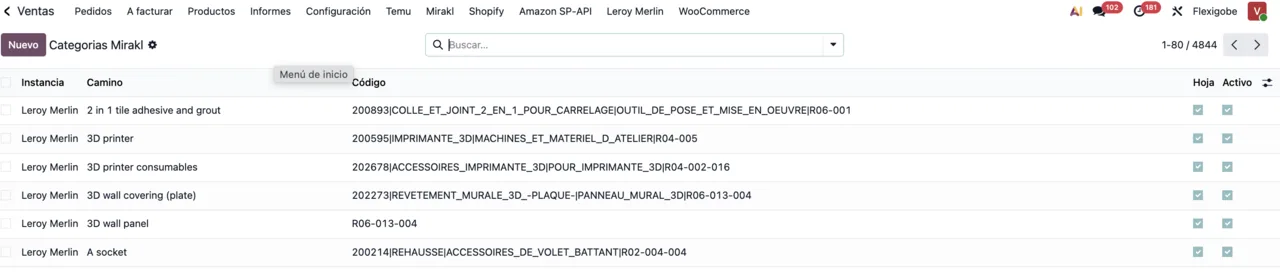
Each Mirakl operator has its own category tree and attributes. What Leroy Merlin names one way, Decathlon asks for another way. The connector, published for Odoo 17, 18, 19 and 20, downloads that dictionary and lets you match your catalogue to it once.
The steps
- Register the marketplace under Mirakl › Configuration › Marketplaces with its API URL and its key.
- Wait for the first catalogue dictionary sync. The task repeats every 60 minutes and leaves the operator's categories under Mirakl › Catalog › Categories.
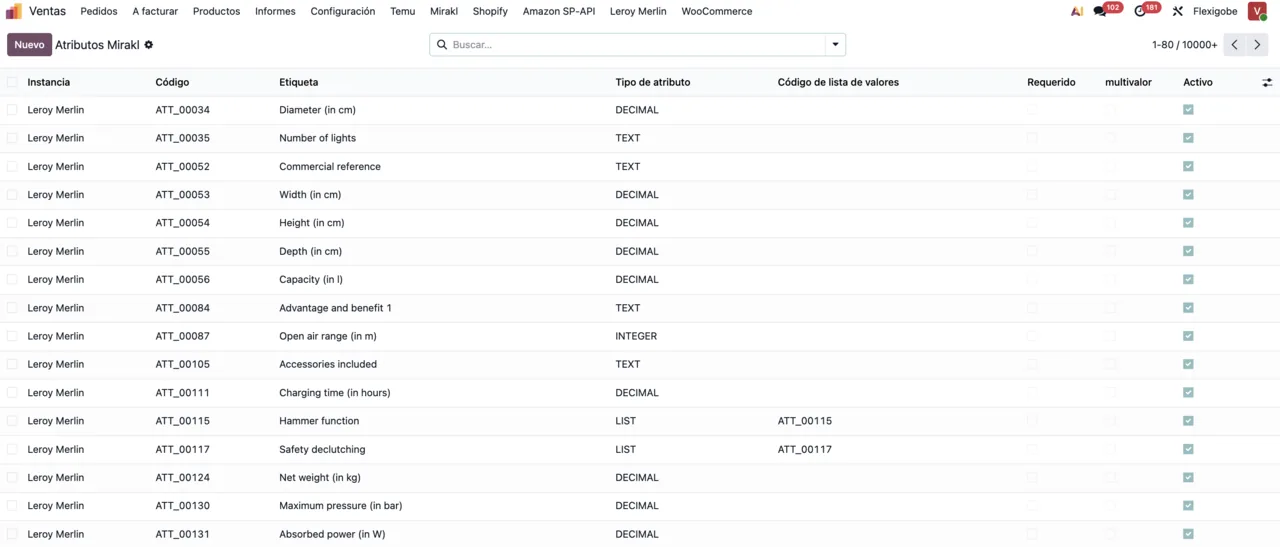
- Check under Catalog › Attributes which attributes are mandatory in the categories you will use.
- Open Catalog › Value Lists for attributes that only accept closed values, such as colours or materials. Your Odoo value must match one on the list.
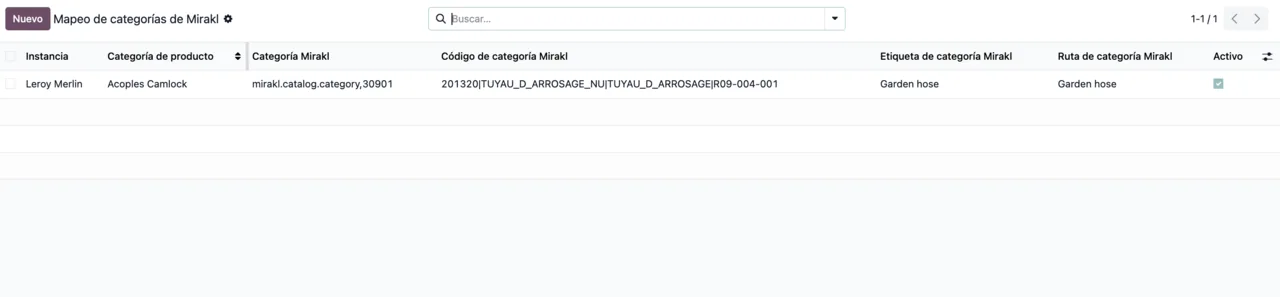
- Under Catalog › Category Mapping, assign each of your product categories to the operator's category.
- If you ship yourself, relate your carriers to the marketplace's under Catalog › Carrier Mapping.
- Export the catalogue. The task runs every 30 minutes and you can also launch it by hand.
- Check the state of the last export and the validation of each product before exporting offers.

The states you need to read
Every catalogue export leaves a state: pending, success, error or unknown. Each product also has its validation state: not checked, OK, warning or error. A warning still lets you publish, but it usually means an empty optional attribute the operator uses for filters. It is worth filling in.
Offers work the same way. The last offer export shows its result, and each offer carries Mirakl's state code: 11 for active and 12 for inactive.
Typical errors and how to fix them
| Message | What it means | What to do |
|---|---|---|
Catalog validation failed: … | The operator rejected one or more products. What follows the colon says which one and why. | Fix the attribute it points to and export again. |
No catalog import id found yet. Export catalog first. | You asked for the result of an import that does not exist yet. | Export the catalogue and wait for Mirakl to return the import number. |
No import id found yet. Export the offer first. | The same, for offers. | Export the offer before checking its result. |
Selected category does not belong to this wizard. | In the wizard you picked a category from another marketplace. | Open it again from the right marketplace. |
When to export offers
Only once the product is validated. Offers are exported every 5 minutes, but an offer for a product the operator has not accepted stays inactive even with price and stock. If you see many inactive offers in the list, the problem is almost always one step earlier, in the catalogue.
When you add a new operator, repeat the mapping only for its categories: what you already mapped for another marketplace is kept, because each operator stores its own.
The records under Configuration › Logs keep every call to Mirakl. If an error makes no sense on screen, the operator's full answer is there.
Keep reading
Checked in the connector's source code (version 20.0) and the linked sources
Sources
- Module source code: flexigobe_mirakl_connector 20.0 (83e54909): views/menu_views.xml
- Module source code: flexigobe_mirakl_connector 20.0 (83e54909): data/ir_cron_data.xml
- Module source code: flexigobe_mirakl_connector 20.0 (83e54909): models/mirakl_catalog_binding_mixin.py
- Module source code: flexigobe_mirakl_connector 20.0 (83e54909): models/mirakl_offer_binding_mixin.py
- Module source code: flexigobe_mirakl_connector 20.0 (83e54909): models/mirakl_product_binding.py
- Module source code: flexigobe_mirakl_connector 20.0 (83e54909): models/mirakl_category_search_wizard.py
- apps.odoo.com/apps/modules/20.0/flexigobe_mirakl_connector