

 Español
 Català
 Deutsch
 Français
 Português
 Italiano
 Nederlands
 Polski
Leroy Merlin, Decathlon or Bricodepot run on Mirakl underneath. To Odoo the operator does not matter: the connector, published for Odoo 17, 18, 19 and 20, talks to the Mirakl API of every marketplace you configure and always follows the same calendar.
The journey
- When the customer buys The order is born on the marketplace waiting for acceptance. Odoo knows nothing yet.
- Within the next 10 minutes The
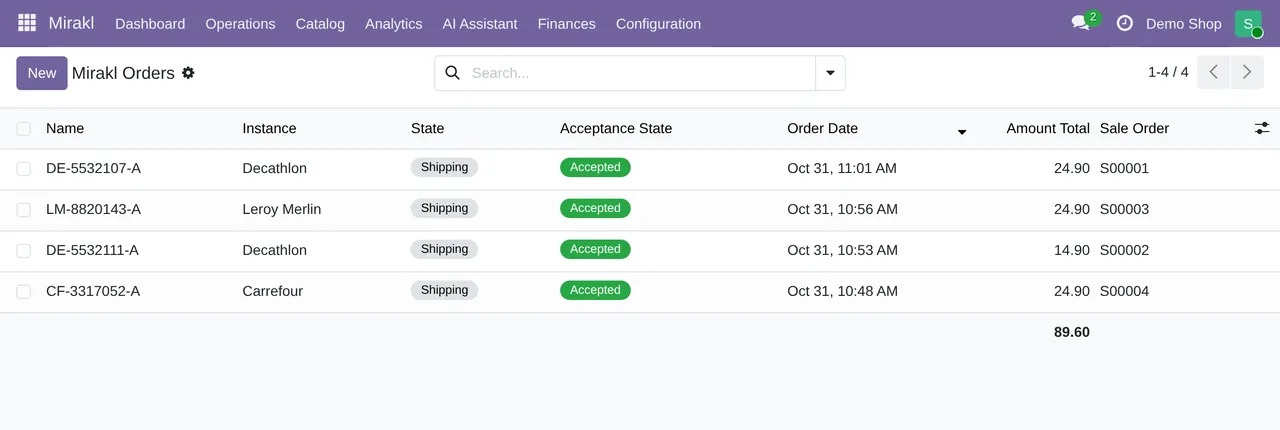
Mirakl - Sync Orderstask brings it into Odoo. It appears under Mirakl › Operations › Orders with its acceptance state pending. - On the next acceptance run
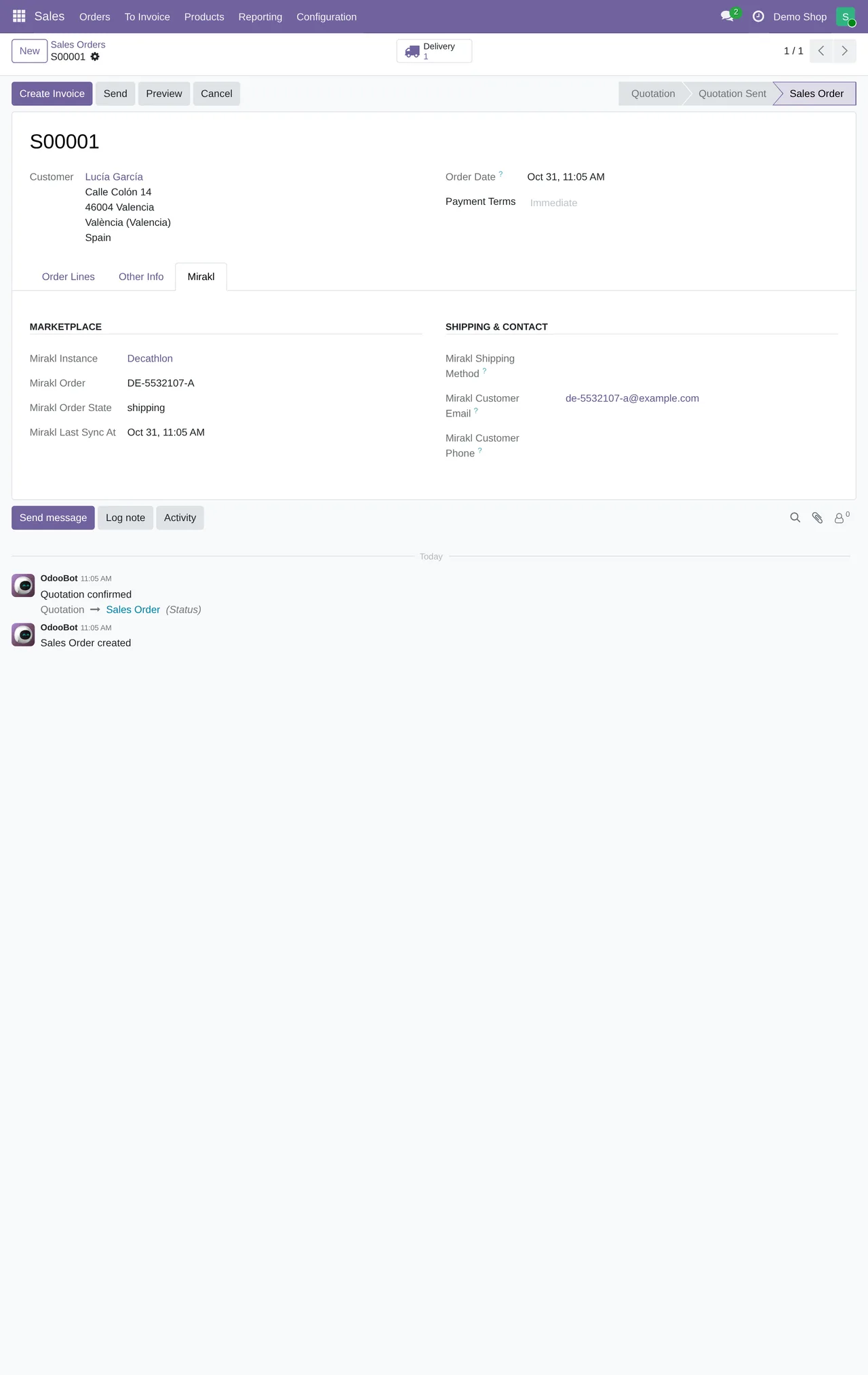
Mirakl - Accept Ordersalso runs every 10 minutes and accepts whatever you set to be accepted automatically. If the marketplace does not require acceptance, the state becomes not required; if something fails, error, in plain sight. - On acceptance The Odoo sales order is created with its lines and the customer. The stock is committed for the other channels.
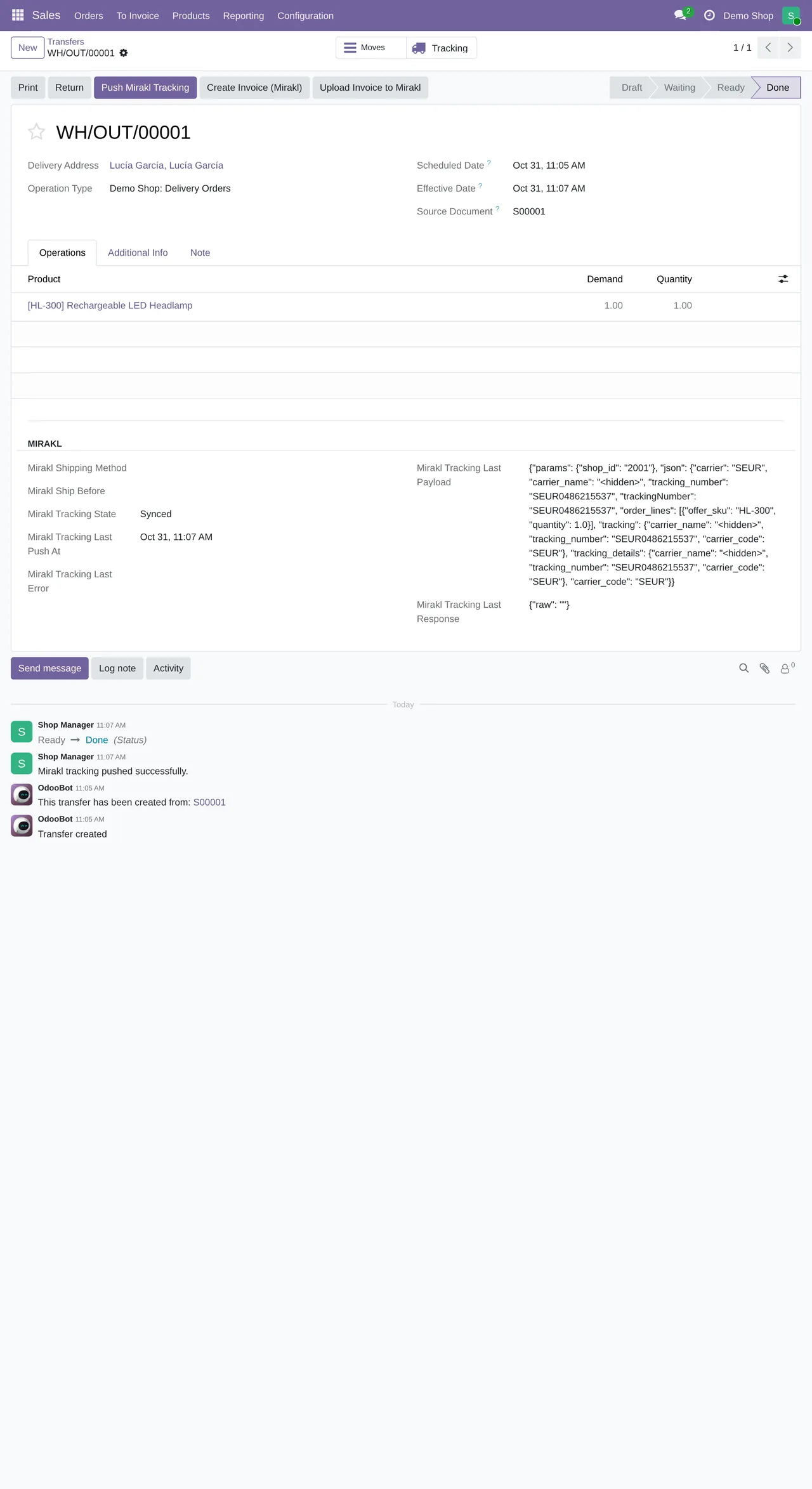
- When the delivery is prepared and validated The carrier's tracking goes to the marketplace. The order's tracking state changes from pending to synced, or to error if Mirakl rejects it.
- On invoicing The customer invoice is posted in Odoo and then sent to Mirakl. The order matters: a draft invoice is not sent.
- When the settlement arrives Settlements & Invoices collects the operator's payments with their state: pending, processing, transferred or paid. Each document also carries its accounting state: not posted, posted or reconciled.
- If there is a return Returns sync every 30 minutes and appear under Operations › Returns. The refund has its own state: pending, partial, refunded or error.
Meanwhile, stock and price
While the order moves forward, three other tasks keep the shop window up to date. Offers go out every 5 minutes. Stock goes through the STO01 flow every 10 minutes and prices through PRI01 every 15. So when an accepted order reserves units, the other marketplaces see it within minutes.
The two warnings you see most
Two messages can appear when sending the invoice. Post the invoice before sending it to Mirakl. means the invoice is still a draft: post it and send again. This invoice is not linked to a Mirakl order. appears when the invoice does not come from a marketplace order, for example if you created it by hand. The fix is to invoice from the sales order itself.
What does not run on its own
The invoice sync from Mirakl, which runs once a day, is off after installation: you turn it on if your operator uses it. Customer messages are not switched on automatically either. That way no information lands in Odoo that nobody will look at.
If your question is why an order is stuck, look first at its acceptance state and its tracking state in the list. Almost always one of the two is in error, and the message tells you why.
Keep reading
Checked in the connector's source code (version 20.0) and the linked sources
Sources
- Module source code: flexigobe_mirakl_connector 20.0 (83e54909): data/ir_cron_data.xml
- Module source code: flexigobe_mirakl_connector 20.0 (83e54909): models/mirakl_finance.py
- Module source code: flexigobe_mirakl_connector 20.0 (83e54909): models/mirakl_invoice.py
- Module source code: flexigobe_mirakl_connector 20.0 (83e54909): models/mirakl_order.py
- Module source code: flexigobe_mirakl_connector 20.0 (83e54909): models/stock_picking.py
- Module source code: flexigobe_mirakl_connector 20.0 (83e54909): models/account_move.py
- Module source code: flexigobe_mirakl_connector 20.0 (83e54909): views/menu_views.xml
- apps.odoo.com/apps/modules/20.0/flexigobe_mirakl_connector
- youtube.com/shorts/nbJU8l2bbCM