

 Español
 Català
 Deutsch
 Français
 Português
 Italiano
 Nederlands
 Polski
A made-up case to walk through every message
Example Illustrative case: the company and its figures are made up to explain the flow.
Saffron Tools is a fictional distributor based in Pune that runs its purchasing and sales in Odoo and has just installed India GST Compliance. Its accounts lead, Meera, needs to review the input tax credit on supplier bills, prepare the return for the period and file whatever is due. Over the month she runs into every message the module can show. We go through them in the order she meets them, with the exact text and what she did to move on.
If you are still setting the module up, read getting India GST Compliance up and running first: it covers which settings and fields to fill in.
Claimed credit cannot exceed eligible credit
Meera starts with the input tax credit. In the Input Tax Credit Management list she can see each supplier bill with its eligible total, its claimed total and its ITC status.
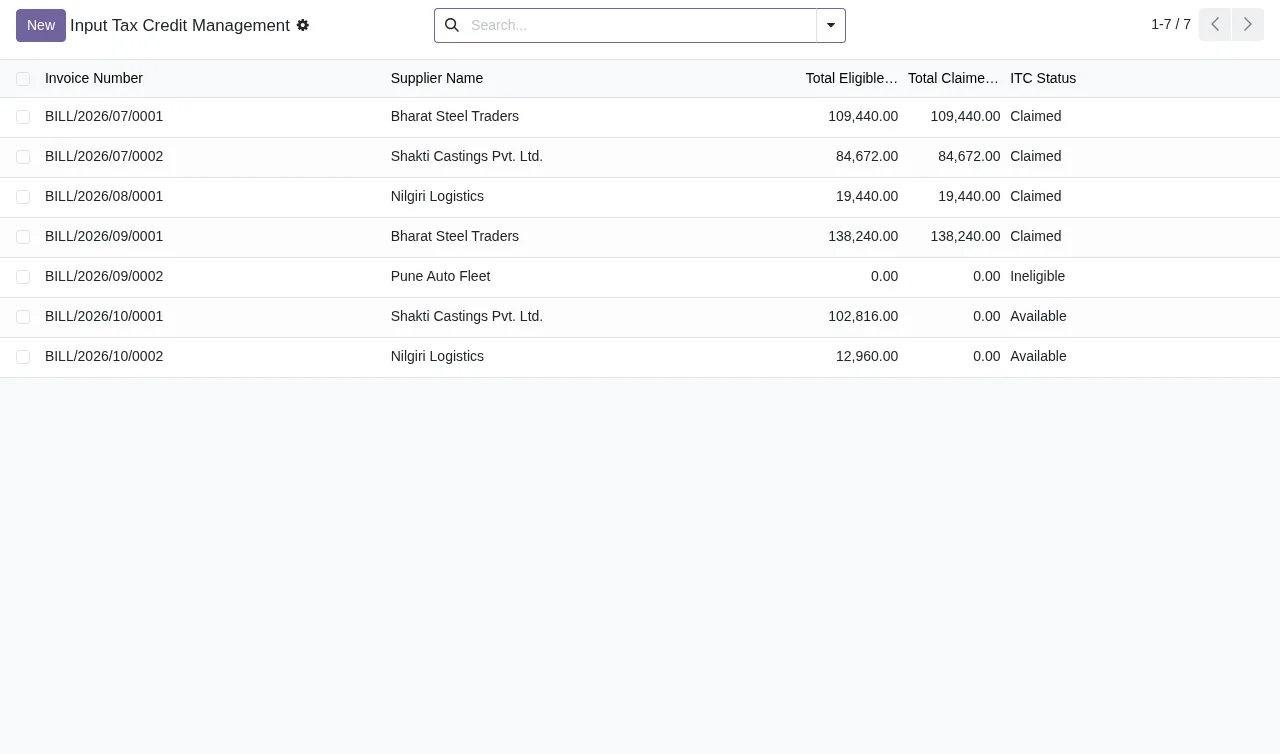
While adjusting one of them, she enters a claimed CGST amount higher than the eligible CGST. The module replies with:
Claimed CGST cannot exceed eligible CGST.
There is a matching message for each of the other tax components:
Claimed IGST cannot exceed eligible IGST.Claimed SGST cannot exceed eligible SGST.
What it means. The module checks, component by component, that the claimed amount does not go above the eligible amount.
What to do. Look at which component the message names (IGST, CGST or SGST) and check only that one. Lower the claimed amount until it no longer exceeds the eligible one or, if the eligible amount was the wrong figure, correct that instead. Meera had copied the claimed amount from another bill; once she entered the right one, the message went away.
Percentages, rates and amounts out of range
Next, Meera fills in a business use percentage and hits one key too many. Up comes:
Business use percentage must be between 0 and 100.
In the same session she gets two more: one for a mistyped GST rate and another for a base amount she entered with a minus sign.
GST rate must be between 0 and 100.Base amount must be positive.
What it means. These are range rules and the text spells them out: the business use percentage and the GST rate must be between 0 and 100, and the base amount must be positive.
What to do. Correct the value so it meets the condition in the message and save again. If it is not obvious which field is wrong, read the whole message: it names the field (Business use percentage, GST rate or Base amount), so there is no need to go through the rest of the record.
Period dates that don't add up
With the credit reviewed, Meera moves on to GST Return Preparation, where each return shows its period, due date, total tax and net tax payable.
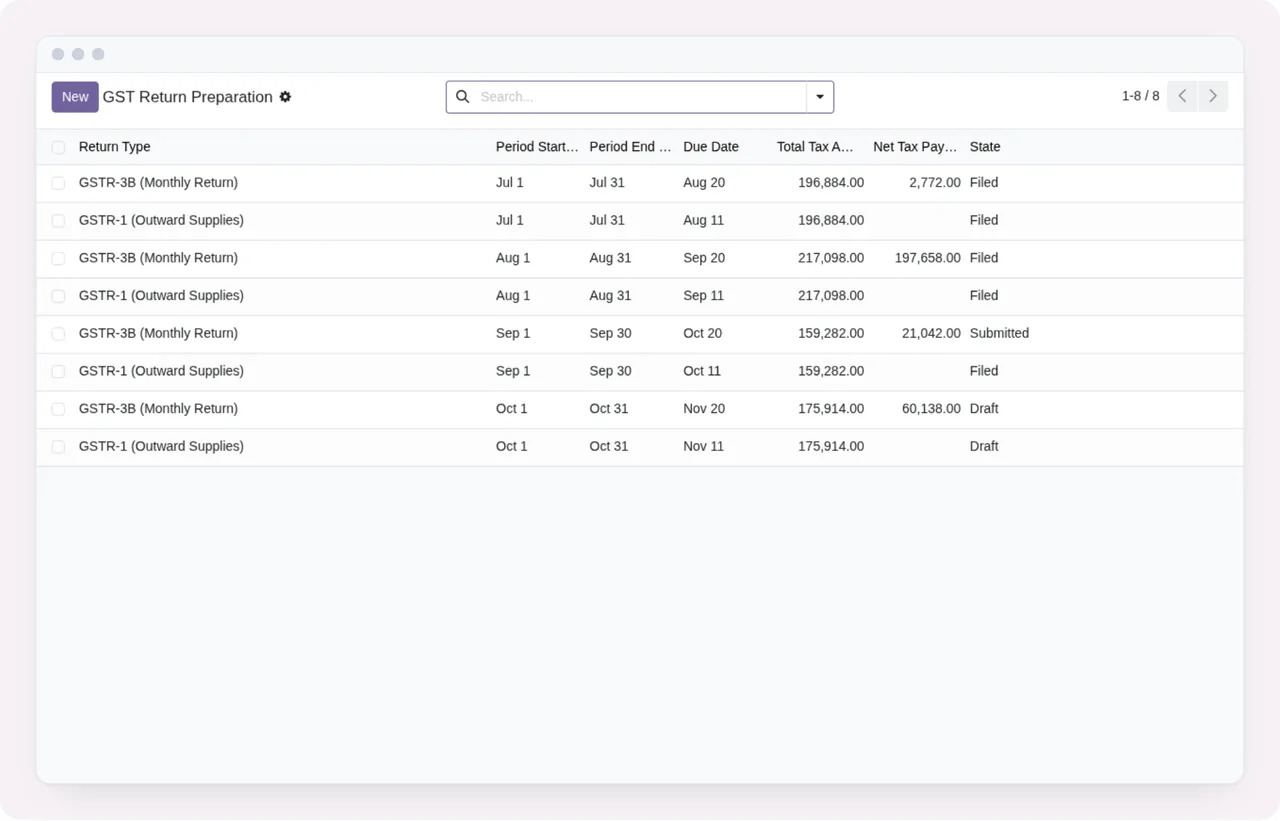
When creating the return for the new period she copies the dates from another one and gets them the wrong way round. The module stops her with:
Period start date must be before period end date.
She fixes that, but now the due date falls before the end of the period, and the next message appears:
Due date must be after period end date.
What it means. The module expects the dates in order: the period start before the period end, and the due date after the period end.
What to do. With the first message, check the start and end of the period. With the second, look at the due date and the period end, and correct whichever is wrong. Meera's period was fine, so she only had to move the due date.
The two notices saying the module sends nothing
Then it is time to file. Meera had assumed the module sent the e-invoice and the return, and she comes across two notices. Neither is a data problem: both tell you that this part happens outside the module.
E-invoice and IRN
Not submitted: this module does not connect to the e-invoice portal (IRP) of the GSTN, so no IRN is requested. Get the IRN with the Odoo app "Indian - E-invoicing" (l10n_in_edi) or on the IRP portal.
What it means. India GST Compliance does not connect to the GSTN e-invoice portal (IRP), so it requests no IRN and nothing has been submitted.
What to do. The message itself gives two routes: get the IRN with the Odoo app Indian - E-invoicing (l10n_in_edi) or on the IRP portal.
Filing the return
Not filed: this module does not connect to the GST portal. File the return on the GST portal, then use "Mark as Submitted" on it.
What it means. The module does not connect to the GST portal either, so the return has not been filed.
What to do. File the return on the GST portal and then use Mark as Submitted on that return in Odoo. The message sets the order: portal first, then the action in Odoo.
What to take from the Saffron Tools case
- In this module, the validation messages are rules about amounts, percentages and dates: the text tells you which field is at fault and what condition it has to meet.
- The input tax credit messages name a single component (IGST, CGST or SGST): check that one and leave the rest.
- The two notices are not solved by correcting a value: the IRN comes from
Indian - E-invoicingor the IRP portal, and the return is filed on the GST portal before you useMark as Submitted. - When you are done, go back over the module's lists to check how the records have ended up.
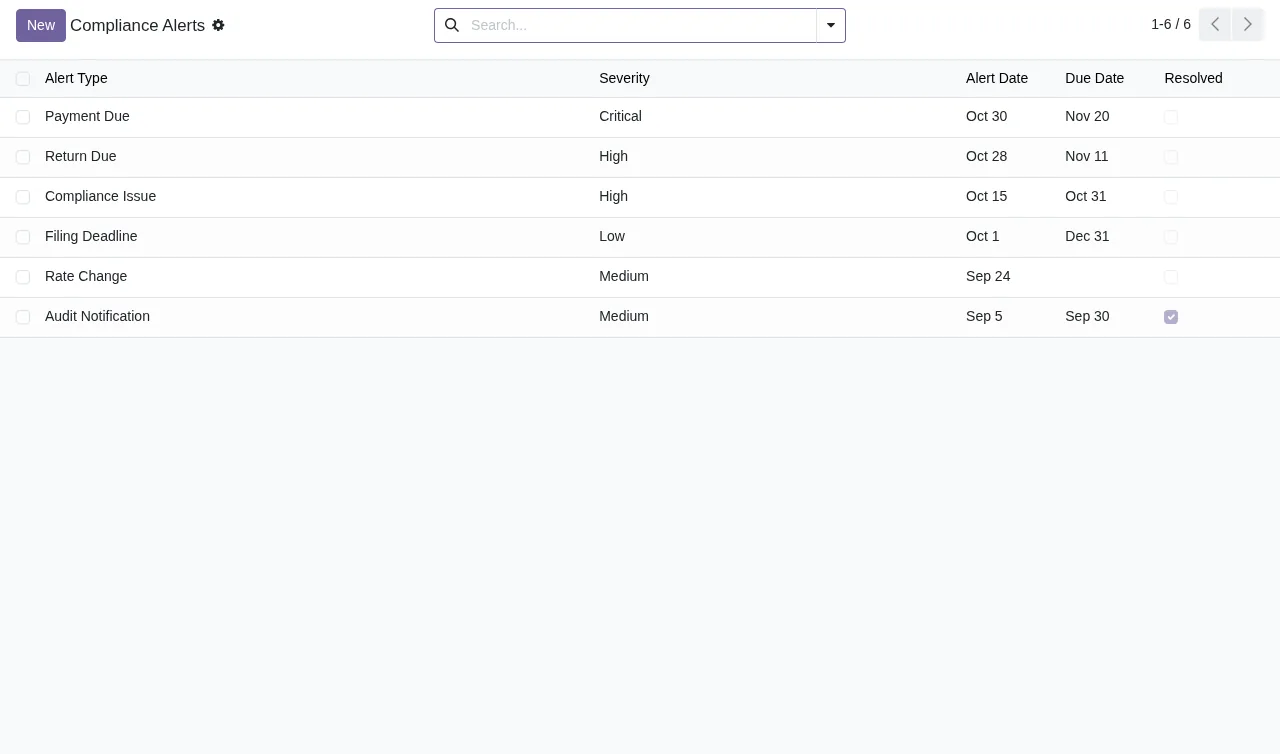
Alongside these messages, the module has a Compliance Alerts list with the columns Alert Type, Severity, Alert Date, Due Date and Resolved. To see which menus the module adds and what each record goes through, have a look at how India GST Compliance works under the bonnet.
How FlexigoTech can help
FlexigoTech implements Odoo 17, 18, 19 and 20 and builds bespoke connectors and integrations, so we can help you get India GST Compliance configured or go through a message with you if it is not clear. India GST Compliance is listed on Odoo Apps for 17.0, 18.0, 19.0 and 20.0 at €9 per Odoo version, a one-off payment excluding VAT; the FlexigoTech Cloud local service costs €29/month or €290/year excluding VAT (Pro: €58/month or €580/year).
You will find the full details on the module page at flexigotech.com and on its Odoo Apps listing.
Keep reading
Checked in the module's source code (version 20.0) and the linked sources
Sources
- Module source code: flexigo_india_gst_compliance_suite 20.0 (b766f923): models/gst_filing_integration.py
- Module source code: flexigo_india_gst_compliance_suite 20.0 (b766f923): models/gst_input_tax_credit.py
- Module source code: flexigo_india_gst_compliance_suite 20.0 (b766f923): models/gst_return_preparation.py
- Module source code: flexigo_india_gst_compliance_suite 20.0 (b766f923): models/gst_tax_calculation.py
- Module source code: flexigo_india_gst_compliance_suite 20.0 (b766f923): wizards/gst_filing_wizard.py
- apps.odoo.com/apps/modules/20.0/flexigo_india_gst_compliance_suite
- apps.odoo.com/apps/modules/17.0/flexigo_india_gst_compliance_suite
- apps.odoo.com/apps/modules/18.0/flexigo_india_gst_compliance_suite
- apps.odoo.com/apps/modules/19.0/flexigo_india_gst_compliance_suite
- flexigotech.com/en/services.html
- flexigotech.com/precios.html