

 Español
 Català
 Deutsch
 Français
 Português
 Italiano
 Nederlands
 Polski
What the connector brings together on the transfer
A Correos Express shipment leaves data you want to be able to find: the shipment number, the parcel codes and the labels. The connector brings them together on the outgoing transfer in Odoo: the transfer holds the shipment number (CEX Shipment No.), the parcel codes (CEX Parcel Codes) and the labels (CEX Labels). Both the manual button and the automatic retries start from the same transfer.
The connector works with the FlexigoTech Cloud subscription. The rule for when the Send CEX button is visible is the same in Odoo 17, 18, 19 and 20.

The paths, side by side
| Path | Who starts it | When it acts | What it does or when it stops |
|---|---|---|---|
Send CEX button | You, from the transfer | Transfer of a CEX carrier, with no shipment number, parcel codes or labels, not Cancelled, and with the button visible | Creates the shipment in Correos Express. It can stop with a message, for example if the transfer is not outgoing or if manual shipping is turned off on the shipping method |
CEX - Retry pending shipments task | Odoo, automatically | Every 5 minutes, active from installation | Picks up transfers flagged for retry, with no shipment number, not cancelled, whose next attempt is empty or already due. At most 50 per run, starting with those whose next scheduled attempt is earliest (Odoo 20 behaviour) |
| Temporary Correos Express failure | Odoo, automatically | When creating the shipment, if Correos Express returns an error the module treats as temporary | Schedules a retry, only if retries are turned on and the maximum has not been reached |
| Retries turned off or maximum reached | Odoo, automatically | When it fails again with a temporary error | Schedules no more retries |
What the retry task does in Odoo 20
The CEX - Retry pending shipments task runs every 5 minutes and is active as soon as the module is installed. On each run it looks for transfers flagged for retry that have no shipment number yet, are not cancelled and whose next attempt is empty or has arrived. It takes at most 50, starting with those whose next scheduled attempt is earliest.
For each transfer, the task does this, in order:
- It looks for the Correos Express carrier of the transfer. If it finds no valid one, it takes the transfer out of the retries and notes that reason.
- It checks that the connection through FlexigoTech Cloud is ready: credential stored, service active and outside test mode. If not, the transfer stays pending and nothing is touched.
- It tries to create the shipment.
- If the gateway rejects the call, the task does not call through that carrier again in that run, counts it in the service health, and the transfers stay pending.
- If the shipment creation stops with a message, the task does nothing more with that transfer. If it fails with any other error, it schedules a new retry, only if retries are turned on and the maximum has not been reached.
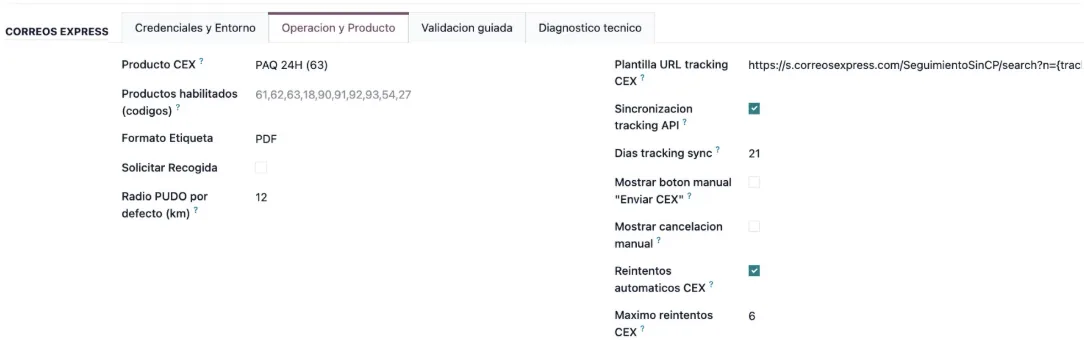
Operation and Product tab of the Correos Express configuration, with synchronisation and automatic retries switched onWhen the maximum number of retries is reached, or retries are turned off, the module schedules no more retries for that transfer.
What a retry leaves on the transfer
Every time the module schedules a retry, it leaves a message on the transfer: it says that Correos Express was temporarily unavailable and gives the date and time of the next automatic attempt. Whoever works the transfer can read it there without looking anywhere else.
The Send CEX button: when it shows and when it stops
The Send CEX button is on the transfer and is hidden if any of these applies:
- the transfer is not for a CEX carrier (the
CEX Carrierfield does not appear in any view); - it already has a shipment number, parcel codes or labels;
- it is
Cancelled; - the
Show Send CEX buttonfield, which does not appear in any view either, is not switched on.
When you press it, before calling Correos Express, the action can stop, among others, with these messages:
Manual CEX shipping is only allowed on outgoing transfers.This transfer already has CEX shipment data and cannot be sent again automatically. Check the existing shipment, parcel codes and labels.Manual CEX shipping is turned off on the shipping method. To use this button, turn on Show manual "Send CEX" button.
With any of them the action stops and nothing it was about to change is saved.
Why shipments are not duplicated
When creating a shipment, the module first locks the transfer record to avoid duplicates when validations happen at the same time. If, once locked, it finds that the transfer already has a shipment number, it does not create another: it reuses the existing one and fills in the parcel codes or the tracking reference if they were missing.
How we can help
If you do not use Odoo yet, we can guide you through the Odoo implementation and get the Correos Express connector working on your transfers. FlexigoTech implements Odoo 17, 18, 19 and 20 and builds custom connectors and integrations. You can see the listing on Odoo Apps and the connector page for versions and purchase.
Keep reading
Checked in the connector's source code (version 20.0) and the linked sources
Sources
- Module source code: flexigobe_correos_express 20.0 (1afd9c7f): data/cex_cron_data.xml
- Module source code: flexigobe_correos_express 20.0 (1afd9c7f): models/delivery_carrier.py
- Module source code: flexigobe_correos_express 20.0 (1afd9c7f): models/stock_picking.py
- Module source code: flexigobe_correos_express 20.0 (1afd9c7f): views/stock_picking_views.xml
- flexigotech.com/en/services.html