

 Español
 Català
 Deutsch
 Français
 Português
 Italiano
 Nederlands
 Polski
Before you cancel
Cdiscount asks sellers not to cancel sales on their own without a justified reason. That is why a cancellation cannot be sent without a reason: each one carries a reason from the list Octopia accepts for the order's sales channel, acting as the seller and depending on the state the order is in. If the problem is stock, look at what caused it as well, because the next sale of that product can end up the same way.
What you need:
- The Cdiscount order already imported into Odoo, with its sales channel.
- To know whether you are cancelling the whole order or only some of its lines.
- If it is already invoiced, to decide whether you want Odoo to draft the credit note on its own.
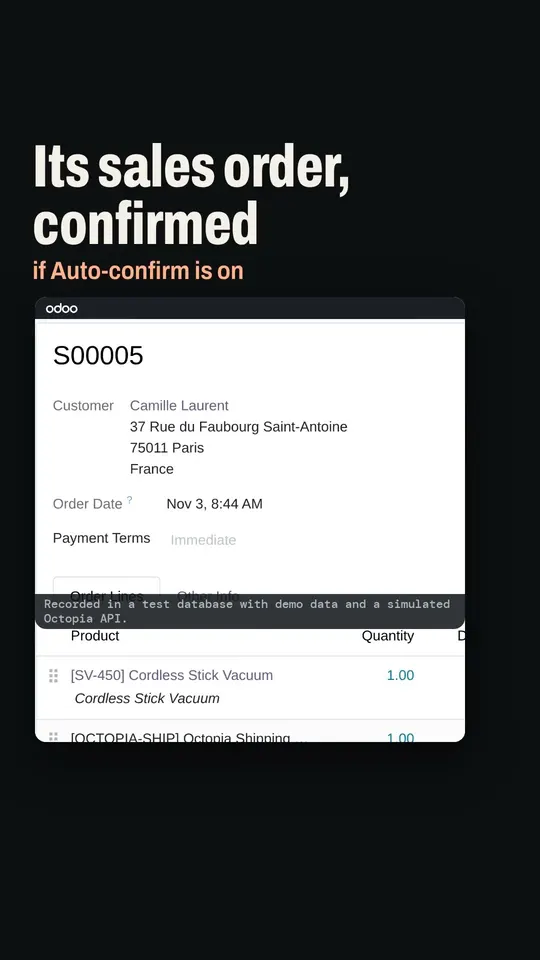
Step by step
- Go to Octopia › Orders › Cancellations and create a new request.
- Pick the order and the type: Full Order to cancel all of it, Specific Lines to take out only some lines.
- Press «Fetch Eligible Reasons». Odoo pulls from Octopia the reasons that are valid for that order and stores them; you will also find them under Octopia › Configuration › Referentials › Cancellation Reasons.
- Choose the reason. The box to refund the shipping costs as well comes ticked; untick it only if it does not apply.
- For a partial cancellation, add the lines you are cancelling. Each line can carry its own reason; if it has none, it takes the one on the request.
- Press «Submit to Octopia». The request moves from Draft to In Progress.
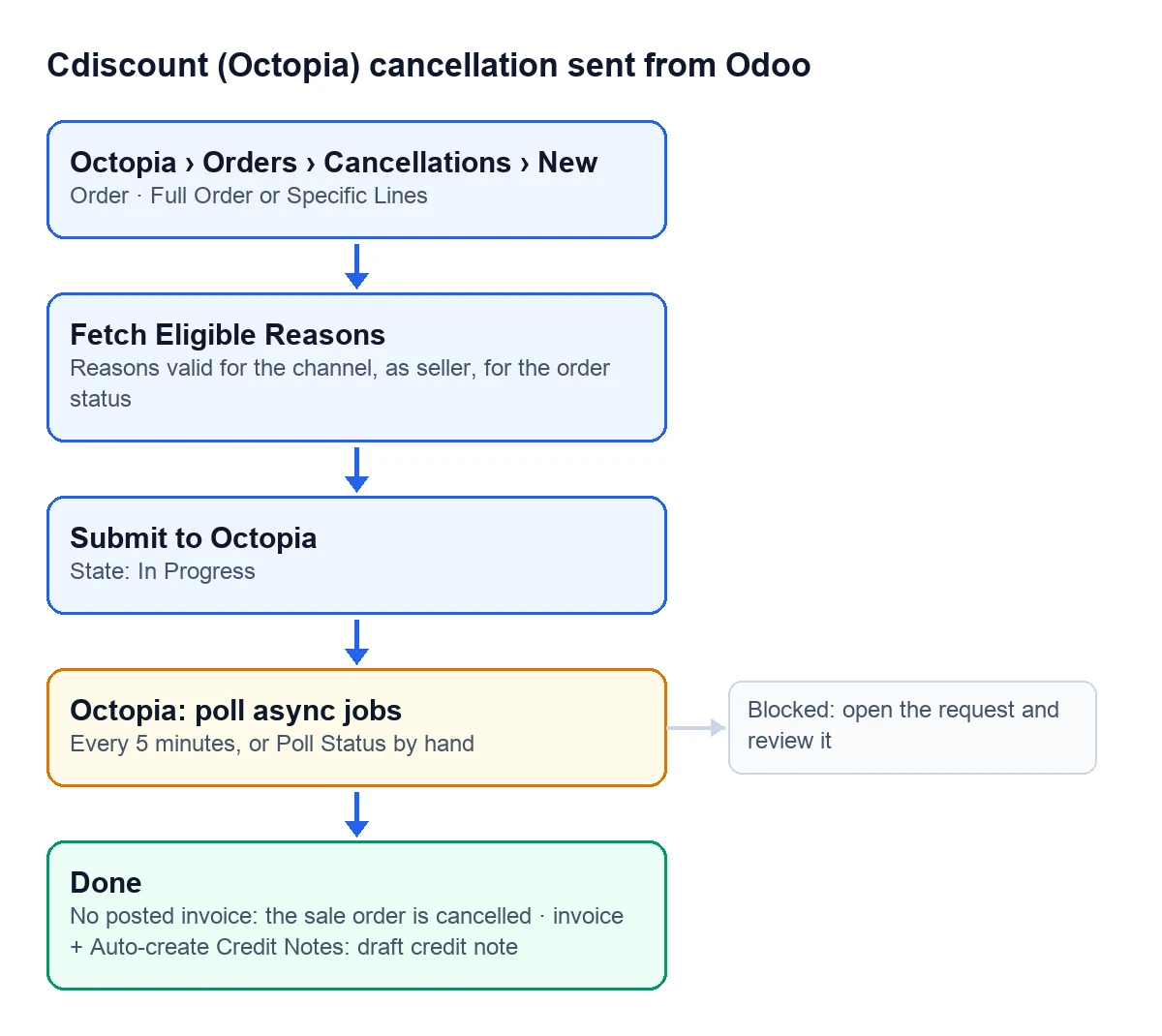
What happens next
The «Octopia: poll async jobs (packages, cancellations, gestures)» task checks every 5 minutes on the requests that are still open. If you would rather not wait, «Poll Status» on the request itself runs the same check right away.
- In Progress Octopia has received the request and is working on it.
- Blocked The request has stalled on Octopia's side. The list shows it in red: open it and look into it.
- Done Octopia has accepted it. From here on, Odoo takes over.
Once it reaches Done, what Odoo does depends on whether you had already invoiced:
| Situation | What Odoo does |
|---|---|
| Full cancellation, no posted invoice | Cancels the sales order |
| Invoiced, with «Auto-create Credit Notes» ticked | Creates a draft credit note |
| Partial cancellation, invoiced | The credit note carries only the cancelled lines |
| Invoiced, with the box unticked | Creates nothing: you make the credit note yourself |
| Partial cancellation, not invoiced | Leaves the sales order as it is: you adjust the quantities yourself |
The credit note stays in draft so you can check it before posting it. The box is on the Octopia account, Automation tab, Accounting group.
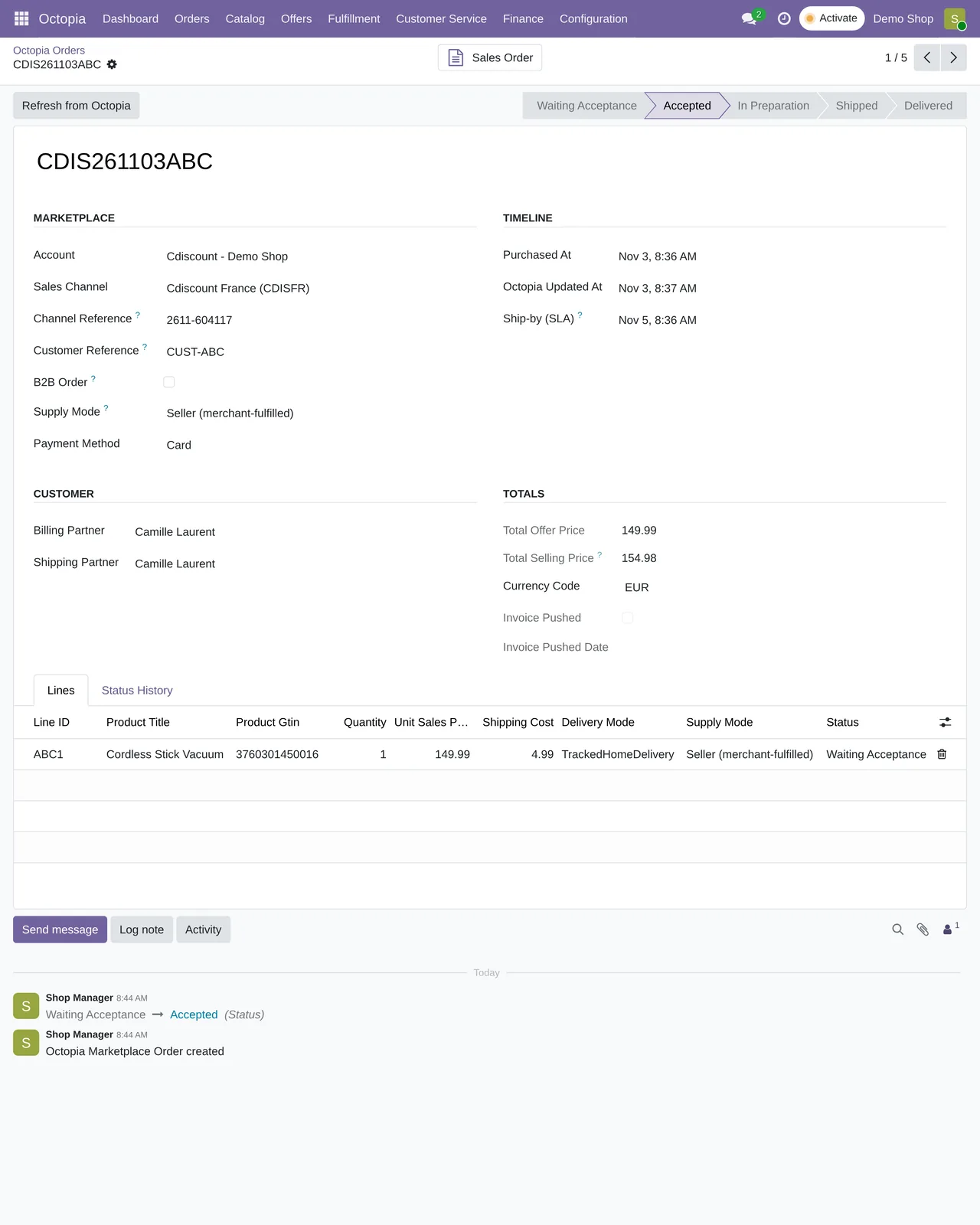
If something goes wrong
The order has no sales channel to fetch reasons for.The order has no sales channel, so Odoo does not know which reasons to ask for. Check the imported order before going any further.A partial cancellation needs at least one line.You chose Specific Lines and did not add a single line.- The request stays in Blocked. Open it and look at the order in Octopia: as long as it stays that way, Odoo does not touch the sale or the invoice.
Can I cancel just one unit of a line?
A partial request works on order lines: each line you add is cancelled with its reason.
Is it in every version?
Yes, in the connector published for Odoo 17, 18, 19 and 20.
Keep reading
Checked in the connector's source code (version 17.0, 18.0, 19.0 and 20.0) and the linked sources
Sources
- Module source code: flexigobe_octopia_connector · 17.0 501e336 · 18.0 e234fab · 19.0 d258001 · 20.0 5cbe12a: views/octopia_order_actions_views.xml
- Module source code: flexigobe_octopia_connector · 17.0 501e336 · 18.0 e234fab · 19.0 d258001 · 20.0 5cbe12a: models/octopia_order_actions.py
- Module source code: flexigobe_octopia_connector · 17.0 501e336 · 18.0 e234fab · 19.0 d258001 · 20.0 5cbe12a: data/octopia_cron_data.xml
- marketplace.cdiscount.com/wp-content/uploads/2025/08/2025.08.25-CGMAD-FR.pdf
- apps.odoo.com/apps/modules/20.0/flexigobe_octopia_connector