

 Español
 Català
 Deutsch
 Français
 Português
 Italiano
 Nederlands
 Polski
The Octopia connector is published for Odoo 17, 18, 19 and 20. Two things about the Octopia API are worth knowing before you start: it only accepts client credentials, and it has no separate test environment. Tests happen in production, on a test sales channel that Octopia offers inside the API itself.
Steps
- In the Octopia back office, open the API credentials management and create yours or link your integrator's. If you connect through an integrator, you have to accept it on that screen.
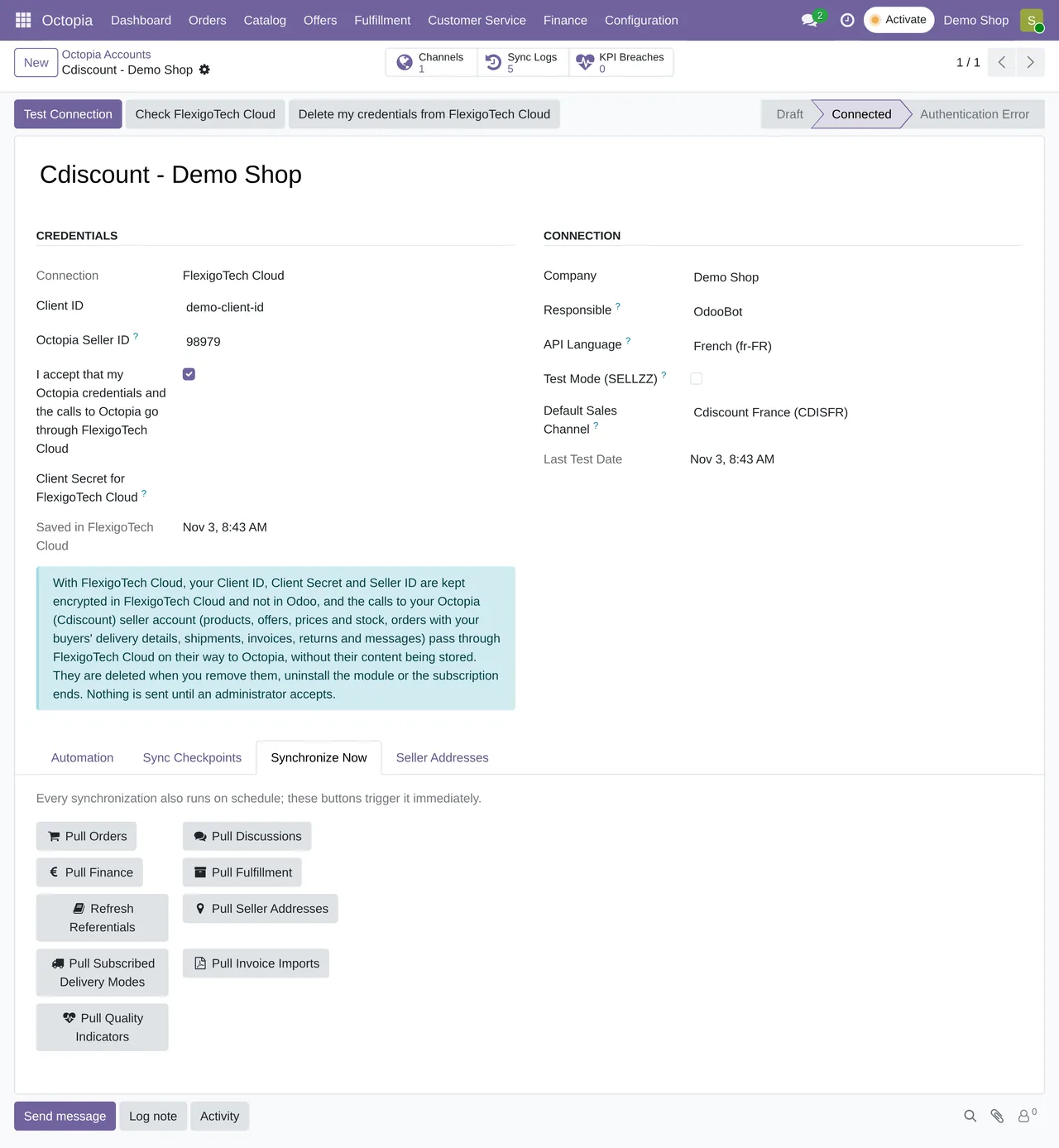
- In Odoo, go to Octopia › Configuration › Accounts and create the account. Type the Client ID and the Seller ID first; the secret, afterwards.
- An Odoo administrator accepts the notice that the credentials and calls to Octopia go through FlexigoTech Cloud. Without that acceptance the secret is not saved.
- Under Configuration › Sales Channels, choose the default sales channel. It is the one used to publish offers when you do not specify another.
- Let the referentials download: categories, brands and carriers. The task repeats every week; the first time you can run it by hand.
- Match your products to the Octopia catalogue. To sell on Cdiscount, the product has to be in French.
- Publish the offers from Offers › Publication Packages.
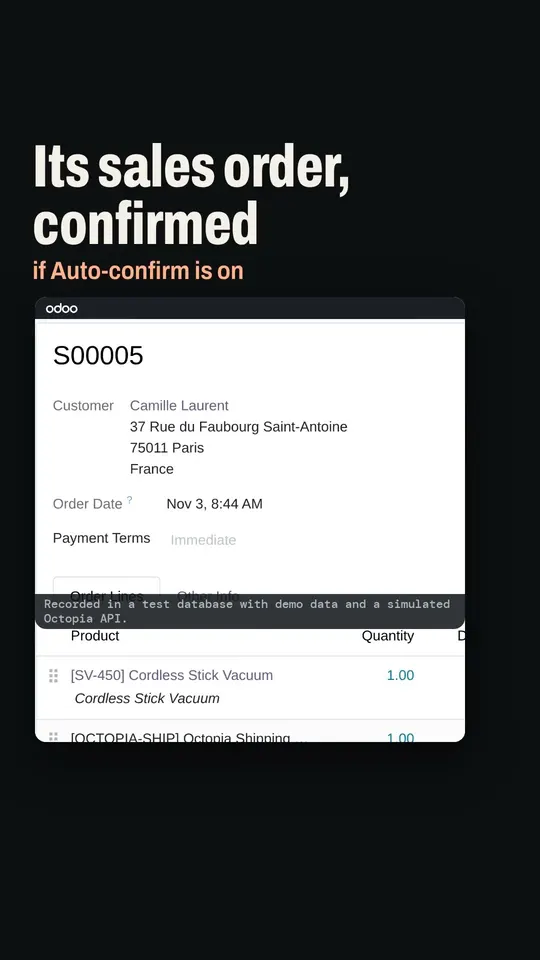
- Switch on the account automations you want to use: accept orders, confirm sales, declare the shipment when the delivery is validated.
First-day errors
| Message | What happens | Fix |
|---|---|---|
The Octopia Seller ID must be numeric (e.g. 98979). | You pasted the shop name or a code with letters. | Copy the numeric Seller ID from the back office. |
Enter the Client ID and the Seller ID before the secret. Nothing was sent. | You typed the secret with the other fields empty. | Fill in Client ID and Seller ID, then save the secret. |
Before saving the secret, an administrator has to accept… | The cloud notice has not been accepted. | Have an administrator accept it on the account. |
Account '…' has no default sales channel configured. | There is no default channel. | Pick one on the account or under Sales Channels. |
Product … is not mapped to the Octopia catalog | The product is not matched to its Octopia record. | Map it before publishing the offer. |
Orders and shipping
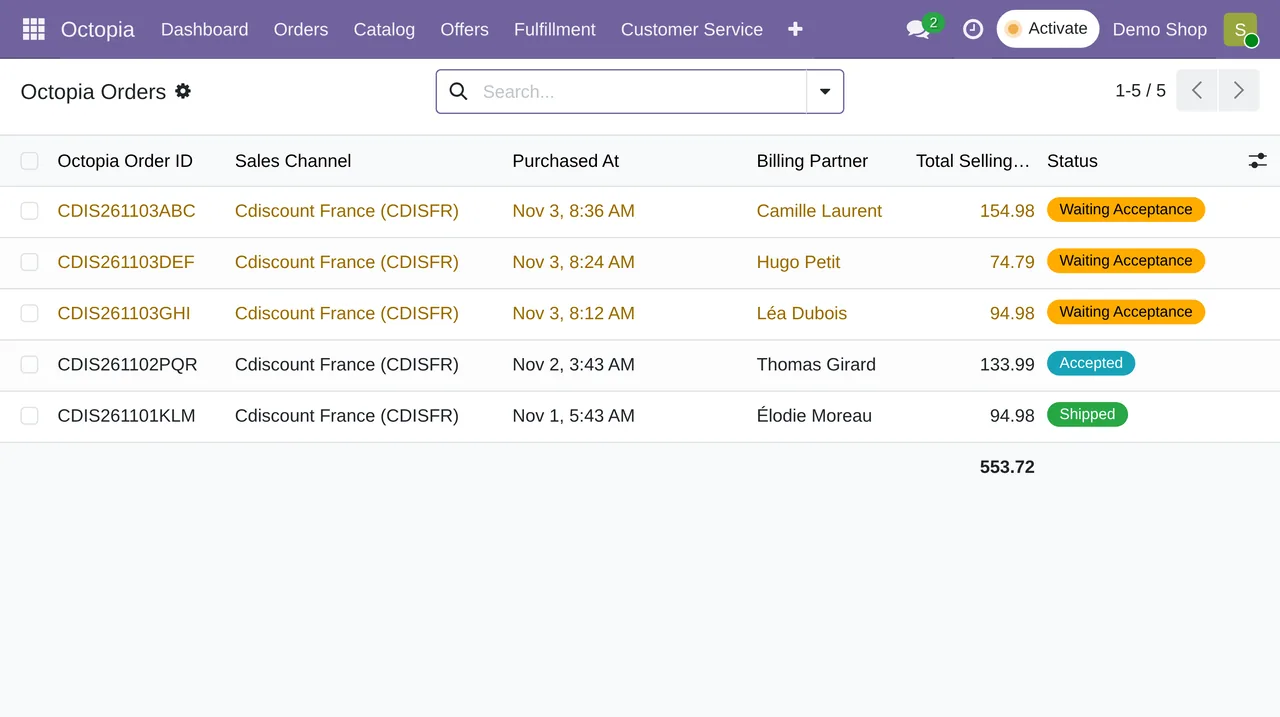
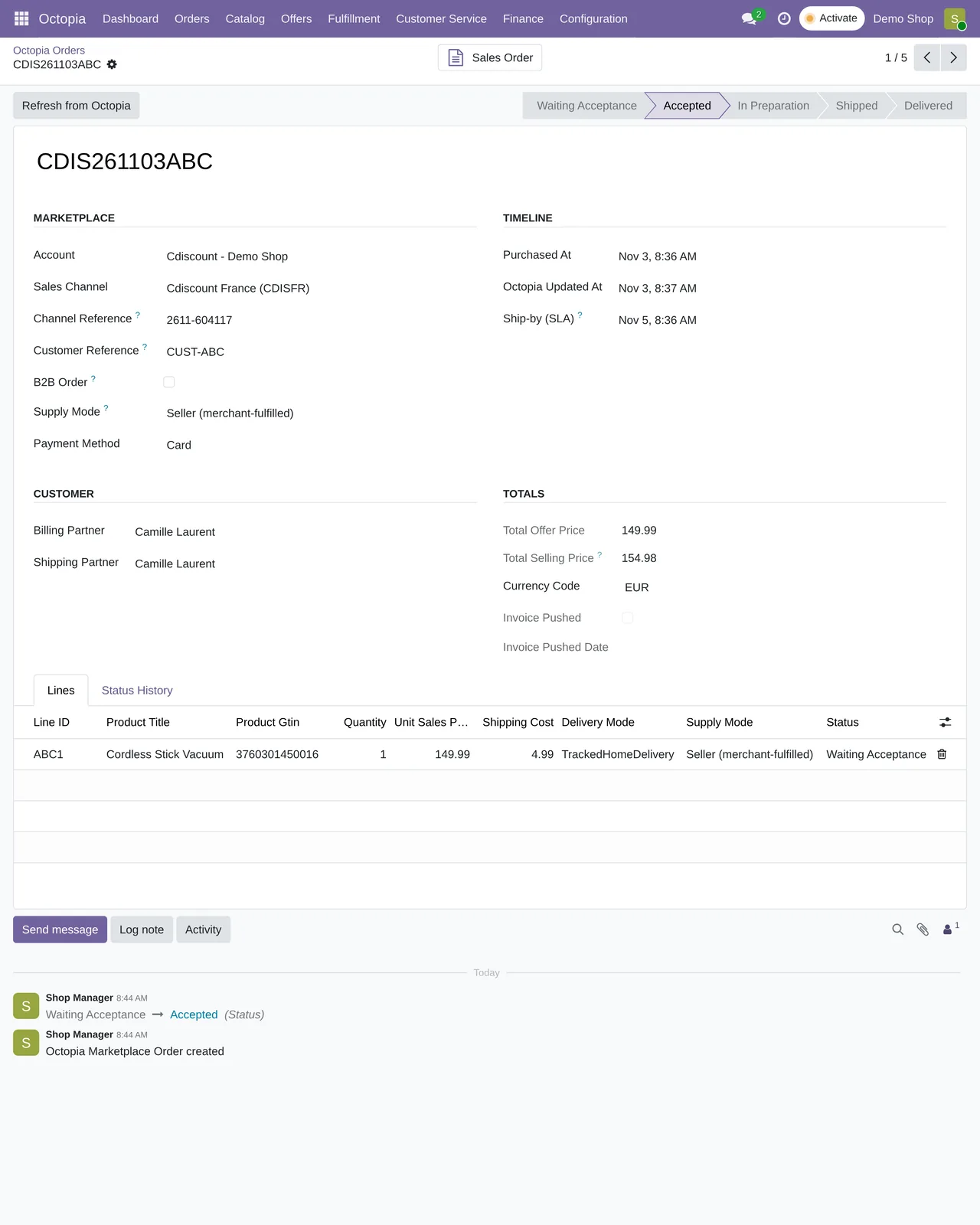
The Octopia API does not notify through webhooks: you have to ask it. That is why the connector checks for orders every 10 minutes and sends price and stock changes every 15. One detail that trips people up: Octopia does not reveal the buyer's address until the order is in preparation. Seeing freshly arrived orders without an address is normal; the next check fills it in.
To declare a shipment, Octopia requires dimensions and weight for some delivery modes. If they are missing, Odoo tells you before sending anything.
If you also sell on other Octopia channels, remember that stock for the same product and condition is shared across all of them. Updating it on one updates the rest.
Keep reading
Checked in the connector's source code (version 20.0) and the linked sources
Sources
- Module source code: flexigobe_octopia_connector 20.0 (dfba2acc): docs/api-ground-truth.md
- Module source code: flexigobe_octopia_connector 20.0 (dfba2acc): models/octopia_account.py
- Module source code: flexigobe_octopia_connector 20.0 (dfba2acc): models/octopia_fulfillment.py
- Module source code: flexigobe_octopia_connector 20.0 (dfba2acc): models/octopia_ffm_setup.py
- Module source code: flexigobe_octopia_connector 20.0 (dfba2acc): views/menu.xml
- Module source code: flexigobe_octopia_connector 20.0 (dfba2acc): views/octopia_offer_views.xml
- Module source code: flexigobe_octopia_connector 20.0 (dfba2acc): views/octopia_order_views.xml
- Module source code: flexigobe_octopia_connector 20.0 (dfba2acc): views/octopia_referential_views.xml
- Module source code: flexigobe_octopia_connector 20.0 (dfba2acc): data/octopia_cron_data.xml
- apps.odoo.com/apps/modules/20.0/flexigobe_octopia_connector