

 Español
 Català
 Deutsch
 Français
 Português
 Italiano
 Nederlands
 Polski
When the button appears
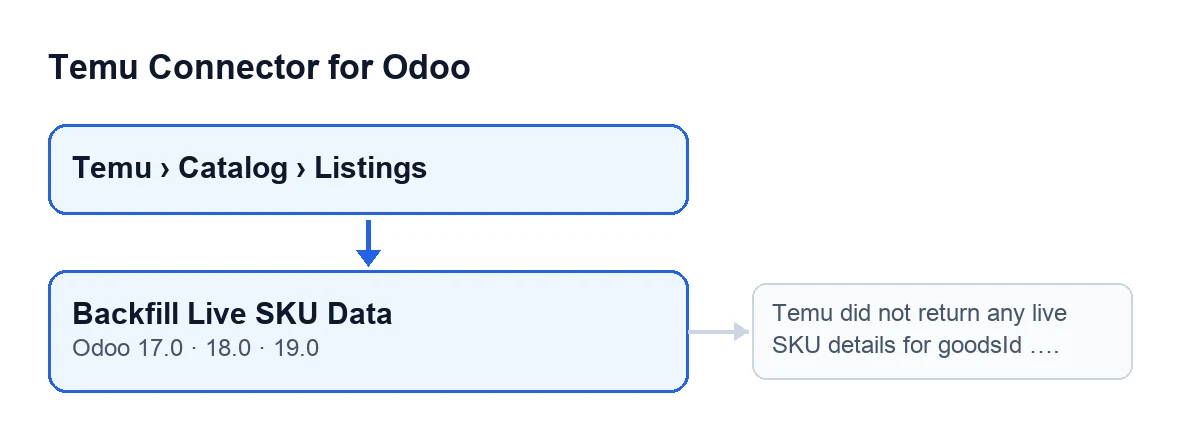
The Backfill Live SKU Data button is on the Product Publishing form, which opens from the menu Temu › Catalog › Listings. It exists in Odoo 17, 18 and 19. It is hidden when the Temu Goods field of the form is empty, and with the default values it is empty: a new listing does not show the button. That field is on the Product Publishing form.

What Odoo does on its own, without the button
The button is not the only route. The pieces it uses are also reached by two scheduled tasks, both active on install. Temu Sync Products (every 30 minutes) reaches the request for the product detail from Temu, the update of the variants and the synchronisation of the SKU links. Temu Backfill Missing Amounts (every 10 minutes) reaches the detail request and the update of the variants.
The button is the manual route: it runs those steps now, for the listing you have open, and shows you the result in a notification.
A worked case, step by step
Example Illustrative case: the company and its figures are made up to explain the flow.
Picture «Cerámicas Mirador», an invented shop that sells mugs in several colours on Temu. It has a listing under Temu › Catalog › Listings with Temu Goods filled in. It wants the specs and dimensions of the Odoo variants to match what Temu returns now for that product, without waiting for the scheduled tasks.
- Open the
Product Publishingform and check thatTemu Goodshas a value. If it were empty, the button would not show. - Press
Backfill Live SKU Data. - Odoo shows a success notification that does not stay on screen: how many variants it processed, in how many the specs were updated and in how many the dimensions. Then it reloads the form.
- Look at
Last Sync At: it now holds the date and time of that moment.
Now picture that, another day, Temu returns no details for that product. Instead of the success notification you get the error described in the errors section, nothing changes on the variants and Last Sync At stays as it was. What the case shows: the success notification tells you how much changed, and the error arrives before anything is touched.
What the button does inside, in order
- It takes the value of
Temu Goodsand the instance on the form (theInstancefield) and asks Temu for the detail of that product. The query is tried with several combinations and the first reply that is not empty wins. If all of them fail, the module leaves a warning in the Odoo log with the instance name and the goodsId. - If the detail has no SKU list, the button stops with the message in the next section. Nothing has changed up to that point.
- Before changing anything, it notes down, for each variant of the template, its specs and its dimensions (length, width and height).
- It updates the variants from the detail Temu returned. It does not create new variants: any it cannot find in Odoo are skipped. From each SKU's detail the module reads, among other data, title, prices, stock, images, specs, weight and dimensions.
- It synchronises the SKU links of the listing, which tie each variant to its Temu SKU. If the previous step returned variants, it does so with those that belong to the listing's template; if it returned none, it uses the SKU list from the detail. In that synchronisation, variants already linked to another listing, or with a different
Temu Goodsvalue, are skipped. - It sets
Last Sync Atto the date and time of that moment. - It compares against what it noted in the third step: it counts the variants whose specs changed and those whose dimensions differ. It shows the success notification and reloads the form. The first number in the notification, the variants processed, is the number of SKU rows Temu returned, not the number of Odoo variants.
When the button stops with an error
When you press the button it can stop with Temu did not return any live SKU details for goodsId …. (the code puts the goodsId where the ellipsis is). It appears after the detail has been requested from Temu, when what comes back has no SKU list. One case that leads there is the request failing altogether, because the module then works with an empty detail.
Since the stop comes before anything is changed, nothing is saved and Last Sync At keeps its value. To investigate:
- Compare the goodsId in the message with the value of
Temu Goodson the form. - If the request failed, look in the Odoo log for the warning with the instance name and that goodsId.
How the button label reads
What to check afterwards
- That
Last Sync Athas changed on theProduct Publishingform. - That the notification gives figures in line with what you expected: variants processed, specs updated and dimensions updated.
- That the specs and dimensions are on the product variants. Which fields the connector adds there is covered in what the connector adds to Odoo products.
Cost and help
Temu Connector for Odoo is a one-off payment per Odoo version and needs the FlexigoTech Cloud subscription, Connector plan: €49 a month or €490 a year, excluding VAT. The connection goes through FlexigoTech Cloud, which watches the synchronisation and emails you if it fails. The module is published on Odoo Apps for 17, 18, 19 and 20 (listing), and you can buy it on the module page.
If you are implementing Odoo and want to review how your Temu listings fit with your variants, FlexigoTech implements Odoo 17, 18, 19 and 20 and builds connectors and custom integrations.
Keep reading
Checked in the connector's source code (version 19.0) and the linked sources
Sources
- Module source code: flexigobe_temu_connector 19.0 (455b3f0f): views/temu_product_binding_views.xml
- Module source code: flexigobe_temu_connector 19.0 (455b3f0f): models/temu_product_binding.py
- apps.odoo.com/apps/modules/19.0/flexigobe_temu_connector
- flexigotech.com/precios.html
- flexigotech.com/en/services.html