

 Español
 Català
 Deutsch
 Français
 Português
 Italiano
 Nederlands
 Polski
What changes on the variant form
The module extends Odoo product variants (the Products app). It adds a Temu tab to the variant form, with stock, pre-sale, weight and size fields, and buttons for the base price and pre-sale.
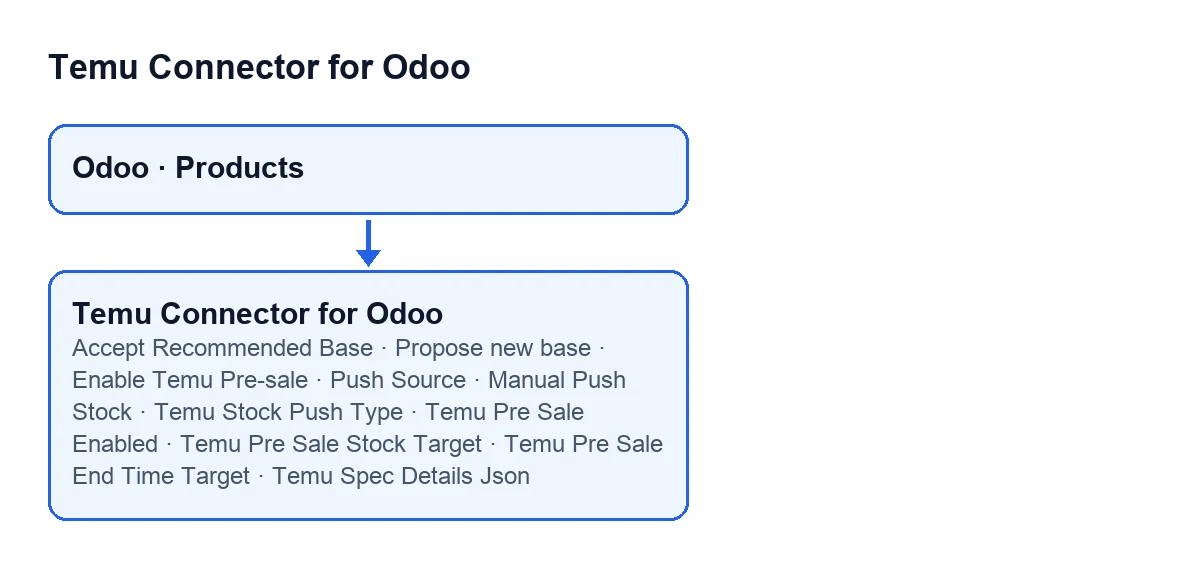
The fields in the tab and the price and pre-sale buttons are hidden when the internal indicator Show Temu Ui is switched off. That indicator is not shown in any view: the module works it out from the context the screen is opened with, and only switches it on if the context carries it. If you open the variant by a route that does not carry it, the Temu fields and buttons in the tab are not displayed.
There is also a check when you save. In Odoo 19.0, when you create or change a variant using Temu link fields, the module checks that you have write permission on the variant's Temu instance: on creation, after the variant is created; on a change, before and after saving.

What happens without pressing anything
Two scheduled tasks, active on install, share some of the methods the Accept Recommended Base button uses: Temu Sync Products, every 30 minutes, and Temu Backfill Missing Amounts, every 10 minutes.
Temu Sync Products looks up each variant's identity on the instance (Temu product, Temu SKU and external SKU), leaves out variants with no Temu product identifier or with no SKU code at all, groups the rest by Temu product and splits them into batches. Temu Backfill Missing Amounts, in some cases, also queries the variant's recommended base price.
Step by step on the variant form
- Open the variant form and go to the
Temutab. If the Temu fields are not displayed, that screen does not carry the Temu indicator. - Decide where the stock comes from:
Push SourceacceptsUse Odoo stock(the default) orUse manual push stock. With the second, fill inManual Push Stock.Temu Stock Push TypeacceptsOrdinary stock(the default) orPre-sale stock. - Complete the shipping and publication data:
Temu Weight,Temu Weight Unit(kgby default; alsog,lbandoz),Temu LengthandTemu Width.Temu External Url RefsandTemu Spec Details Jsonare also in the tab. - To prepare a new base price, press
Propose new basewhen the button is visible. It opens thePropose Temu Base Pricewindow. - To keep the price Temu recommends, press
Accept Recommended Basewhen it is visible. - For pre-sale, fill in
Temu Pre Sale Stock Targetand, if you want an end date,Temu Pre Sale End Time Target; then pressEnable Temu Pre-sale. - Check
Temu Pre Sale Enabled: it is read-only and the module fills it in afterEnable Temu Pre-saleorDisable Temu Pre-sale.
What the fields say
The Manual Push Stock field carries this help text: Manual stock quantity to push to Temu when Push Source is set to 'Use manual push stock'. This is not a readback from Temu. It is the quantity you want to send, not a reading from Temu.
For Temu Weight the help says: Temu shipment weight for this SKU. If empty, Odoo product weight is used. And for Temu External Url Refs: Optional variant-level external media URLs for Temu publication (one URL per line).
As for Temu Spec Details Json, the code does this: if the SKU link for that instance carries no specification details, the module falls back on whatever is in this field on the variant.
What each button does inside
Accept Recommended Base
For each selected variant, the button takes the instance from the context the screen was opened with (if the context carries none, there is no instance) and reads the recommended base price. If it is not above zero, the button stops, saves nothing and shows This product does not have a Temu recommended base price that can be accepted.
If there is a price, it copies it along with its currency: the recommended one or, failing that, another of the currencies the module has noted for the variant, and as a last resort the company currency. With an instance, and if an SKU link exists and the variant has no single Temu identity, the price is stored on that link; otherwise it is stored by another route tied to the instance. Without an instance, it is written on the variant itself. When it finishes it shows a confirmation notification that does not stay pinned.
Accept Recommended Base.Propose new base
If no variant is selected, it stops with Select at least one product variant to prepare a Temu base price proposal. Otherwise it opens the Propose Temu Base Price window with the selected variants.
The instance is chosen like this: the instance of the variants, if among those that have an instance assigned there is only one; if not, and the variants belong to a single template, whatever the template resolves (the one in the context, the only one among its variants, the only one among its links or, last of all, the first active instance).
Enable Temu Pre-sale
It first checks every variant, before going further. It stops if there is no instance (Temu instance is required before editing Temu pre-sale status.) or if the Temu product or SKU identifier is missing (Temu goodsId and skuId are required before editing Temu pre-sale status.).
If all is well, it groups the variants by instance and Temu product. For each SKU it prepares the pre-sale target stock, rounded to a whole number and never below zero, and the end date only if you filled it in, and passes that to the Temu instance of each group. It then ticks Temu Pre Sale Enabled on those variants.
When each button is visible
| Button | Hidden when |
|---|---|
Accept Recommended Base | Show Temu Ui is switched off, or the Temu Display Recommended Base Actionable field does not allow it (neither is shown in any view). Same in Odoo 17, 18 and 19. |
Propose new base and Enable Temu Pre-sale | Show Temu Ui is switched off, or the link to an instance is missing (Temu Display Has Instance Link, not shown in any view), or Temu Display Goods or Temu Display Sku is missing. Same in Odoo 17, 18 and 19. |
Cost and help
The module is a one-off payment per Odoo version and is published for 17.0, 18.0, 19.0 and 20.0; the price for each is on its listing. It also needs the FlexigoTech Cloud subscription, Connector plan: €49/month or €490/year excluding VAT. The connection goes through FlexigoTech Cloud, which stores the credentials encrypted, watches the synchronisation and emails you if it fails. There is more detail on the module page.
FlexigoTech implements Odoo 17, 18, 19 and 20 and builds custom connectors and integrations, in case you need to adapt this flow to your catalogue.
Keep reading
Checked in the connector's source code (version 19.0) and the linked sources
Sources
- Module source code: flexigobe_temu_connector 19.0 (455b3f0f): models/product_product.py
- Module source code: flexigobe_temu_connector 19.0 (455b3f0f): views/product_template_views.xml
- Module source code: flexigobe_temu_connector 19.0 (455b3f0f): models/temu_instance.py
- apps.odoo.com/apps/modules/19.0/flexigobe_temu_connector
- flexigotech.com/precios.html
- flexigotech.com/en/services.html