

 Español
 Català
 Deutsch
 Français
 Português
 Italiano
 Nederlands
 Polski
Before you change anything
The account form opens from the menu Amazon › Configuration › Accounts. The default values quoted are those of Odoo 20.0. The module is published on Odoo Apps for 17.0, 18.0, 19.0 and 20.0.
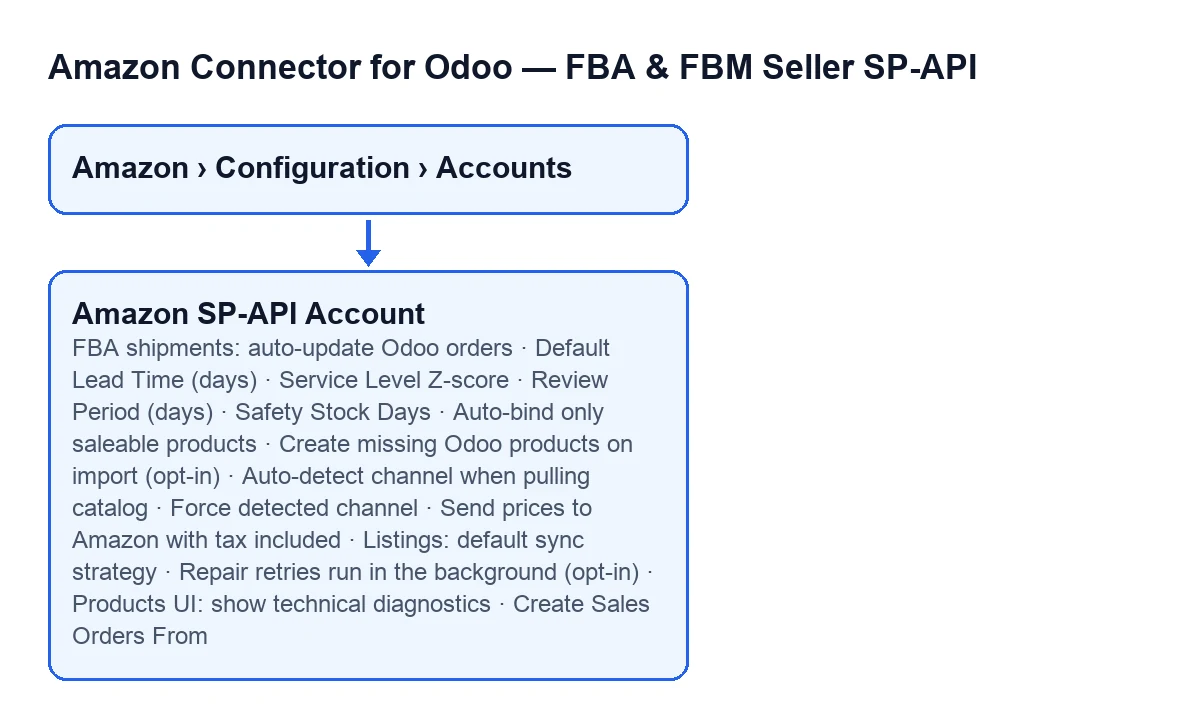
- Check that you can see the menu. Each level asks for a permission and, if you do not have it, you do not see that level:
Amazonasks forViewer,Configurationasks forManagerandAccountsasks forManager. - Open the account form and find the tabs
Orders & Fulfillment,FBA & StockandCatalog & Listings. - Before changing anything, note the value each checkbox starts with. Each item below gives the default set in the code.

Orders: from when sales orders are created
- On the
Orders & Fulfillmenttab, in theOrder Syncgroup, review the fieldCreate Sales Orders From. According to its help, FBM orders purchased before that date are imported (as Amazon Orders) but never become sales orders, so orders handled before you connected the account are not shipped again. A new account gets the moment it was created. - Decide whether you want that limit. The help says that if you empty the field there is no limit, and that FBA orders are not affected.
FBA and stock: when orders are marked as shipped
- On the
FBA & Stocktab, in the groupFBA Inventory Sync (ON by default) · Fulfilled Shipments (opt-in), look atFBA shipments: auto-update Odoo orders. Its help says:If enabled, linked Odoo orders are marked PartiallyShipped/Shipped only when Amazon reports actual FBA dispatch. - Do not rely on the group title: although it says opt-in, the checkbox default in the code is on. Look at how it is set on your form and leave the value you want.
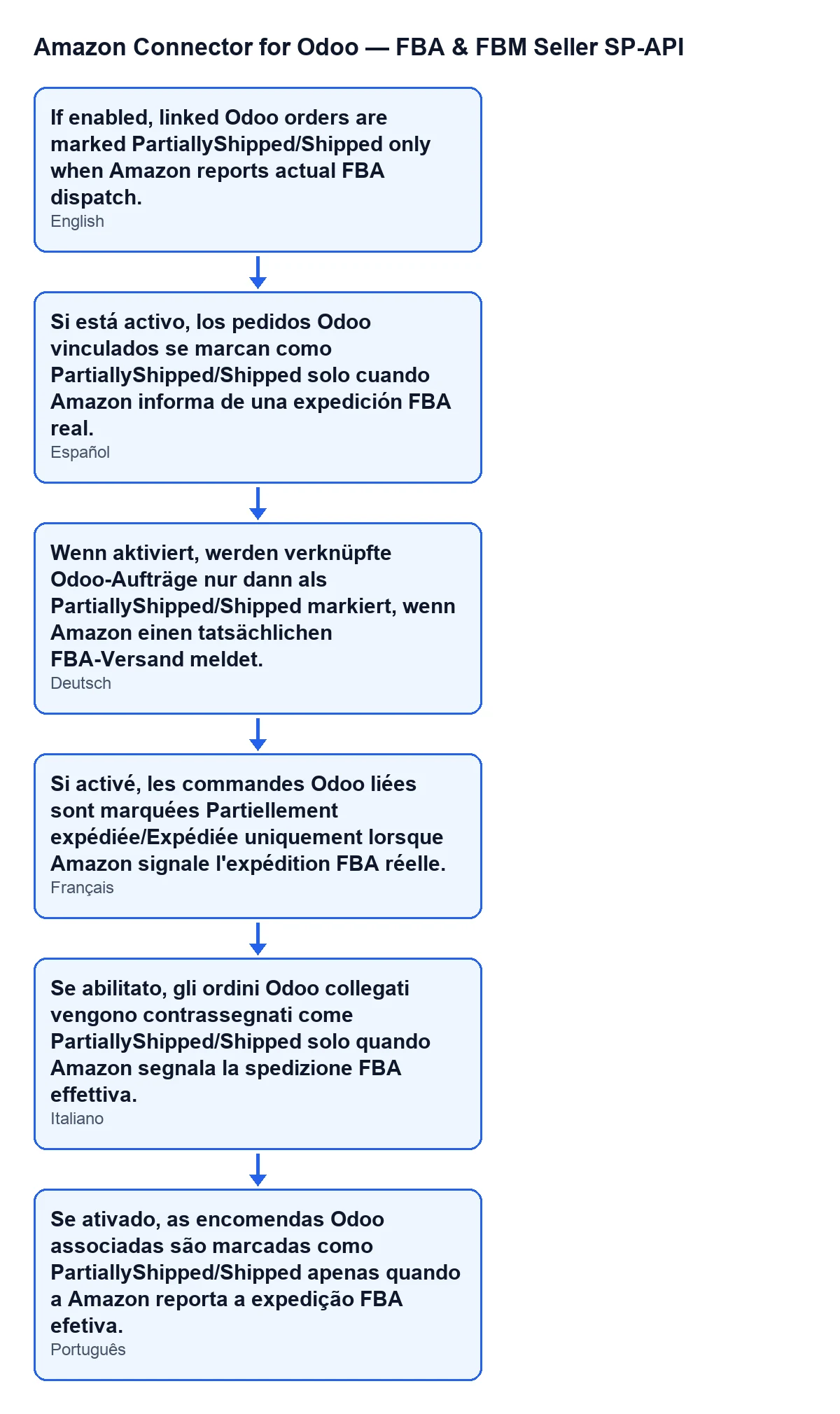
- With Odoo in English, the help text is the sentence above; the diagram also shows how it reads in Spanish, German, French, Italian and Portuguese.
Restock planning: the four numbers
These fields are on the FBA & Stock tab, in the group Restock Planning (forecast & reorder point).
Default Lead Time (days): the default supplier lead time in days, used for reorder-point calculations. Default: 21. Enter your supplier's real lead time if it is different.Service Level Z-score: the Z-score that corresponds to the service level you want. The help gives an example, 1.65 = 95%, which is also the default. If you want a different service level, change the score.Review Period (days): how often replenishment orders are placed, used in the recommended-quantity formula. Default: 30. Adjust it to how often you really order.Safety Stock Days: extra days of demand kept as safety stock above the reorder point. Default: 7.
Catalogue: binding, importing and sending prices
All of these fields are on the Catalog & Listings tab, in the Auto-bind & Import group.
Auto-bind only saleable products: on by default. With the checkbox on, only products withsale_ok=Trueare used, as its help says.Create missing Odoo products on import (opt-in): off by default. If you turn it on, catalogue imports (the manual one and the nightly auto-bind) create an Odoo product for each Amazon SKU with no local match, with the name and sales price from the Amazon listing and the SKU as internal reference, instead of leaving an orphan binding. Bindings created this way stay in Manual sync mode. Turn it on only if you want those products created.Auto-detect channel when pulling catalog: on by default. When the catalogue is pulled on a binding, the channel code is adjusted automatically.Force detected channel: off by default. With the checkbox on, the current channel is overridden even when it is notDEFAULT.Send prices to Amazon with tax included: on by default. According to the help, Amazon shows tax-inclusive prices in every marketplace except the United States and Canada. With the checkbox on, the Odoo sales price is grossed up with the product's sales taxes before it is sent, mapped through the invoice fiscal position when the account has one; a price already set tax-included in Odoo is sent as it is. It is ignored on the US and Canadian marketplaces.Listings: default sync strategy: the default strategy for new listings and bindings. The options areManual only,Automatic stock only,Automatic price onlyandAutomatic price + stock. Default:Manual only. According to the help, Manual keeps price and stock on manual sending, and the automatic modes allow queuing price and/or stock automatically based on the chosen strategy.Products UI: show technical diagnostics: off by default. If you turn it on, product bindings show the raw payload/response and issue JSON fields.
Repairing listing errors
- In the
Auto-repair Listing Errorsgroup on the same tab, reviewRepair retries run in the background (opt-in). Its help says it enables queued retries for transient errors (for example, accepted without a final status). Although the label says opt-in, the default in the code is on.
What it costs and how we can help
The module is a one-off payment per Odoo version and needs a FlexigoTech Cloud subscription, Connector plan: €49 per month or €490 per year excluding VAT, for up to 3 accounts on the platform. The connection goes through FlexigoTech Cloud, which stores the credentials encrypted, monitors the synchronisation and emails you if it fails. On the Odoo App Store, each Odoo version is bought there. Here is the Odoo Apps listing and the module page.
If you are implementing Odoo and want someone to go through these checkboxes with you before you connect the account, FlexigoTech implements Odoo 17, 18, 19 and 20 and builds custom connectors and integrations.
Keep reading
Checked in the connector's source code (version 20.0) and the linked sources
Sources
- Module source code: flexigobe_amazon_seller_connector 20.0 (8576afa5): models/amazon_spapi_account.py
- apps.odoo.com/apps/modules/20.0/flexigobe_amazon_seller_connector
- flexigotech.com/en/services.html
- flexigotech.com/precios.html