

 Español
 Català
 Deutsch
 Français
 Português
 Italiano
 Nederlands
 Polski
When this message appears
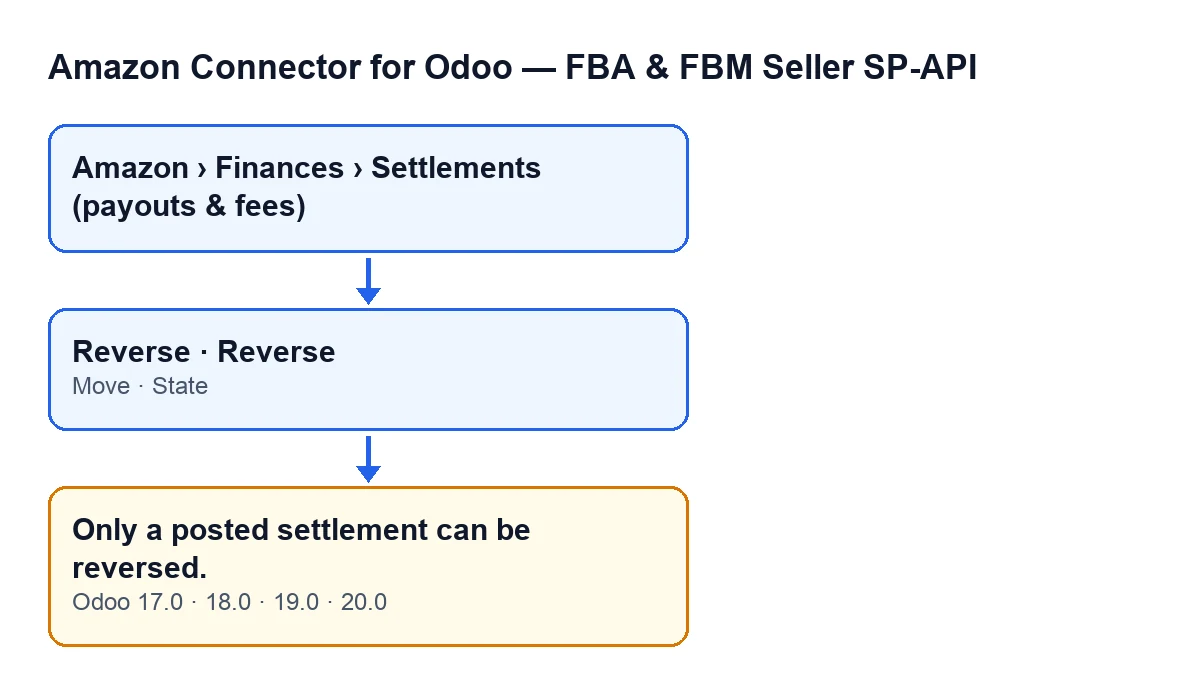
It can appear when you press the Reverse button on a settlement form in Amazon Connector for Odoo. Before changing anything, the module looks at the Move field and the State field of that settlement. If Move is empty, or if State is not Posted to accounting, the action stops with the message and nothing is saved. The text is in the module for Odoo 17, 18, 19 and 20.

What it means in practice
It is a check the module makes before it touches the entry. Reverse is there to undo the entry of a settlement that has already been posted so it can be corrected; if the settlement has no entry to undo, or is not in the posted state, the module stops.
The message is about two items on the form: the entry and the state. Nothing else feeds into it, only those two conditions joined by 'or'.
The button is only visible when State is Posted to accounting. On a settlement in Imported (the default value) it does not appear. So if you reach the message from the button, the first thing to look at is the Move field: the condition in the code is also met when that field is empty.
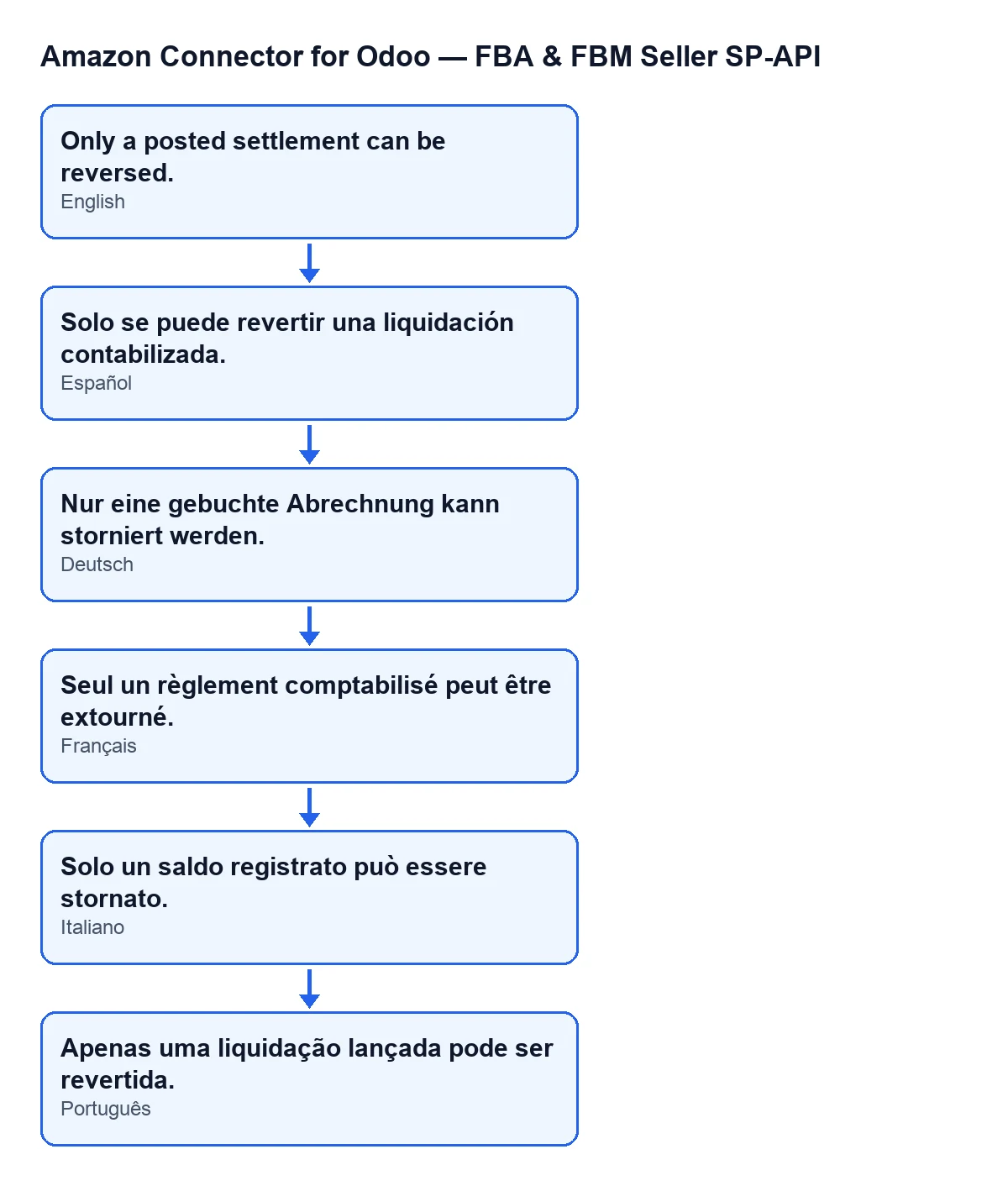
The diagram below gives the text of the same message in Spanish, German, French, Italian and Portuguese.
Checklist to resolve it
Before pressing Reverse
- Check that you can see the menu
Amazon › Finances › Settlements (payouts & fees). Each part (Amazon,FinancesandSettlements (payouts & fees)) asks for theViewerpermission; if you do not have it, you do not see that part.
- Open the settlement form under
Settlements, not just the list.
- Look at
State: it shows on the form and also in the list. Its values areImportedandPosted to accounting.
- Look at
Movein theReconciliationgroup of the form. It is read-only: the code writes it, not you. Its help text says:Journal entry created when posted to accounting.
When you press the button
- Find
Reverse. It only appears whenStateisPosted to accounting.
- Read the confirmation before accepting:
Reverse this settlement's journal entry and reopen it for re-posting?
- If the message appears, the action stops as it runs and nothing is saved.
If the message appears
- Check
Move. If it is empty, the condition in the code is met and the action stops. That field is filled by thePost to AccountingandPost anyway (force)buttons, and emptied byReverse.
- Check
State. If it is notPosted to accounting, the other part of the condition is met. Remember that inImportedthe button is not visible.
- Do not try to type the entry in by hand: the field is read-only on the form.
- Look at
StateandMovetogether again before retrying: what decides whether this message appears is those two values.
When the reversal does go through (Odoo 20 code)
- Check that
Statehas gone back toImportedand thatMoveis empty: that is what the method writes when it finishes.
- Look for the message the module leaves on the form:
Settlement entry … reversed by …; the settlement is reopened so it can be corrected and posted again.
- Note the reference of the reversal: the method asks for the entry to be reversed with the reference
Reversal of …and today's date.
- Correct whatever was wrong and, to post again, use
Post to Accounting, the button that fillsMove.
Worth remembering
The condition has two parts joined by 'or': a missing entry or a different state is enough to show the message. And because the warning comes before any change, seeing it leaves neither the entry nor the state of the settlement half-done.
The check belongs to the method that Reverse runs: the message can appear when you press that button. What decides whether it appears is what you see on the form, State and Move. If you wanted to undo an entry, first confirm that the settlement is posted and that its entry is still on the form.
If you need help with settlement accounting
FlexigoTech implements Odoo 17, 18, 19 and 20 and builds custom connectors and integrations. If you want to review how you post and correct settlements in your Odoo, get in touch. The module is on its page at flexigotech.com and on its Odoo Apps listing, published for Odoo 17, 18, 19 and 20.
Keep reading
Checked in the connector's source code (version 20.0) and the linked sources
Sources
- Module source code: flexigobe_amazon_seller_connector 20.0 (8576afa5): models/amazon_spapi_settlement.py
- Module source code: flexigobe_amazon_seller_connector 20.0 (8576afa5): views/amazon_spapi_settlement_views.xml
- apps.odoo.com/apps/modules/20.0/flexigobe_amazon_seller_connector
- flexigotech.com/en/services.html