

 Español
 Català
 Deutsch
 Français
 Português
 Italiano
 Nederlands
 Polski
When the message appears
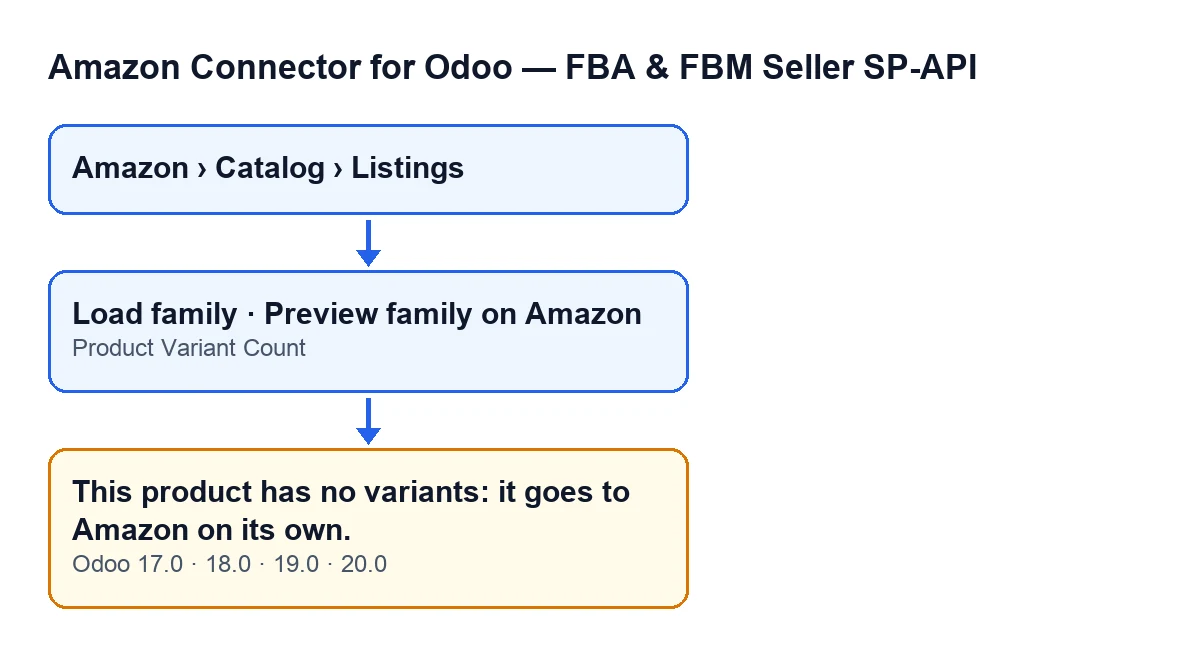
The message This product has no variants: it goes to Amazon on its own. stops the action you have just started. It can appear when you press the Load family button or the Preview family on Amazon button, both on the Listings form. Both buttons reach the same check in the module and, if its condition is met, raise this notice.
It is in the published code of Amazon Connector for Odoo on all four branches: Odoo 17, 18, 19 and 20.

The exact condition
The condition in the code is that the product template has fewer than two variants. In plain words: with a single variant, or none, you get the message; with two or more, the action carries on.
The check comes before the module looks for the product's family, creates listings for the variants, chooses the variation theme or works out the parent reference. Because the notice stops the action, none of that runs: what the button was going to change is not saved.
Where you see it on screen
The forms open from the Amazon › Catalog › Listings menu. Every part of the menu asks for the Viewer permission: if you do not have it, you do not see that part.
That form has the Product Variant Count field, which is hidden when it is below two. The two family buttons have a similar condition: they are hidden when Product Variant Count is below two or when the Amazon Product Type field is empty. With the default values that field is empty, so the buttons do not show until it has a value.
Step by step to fix it
- Open the listing form under
Amazon › Catalog › Listings. - Look at the
Product Variant Countfield. If it does not appear, the form is telling you the product has fewer than two variants, which is exactly the condition behind the message. - Decide what you want this product to be. If it is a single item, the message is consistent with that: this product goes to Amazon on its own.
- If you expected a family with several variants, check the Odoo product: the check counts the variants on its template and asks for two or more. Create them on the product and go back to the listing form.
- Check that
Product Variant Countnow appears: that is the sign the product meets the two-variant condition. - To see the buttons, the
Amazon Product Typefield must also have a value. With both in place, you can useLoad familyorPreview family on Amazon.
What Load family does once there are enough variants
Knowing what comes next helps explain why the module asks for two variants. When the check passes, the Load family button does the following, according to the code:
- It looks for the listings that already exist for the same product, in the same account and marketplace, one per variant.
- It creates a new listing for each variant that has a reference and did not have one yet. No listing is created for variants without a reference.
- It sets the variation theme: the one already typed on the listing or, if it was empty, the one the module suggests. The suggested theme is the simplest one whose attributes are exactly those the Odoo variants fill in.
- It sets the parent product reference and copies the product type, the requirements mode and the GTIN exemption to every listing in the family.
- If there is a theme, it copies the values you typed on this form (those for attributes that are not part of the theme) to the other listings in the family, only into lines that are still empty on theirs.
None of this happens while the product has fewer than two variants.
Common questions about this notice
Is anything saved when the notice appears?
No. The notice stops the action, and nothing that the action was going to change is saved.
Does it change between Odoo versions?
The notice is in the published code of Odoo 17, 18, 19 and 20. The visibility condition of the two buttons is also the same on all four versions: they are hidden with fewer than two variants or without Amazon Product Type.
Which button raises it?
The two we have seen: Load family and Preview family on Amazon. Both go through the same module method, and that is where the number of variants on the template is checked.
The same message in other languages
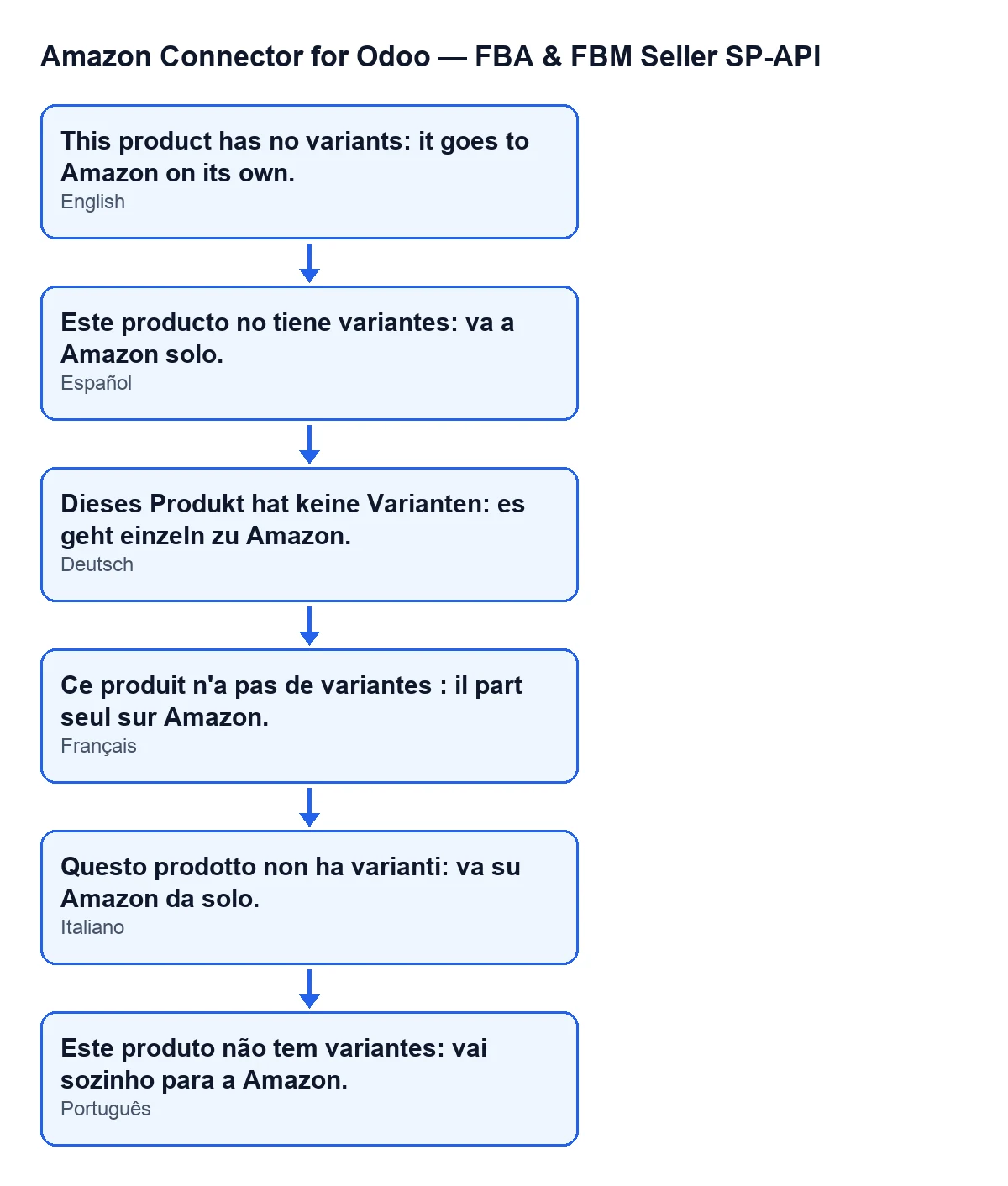
The module ships translations of the notice. The diagram below shows it in Spanish, German, French, Italian and Portuguese, as the user sees it depending on the language of their Odoo.
What to read next
If you need help with your catalogue
FlexigoTech implements Odoo 17, 18, 19 and 20 and builds connectors and custom integrations. If you want to review how the variants of your products are set up before taking them to Amazon, get in touch. The module is published for all four versions, with its listing on Odoo Apps and its page on flexigotech.com.
Keep reading
Checked in the connector's source code (version 20.0) and the linked sources
Sources
- Module source code: flexigobe_amazon_seller_connector 20.0 (8576afa5): models/amazon_spapi_variation.py
- Module source code: flexigobe_amazon_seller_connector 20.0 (8576afa5): views/amazon_spapi_variation_views.xml
- Module source code: flexigobe_amazon_seller_connector 20.0 (8576afa5): models/amazon_spapi_new_product.py
- apps.odoo.com/apps/modules/20.0/flexigobe_amazon_seller_connector
- flexigotech.com/en/services.html