

 Español
 Català
 Deutsch
 Français
 Português
 Italiano
 Nederlands
 Polski
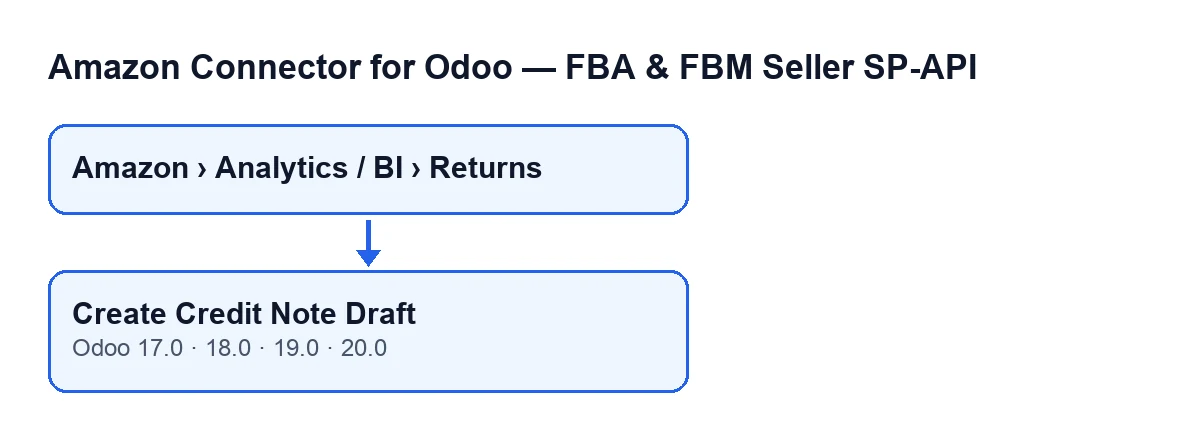
The code described here is the one published for Odoo 20.0; the button exists in branches 17, 18, 19 and 20.
First, the automatic path (optional)
Odoo can create these drafts without you pressing the button, but only if you switch on the account's checkbox: it is off by default. With the checkbox on, that process takes care of the lines without you stepping in, and the button is left for the lines you want to handle by hand.
- Find the
Auto-create credit notes (opt-in)checkbox: it is on theAccountsform, in theReturns & Reviewstab. It is off by default.
- Read its help text: «Automatically creates a draft customer credit note when the return refund amount is reported and the sale is accounted in Odoo.»
- Know which scheduled actions reach that process:
Amazon SP-API - Auto receive returns to stock, which runs every 15 minutes, andAmazon SP-API - Sync returns, every 3 hours. Both are active when the module is installed.
- With the checkbox off, the process creates nothing and may leave the message
Auto credit note drafts are disabled in account settings.in the account's chatter.
- With the checkbox on, the process goes through that account's return lines that have a refund amount above zero and no credit note linked yet, starting with the most recent request and up to a limit of lines per run. For each one it calls the same creation routine the button uses.
- Bear in mind that, depending on a setting on the account, the automatic process can post the credit note instead of leaving it as a draft. The button does not post.
- Check the outcome: if the creation stops with one of the module's own warnings, the line is marked as skipped; if it fails for any other reason, it is marked as error. In both cases the automatic process stores the error text on the line. The chatter summary counts lines evaluated, credit notes generated, skipped and with error.

Where the button is and when it shows
- Open the menu
Amazon › Analytics / BI › Returns. Each step needs theViewerpermission; if you lack one, you do not see that step.
- Go to the
Returns (BI)screen and open the return line you want to deal with.
- Check that you can see
Create Credit Note Draft. It is hidden when the line already has itsCredit Note Draftlinked; with default values it shows. The condition is the same in Odoo 17, 18, 19 and 20.
What it checks when you press it
- Accounting: the code checks that Odoo Accounting is available; if it is not, the button stops.
- Existing credit note: if the line already has a linked draft and it still exists, the button does not create another one: it returns that one.
- Sale order: it uses the line's own or, if there is none, tries to find one. If there is no sale order, it stops.
- Source invoice: it uses the line's own or, if there is none, looks for a posted customer invoice of the order. If there is none, it stops.
What it creates and what changes on the line
- A customer credit note is created with the company, customer, currency and journal of the source invoice.
- Its origin is the sale order name (or, if it has none, the Amazon order identifier). Its reference is
Amazon return …, with the return identifier or, failing that, the order's or the line's.
- The invoice date is today (if that field exists), the payment terms are left empty and the credit note is linked to the source invoice as the entry it reverses (if that field exists).
- The button does not post: the credit note stays as a draft.
- When the creation finishes successfully, the return line stores the source invoice and the new credit note, sets the credit note's state to draft, records the processing date and clears the error text.
After pressing
- A
Credit Note Draftwindow opens with the credit note just created. Review its lines and amount before going further with it.
- Go back to the return line: since it now has its draft linked, the button no longer shows.
When the button fails
- If any step raises an error, the button stops, Odoo shows the error message, and no draft is created or opened.
- Among the reasons the code covers are a missing sale order, a missing posted customer invoice and Accounting not being available. Fix the cause (the sale order, the posted customer invoice or the availability of Accounting) and press again.
- If the failure came from the automatic process, the line is marked as skipped or as error and keeps the error text; while it has no draft linked, the button stays visible so you can retry by hand once the cause is fixed.
If you want a hand
The module listing is on Odoo Apps and the page with the purchase option is on flexigotech.com. FlexigoTech implements Odoo 17, 18, 19 and 20 and builds custom connectors and integrations, in case you need to fit this returns flow to your accounting.
Keep reading
Checked in the connector's source code (version 20.0) and the linked sources
Sources
- Module source code: flexigobe_amazon_seller_connector 20.0 (8576afa5): views/amazon_spapi_return_line_views.xml
- Module source code: flexigobe_amazon_seller_connector 20.0 (8576afa5): models/amazon_spapi_return_line.py
- Module source code: flexigobe_amazon_seller_connector 20.0 (8576afa5): models/amazon_spapi_account.py
- apps.odoo.com/apps/modules/20.0/flexigobe_amazon_seller_connector
- flexigotech.com/en/services.html