

 Español
 Català
 Deutsch
 Français
 Português
 Italiano
 Nederlands
 Polski
Where the button is and who can reach it
The Verify Integrity button is on the chain view and on the All Chain States (Asesoría) screen. It exists in all four published branches of the module (Odoo 17, 18, 19 and 20) and does not depend on any state: it is always visible.
You open the chain form from Verifactu / SIF › Compliance Records › Chain State. Each step of the menu asks for its own permissions and, if you lack one, you do not see that step:
Chain State:Auditor (read-only)orSIF Manager.Compliance Records:Accountant,Auditor (read-only)orSIF Manager.Verifactu / SIF:Accountant,Asesoría Operator,Auditor (read-only),Privacy OfficerorSIF Manager.
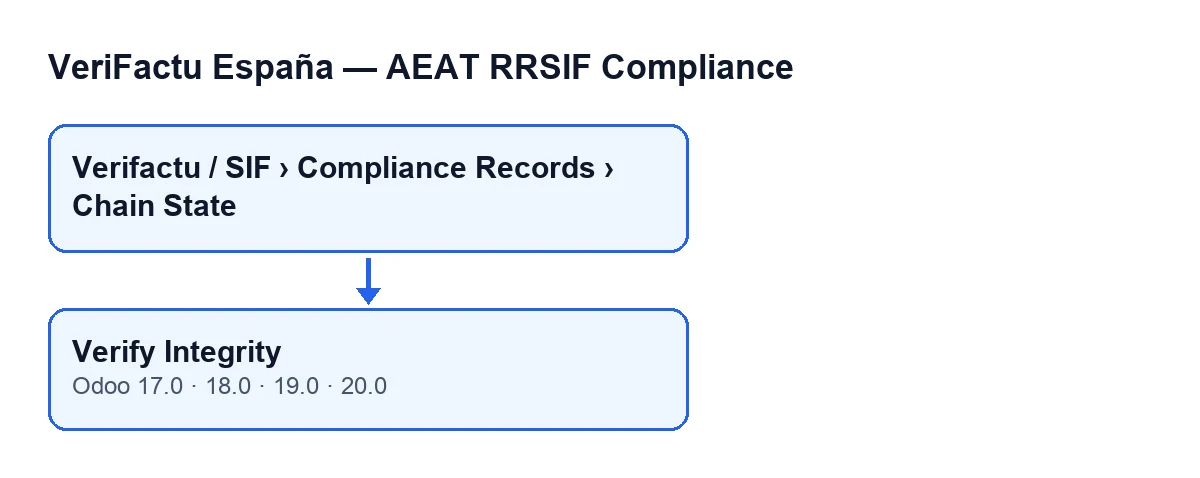
Verifactu / SIF › Compliance Records › Chain State menu and, below it, the Verify Integrity button, present in Odoo 17, 18, 19 and 20.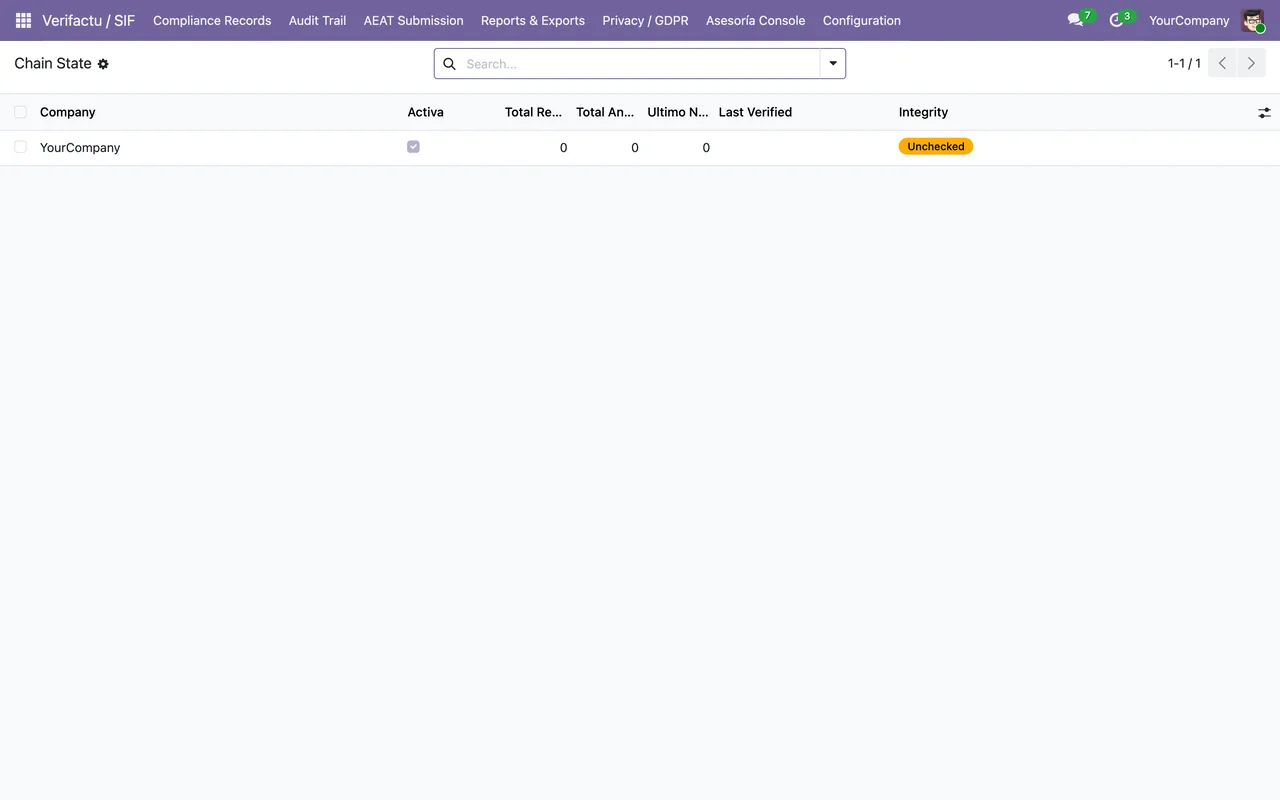
Chain State list, with no records yet: a single YourCompany row, active, with totals at zero and the integrity status Unchecked.What already happens without pressing the button
Each chain has a red, amber or green traffic light. According to the Odoo 20.0 code, it is red if the company's submission queue has any failed or dead-letter submission. It is amber if there are pending or retrying submissions, if the active certificate that expires first has fewer than 30 days left (or the company has no active certificate), or if the chain's integrity status is unchecked or broken. Otherwise it is green.
That traffic light does not wait for you to press anything. It is recalculated by the scheduled task Verifactu: Asesoría Cockpit RAG Refresh, which runs every five minutes and is active on install, and by the task Verifactu: Process Submission Queue, which runs every minute and is also active on install. It is also recalculated when a submission queue record is created or saved, and when you switch VeriFactu on in the company form and save it, which also creates the chain if it did not exist yet.
Those routes refresh the traffic light. What the button adds is the chain verification, the saving of its result and doing it right now, only for the chain you have open.
A case to walk through
Example Illustrative case: the company and its figures are made up to explain the flow.
Lucía handles administration at an invented company, Hilados del Vallès, which already issues invoices with the module and has the SIF Manager permission. Before a meeting with her adviser she wants to know whether the chain of records is intact.
- She opens
Verifactu / SIF › Compliance Records › Chain Stateand goes into her company's chain form. - She presses
Verify Integrity. The button works on the open chain, one at a time. - She waits for the notice: a success one if the chain passes, or a failure one giving the record number and series where it breaks.
- The screen reloads itself, with no need to refresh the browser.
What the button checks, record by record
The button reads all of the company's registration (alta) records and all its cancellations in one go and orders them by record number. It starts from an empty previous hash, which is the seed for the first record.
For each record it recalculates the hash from the stored data:
- For altas: issuer identifier, series and number, issue date, invoice type, total tax amount, total amount, previous hash, and generation date and time with its time zone offset.
- For cancellations: issuer identifier, series and number, issue date, previous hash, and generation date and time with its time zone offset.
It then compares the recalculated hash with the stored one. For cancellations, if the stored hash does not match the calculated one but does match the old way of calculating it, the code accepts it.
The principle is the one the AEAT uses: the hash is a SHA-256 of the record chained to the previous one, and the AEAT recalculates it and, if it does not match, accepts the record with an error that has to be put right.
What changes when it finishes
After the check, the button does three things, in this order:
- It saves the date and time of the verification and the full result.
- It recalculates that chain's traffic light at that moment, without waiting for the five-minute task.
- It shows the notice. If the chain is sound, it says how many records were verified. If it is broken, it gives the record number and series of the first failure and how many records were checked. The failure notice stays fixed on screen; the success one does not. Afterwards, the screen reloads itself.
The two endings of the case
If the chain at Hilados del Vallès passes, Lucía sees the success notice with the total of records verified. The traffic light is then recalculated with the rules above: an unchecked or broken integrity status leaves it amber, and failed submissions turn it red.
If it breaks, the notice gives her two details to write down: the record number and the series of the first failure, plus how many records were checked. That is where to start investigating.
What Lucía takes away
- The button is always at hand on the chain view, but getting there depends on your menu permissions.
- Each press verifies a single chain, saves the result and refreshes that chain's traffic light.
- A broken-chain notice gives you the record and series of the first failure.
- The traffic light already refreshes by itself; the button is for having the verification and the traffic light up to date right now.
If you want help with your installation
FlexigoTech implements Odoo 17, 18, 19 and 20 and builds custom connectors and integrations. If you want to review how VeriFactu is set up in your installation, get in touch.
Keep reading
Checked in the module's source code (version 20.0) and the linked sources
Sources
- Module source code: flexigo_spain_verifactu 20.0 (1fdc980f): views/verifactu_cadena_views.xml
- Module source code: flexigo_spain_verifactu 20.0 (1fdc980f): models/verifactu_cadena.py
- Module source code: flexigo_spain_verifactu 20.0 (1fdc980f): models/res_company.py
- apps.odoo.com/apps/modules/20.0/flexigo_spain_verifactu
- www.agenciatributaria.es/static_files/AEAT_Desarrolladores/EEDD/IVA/VERI-FACTU/Veri-Factu_
- flexigotech.com/en/services.html