

 Español
 Català
 Deutsch
 Français
 Português
 Italiano
 Nederlands
 Polski
Where the button is and who sees it
Where do I find the button?
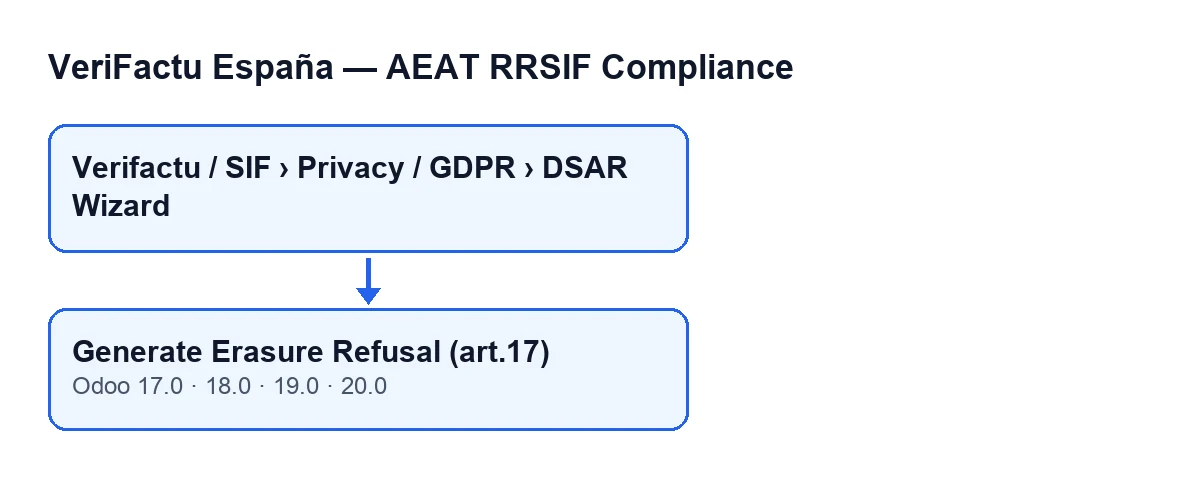
Open the menu Verifactu / SIF › Privacy / GDPR › DSAR Wizard. The DSAR Wizard form has the Generate Erasure Refusal (art.17) button. It exists in the published branches of the module for Odoo 17, 18, 19 and 20.
When does the button appear?
The view puts no condition on it: it is visible on the wizard form in Odoo 17, 18, 19 and 20. What does depend on your profile is reaching the wizard, because each section of the menu asks for its own permissions and, if you lack one, you do not see that section. The permissions asked by the Privacy / GDPR section are Privacy Officer and SIF Manager. Those of the Verifactu / SIF section are Accountant, Asesoría Operator, Auditor (read-only), Privacy Officer and SIF Manager.
What do I fill in before pressing it?
In the Request Details group of the form, the two fields this button uses are Data Subject NIF / Name and Request Reference. The first is written into the document as the data subject and also gives the generated file its name. The second is written as the request reference; if you leave it empty, the code uses an empty text and carries on.
What happens when you press it
What exactly does it generate?
A refusal document for the erasure request, in JSON format. The wording of the decision and of its grounds is already written in the module: what changes from one document to the next is the data subject, the reference and the company details. The document contains:
- the document type, the data subject and the request reference;
- the data controller's details: name, tax identification number and email of the wizard's company;
- the decision, marked as refused, with the GDPR art.17(3)(b) ground (retention necessary for compliance with a legal obligation);
- the retention period and the route to complain to the Spanish Data Protection Agency (AEPD);
- a note saying that a GDPR art.15 access export is available on request, and that the data controller should be contacted at the address given in the document itself.
The file is named dsar_erasure_refusal_ followed by the first 20 characters of the data subject's NIF or name and the extension .json.
Which rules does the document cite?
According to the code, besides GDPR art.17(3)(b) it cites Código de Comercio art.30, LGT art.66 and RRSIF art.8. The retention period text says a minimum of 6 years from the last accounting entry (Código de Comercio art.30) and that records cannot be altered or deleted without breaking the RRSIF art.8 inalterability guarantee of the hash chain. That is what the module writes into the document, not a legal opinion on your case.
What changes besides the document?
Three things, in this order:
- The module stores the JSON on the wizard itself and, if it manages to render one, also a PDF of the same document, named
dsar_erasure_refusal_plus the first 20 characters of the NIF or name and the extension.pdf. - It records a module event. When doing so, it passes a description containing the data subject's NIF or name and, as context, the request reference, the legal bases and the AEPD complaint route.
- It reopens the same wizard in a pop-up window, on the same record, so you can review
Data Subject NIF / NameandRequest Referenceagain in theRequest Detailsgroup.
The button acts on one wizard at a time.
What happens if the PDF cannot be generated?
The code tries the PDF inside a block that catches any failure. If it fails, it leaves a warning in the server's technical log and carries on: the JSON is stored, the event is recorded and the wizard reopens. If the PDF never appears, that warning in the technical log is where to look.
Questions about use
What happens if I press it more than once?
Each press runs the whole process again: it generates the document with the values present at that moment, stores the JSON again (and the PDF, if it manages to render one) and emits another event. If the PDF fails on one press, only the JSON and its file name are overwritten, and the earlier PDF stays as it was. If you change the data subject or the reference between presses, the new document picks up the current values.
Is it the same in every Odoo version?
The button is in branches 17, 18, 19 and 20, and the module is published on Odoo Apps for those four versions. The process described (what is stored, which event is emitted) is that of the Odoo 20.0 code. If you work with 17, 18 or 19, try it first in a test database with made-up data.
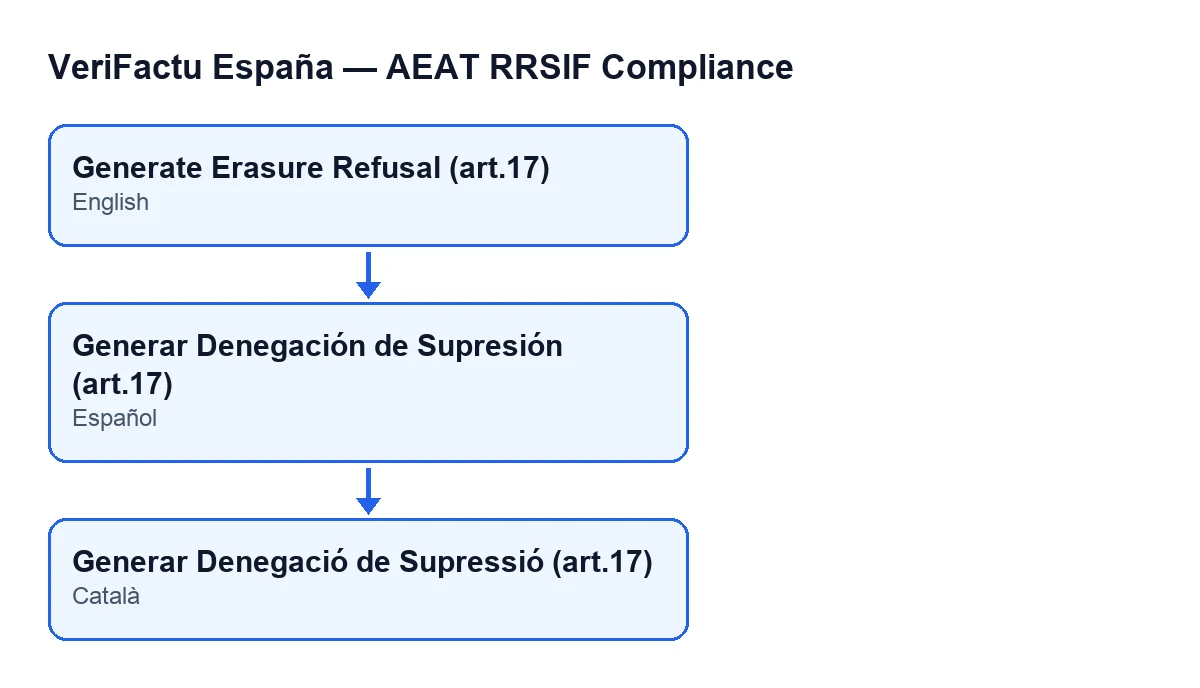
With Odoo in Spanish the button is called Generar Denegación de Supresión (art.17); in Catalan, Generar Denegació de Supressió (art.17).
If you are implementing it
FlexigoTech implements Odoo 17, 18, 19 and 20 and builds custom connectors and integrations; if you need to fit this privacy flow to your permissions and your way of working, get in touch. You can see the module on its Odoo Apps page. Another button of the module, explained with the same approach: what the pre-flight check button does.
Keep reading
Checked in the module's source code (version 20.0) and the linked sources
Sources
- Module source code: flexigo_spain_verifactu 20.0 (1fdc980f): wizards/verifactu_dsar_wizard_views.xml
- Module source code: flexigo_spain_verifactu 20.0 (1fdc980f): wizards/verifactu_dsar_wizard.py
- apps.odoo.com/apps/modules/20.0/flexigo_spain_verifactu
- flexigotech.com/en/services.html