

 Español
 Català
 Deutsch
 Français
 Português
 Italiano
 Nederlands
 Polski
Before you press: where it is and what the order needs
Orders open from the Temu › Trends menu, on the Temu Orders screen. The Refresh Amount button is in the 17, 18 and 19 branches of the module and is always visible, with no state condition. In Odoo 19.0, the button and the scheduled task do what is described below.
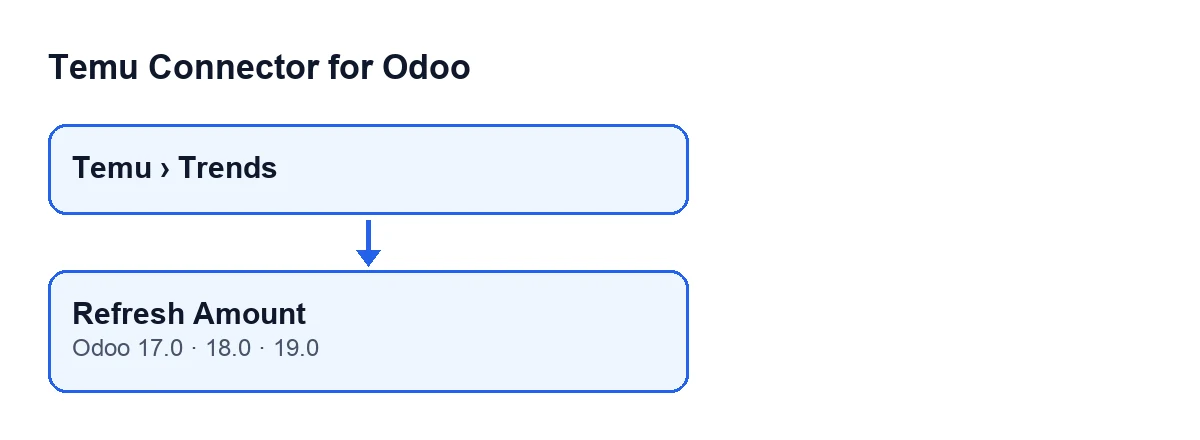
Temu › Trends menu and the Refresh Amount button, with the labels from the module code.- Open an order from
Temu › Trendsand find theRefresh Amountbutton. - Look at the
Order SnandParent Order Snfields on the form (they also appear in the list). The button usesParent Order Snand, if that is empty,Order Sn. If both are empty, it skips that order: it queries nothing and shows no warning. - Check the
Instancefield.

What the module does without you pressing anything
Pressing the button is not the only route. The module ships the scheduled task Temu Backfill Missing Amounts, which runs every 10 minutes and is active on install. That task reaches a recalculation that uses the data the order already has stored, which is also the first attempt of the button's fallback recalculation when the request fails.
- Keep in mind what that recalculation does with an order: if there is stored data, it builds amount data from it and applies it. Afterwards, if the order's total amount is greater than zero, it accepts it and looks no further.
- If the total is still not greater than zero, it looks for a total in the order's stored data and, failing that, in its parent order's data. As a last resort it adds up the order lines (quantity times unit price), counting only lines with a price above zero.
- If that gives a total above zero, it writes it as the order's total amount, fills in the amount paid by the customer only if it had no value already, records the date of the last amount sync and asks for the linked sales order to be created or updated.
When you press: what it checks and what it changes
- First step of the button: it takes the parent order number (
Parent Order Sn, orOrder Snif that is empty) and asks Temu for it through the order'sInstance. - With the response, it looks for orders on that same instance that carry that number as
Parent Order Sn. If there are none, it searches by the Temu order identifier. - For each order found, the module reads from the response what the customer paid and the estimated revenue. If Temu does not give the amount paid directly, the module builds it: discounted price excluding tax, plus discounted shipping, plus the discounted product and shipping taxes, minus product refunds.
- If no warning appears, the button finishes without showing anything (it does the same when it has skipped an order with no number, so that silence does not tell you on its own that the request was made).
If the Temu amount fallback warning appears
When the request fails with an API error the module recognises (the rejection for lack of access to the order-amount API), the button does not stop. It tries a fallback recalculation and shows a warning-type notification titled Temu amount fallback, which stays on screen until you close it.
- Read the message: it has one line per affected order. Each line joins the message of the recognised error with one of two closing sentences.
- If it ends in
Amounts were recalculated from available local data., the request to Temu failed and the module accepted the fallback recalculation. To get there, it first tries the data already stored on the order and, if that is no use, attempts another route. - If it ends in
No usable amount values were found in the existing payloads., the fallback recalculation did not accept any amount. - If the error is not one the module recognises, the button does not attempt the recalculation: the action stops with that error.
After you press
- Check that the order's amount is what you expect. If the first sentence of the warning appeared, the request to Temu failed and the amount is the one from the fallback recalculation: note the amount before you press if you want to know whether it changed.
- If you see the second sentence of the warning, the fallback recalculation found no usable amounts. If you would rather we looked at it with you, get in touch.
- If you run the button on several orders, remember that any order without an order number is skipped without showing anything.
Looking for another button in the same module?
What you need to have it
Temu Connector for Odoo is a one-off payment per Odoo version and needs the FlexigoTech Cloud subscription, Connector plan: €49 a month or €490 a year excluding VAT, with up to 3 accounts on the platform. The connection goes through FlexigoTech Cloud, which stores the credentials encrypted, watches the synchronisation and emails you if it fails. The module is published on Odoo Apps for 17.0, 18.0, 19.0 and 20.0; you can find its Odoo Apps page and the module page.
FlexigoTech implements Odoo 17, 18, 19 and 20 and builds connectors and bespoke integrations. If your Temu order flow needs more than the button, tell us what you are after.
Keep reading
Checked in the connector's source code (version 19.0) and the linked sources
Sources
- Module source code: flexigobe_temu_connector 19.0 (455b3f0f): views/temu_order_views.xml
- Module source code: flexigobe_temu_connector 19.0 (455b3f0f): models/temu_order.py
- apps.odoo.com/apps/modules/19.0/flexigobe_temu_connector
- flexigotech.com/en/services.html
- flexigotech.com/precios.html