

 Español
 Català
 Deutsch
 Français
 Português
 Italiano
 Nederlands
 Polski
What it is and when it runs
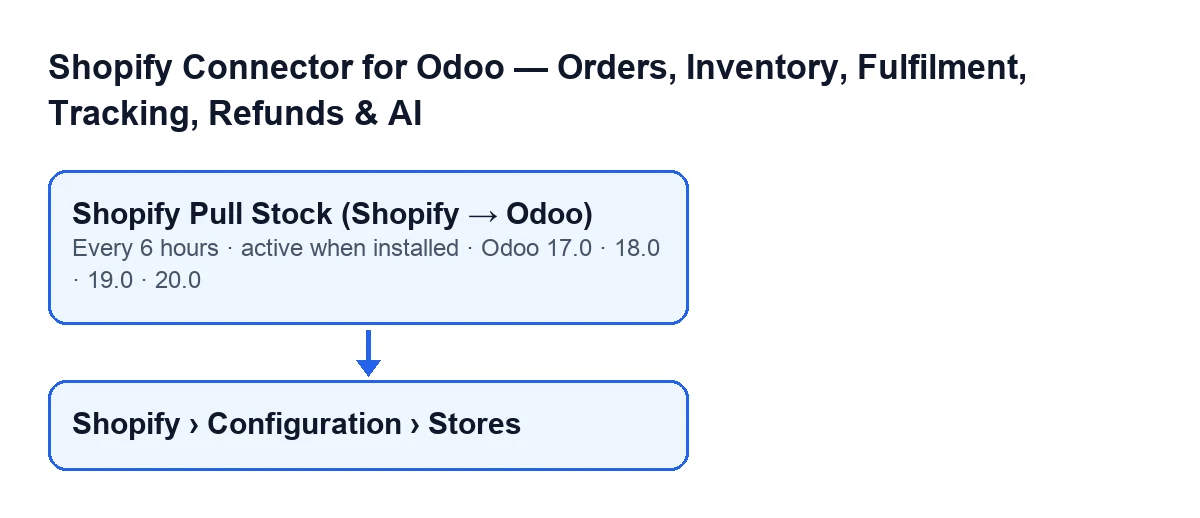
The Shopify Pull Stock (Shopify → Odoo) scheduled action runs every six hours and is active on install. It exists in every published branch: 17.0, 18.0, 19.0 and 20.0. In Odoo 17.0 it also carries a number of calls of -1, which means it repeats without end.
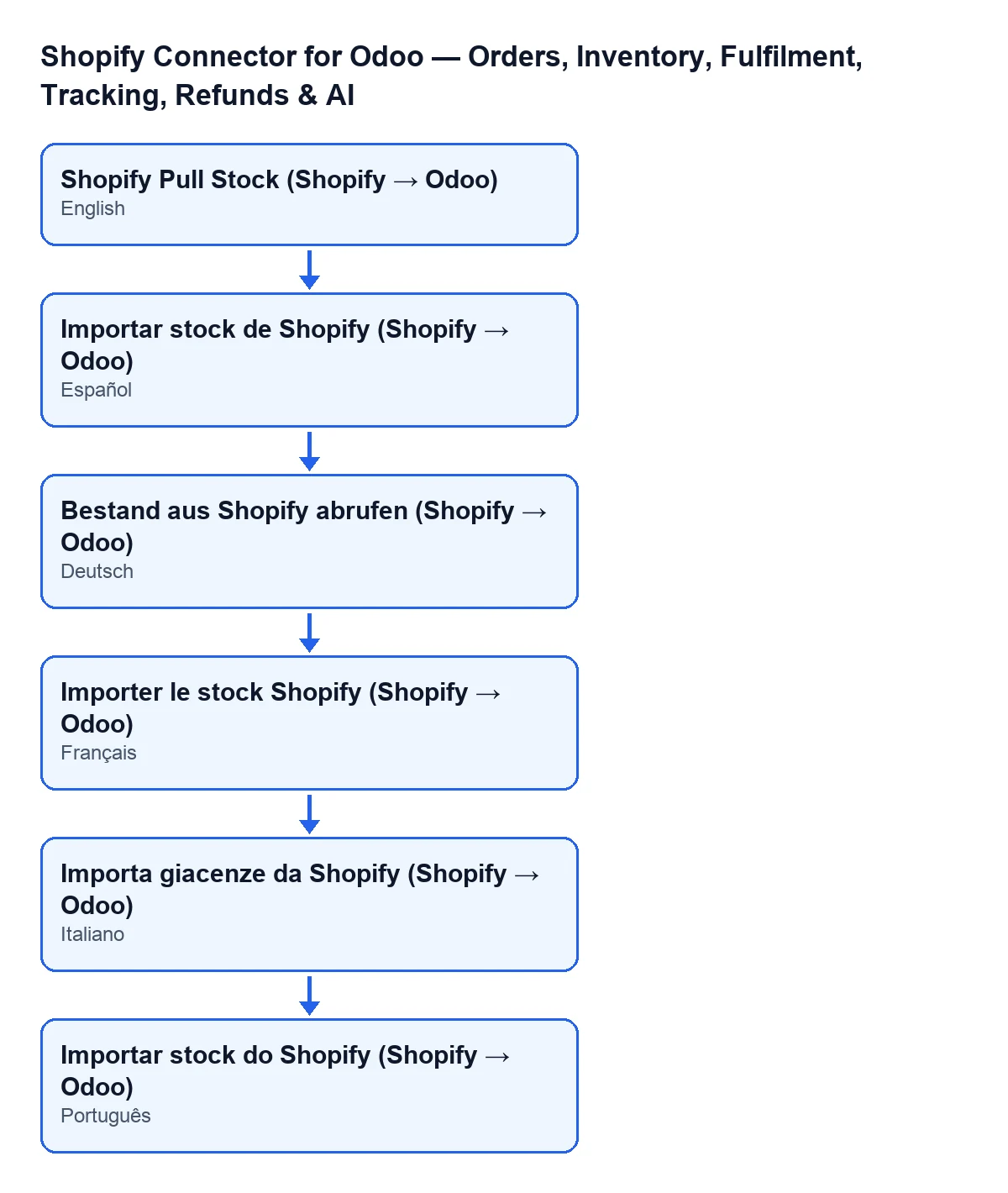
The diagram below shows how the action is named in other languages, including Spanish.
The connection to the store goes through FlexigoTech Cloud, which keeps the credentials encrypted, watches the synchronisation and sends an email if it fails. The module needs the FlexigoTech Cloud subscription (Connector plan: €49 a month or €490 a year, excluding VAT).

A case to follow from start to finish
Example Illustrative case: the company and its figures are made up to explain the flow.
Casa Moreno is an invented company that sells kitchenware in a Shopify store and keeps its inventory in Odoo. One morning Laura, who administers the system, sees that a product's quantity in Odoo has not moved although it changed in Shopify. Instead of launching anything blindly, she goes through the action in the order the code published for Odoo 20.0 runs it, which is the code described from here on.
First filter: who runs it
In Odoo 20.0, the first thing the action does is check that whoever runs it is a system administrator. If not, it stops with Only an administrator can run this scheduled action. and never looks at a single store. Laura is an administrator, so she moves on.
Second filter: which stores take part in the run
In Odoo 20.0, the action does not go through every store, only those that meet all three conditions at once:
- The store is active.
- Stock synchronisation is switched on for it.
- It has credentials: a stored access token or a stored app API secret.
Either of the two is enough for the third condition because a store using client credentials may have no stored token until its first call creates one. Stores are opened from the Shopify › Configuration › Stores menu. If you cannot see a part of that path, you are missing a permission: Configuration asks for Operator and Shopify asks for Viewer.
Laura checks that Casa Moreno's store meets the three conditions. If one fails, the store is left out of the run.
Third step: one failing store does not stop the others
In Odoo 20.0, for each selected store, the action calls the import inside a block that catches any error. If a store raises an error, the failure is written to the server log with the store's name and the action carries on with the next one.
What the import does for each store
In Odoo 20.0, for each store, the import does this, in this order:
- If stock synchronisation is not switched on for the store, it skips it.
- It looks for the products linked to Shopify that are active, have a Shopify inventory item and belong to the store's company: a product from another company is left out, even if the link was created earlier. If there are none, it moves to the next store.
- It decides the Odoo location. First it looks for the store's primary Shopify location that has an Odoo location assigned. If there is none, it uses the stock location of the store's warehouse or, if the store has no warehouse, that of the first warehouse of its company. If it finds no location at all, it leaves that store and moves to the next one.
- It asks Shopify for the available quantity of the inventory items, for the store's Shopify location (the default one, if it has one stored) and in batches of 100 items. Each quantity received is converted to a whole number.
The button for fetching stock by hand has its own walkthrough. And if you are wondering about the primary Shopify location, the message that mentions it has its own article.
What to check if the action does nothing
After the review, Laura has a list of points where, according to the Odoo 20.0 code, a run can be cut short:
- Who launches it. Only an administrator can run it; otherwise
Only an administrator can run this scheduled action.appears. - The store. It must be active, with stock synchronisation switched on and an access token or API secret stored.
- The products. They must be linked, active, with a Shopify inventory item and belong to the store's company.
- The location. You need a primary Shopify location with an Odoo location assigned, or a warehouse that can stand in.
- The frequency. The action runs every six hours, so a recent change in Shopify may not have reached Odoo yet.
With that list, Laura can rule things out one by one instead of guessing. To start with the cheapest check, she can open Shopify › Configuration › Stores and review the store before touching anything else.
How FlexigoTech helps
FlexigoTech implements Odoo 17, 18, 19 and 20 and builds custom connectors and integrations. If you want to review how your stores are set up or adapt the stock flow to the way you work, you can see the module on its page or on the Odoo Apps listing.
The module is published on Odoo Apps for 17.0, 18.0, 19.0 and 20.0.
Keep reading
Checked in the connector's source code (version 17.0 and 20.0) and the linked sources
Sources
- Module source code: flexigobe_shopify_seller_connector 20.0 (d7e627b4): data/ir_cron_data.xml
- Module source code: flexigobe_shopify_seller_connector 17.0 (437257e3): data/ir_cron_data.xml
- Module source code: flexigobe_shopify_seller_connector 20.0 (d7e627b4): models/shopify_instance.py
- Module source code: flexigobe_shopify_seller_connector 20.0 (d7e627b4): models/fgt_cloud.py
- apps.odoo.com/apps/modules/20.0/flexigobe_shopify_seller_connector
- flexigotech.com/en/services.html
- flexigotech.com/precios.html