

 Español
 Català
 Deutsch
 Français
 Português
 Italiano
 Nederlands
 Polski
What the module adds to the sales order, field by field
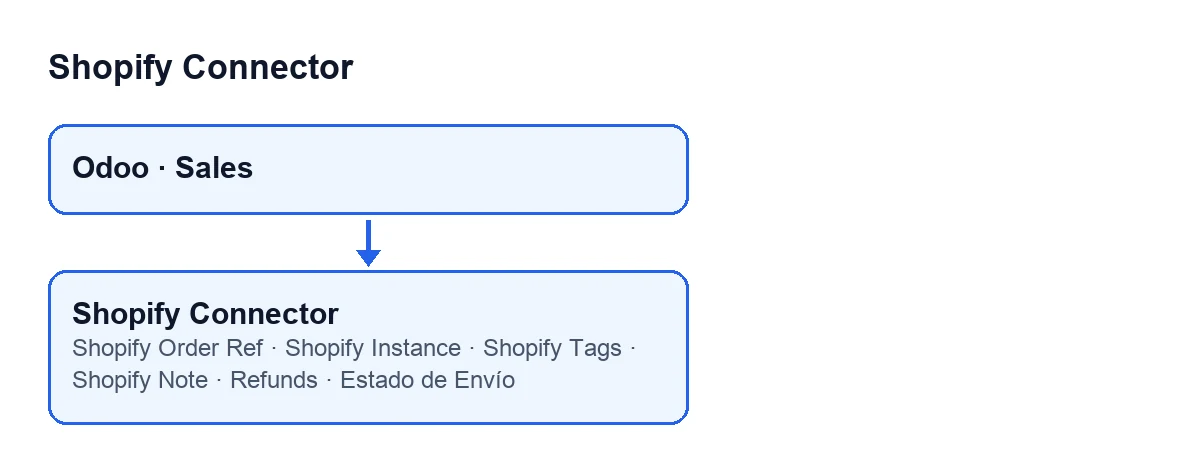
Shopify Connector extends the standard sales order of the Sales app. It does not create a separate screen: it adds fields to the order you already use. In Odoo 20.0, the module adds these fields:
| Field | Where it shows | Visibility | Detail |
|---|---|---|---|
Shopify Order Ref | Order form, Shopify group | Hidden when it is empty | Read-only |
Shopify Instance | Order form, Shopify group | Hidden when Shopify Order Ref is empty | Read-only |
Shopify Tags | Order form, Shopify group | Hidden when Shopify Order Ref is empty | Its help reads: «Tags from Shopify order.» |
Shopify Note | Order form, Shopify group | Hidden when Shopify Order Ref is empty | Its help reads: «Customer note from Shopify order.» |
Refunds | Order form | Hidden when it is zero | Whole number |
Estado de Envío | Sales order list | Shown in the list | Selection with the values shown below |
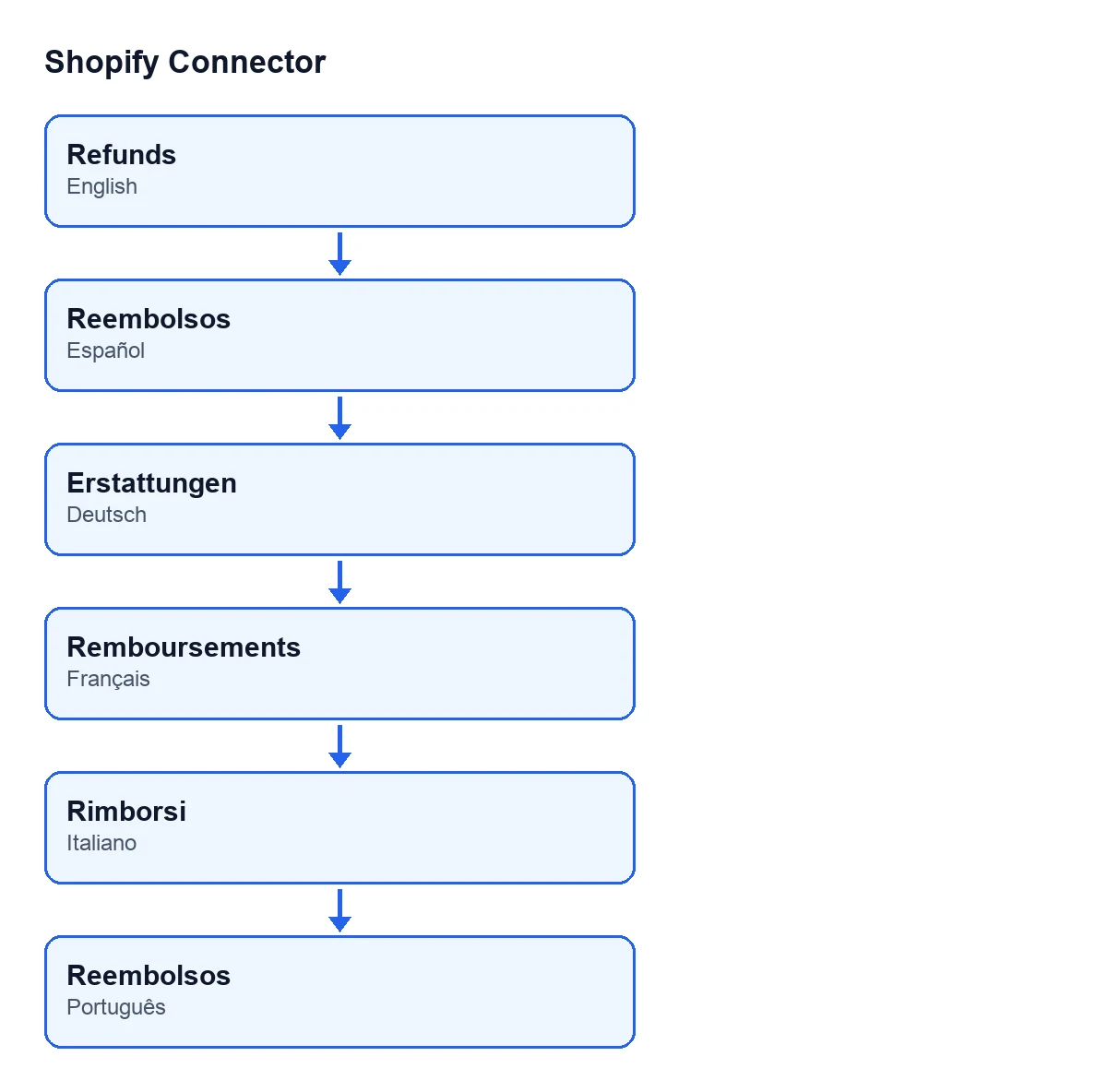
Refunds is the English text. With Odoo in other languages the same text reads Refunds in Spanish, Erstattungen in German, Remboursements in French, Rimborsi in Italian and Refunds in Portuguese, as the diagram below shows.
The module also links the order internally to its Shopify order record: it looks for the record whose identifier matches Shopify Order Ref and whose instance is the one in Shopify Instance, and keeps the first match. If either value is missing, nothing is linked.

Ordinary order versus order with a Shopify reference
With default values Shopify Order Ref is empty, which is why the Shopify group does not show on an ordinary order. It appears as soon as that field has a value. If the group is not there, the order has no Shopify reference.
| Element | Order without a Shopify reference | Order with a Shopify reference |
|---|---|---|
Shopify group | Not shown | Shown, with reference, instance, tags and note |
Refunds | Hidden while it is zero | Hidden while it is zero: its condition does not look at the reference |
Estado de Envío | In the list | In the list: the calculation does not check for a reference |
The third row deserves a careful read: the delivery status calculation goes through orders without asking for the Shopify reference, so it is not a column reserved for orders that come from the shop.
How the module decides the Estado de Envío
First the module looks at the order state. Then it gathers the lines that count towards shipping: those that are not sections or notes, have a product, whose product is one of the types the code treats as shippable, and whose ordered quantity is above zero. It adds up the ordered and delivered quantities of those lines and compares them.
| Order situation | Estado de Envío |
|---|---|
| The order is cancelled | Cancelled |
| There are shippable lines and the delivered quantity is zero or less | No Validado |
| There are shippable lines and delivered reaches or exceeds ordered | Enviado |
| There are shippable lines and delivered is above zero but below ordered | Parcialmente Enviado |
If there is no shippable line at all, the module switches method and goes through the order's delivery orders:
| Delivery orders of the order | Estado de Envío |
|---|---|
| None, once cancelled ones are discarded | No Validado |
| All of those that count are done | Enviado |
| Only some are done | Parcialmente Enviado |
| None is done | Listo para Enviar |
One detail of the delivery order pass: if the delivery order model distinguishes the operation type and the order has outgoing delivery orders, only those count.
What to take from that logic
Listo para Enviaronly comes out of the delivery order pass, that is, when the order has no shippable lines.- A cancelled order stays at
Cancelledeven if it has delivered quantities: that is the first thing checked. - In the first method,
No Validadomeans a delivered quantity of zero or less; the code does not look at delivery orders there.
The Shopify reference is not rewritten
The module also watches writes to Shopify Order Ref. If the order already has a reference and someone tries to save a different one (an empty one included), the action stops and nothing it was going to change is saved. The rule does not apply when the write is made in Odoo's superuser mode, and writing the same value that is already there does not trigger it. The code comment explains it by the way the connector works: it finds the order by that reference.
On the form, moreover, Shopify Order Ref is read-only.
Cost and how FlexigoTech helps
The module costs €9 per Odoo version, one-off and excluding VAT, for 17, 18, 19 and 20 (you can check it on the Odoo Apps listing). Its manifest says it needs the FlexigoTech Cloud subscription: the Connector plan costs €49/month or €490/year excluding VAT.
FlexigoTech implements Odoo 17, 18, 19 and 20 and builds custom connectors and integrations. If your sales order needs fields of its own or a different flow with your shop, that can be scoped as separate development.
Keep reading
Checked in the connector's source code (version 20.0) and the linked sources
Sources
- Module source code: flexigobe_shopify_connector 20.0 (c7078cd8): models/sale_order.py
- apps.odoo.com/apps/modules/20.0/flexigobe_shopify_connector
- apps.odoo.com/apps/modules/17.0/flexigobe_shopify_connector
- apps.odoo.com/apps/modules/18.0/flexigobe_shopify_connector
- apps.odoo.com/apps/modules/19.0/flexigobe_shopify_connector
- flexigotech.com/precios.html
- flexigotech.com/en/services.html