

 Español
 Català
 Deutsch
 Français
 Português
 Italiano
 Nederlands
 Polski
Where the button is and when it shows
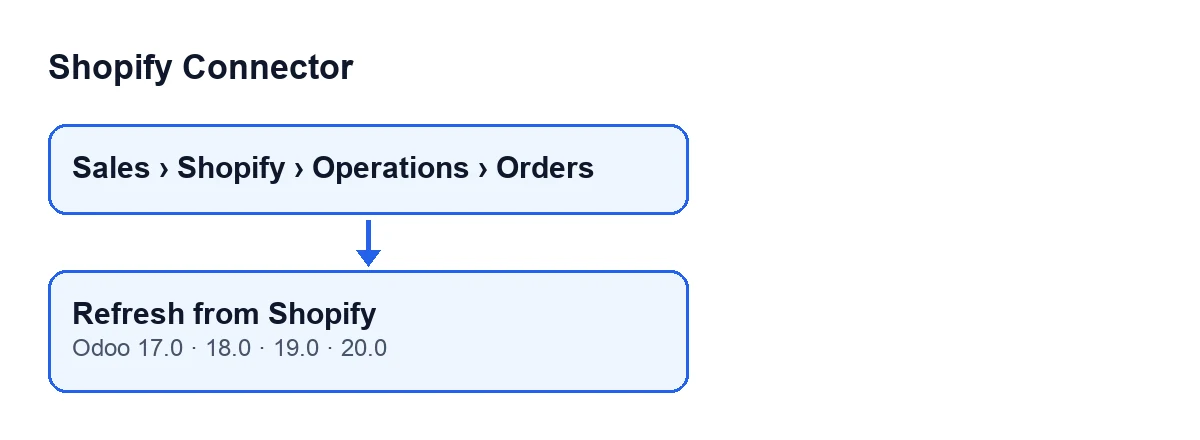
The Refresh from Shopify button is on the Shopify Orders screen. You get there from the menu Sales › Shopify › Operations › Orders. The condition on its view says it is always visible, and it exists in Odoo 17, 18, 19 and 20.
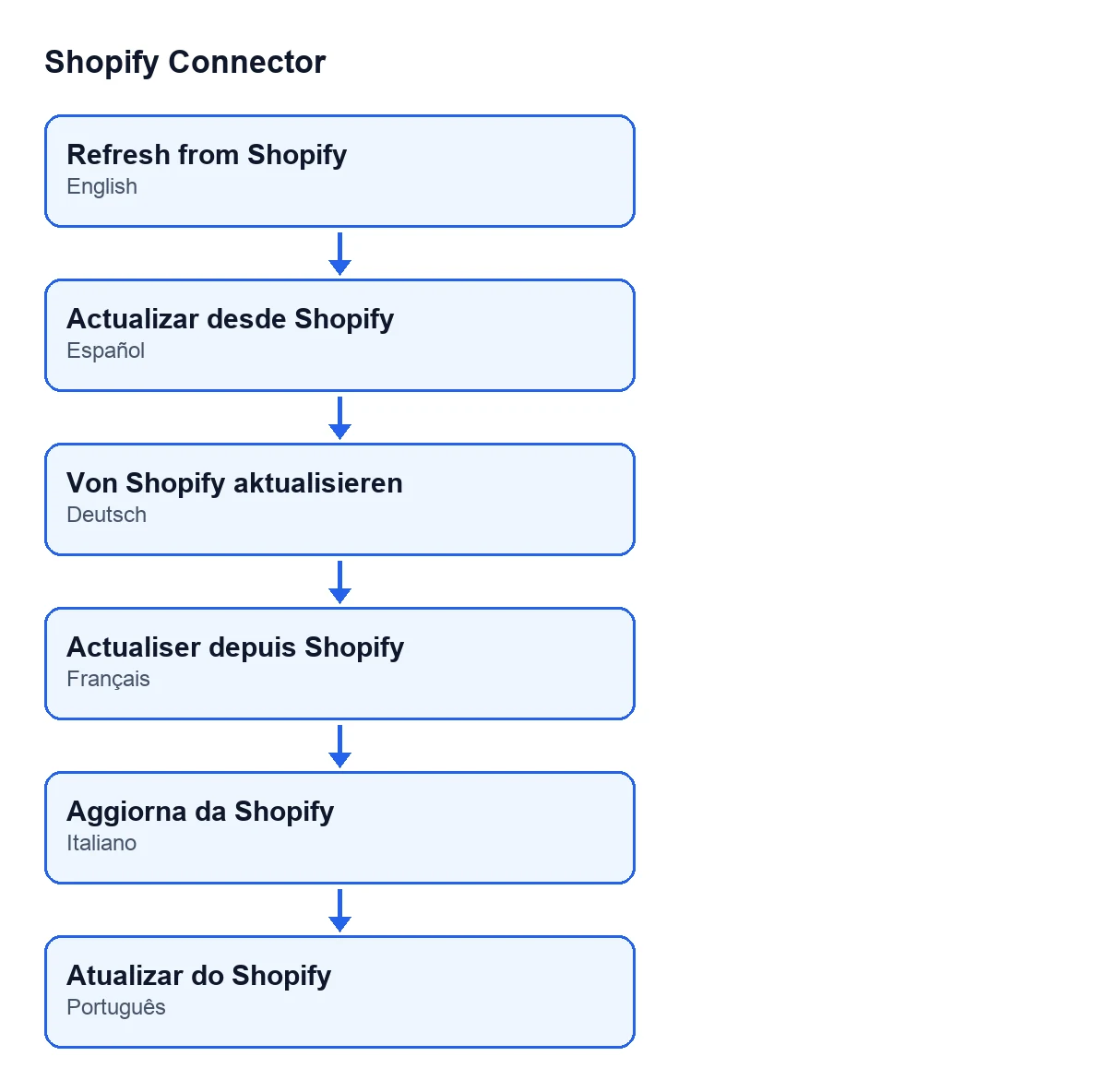
The label changes with the language of Odoo. With Odoo in English it reads Refresh from Shopify; in Spanish, Refresh from Shopify; in German, Von Shopify aktualisieren; in French, Actualiser depuis Shopify; in Italian, Aggiorna da Shopify; and in Portuguese, Atualizar do Shopify.

First, what the connector does without you pressing anything
The normal route is automatic. The scheduled task Shopify Process Webhooks (every minute, active on install) reaches the processing of Shopify webhook notifications. When the notification is about an order and the Webhook Sync Orders checkbox is ticked, the module takes the order identifier from the notification itself and starts the same order synchronisation that the button starts.
That checkbox is on the Shopify Instances form, Webhooks tab, and is ticked by default. On the same tab is Webhook Sync Products, which is unticked by default and refers to products, not orders.
That is why the button is the exception: it is for pulling an order again by hand. Also, the button's code does not look at the Webhook Sync Orders checkbox: it calls the synchronisation directly with the instance and the order in front of it.
An illustrative case: the order that does not add up
Example Illustrative case: the company and its figures are made up to explain the flow.
Picture Cerámicas Ribera, a shop invented for this example that sells on Shopify and runs the rest in Odoo. Someone in administration opens an order in Odoo and doubts that it reflects what Shopify holds now. This is how they go about it:
- They open the
Shopify Instancesform,Webhookstab, and check whetherWebhook Sync Ordersis ticked. If it is, order notifications already trigger that synchronisation on their own; what they want is a second read by hand. - They open
Sales › Shopify › Operations › Ordersand go into the order. They look at theInstancefield and theShopify Orderfield, because those are the two pieces of data the button works with. - They press
Refresh from Shopify. - The module asks Shopify for that order again and, if Shopify returns it, hands it to another step of the module and counts it as synchronised.
- They look at the order in Odoo again and compare it with Shopify.
What to take from the case: look at the automatic route and its checkboxes first, then use the button on one specific order, with its instance and its Shopify identifier in front of you.
What the button does inside, in order
- It goes through the orders the action is launched on.
- From each order it takes its instance (
Instance) and the identifier inShopify Order, and hands them to that instance's order synchronisation. - That synchronisation prepares the order identifier for the request; if it gets none, it skips that order and moves on to the next.
- It asks Shopify for the order.
- If Shopify returns nothing, it skips that order and moves on.
- If it returns data, it hands it to another step of the module and adds one to the count of synchronised orders.
- The button ends by returning true; it does not use that count.
What can go wrong and what to check
At the third and fifth steps the code moves on to the next order without handing anything over. If you press the button and see no change, compare with Shopify: Shopify may have returned nothing for that order, or no valid identifier may have been obtained.
On the automatic route, if the synchronisation fails, the webhook event is marked as failed with the error text and goes into the retry queue. Once it passes the retry cap it becomes exhausted and is no longer retried on its own; the module then leaves a note on the instance reading Shopify webhook … (event …) failed again after … retries and will not be retried any more: …. Once the cause is fixed, press Retry on the event.
What it costs and how FlexigoTech helps
The module costs €9 per Odoo version, for 17, 18, 19 and 20, one-off payment excluding VAT (Odoo Apps listing), and it needs the FlexigoTech Cloud subscription: the Connector plan costs €49/month or €490/year excluding VAT.
FlexigoTech implements Odoo 17, 18, 19 and 20 and builds custom connectors and integrations. If you want to review how your shop's orders reach Odoo, we can help with that too.
Keep reading
Checked in the connector's source code (version 20.0) and the linked sources
Sources
- Module source code: flexigobe_shopify_connector 20.0 (c7078cd8): views/shopify_order_views.xml
- Module source code: flexigobe_shopify_connector 20.0 (c7078cd8): models/shopify_order.py
- Module source code: flexigobe_shopify_connector 20.0 (c7078cd8): models/shopify_instance.py
- apps.odoo.com/apps/modules/20.0/flexigobe_shopify_connector
- apps.odoo.com/apps/modules/17.0/flexigobe_shopify_connector
- apps.odoo.com/apps/modules/18.0/flexigobe_shopify_connector
- apps.odoo.com/apps/modules/19.0/flexigobe_shopify_connector
- flexigotech.com/precios.html
- flexigotech.com/en/services.html