

 Español
 Català
 Deutsch
 Français
 Português
 Italiano
 Nederlands
 Polski
When the message appears and with which buttons
The message appears when you click Seed DSA Catalogue or Mark DSA Review in the view of a Temu instance. Instance forms open from the Temu menu. Both buttons are always visible in Odoo 17, 18 and 19: no view condition hides them, so the message does not depend on whether the button is showing.
The full text of the message is: Research & DSA UI is currently disabled for this Odoo database. Enable it from the Temu instance before using this option.
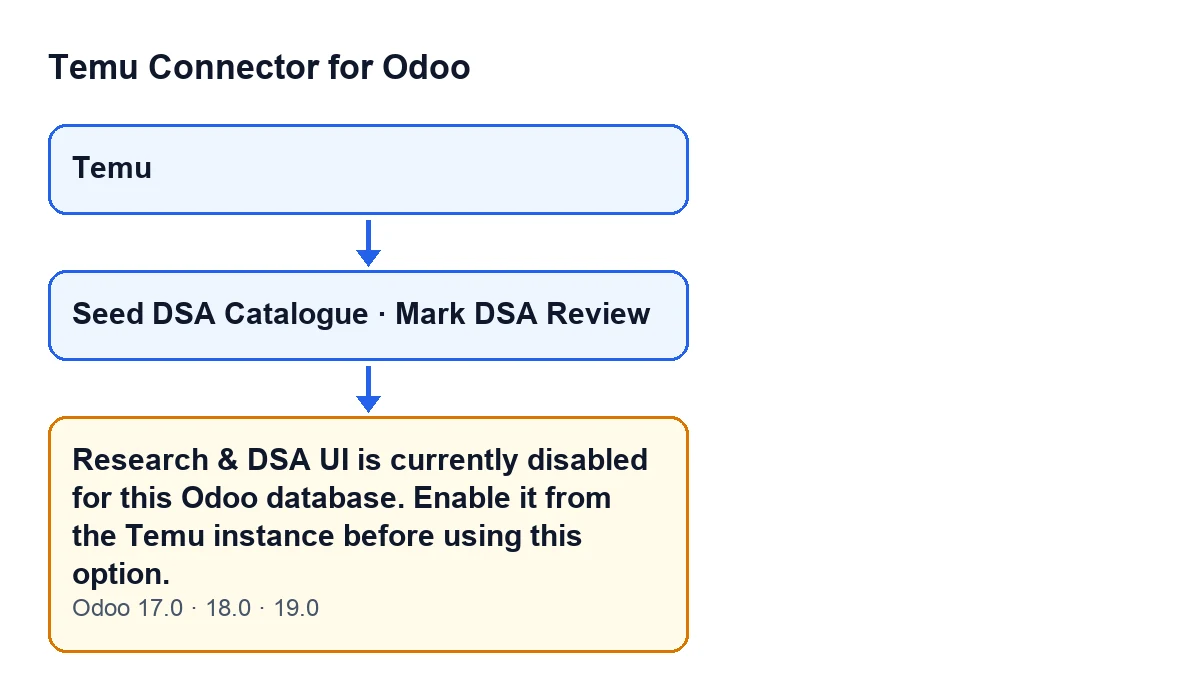
It is an error that stops the action. The message is in the published code of branches 17, 18 and 19.

What the code checks when you click the button
When either of the two buttons is clicked, the module checks whether the Research & DSA interface is enabled in this database. If the answer is no, it raises the message and the action stops. Both buttons reach that same check, so the message is the same whichever one you click.
In Odoo 19, the answer is worked out like this, in plain words:
- The module obtains a user group and also takes the base group of Odoo users.
- If it cannot find either of them, it treats the interface as enabled and the message does not appear.
- If it finds both, the interface counts as enabled when that group is among the groups implied by the base users group.
- If it is not among them, the interface counts as disabled and the message appears.
In practice, the check looks at the relationship between those two groups, not at the particular user clicking the button. That is why the message talks about the database and tells you where to act: from the Temu instance.
What the message means
It means that, in this database, the module's check does not treat the Research & DSA interface as enabled, and the option you clicked needs it to be. The message points you to one place: the Temu instance.
Checklist to resolve it
Work through the boxes phase by phase. None of them asks you to touch code: they are checks and one activation that, according to the message itself, is done from the Temu instance.
Before you touch anything
- Note which button you clicked: the code links this message to
Seed DSA Catalogueand toMark DSA Review.
- Check that the text on screen is the whole message,
Research & DSA UI is currently disabled for this Odoo database. Enable it from the Temu instance before using this option., and not a different one.
- Note your Odoo version. The message is in the code of 17, 18 and 19.
- Open the instance from the
Temumenu, which is where the forms of this model open.
When you see the message
- Read it as an instruction: it asks you to enable the Research & DSA interface from the Temu instance before using the option.
- Enable it as the message indicates.
- Bear in mind that the action was stopped, so you need to repeat it after enabling the interface.
- If you cannot find where it is enabled, do not tick boxes at random: ask whoever administers the module, or FlexigoTech, first.
After you have fixed it
- Click the button that gave you the message again.
- If the message comes back, the condition is still being met: that group is not among those implied by the base users group.
- Try the other button too (
Seed DSA CatalogueorMark DSA Review): both go through the same check.
- Write down your Odoo version and the button that triggered the message in case you need to ask for help.
How the button labels depend on the language of Odoo
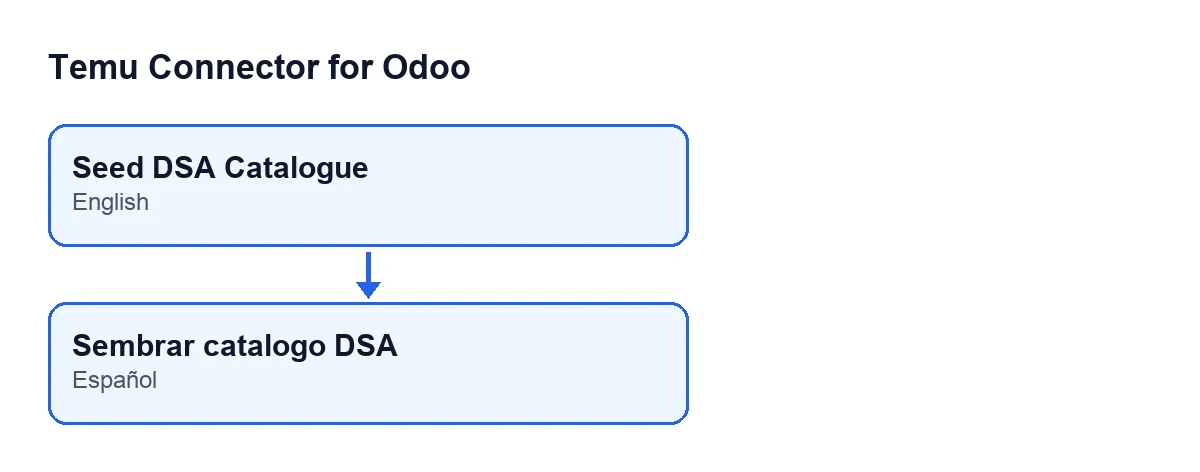
With Odoo in English the two buttons are Seed DSA Catalogue and Mark DSA Review, the labels used in the first diagram. The module ships translations, so the labels you see follow the language your Odoo is set to. The second diagram shows the first button's label as it appears when Odoo runs in Spanish.
If you need a hand
FlexigoTech implements Odoo 17, 18, 19 and 20 and builds custom connectors and integrations. If enabling the interface does not clear the message in your database, write to us from the module page with your Odoo version and the button that triggers it.
Keep reading
Checked in the connector's source code (version 19.0) and the linked sources
Sources
- Module source code: flexigobe_temu_connector 19.0 (455b3f0f): models/temu_ads.py
- Module source code: flexigobe_temu_connector 19.0 (455b3f0f): views/temu_instance_views.xml
- Module source code: flexigobe_temu_connector 19.0 (455b3f0f): models/fgt_cloud.py
- flexigotech.com/en/services.html