

 Español
 Català
 Deutsch
 Français
 Português
 Italiano
 Nederlands
 Polski
Every 15 minutes, only what changed
The orders task runs every 15 minutes and asks Billbee only for the orders that changed since the last run, with one hour of overlap. It never asks for the whole history. Each run reads at most 20 pages of 50 orders, or 60 seconds of work, and if something is left the task runs again straight away instead of waiting another 15 minutes.
A new order that fails does not stop the others. It goes to the log as an error and the account's marker does not move past it, so the next run asks for it again.
If you want new orders not to wait for the task, register the notification with Register Webhook with Billbee (best-effort), on the account. With it registered, each new order in Billbee makes Odoo read that order or, if it cannot find it, start the orders run right then. Without it, orders still arrive with the task.
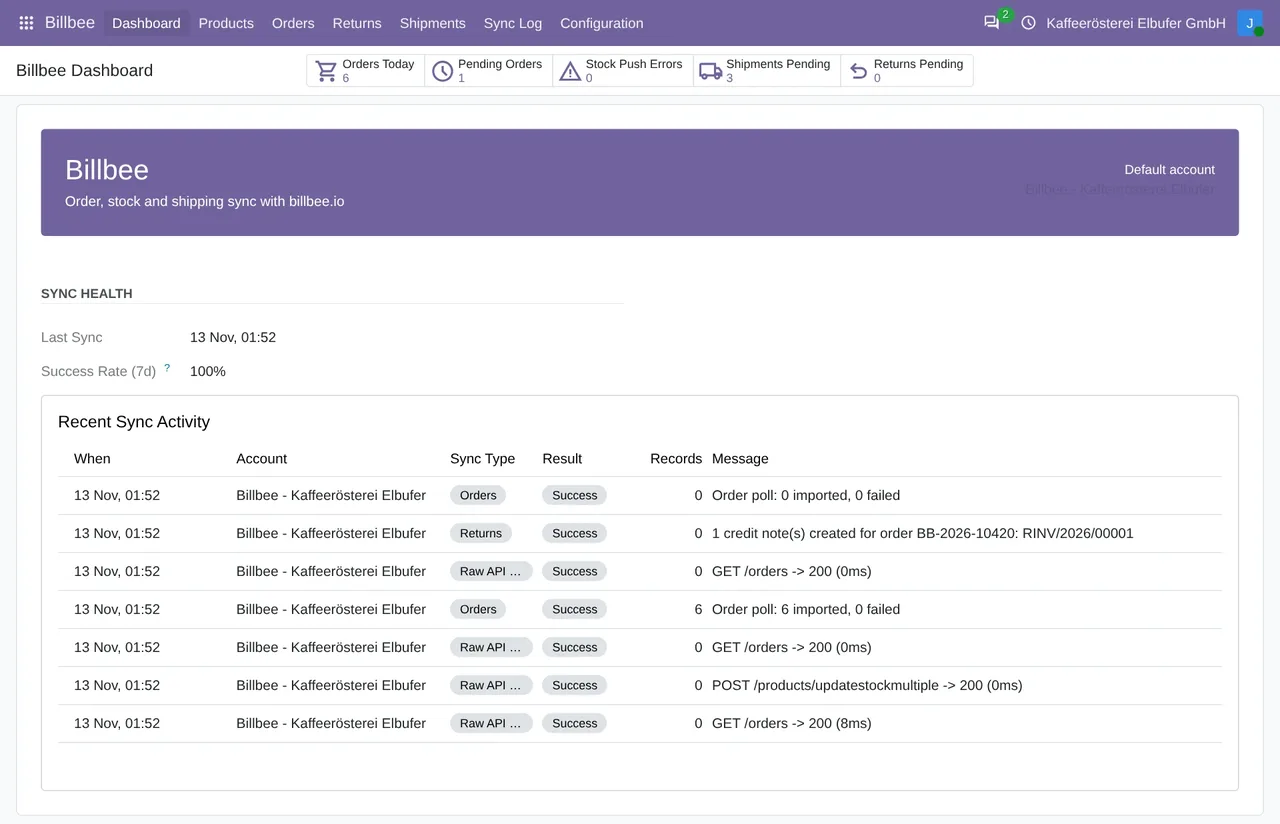
Billbee › Dashboard: today's and pending orders, stock push errors, pending shipments and returns, and recent activity.The customer and the delivery address
Odoo looks for the customer by the email of the invoice address, in the account's company or among contacts with no company. If it finds none, it creates one in the language of the Billbee order. If the delivery address is different (it compares street, postcode and city), it goes in as a delivery address under the customer.
Orders to a DHL Packstation carry the word Packstation and its number in the street, and the Postnummer in the second address line. Odoo recognises this and sets DHL Packstation, Packstation Number and Packstation Postnummer on the contact. This part follows DHL's convention and was not part of our tests with a Billbee account.
The lines, matched by SKU
The sales order takes the Billbee order number as the customer reference and, as its date, the date the order was created in Billbee. The Billbee order record in Odoo also keeps the marketplace reference.
Each line is matched to a product by SKU. Odoo first checks the link it already saved; if there is none, it looks for a product with that internal reference in the account's company and saves the link. A line whose SKU is not in Odoo is not lost: it comes in with the generic product Billbee Import (unmatched SKU).
If the same order arrives again, Odoo updates its Billbee status. It does not create another sales order or new lines.
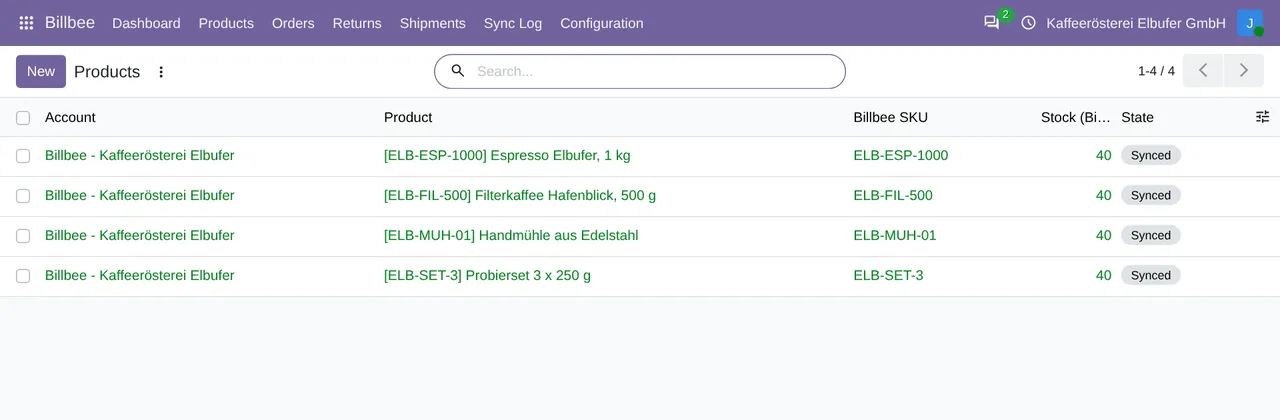
Billbee › Products: each product with its Billbee SKU and its status.The price, with VAT included
Billbee sends the amount of each line with VAT included. If the Odoo tax is not set as included in the price, the connector takes the VAT off the unit price so that Odoo does not charge it twice. With the tax included, the price goes in as it is.
The line's tax is the company's sales tax with the same percentage. If there is none, the line stays without tax.
An example: a Billbee line of 2 units for €59.80, with 19% VAT included. With the Odoo tax not included, the unit price becomes €25.13 (29.90 / 1.19) and, with the 19% Odoo adds on top, the line comes back to about €59.80, one cent off at most because of rounding. If the VAT were not taken off, it would come to 59.80 + 11.36 = €71.16.
What you decide: the automation
On the account, in Billbee › Configuration › Accounts, there are three steps: Auto-confirm sales order, Auto-create invoice and Auto-validate delivery. They run in that order, the invoice and the delivery only with the sales order confirmed, and all three come switched off.
With Only invoice once Billbee confirms payment, on by default, the invoice is created once the Billbee order is paid, shipped, closed, packed or being fulfilled. While it is still ordered, confirmed or has a payment reminder, the invoice waits. When the order arrives again with the payment already marked in Billbee, the automation runs again and invoices it, but it never confirms the sales order a second time.
The automation only confirms orders created in Billbee since the date in Automate orders created since, the date the account was set up. Older ones come in as quotations. If the automation of a new order fails, the order also stays a quotation and the error goes to the log.
The units of orders that are still unconfirmed come off the stock sent to Billbee: see Odoo stock in Billbee. What happens when you validate the delivery is in Billbee shipping from Odoo.
We tested it with a Billbee account
On 17-11-2026, with a Billbee merchant test account and Odoo 20, the product was matched by SKU and the orders reached Sales, with no errors. On 18-11-2026, with version 1.2.11 on Odoo 17, 18, 19 and 20, we registered the orders notification. On Odoo 17, 18 and 20, an order created in Billbee afterwards came into Odoo.
Questions about Billbee orders in Odoo
What happens if a Billbee SKU is not in Odoo?
The line comes in with the generic product Billbee Import (unmatched SKU) and the rest of the order arrives as usual. For it to match on its own next time, the Odoo product needs that SKU as its internal reference.
Does Odoo confirm and invoice orders on its own?
Only if you switch it on in the account: the three steps come switched off. For the invoice, Odoo waits by default until Billbee marks the order as paid.
How much does it cost?
The module costs €9 per Odoo version on Odoo Apps. It runs with FlexigoTech Cloud, from €49/month: Connector plan Standard at €49/month or €490/year, or Pro at €98/month or €980/year, VAT excluded. The trial is 14 days, free and without a card. It includes 2 months of support to get it running and, while you stay subscribed, updates and support, as the terms of sale 2.2 say. It is all on the Billbee connector page.
Which Odoo versions does it work with?
Odoo 17, 18, 19 and 20, on Odoo.sh or on your own server. It does not work on Odoo Online. Your Billbee account, with its username and an API password, and its plan are separate.
Keep reading
Checked in the connector's source code (version 20.0) and the linked sources
Sources
- Module source code: flexigobe_billbee_connector 20.0 (a5ae481e): data/billbee_cron_data.xml:8
- Module source code: flexigobe_billbee_connector 20.0 (a5ae481e): models/billbee_order.py:582
- Module source code: flexigobe_billbee_connector 20.0 (a5ae481e): models/billbee_order.py:640
- Module source code: flexigobe_billbee_connector 20.0 (a5ae481e): models/billbee_order.py:127
- Module source code: flexigobe_billbee_connector 20.0 (a5ae481e): models/billbee_order.py:158
- Module source code: flexigobe_billbee_connector 20.0 (a5ae481e): models/billbee_order.py:241
- Module source code: flexigobe_billbee_connector 20.0 (a5ae481e): models/billbee_order.py:169
- Module source code: flexigobe_billbee_connector 20.0 (a5ae481e): models/billbee_order.py:296
- Module source code: flexigobe_billbee_connector 20.0 (a5ae481e): models/billbee_order.py:183
- Module source code: flexigobe_billbee_connector 20.0 (a5ae481e): models/billbee_product.py:385
- Module source code: flexigobe_billbee_connector 20.0 (a5ae481e): models/billbee_order.py:351
- Module source code: flexigobe_billbee_connector 20.0 (a5ae481e): models/billbee_order.py:415
- Module source code: flexigobe_billbee_connector 20.0 (a5ae481e): models/billbee_order.py:427
- Module source code: flexigobe_billbee_connector 20.0 (a5ae481e): models/billbee_order.py:413
- Module source code: flexigobe_billbee_connector 20.0 (a5ae481e): models/billbee_account.py:166
- Module source code: flexigobe_billbee_connector 20.0 (a5ae481e): models/billbee_api_client.py:111
- Module source code: flexigobe_billbee_connector 20.0 (a5ae481e): models/billbee_order.py:206
- Module source code: flexigobe_billbee_connector 20.0 (a5ae481e): models/billbee_order.py:217
- Module source code: flexigobe_billbee_connector 20.0 (a5ae481e): controllers/main.py:144
- hilfe.billbee.io/article/1477-bestellstatus-in-billbee
- FlexigoTech real test with a Billbee test account (17 and 18-11-2026)
- flexigotech.com/en/billbee-connector-odoo.html
- flexigotech.com/en/condiciones-contratacion.html
- www.billbee.io/
- www.billbee.io/en