

 Español
 Català
 Deutsch
 Français
 Português
 Italiano
 Nederlands
 Polski
The button exists in Odoo branches 17.0, 18.0, 19.0 and 20.0, and in all of them it is always visible on the Accounts screen.
First, what Odoo does on its own
The VAT calculation report sync has an automatic path, and that is the normal one. The scheduled task Amazon SP-API - Sync VAT Calculation report (opt-in) runs once a day and is active as soon as the module is installed.
The task goes through the active accounts that have the VAT report sync switched on and syncs each one with the source CRON. On that path the summary message is not posted on the account. If an account fails, the task does not stop and carries on with the next one.
The button is the exception: it runs that same sync by hand, on one specific account, at the moment you choose.

Before you press it
- You reach the screen through the menu
Amazon › Configuration › Accounts. TheConfigurationandAccountssteps ask for theManagerpermission; theAmazonstep asks forViewer. If you lack one of those permissions, you do not see that step of the menu.
- Your user is a Manager of the Amazon connector or has Settings access. This is the first thing the button checks, and if it is not met the action stops with this message:
You need Amazon Seller Connector Manager (or Settings) access for this action. Ask a manager to grant Manager access.
- On top of those groups, the button checks that you can write to that account.
- You have open the Amazon account you want to sync. The button works on one account at a time.
- The FlexigoTech Cloud subscription is active (see the plan below).
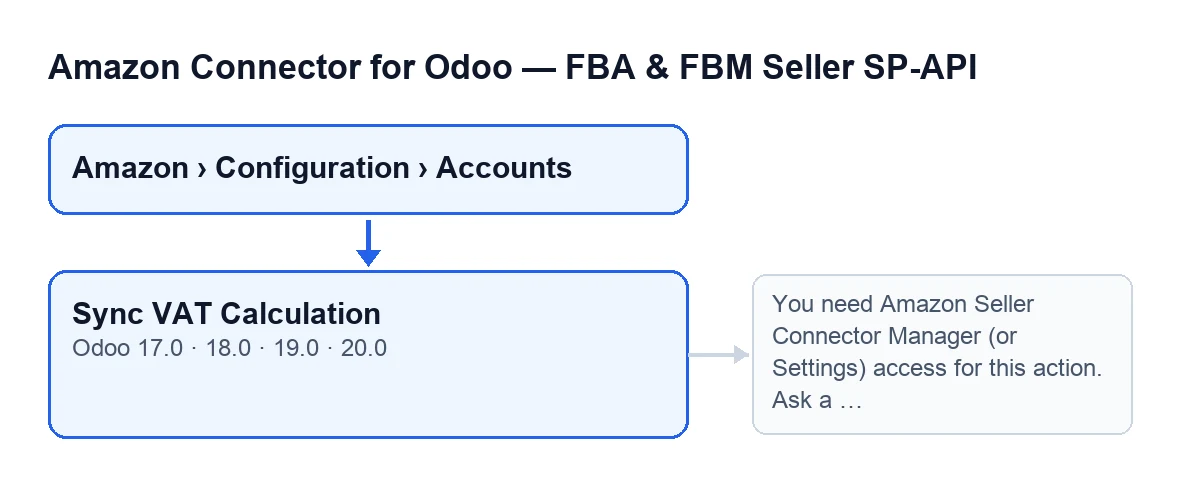
When you press Sync VAT Calculation
In Odoo 20.0, these are the steps, in order:
- It checks your permissions, as described above. If that fails, nothing else happens.
- It asks Amazon to create the VAT calculation report for the account.
- It checks the report status several times, with a pause between checks, until Amazon marks it as finished (
DONE), cancelled (CANCELLED) or failed (FATAL), or until the attempts run out.
- If the report is ready (
DONE) and comes with a document, it processes it with the account's marketplace and a cap on rows per run, and the summary adds the row counters.
- It saves the result on the account and, when launched with the button, also posts the summary as a message on the account itself (the daily task does not post it).
What is saved and what the summary says
- The account stores the date and time of the last run and the result text. This happens both when the report is processed and when Amazon does not deliver a usable one.
- Read the summary. It always starts with these lines:
Amazon VAT Calculation report sync finished.Account: …Source: …, which shows whether the sync was manual or came from the scheduled task.
If the report gets as far as being checked, the summary also adds:
Report ID: …Report status: …
If the report is processed, it adds these counters too:
Report rows: …Processed rows: …Created: …Updated: …Skipped: …With error: …
If Amazon does not deliver the report
In these cases the button processes no rows, but it still saves the summary on the account and, when launched with the button, also posts it as a message:
- The report status is
CANCELLEDorFATAL: the summary addsAmazon did not generate a usable VAT Calculation report.
- The report does not reach a final status after the checks: the summary adds
Report polling timed out. Try again in a few minutes.Wait a few minutes and press the button again.
- The report reaches
DONEbut without a document: the summary addsDONE report without reportDocumentId.and the sync ends there.
What the button is called in each language
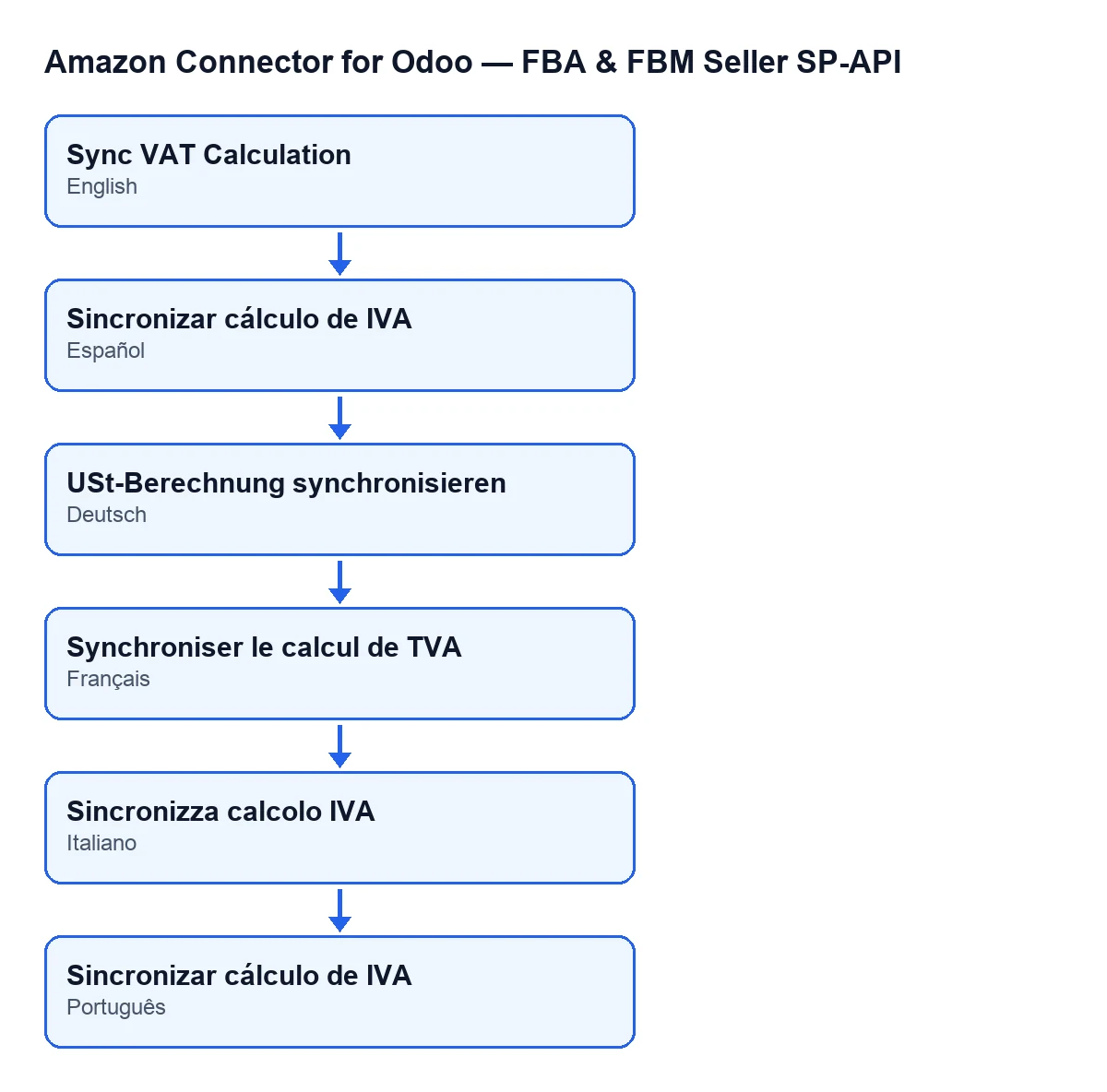
The label depends on your Odoo language. With Odoo in English it is Sync VAT Calculation, and the module ships the label translated into other languages.
After syncing
- Open the message posted on the account and look at the
Report status: …line to see the state the report ended in.
- Review the counters
Report rows: …,Processed rows: …andWith error: …, and note them down to compare with the next run.
- Remember that the daily task will keep launching the sync on its own for the accounts that have it switched on. The button is for running it by hand.
- If you get the permissions message, ask a manager to grant you Manager access, as the text itself says.
Cost and help
The module is a one-off payment per Odoo version and needs the FlexigoTech Cloud subscription. The Connector plan costs €49 per month or €490 per year excluding VAT, with up to 3 accounts on the platform. Without a subscription, or with the service suspended, whatever the subscription provides stops, and your data stays in your Odoo. You can find the Odoo Apps listing and the module page.
If you are implementing Odoo and want to review how this sync fits with your accounting, FlexigoTech implements Odoo 17, 18, 19 and 20 and builds bespoke connectors and integrations.
Keep reading
Checked in the connector's source code (version 20.0) and the linked sources
Sources
- Module source code: flexigobe_amazon_seller_connector 20.0 (8576afa5): views/amazon_spapi_account_views.xml
- Module source code: flexigobe_amazon_seller_connector 20.0 (8576afa5): models/amazon_spapi_account.py
- apps.odoo.com/apps/modules/20.0/flexigobe_amazon_seller_connector
- flexigotech.com/precios.html
- flexigotech.com/en/services.html