

 Español
 Català
 Deutsch
 Français
 Português
 Italiano
 Nederlands
 Polski
Before you press it: where it is and who can see it
The Sync Settlements button is on the Accounts screen, reached through Amazon › Configuration › Accounts. It belongs to one specific Amazon account: the action works on a single account, the one you have open. It exists in Odoo 17, 18, 19 and 20, and the view puts no condition on it: it is always visible.
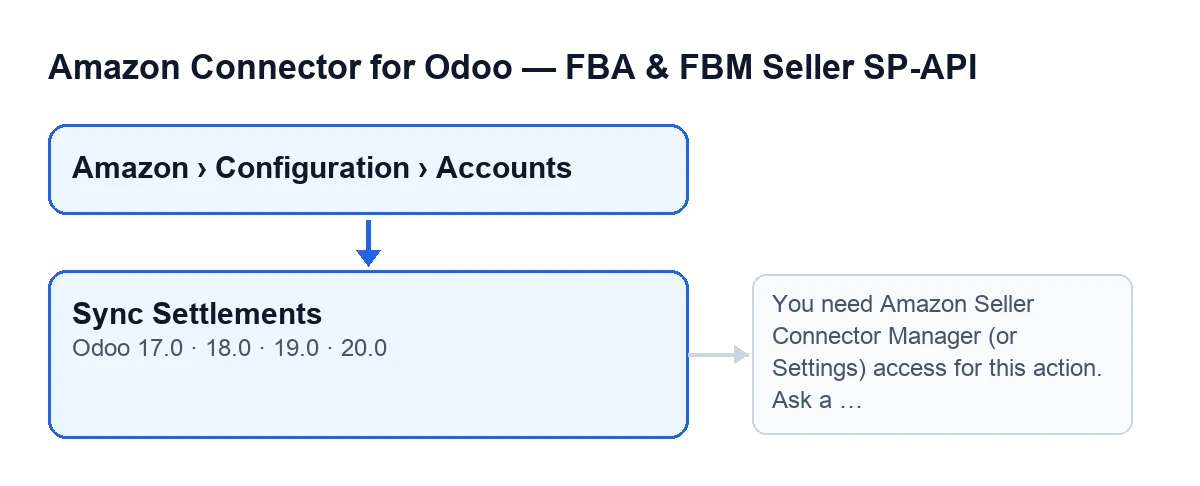
Whether you get to it depends on your user's permission on the menu. Tick these before you go looking:
- Your user can see the
Amazonbranch of the menu: that branch asks for theViewerpermission.
- Your user can see
Configurationand, inside it,Accounts: both ask for theManagerpermission. If you do not have one of those permissions, you do not see that branch of the menu.
- If the permission is missing, ask a manager to grant it before going further.
- Open the account you want to work with: the button acts on that account and no other.

First, what Odoo does on its own
The button is not the normal route. The module ships a scheduled task, Amazon SP-API - Sync settlements, which runs once a day and is active as soon as the module is installed. That task calls the same synchronisation as the button, so running it by hand is the exception: for when you want a pass now rather than waiting for the next one.
The task and the button are alike, but not identical:
- The task searches for accounts that are active and have settlement synchronisation switched on, and goes through them one by one. The button does not do that search: it goes straight to the account you have open.
- The task does not go through the button's permission check: it calls the synchronisation of each account directly.
- If the task fails on an account, it does not stop: it carries on with the other accounts. On the account that failed, it stores the time of the run and a result that starts with
Settlement cron error: ….
When you press it: what it checks and does, in order
This is the route the button's code follows in Odoo 20. Use it as a list to see where you are if something stops.
- Group permission. The module checks that your user belongs to the connector's manager group or to the Settings group. If not, the action stops with the message shown further down.
- Write permission. On top of the groups, the module checks that you can write on the account. It is a separate check: holding the group is not enough on its own.
- A single account. The action requires exactly one account, the one on screen.
- Synchronisation route. The synchronisation follows one of the two routes the module supports, depending on the settlement data source the account is set to. If the account has the second route selected, it uses that; in any other case, including when nothing is configured, it uses the default route.
- Wait. The action does not finish until the account's synchronisation hands control back.
- Final notice. When the synchronisation hands control back, the button shows the notice described in the next section.
What you will see when it finishes
If everything passes, a success notification appears titled Amazon settlements. Its message is the text the synchronisation returns; if it returns none, the message is Done.. It is not a sticky notification: it does not wait for you to close it.
- Read the notice text: if the synchronisation returned a result, that is what appears instead of
Done..
- If you see
Done., the synchronisation finished and returned no text.
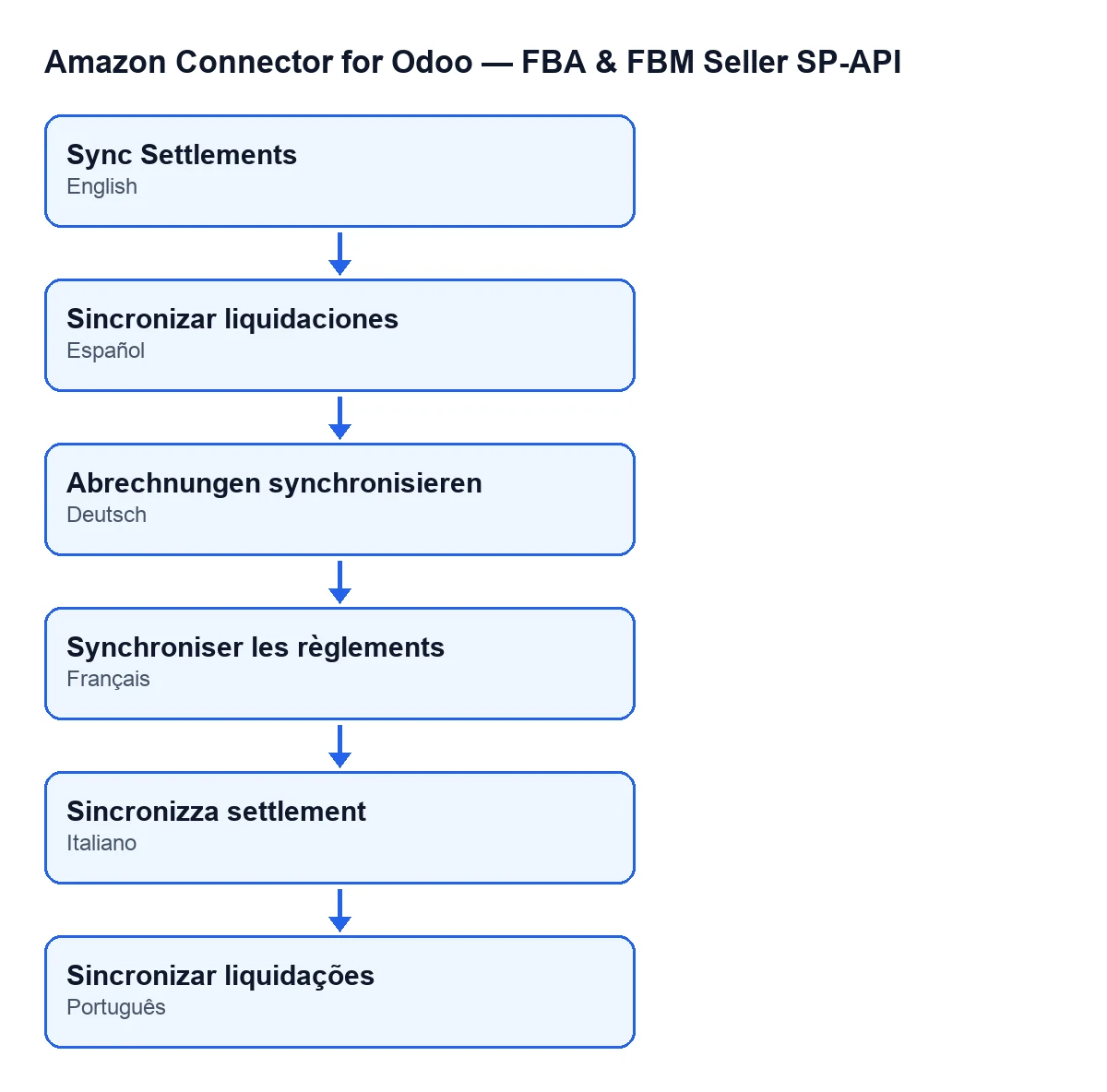
The button's label depends on your Odoo's language. With Odoo in English it is Sync Settlements.
The error it can give when you press it
When you press Sync Settlements, the permission check can stop the action with this message:
You need Amazon Seller Connector Manager (or Settings) access for this action. Ask a manager to grant Manager access.
It appears when your user is neither in the connector's manager group nor in the Settings group. Once it stops, the action goes no further: it never gets to choosing the synchronisation route or synchronising.
- Ask a manager to give you the connector's manager access, as the message itself says.
- Reopen the account from
Amazon › Configuration › Accountsand press the button again.
- If the notice is a success one, you have got past the permission check.
After you press it
- If you do not want synchronisation to depend on someone pressing the button, the
Amazon SP-API - Sync settlementstask runs once a day for active accounts that have settlement synchronisation switched on.
What it costs and how FlexigoTech helps
The module is a one-off purchase per Odoo version (17, 18, 19 and 20) and needs the FlexigoTech Cloud subscription, Connector plan: €49 a month or €490 a year, excluding VAT. The connection goes through FlexigoTech Cloud, which stores the credentials encrypted, watches the synchronisation and emails you if it fails. You can buy it on the module page.
If you are implementing Odoo and want to review your users' permissions or link Amazon to the rest of your processes, FlexigoTech implements Odoo 17, 18, 19 and 20 and builds custom connectors and integrations.
Keep reading
Checked in the connector's source code (version 20.0) and the linked sources
Sources
- Module source code: flexigobe_amazon_seller_connector 20.0 (8576afa5): views/amazon_spapi_account_views.xml
- Module source code: flexigobe_amazon_seller_connector 20.0 (8576afa5): models/amazon_spapi_account.py
- apps.odoo.com/apps/modules/20.0/flexigobe_amazon_seller_connector
- flexigotech.com/precios.html
- flexigotech.com/en/services.html