

 Español
 Català
 Deutsch
 Français
 Português
 Italiano
 Nederlands
 Polski
When exactly it appears
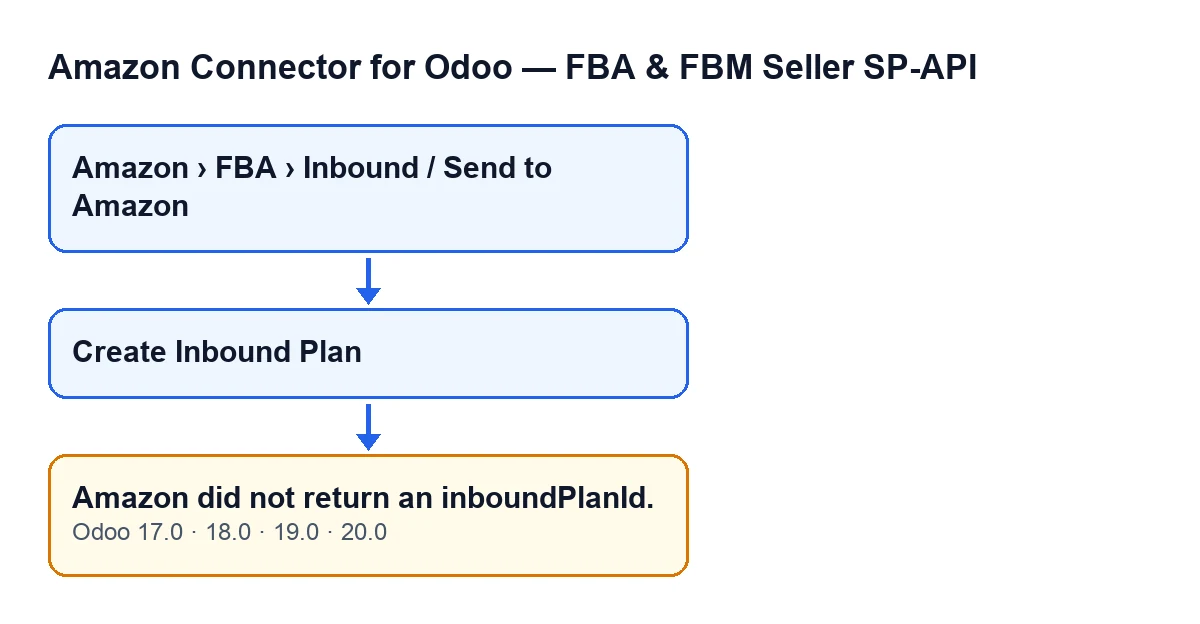
The message Amazon did not return an inboundPlanId. can appear when you press the Create Inbound Plan button on an inbound plan record. Those records open from the menu Amazon › FBA › Inbound / Send to Amazon, and every level of that menu asks for the Viewer permission: if you do not have it, you do not see that level.
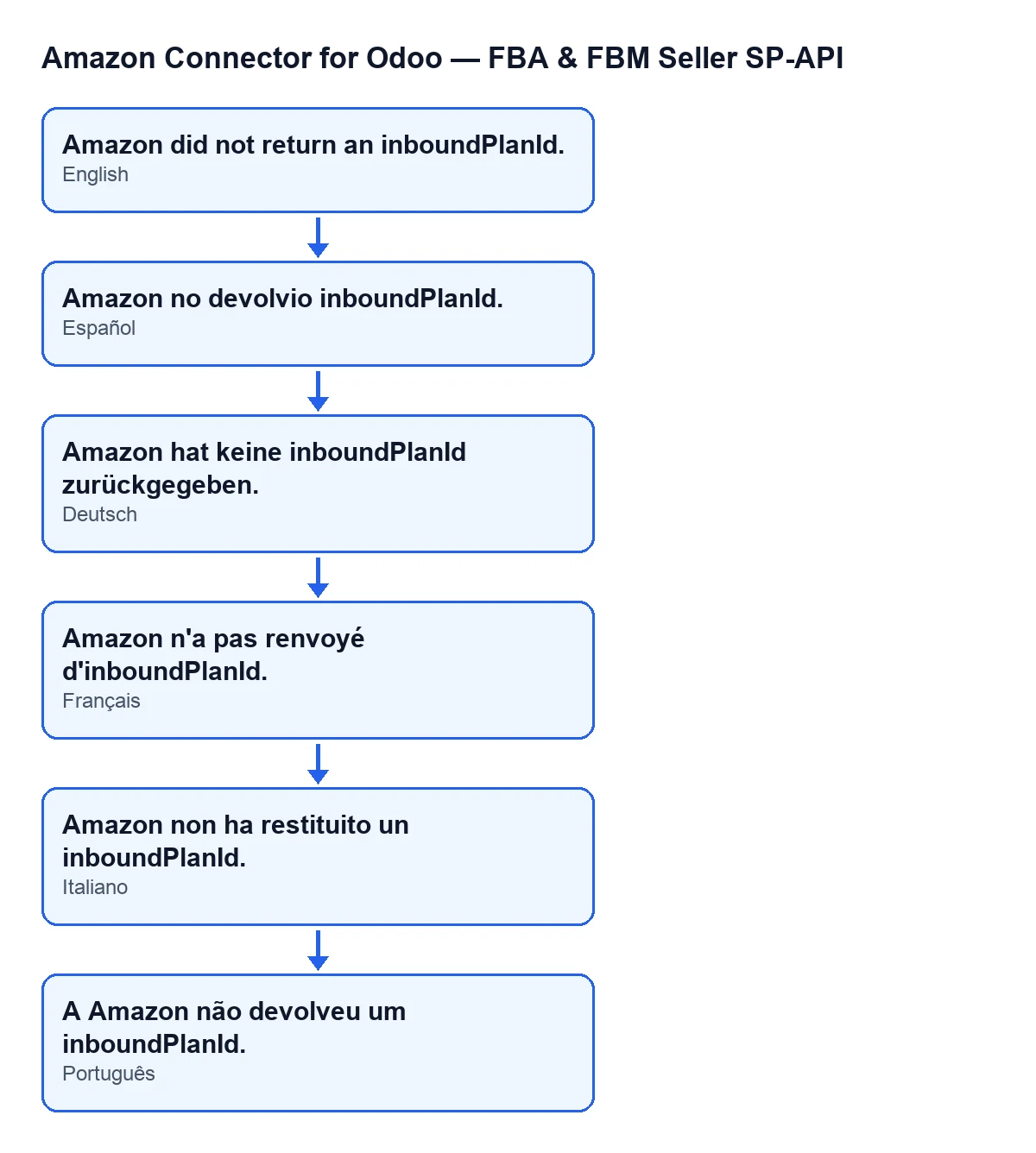
With Odoo in English, the message is Amazon did not return an inboundPlanId.; the diagram below puts it next to its text in the other languages the module is published in.
With the default values the button is visible. It is hidden when the plan already has a value in Inbound Plan or when State no longer has its default value. The condition is the same in Odoo 17, 18, 19 and 20.
The condition behind the message is a single one. After sending the request, the module takes the plan identifier from Amazon's reply and strips the spaces from it. If what remains is empty (the reply did not include it, it came back empty or it held only spaces), the module raises the message and the action stops. The message is in the published code of all four versions, 17, 18, 19 and 20. The sequence of steps is the one in the Odoo 20 code.

What the button does before it reaches the message
This is the order in the code when you press Create Inbound Plan:
- It checks that your user has operator access to the Amazon connector.
- It prepares the plan data: the name, the source address, the lines and the destination marketplace (the plan's own or, if it has none, the Amazon account's).
- It sends Amazon the request to create the inbound plan.
- It reads the plan identifier from the reply. If it is empty, it raises
Amazon did not return an inboundPlanId.and ends there. - If there is an identifier, it stores the identifier, the operation identifier if Amazon gives one, the result of the call and the sync time, and moves the plan to a plan-created state.
- If Amazon gave an operation identifier, the module waits for that operation to finish successfully. If it ends as failed, errored or cancelled, or is still pending after the attempts, the action stops with a different error and does not reach the next step.
- When there is no operation identifier, or the operation finishes successfully, it refreshes the plan with the data Amazon holds for it.
What is saved when it appears
The message stops the action, and saving happens after the check. So when this message appears, the identifier is not stored, nor is the result of the call, nor the state change. The plan still has no value in Inbound Plan and keeps the State it had.
A practical consequence follows from the view condition: the Create Inbound Plan button stays visible on the plan, because it is only hidden when Inbound Plan has a value or State has changed. You can press it again without changing anything else.
One detail about the order: the request had already gone to Amazon by the time the check runs. The message is about what the module receives: an empty or missing identifier.
An illustrative case
Example Illustrative case: the company and its figures are made up to explain the flow.
Cerámica Levante is an invented shop that sells on Amazon and is preparing its first shipment to an Amazon warehouse. Lucía, who works in logistics, opens Amazon › FBA › Inbound / Send to Amazon, starts a new plan, adds the lines and the source address details, and presses Create Inbound Plan.
Amazon did not return an inboundPlanId. appears. Lucía reads it calmly: the request went out, and what came back has no usable plan identifier. She looks at the plan: it is still a new plan and the Create Inbound Plan button is still there.
She reviews what the module sends (plan name, source address, destination marketplace and lines) and presses again. If this time the reply carries an identifier, the plan stores it and changes state, and the button disappears from the record. If the message repeats, Lucía notes the plan name, the time and the exact text, and passes it to whoever looks after the Amazon connection.
What the case shows: nothing is saved on the Odoo plan and the button stays visible; if the message repeats, it is worth keeping a record.
What to do when you see it
- Check that the
Create Inbound Planbutton is still visible on the plan. If it is, the plan still has no value inInbound Plan. - Go over the data the module sends to Amazon when creating the plan: the name, the source address, the destination marketplace and the lines.
- Press
Create Inbound Planagain. - If it appears again, note the plan name, the time and the message exactly as shown, and get in touch with us.
What to check if the next attempt works
- The
Create Inbound Planbutton disappears from the record:Inbound Plannow has a value andStatehas changed. - If Amazon gave an operation identifier, the module waits for that operation to finish successfully before refreshing the plan with the data Amazon holds for it.
Where we can help
FlexigoTech implements Odoo 17, 18, 19 and 20 and builds connectors and bespoke integrations. The module is published on Odoo Apps for 17.0, 18.0, 19.0 and 20.0: see its Odoo Apps listing or the module page. If the message keeps appearing on your installation, tell us which plan it was and what time you pressed the button.
Keep reading
Checked in the connector's source code (version 20.0) and the linked sources
Sources
- Module source code: flexigobe_amazon_seller_connector 20.0 (8576afa5): models/amazon_spapi_inbound_plan.py
- Module source code: flexigobe_amazon_seller_connector 20.0 (8576afa5): views/amazon_spapi_inbound_plan_views.xml
- apps.odoo.com/apps/modules/20.0/flexigobe_amazon_seller_connector
- flexigotech.com/en/services.html