

 Español
 Català
 Deutsch
 Français
 Português
 Italiano
 Nederlands
 Polski
The case: an access request at an accountancy firm
Example Illustrative case: the company and its figures are made up to explain the flow.
Asesoría Ribera, an accountancy firm invented for this example, receives a request from a person who wants to know which of their data appear in a client's invoicing. The firm's privacy officer works in Odoo with VeriFactu España (AEAT RRSIF Compliance) and has to pull that information out of the module.
The button is in the 17, 18, 19 and 20 branches of the module, which is published on Odoo Apps for those four versions. What follows describes the Odoo 20.0 code.
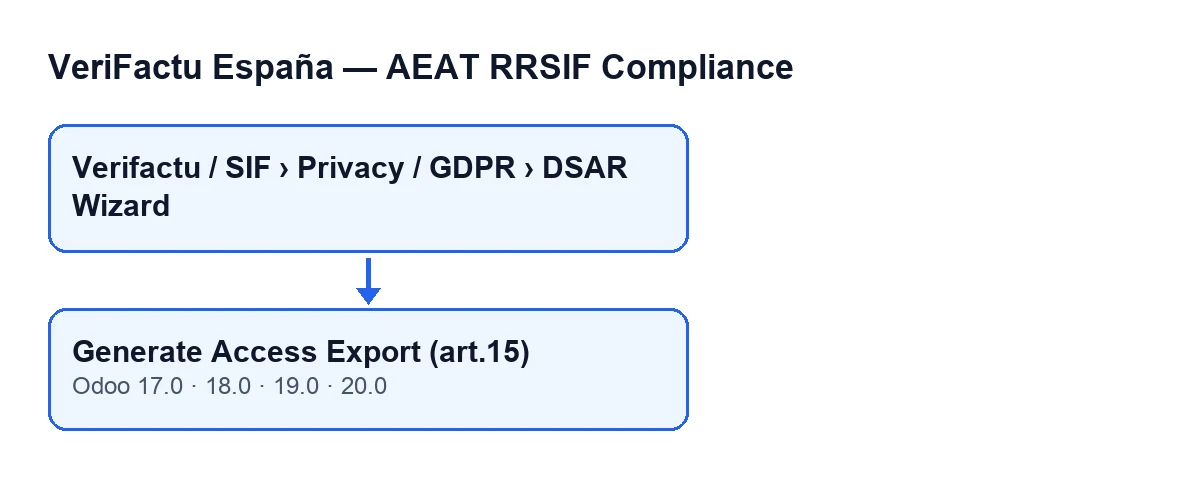
How she gets to the button
The form opens from Verifactu / SIF › Privacy / GDPR › DSAR Wizard. Each part of the menu asks for permissions, and if you lack one you do not see that part: Privacy / GDPR is visible to Privacy Officer and SIF Manager; Verifactu / SIF is also visible to Accountant, Asesoría Operator and Auditor (read-only).
Once on the form, the button does not depend on any view condition: it shows in all four versions. Her steps are these:
- Open the menu and go into the
DSAR Wizardform. The fields of the request are in theRequest Detailsgroup. - Look at the
Companyfield. By default it holds the active company, and the search runs only within the company shown there. - Type the person's NIF or name in
Data Subject NIF / Name. - If the firm keeps a file number, put it in
Request Reference. - Click
Generate Access Export (art.15).
The button's label changes with the language of Odoo. With Odoo in English it is the one above; with Odoo in Spanish, Generar Exportación de Acceso (art.15); with Odoo in Catalan, Generar Exportació d'Accés (art.15).
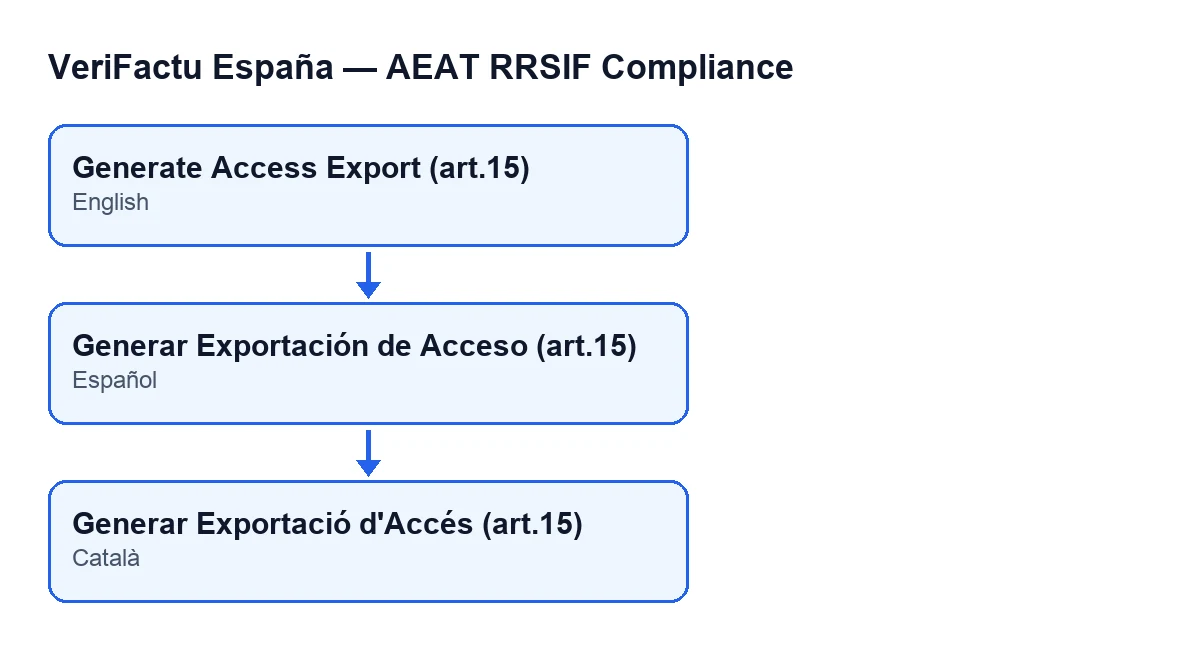
What the button does, in order
When clicked, the code does the following, one step after another:
- It takes the text typed in
Data Subject NIF / Name, strips the spaces from both ends and searches with it in the chosen company. - It builds the result, which holds the text you typed, the company name and two lists: the records and the cancellations found.
- It saves that result as a JSON file in the wizard itself, named
dsar_access_export_followed by the first twenty characters of what you typed and the extension.json. - It also tries to produce a PDF (see below for what the code does if that fails).
- It logs an event (next section).
- It reopens the same wizard form in a pop-up window, on the same record.
The code describes this extraction as reading the personal-data fields without altering any record in the chain.
What it searches and what it exports
| Block | Where it searches | What data it pulls |
|---|---|---|
| Records | The counterparty's identifier or name | Serial number, issue date, name, identifier type, identifier and total |
| Cancellations | Only the counterparty's identifier | Serial number, issue date and identifier |
The match is "contains", case-insensitive. If Asesoría Ribera types only part of a name, every record of that company whose name or identifier contains that part comes in. And if it types a name, cancellations are not searched by it, only by identifier.
What gets logged
After producing the file, the button creates an event in the module's event log, for the chosen company. The event carries the date and time, the user who clicked, a description with the NIF or name typed, the NIF or name and the request reference as context (the reference is left empty if you did not fill it in), a fingerprint computed over that data and a sequence number specific to the company.
The request reference goes to that event; the JSON export file does not include it. And the order matters: if generating the file stops with an error, the code never gets to log the event.
Other actions that leave events
The button's event is not the only one logged this way. When you save a company's form, if the AEAT environment, the person responsible for the SIF or the VeriFactu scope has been changed, an event is also left. In addition, the standard button for cancelling an invoice, which the module extends, and the scheduled task Verifactu: Clock Drift Check, which runs every hour and is active on install, reach that same log. For what the module adds to invoices, see this article.
The PDF the code tries to save
As well as the JSON, the code tries to produce a PDF from the same wizard and, if it succeeds, saves it as dsar_access_export_ plus the first twenty characters of what you typed and the extension .pdf. If that step fails, the code catches the error, writes a warning to the server log and carries on with the JSON and the event.
What to take from the case
- Confirm the
Companyfield before clicking: the search is limited to it. - Type the full NIF when you have it; a partial name can bring back more records than expected, and cancellations only come up by identifier.
- Fill in
Request Referenceif you want the event to carry it: the exported JSON does not include it.
How FlexigoTech can help
FlexigoTech implements Odoo 17, 18, 19 and 20 and builds custom connectors and integrations. If you want to review who should hold the permissions for the privacy menu, or adapt the module to your process, get in touch.
Keep reading
Checked in the module's source code (version 20.0) and the linked sources
Sources
- Module source code: flexigo_spain_verifactu 20.0 (1fdc980f): wizards/verifactu_dsar_wizard_views.xml
- Module source code: flexigo_spain_verifactu 20.0 (1fdc980f): wizards/verifactu_dsar_wizard.py
- Module source code: flexigo_spain_verifactu 20.0 (1fdc980f): models/res_company.py
- apps.odoo.com/apps/modules/20.0/flexigo_spain_verifactu
- flexigotech.com/en/services.html