

 Español
 Català
 Deutsch
 Français
 Português
 Italiano
 Nederlands
 Polski
What nobody tells you about the pickup time error
This message looks vague, but it depends on one operation, one button and two fields. These are the details that help you fix it first time.
It only appears in the create pickup reservation operation
The code only looks at the two times when the record is set up for the operation that creates a pickup reservation. Other operations skip that check, so if you see the message, the record you ran belongs to that operation. The text names two fields on the record, and that is where to look.
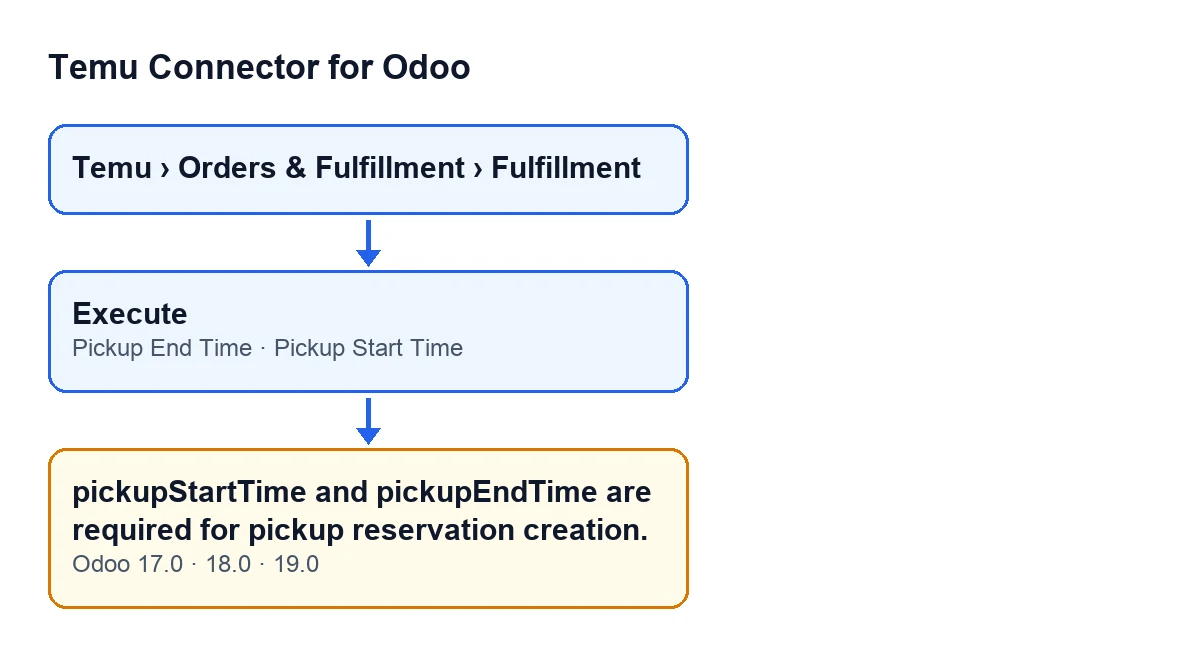
It appears when you press Execute, and the button is always visible
The message can appear when you press the Execute button on the record. In Odoo 17.0, 18.0 and 19.0 the button is always visible, whatever the state. Pressing it takes the code to the point where the request data is prepared, and that is where the message is raised if the condition is met. It is an error that stops the action: nothing goes further.
The condition: one of the two times is missing
In plain words, the message appears when the operation is the one that creates a pickup reservation and Pickup Start Time or Pickup End Time is empty. One missing value is enough. It is also the first check the code makes for this operation. The error text names both fields at once, so it does not tell you which one is missing: look at both.
Both fields are on the Fulfillment record
Records of this model open from the menu Temu › Orders & Fulfillment › Fulfillment. There you will find Pickup Start Time and Pickup End Time, both integer fields, so whatever you type has to be a whole number.
Once the check passes, the code also asks for a package list
When both times have a value, the code moves on to another check: that there is a package list. If there is not, it stops with a different message, not this one. If the list is also in order, the code prepares the request data with the two times, converted to whole numbers, and with at most 50 packages from that list. So filling in the times removes this message, but it does not guarantee the action finishes without further warnings.
With a request override, this check is not made
If the record has the request override content filled in, the code uses that content as the request data instead of building it from the fields, and it does so before looking at the operation, that is, before the time check. With that content filled in, this message cannot come from that record. If that content is not an object, the code stops with a different error. That is why two similar records can behave differently with the same empty times.
In other shipping operations the times are optional
In the buy shipping operations (create and retry), pickupStartTime and pickupEndTime can also travel in the request, but as optional data: the code adds them only when they have a value and does not raise this message for them. The warning about required times belongs to pickup reservation creation. Do not mistake it for a failure in those other operations.
It is in three branches, and the button text depends on the language
The message is in the published code of branches 17.0, 18.0 and 19.0. The module is published on Odoo Apps for 17.0, 18.0, 19.0 and 20.0. With Odoo in English the button is called Execute, and the module ships translations that change its text for other languages.

How to fix it
- Open
Temu › Orders & Fulfillment › Fulfillmentand go into the record you wanted to run. - Fill in
Pickup Start TimeandPickup End Time, both of them, with whole numbers. - Press
Execute. - If the message comes back, check that both fields kept their values and that the record is for the operation you thought it was.
If you want a second pair of eyes
FlexigoTech implements Odoo 17, 18, 19 and 20 and builds connectors and custom integrations. If you are setting up the Temu shipping flow and would like to go through it with someone, have a look at Temu Connector for Odoo and get in touch.
Keep reading
Checked in the connector's source code (version 19.0) and the linked sources
Sources
- Module source code: flexigobe_temu_connector 19.0 (455b3f0f): models/temu_fulfillment.py
- Module source code: flexigobe_temu_connector 19.0 (455b3f0f): views/temu_fulfillment_views.xml
- apps.odoo.com/apps/modules/19.0/flexigobe_temu_connector
- flexigotech.com/en/services.html