

 Español
 Català
 Deutsch
 Français
 Português
 Italiano
 Nederlands
 Polski
Where the button is and what Odoo does without you pressing it
Where does Import Carriers appear, and in which versions?
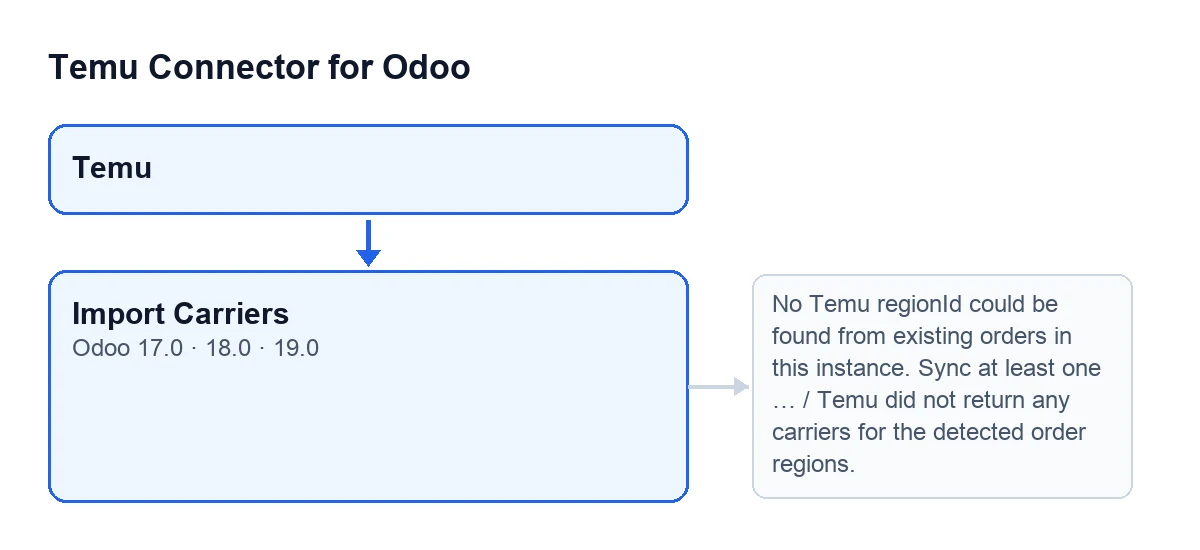
Instance records open from the Temu menu, and the button sits on the Temu Dashboard screen. It is always visible, with no dependence on any status, in Odoo 17, 18 and 19.
Does Odoo query Temu's carriers without me pressing anything?
The same query to Temu (the list of logistics companies for a region) can be triggered another way: when you save a delivery order and when you validate it (the module extends Odoo's standard validation), it may go and look for the Temu carrier that matches the order. If the carrier mapping line that applies already holds the Temu identifier, it uses that and does not query anything. If not, it asks for the companies in the order's region and looks for the one that best matches the Odoo carrier; when it finds one, it can fill in the identifier, code and name that were empty on that line. The button is the manual route: besides querying, it stores the list of carriers in Odoo.
What do I need before pressing it?
Temu orders already synchronised in that instance. The button looks at up to 200 orders of the instance (those with the most recent shipping sync first) and tries to get the region from each one: it looks for it in the order data and, if it is not there, it uses the order number, provided that whatever comes before the first hyphen is only digits. To those regions it adds the ones belonging to active carriers already imported. If no region comes out, the button stops (the first stop message, below).

What it does, step by step, when you press it
What does it ask Temu for and what does it store?
For each detected region it asks Temu for its logistics companies. From each row it takes the identifier, the code and the name; if the name is missing it uses the code or the identifier, and if all three are missing the row is discarded. Each new carrier is stored for that instance as an active record. A region whose response leaves no usable row is skipped and the next one is processed.
What happens to carriers that were already imported?
Each carrier is recognised by a key the module builds from its identifier, code and name. If it already exists, the button compares region, identifier, code, name and whether it is active, and writes only what has changed; each modified record counts as updated. If it does not exist, it is created. If you repeat the import and nothing has changed, those records are left untouched.
What changes on the Carriers tab?
On the Temu Dashboard record, the Carriers tab holds the Carrier Mapping field. Once the import is done, the button goes through its lines that do not yet have an imported carrier linked. For each one it looks among the active imported carriers: first by the line's Temu identifier, then by code, then by name (code and name are compared ignoring case and spaces at either end). If it finds one, it links the line and copies the carrier's identifier, code and name onto it. Lines that are already linked are left as they are, and lines with no match stay unchanged.
Import Carriers changes with the language of your Odoo.What message do I see when it finishes successfully?
A success notification titled Temu Carriers that does not stay fixed on screen. It summarises the regions imported and how many carriers were created, how many were updated and how many mapping lines were linked. The same summary is left as a message on the instance record.
The stop messages and what to do
What do I do if I get No Temu regionId could be found from existing orders in this instance. Sync at least one Temu order first.?
It appears when you press the button and no region could be obtained, either from the instance's orders or from active carriers already imported. It is the first thing the button checks, before asking Temu for anything. Synchronise at least one Temu order in that instance and press the button again. If you already have orders and the message keeps appearing, the region could not be obtained from them.
And if I get Temu did not return any carriers for the detected order regions.?
Regions were detected, but none of the queries to Temu returned usable carriers. It is enough for one region to return some for the message not to appear: the others are skipped. If it keeps happening, write to us and we will look at it with you.
Where can I see what each field on the form means?
Cost and how FlexigoTech can help
Temu Connector for Odoo is a one-off payment per version and is published for Odoo 17, 18, 19 and 20; it needs the FlexigoTech Cloud subscription, Connector plan (€49 a month or €490 a year excluding VAT, up to 3 accounts). The connection goes through FlexigoTech Cloud, which stores the credentials encrypted, monitors synchronisation and emails you if it fails. You can find the module on Odoo Apps and its page on flexigotech.com. If you are implementing Odoo and want the carrier mapping ready, FlexigoTech implements Odoo 17, 18, 19 and 20 and builds custom connectors and integrations.
Keep reading
Checked in the connector's source code (version 19.0) and the linked sources
Sources
- Module source code: flexigobe_temu_connector 19.0 (455b3f0f): views/temu_instance_views.xml
- Module source code: flexigobe_temu_connector 19.0 (455b3f0f): models/temu_instance.py
- Module source code: flexigobe_temu_connector 19.0 (455b3f0f): models/stock_picking.py
- Module source code: flexigobe_temu_connector 19.0 (455b3f0f): models/temu_carrier_map.py
- Module source code: flexigobe_temu_connector 19.0 (455b3f0f): models/fgt_cloud.py
- apps.odoo.com/apps/modules/19.0/flexigobe_temu_connector
- flexigotech.com/precios.html
- flexigotech.com/en/services.html