

 Español
 Català
 Deutsch
 Français
 Português
 Italiano
 Nederlands
 Polski
Where it is and what happens when you press it
The Sync FBA Fulfilled Shipments button is on the Accounts screen, which you reach through Amazon › Configuration › Accounts. The Amazon menu level asks for the Viewer permission; the Configuration and Accounts levels ask for Manager. The button exists in the 17, 18, 19 and 20 branches and is always visible.
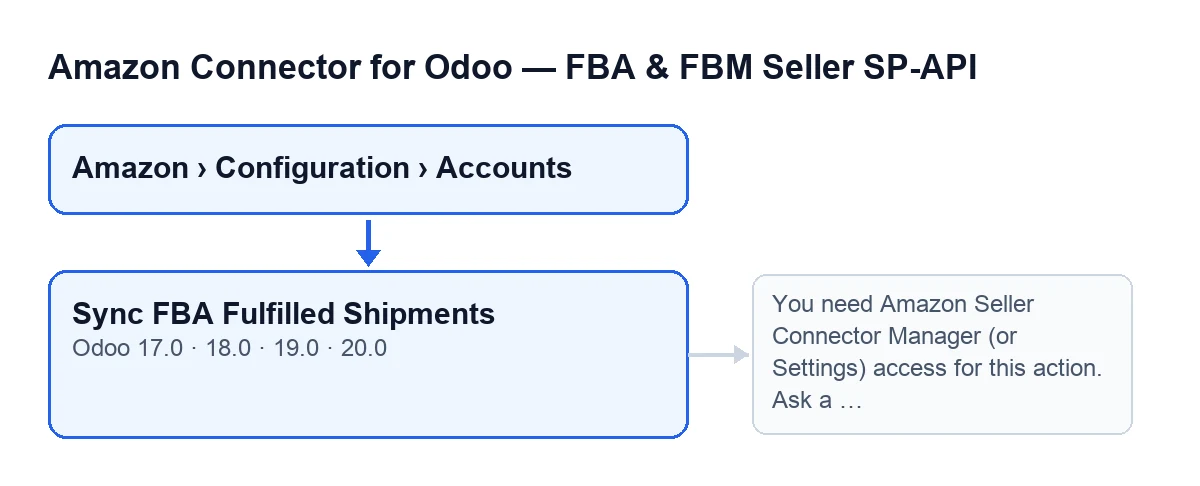
When you press it, the module first checks permissions: it lets you through if you are in the connector's manager group or have Settings access, and it also checks that you can write to the account. It then starts the sync for that account, marked as manual. According to the Odoo 20 code, the sync follows this order:
- If the module returns a prior note, it records the note on the account and stops before requesting the report from Amazon.
- If the account's opt-in checkbox is not ticked, it records
Sync of shipped FBA shipments is disabled on the account.and stops. - It asks Amazon for an FBA shipments report.
- It checks the report's status several times, waiting between checks. It stops checking when Amazon marks the report as finished, cancelled or failed, or when the attempts run out.
- If the report is not ready, it records the status and stops without importing anything:
Amazon did not generate a usable dispatched FBA shipments report.if it is cancelled or failed, orReport polling timed out. Try again in a few minutes.if the attempts ran out. - If the report is done but has no document, it records
DONE report without reportDocumentId.and stops. - If it has a document, it downloads it and hands it to the importer for FBA shipment lines.
When it ends because of the prior note, the unticked checkbox, an unusable report or a report without a document, the module saves the date and the result on the account. If you started it with the button, it also leaves that result as a message on the account; the scheduled task does not leave the message.

Wrong ideas about the button
Myth: "The button is the normal way to bring in FBA shipments"
The reality is different: there is an automatic path. The scheduled task Amazon SP-API - Sync dispatched FBA shipments runs every 30 minutes and is active on install. It takes the active accounts that have the Sync FBA fulfilled shipments (opt-in) checkbox ticked and runs the same sync, with the scheduled task as its source and without leaving a message on the account. If an account fails, the module logs it on the server, stores the error on that account and carries on with the others. The button is for running it by hand at that moment.
Myth: "Pressing it switches on sync for the account"
It does not. The Sync FBA fulfilled shipments (opt-in) checkbox is unticked by default and the button does not tick it. If it stays unticked, the sync records that it is disabled on the account and stops without requesting the report. The checkbox is on the Accounts form, in the FBA & Stock tab, in the group FBA Inventory Sync (ON by default) · Fulfilled Shipments (opt-in). Its help reads: "Reads actually dispatched FBA shipments from Amazon using Reports API."
Myth: "Anyone who sees the Amazon menu can press it"
A user with Viewer sees Amazon, but Configuration and Accounts ask for Manager. On top of that, the module checks the permission again when you press. If you are neither in the connector's manager group nor have Settings access, the action stops with this message:
You need Amazon Seller Connector Manager (or Settings) access for this action. Ask a manager to grant Manager access.
The fix is what the message says: ask a manager to give you the access. The button is always visible, so what holds you back is that check, not its visibility.
Myth: "The shipments appear the instant you press it"
The module does not read the shipments directly: it asks Amazon for a report and checks its status until it is ready. If Amazon cancels it, it fails or it does not finish within the status checks, that run ends without importing anything and leaves the status recorded. You can start it again with another press; the scheduled task also repeats it on accounts with the checkbox ticked.
In the same group of the FBA & Stock tab there is another checkbox, FBA shipments: auto-update Odoo orders, ticked by default. Its help reads: "If enabled, linked Odoo orders are marked PartiallyShipped/Shipped only when Amazon reports actual FBA dispatch."
Myth: "The button only exists in the latest version"
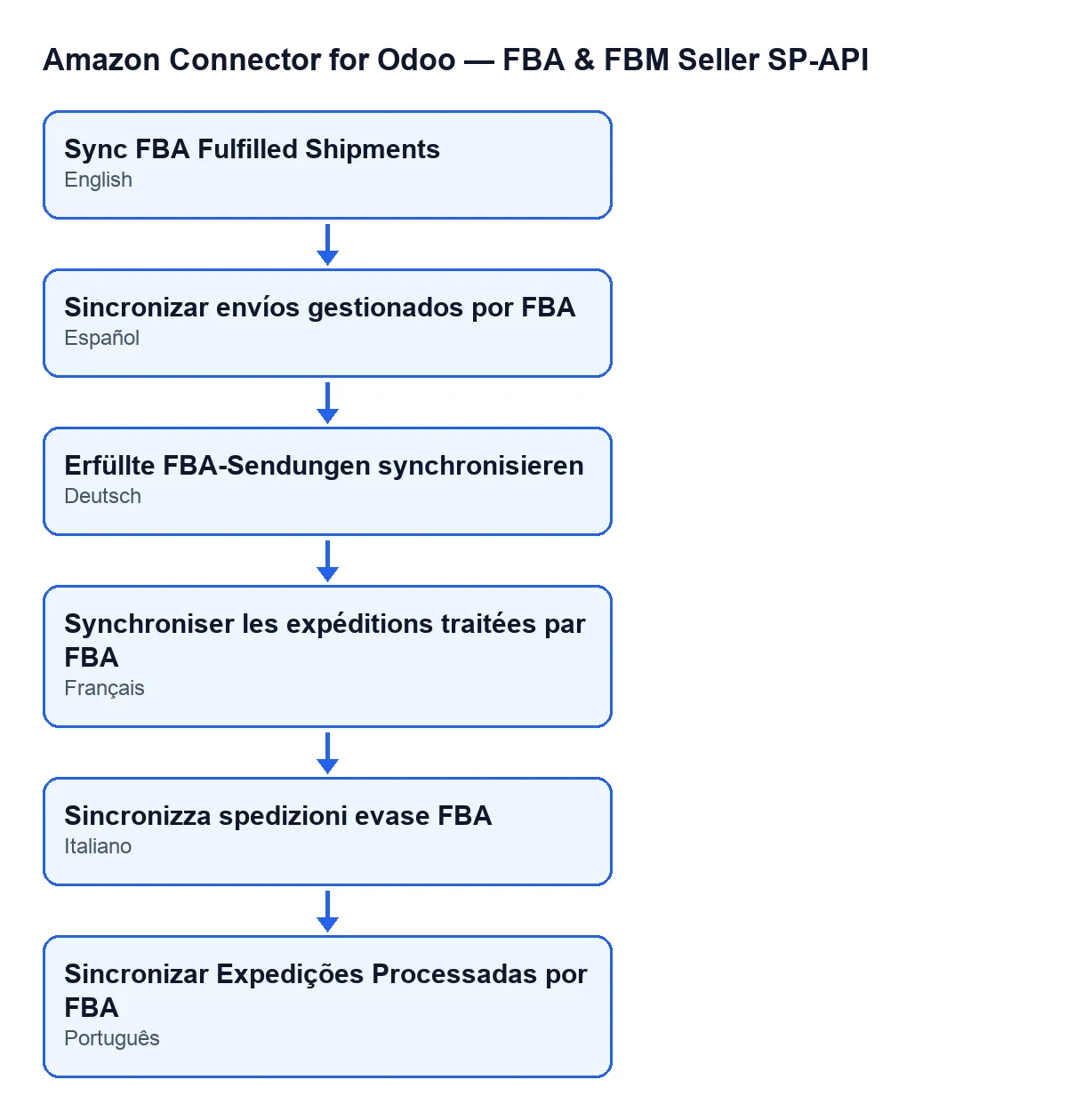
It is in the 17, 18, 19 and 20 branches. Its label depends on the language of your Odoo, because the module ships published translations; with Odoo in English you will see Sync FBA Fulfilled Shipments.
What to check after the first press
Open the account form under Amazon › Configuration › Accounts and check in the FBA & Stock tab that the opt-in checkbox is set the way you want. If the run ended without importing, read the result left on the account, which says why it stopped. If your user gets the permissions message, ask a manager to give you the access or to make the change.
Cost and how FlexigoTech can help
The module is a one-off payment per Odoo version and needs the FlexigoTech Cloud subscription, Connector plan: €49/month or €490/year excluding VAT, up to 3 Amazon accounts. That connection stores the credentials encrypted, monitors the sync and emails you if it fails. It is published on Odoo Apps for 17.0, 18.0, 19.0 and 20.0 (listing); there is also the module page.
FlexigoTech implements Odoo 17, 18, 19 and 20 and builds custom connectors and integrations, in case you need to adapt this flow to your company.
Keep reading
Checked in the connector's source code (version 20.0) and the linked sources
Sources
- Module source code: flexigobe_amazon_seller_connector 20.0 (8576afa5): views/amazon_spapi_account_views.xml
- Module source code: flexigobe_amazon_seller_connector 20.0 (8576afa5): models/amazon_spapi_account.py
- apps.odoo.com/apps/modules/20.0/flexigobe_amazon_seller_connector
- flexigotech.com/en/services.html
- flexigotech.com/precios.html