

 Español
 Català
 Deutsch
 Français
 Português
 Italiano
 Nederlands
 Polski
Before you press it: where it is and what Odoo does on its own
The instance form opens from the Sales menu: go into Shopify, then Control Center, then Instances. The Sync Products button is in the 17, 18, 19 and 20 branches of Odoo and, according to its view condition, it is always visible.
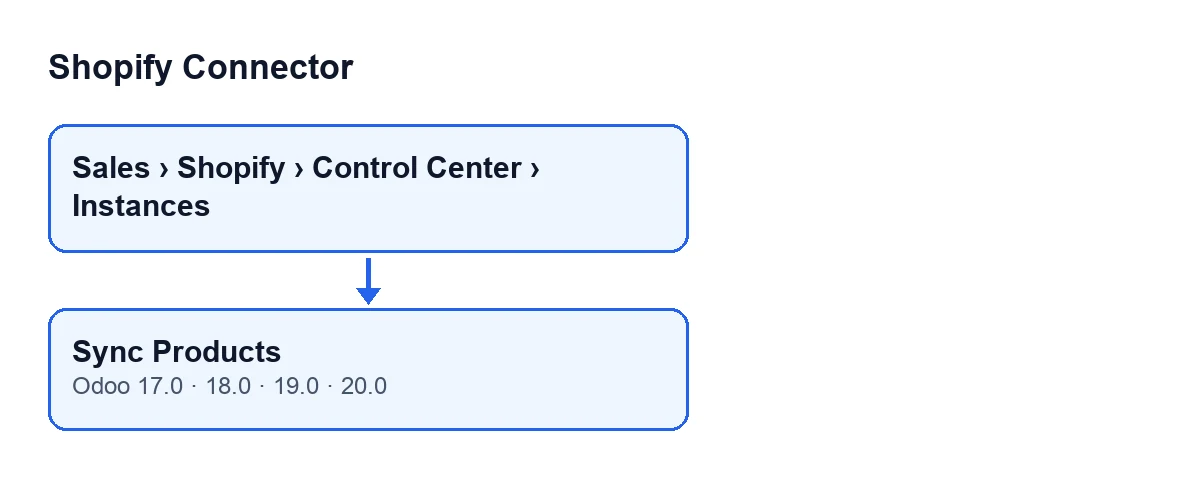
The button is not the only route. What it does is also done by the scheduled action Shopify Sync Products, every hour, which is switched off when the module is installed. What follows describes the code published for Odoo 20.0.
- Decide whether the scheduled action
Shopify Sync Products(every hour, switched off on install) is enough for you: if you do not switch it on, you can launch the product sync with this button.
- Open the instance form and note the value of
Last Product Sync. It shows on the form and in the instances list, read-only: the module writes it, not you.
- On the
Operationstab, in theSync Settingsgroup, reviewPage Size(50 by default) andMax Pages(20 by default). If you enter less than one in either, the module uses one.
- If the instance does not go through FlexigoTech Cloud, the code requires an access token on the instance before sending anything.

What the button does, in order
- It creates a sync log for the instance, of the products type, marked as running.
- It prepares the query to Shopify. It asks for products sorted by update date and, for each one, among other data: title, vendor, product type, status, description, tags, update date, featured image, options and up to 250 variants with their SKU, price, compare-at price, barcode and inventory quantity.
- It decides the filter. If
Last Product Syncis empty, it applies none. If it has a date, it asks only for products updated in Shopify since that moment. - It calls Shopify page by page, with pages of the size in
Page Size, passing the previous page's cursor on each call. - It hands each product received to the module's Shopify product binding and adds it to the total.
- It stops when Shopify says there are no more pages or when it reaches the number of pages in
Max Pages. - It writes the current date and time into
Last Product Syncand closes the sync log, with the total counted as products updated.
One detail on the last step: the date is written on leaving the loop, whether there were no more pages or it was cut short by Max Pages. The next run therefore starts from that date. Keep this in mind when setting Page Size and Max Pages for a shop with many products.
What the call to Shopify does
- If the instance goes through FlexigoTech Cloud, the request passes through the service, which adds the token it keeps (and renews). Odoo does not connect to the shop and never receives the token.
- Without that route, Odoo calls Shopify with the instance's token.
- If Shopify answers that you have exceeded its request limit, the call waits (the time Shopify indicates or a few seconds, capped at thirty, and longer on each retry) and tries again. It makes up to three attempts.
- If Shopify rejects the token on the first attempt and the instance has a refresh token, the module repeats the call once, with whatever token the instance holds at that point.
- Any other error response, a response containing errors or a response containing user errors stops the action with that error. It also stops if the retries run out.
If it fails: what changes and what does not
- On an error, the module marks the sync log as failed, stores the error text in it (trimmed if very long) and raises the error again, so the action stops.
- In a failed run,
Last Product Syncis not updated: that step comes after the loop.
- If FlexigoTech Cloud pauses the run, the module deletes that run's log (it is not left as failed) and the action stops all the same.
After you press it: what to check
Last Product Syncshows the current date and time on the form and in the instances list.
- If your shop has more products than fit in
Page SizetimesMax Pages, remember that the date is still written and that the next run asks only for what was updated since then.
- Check what the button is called in your Odoo language. With Odoo in English it is
Sync Products; the other published translations are in the diagram.
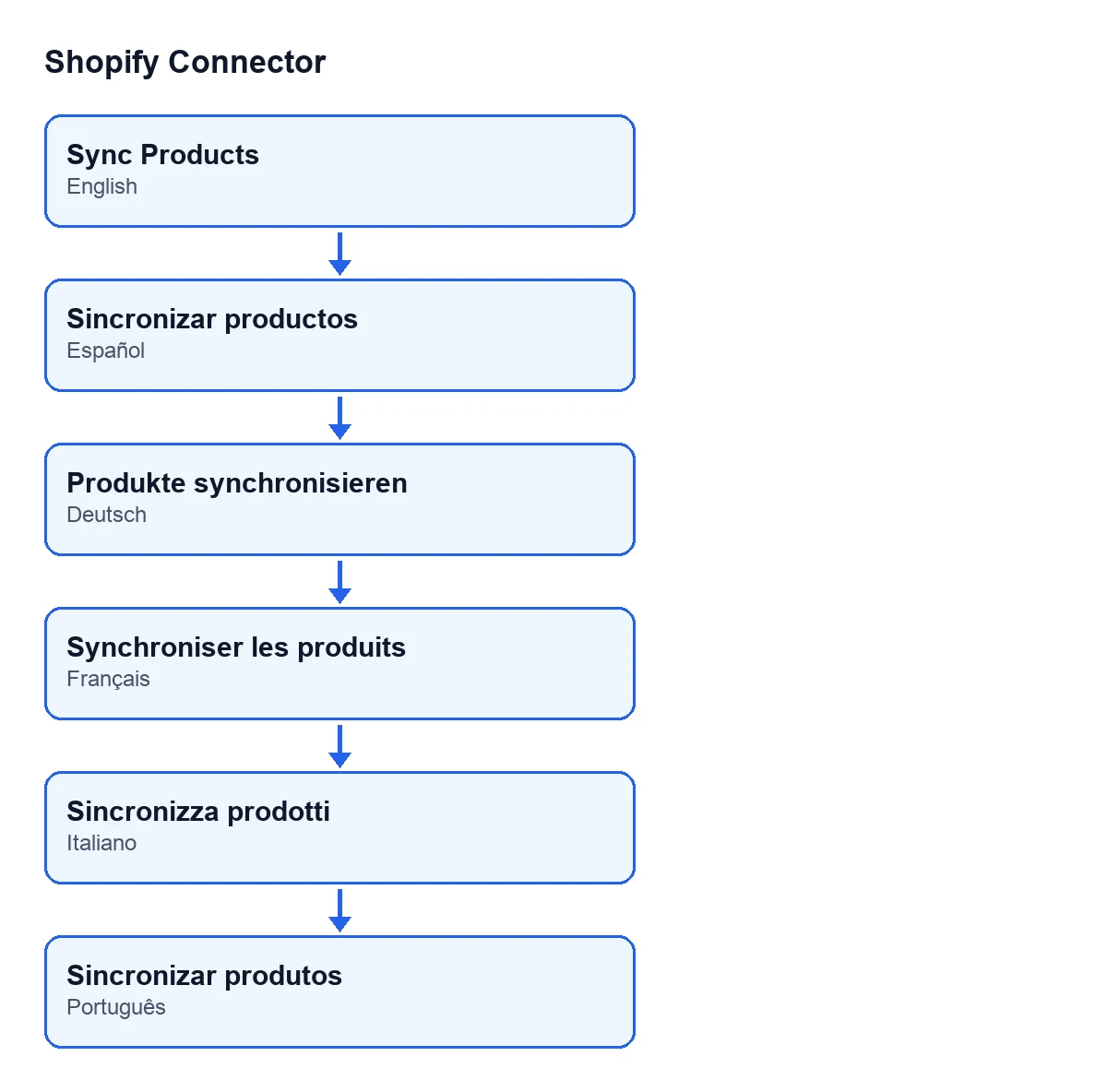
Sync Products; in German, Produkte synchronisieren; in French, Synchroniser les produits; in Italian, Sincronizza prodotti; in Portuguese, Sincronizar produtos.For Shopify stock there is another article: what the «Pull Stock» button does.
Price and help
Shopify Connector costs €9 per Odoo version, excluding VAT, as a one-off payment (for 17, 18, 19 and 20; see the listing), and it needs the FlexigoTech Cloud subscription: Connector plan, €49/month or €490/year excluding VAT.
If you are implementing Odoo and want product sync set up properly, FlexigoTech implements Odoo 17, 18, 19 and 20 and builds connectors and custom integrations.
Keep reading
Checked in the connector's source code (version 20.0) and the linked sources
Sources
- Module source code: flexigobe_shopify_connector 20.0 (c7078cd8): views/shopify_instance_views.xml
- Module source code: flexigobe_shopify_connector 20.0 (c7078cd8): models/shopify_instance.py
- Module source code: flexigobe_shopify_connector 20.0 (c7078cd8): models/fgt_cloud.py
- apps.odoo.com/apps/modules/20.0/flexigobe_shopify_connector
- apps.odoo.com/apps/modules/17.0/flexigobe_shopify_connector
- apps.odoo.com/apps/modules/18.0/flexigobe_shopify_connector
- apps.odoo.com/apps/modules/19.0/flexigobe_shopify_connector
- flexigotech.com/precios.html
- flexigotech.com/en/services.html